Quick Python Workflows
The fastest path from “I need to do X” to a running automation. Describe a one-off task, let AI write the Python for you, review it, and run it immediately — or save it as a reusable workflow.
What it does
Quick Python turns a plain-English description into a Python script that runs against the Versus versus SDK — the same SDK available to Python Script steps inside full workflows. It’s ideal for the ad-hoc jobs that don’t warrant building a whole canvas: pull a value off a set of devices, generate a quick report, email a summary, or make a targeted change. You review and edit the generated code before anything runs, then choose whether to keep it.

Click the ⚡ button to open Quick Python Workflow. In Task description, write what you want in plain English — name the specific devices, values, or recipients where you can. Then click Generate Script (or press Ctrl + Enter).
For example: “Email me the current uptime and version of the core switches sw-core-01 and sw-dist-02.”

In a few seconds the dialog shows the Generated Python script in a full code editor. The code uses the Versus SDK — for example versus.devices(hostname=...) to resolve devices from inventory and versus.log(...) to write to the run log. Read it, and edit anything you like directly in the editor. Not quite right? Click Regenerate to have the AI take another pass (it can also refine the script it already produced).
Optionally give it a Workflow name — used only if you choose to save it.
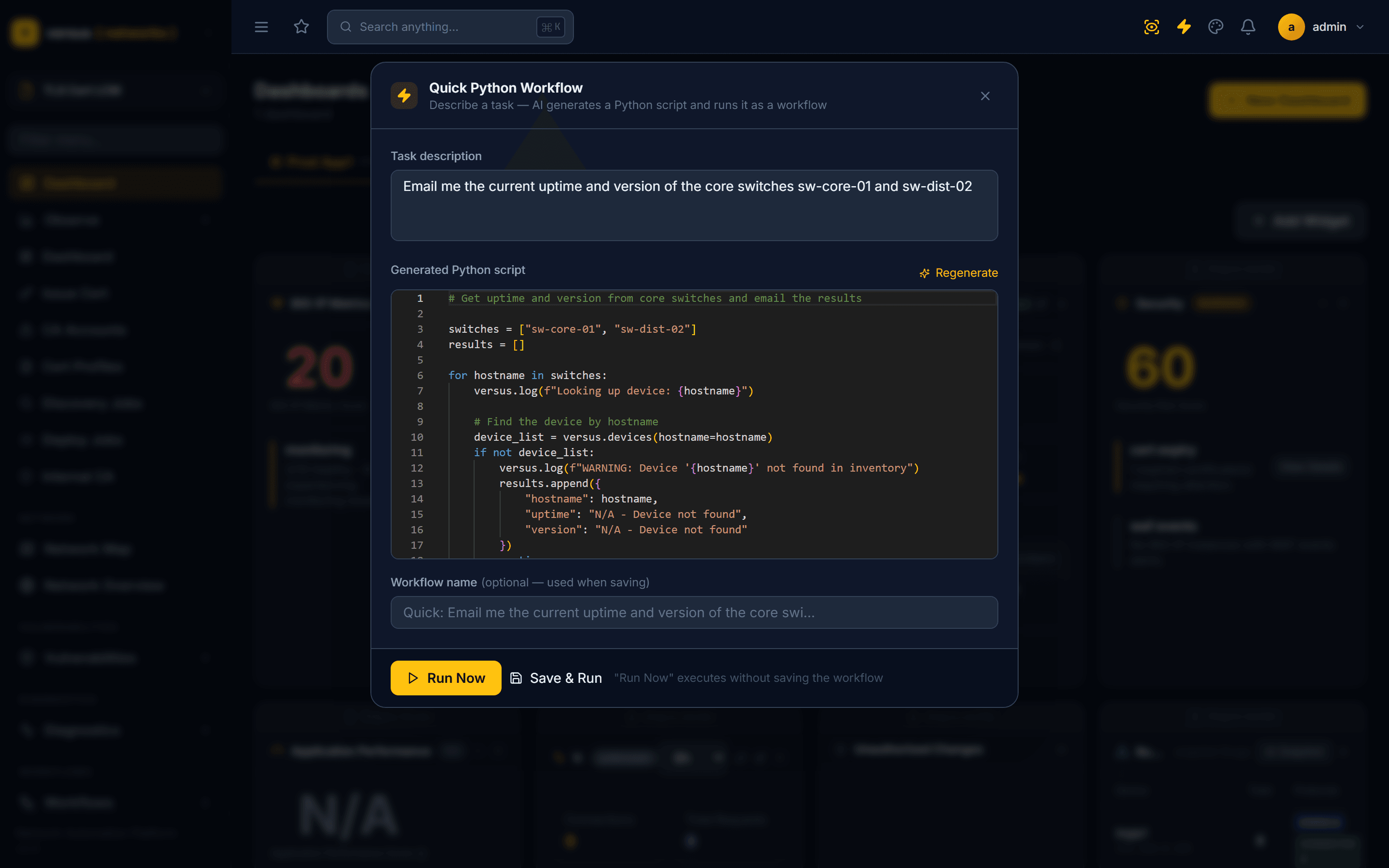
You have two ways to execute it:
- Run Now — executes the script immediately without saving a workflow. Perfect for a genuine one-off. You’re taken straight to the live run so you can watch output and logs.
- Save & Run — saves the script as a reusable workflow (a single Python Script step wrapped in Start → Script → End) and then runs it. It now appears in the Workflow Builder where you can extend it, and in the Workflows list where you can re-run or schedule it.
Either way, you land on the run detail page with step-by-step status and the full output log.
Quick Python vs. the AI Workflow Generator
Both start from a plain-English prompt, but they produce different things:
| Quick Python | AI Workflow Generator | |
|---|---|---|
| Produces | One Python script | A multi-node workflow on the canvas |
| Best for | Ad-hoc, single-purpose tasks | Reusable, multi-step automations |
| Run without saving? | Yes — “Run Now” | No — always saved first |
| Where to launch | ⚡ in the top bar (any page) | Workflows → Generate with AI |
Tips
- Name devices explicitly — “sw-core-01”, “bigip-prod-01” — so the script resolves them from inventory rather than guessing.
- State the output you want (“email me”, “write a CSV”, “log a summary”) to get the right final step.
- Iterate with Regenerate before running — it’s cheaper to refine the prompt than to fix a bad run.
- Save the ones you’ll reuse — a Save & Run workflow can be scheduled, extended with more steps, and gated with approvals.
Quick Reference
| Action | How |
|---|---|
| Open Quick Python | Click ⚡ in the top bar (any page) |
| Generate the script | Describe the task → Generate Script (or Ctrl + Enter) |
| Refine it | Edit inline, or click Regenerate |
| Run one-off | Run Now — executes without saving |
| Keep it | Save & Run — creates a reusable Python Script workflow |
| Extend later | Open the saved workflow in the Workflow Builder |
Related
- Workflow SDK Reference — the
versusandintegrationsobjects your script can call. - AI Workflow Generator — generate a full multi-step workflow from a prompt.
- Fork & Extend a Built-in Workflow — customize a shipped workflow.
- Workflow Builder — the visual canvas for building and extending workflows.