Workflow Builder
Visual, drag-and-drop workflow canvas with Action, Decision, Approval, Section, Delay, and End nodes — build, run, and monitor network automation workflows.
Overview
The Versus Workflow Builder is a visual, drag-and-drop canvas for building network automation pipelines. Workflows are made up of nodes — discrete units of work — connected by edges that define execution order. Every workflow starts from a single Start node and is triggered manually from the Workflows list (workflows can also be put on a recurring Schedule — see Schedules under Workflows in the sidebar).
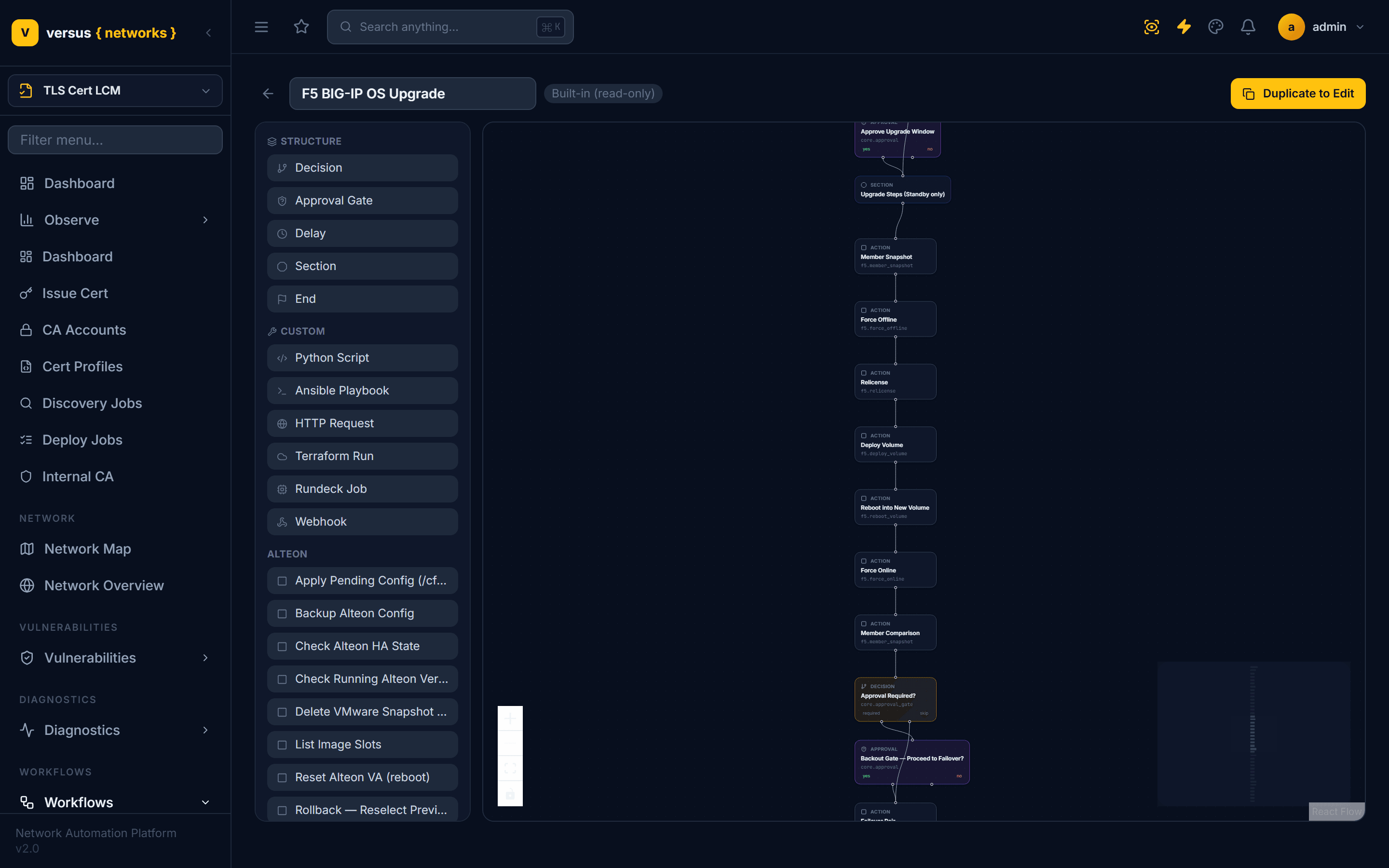
Versus ships a large library of Built-in workflows — HA firmware upgrades, certificate issuance and renewal, firewall rule change management, decommissioning, security audits, unauthorized change investigation, and more — covering F5 BIG-IP, NetScaler, Palo Alto, Check Point, Alteon, Cisco, CrowdStrike, ServiceNow, and other integrations out of the box. Built-in workflows open in the same canvas editor in a read-only mode (marked Built-in (read-only)), so you can study exactly how they're built before creating your own.
The Workflows List
Workflows → All Workflows shows every workflow in the tenant, grouped into collapsible categories (F5 BIG-IP, NetScaler, Palo Alto Firewall, Certificate Management, Security, and so on) with a count next to each category heading. A Search workflows… box filters the list by name across all categories.
Each card shows the workflow's icon, name, category, a Built-in badge if it ships with Versus, a short description, and how many times it has run. Two actions sit on every card:Edit canvas opens it in the canvas editor, and Run starts a new execution immediately. A star icon lets you favorite a workflow for quick access.
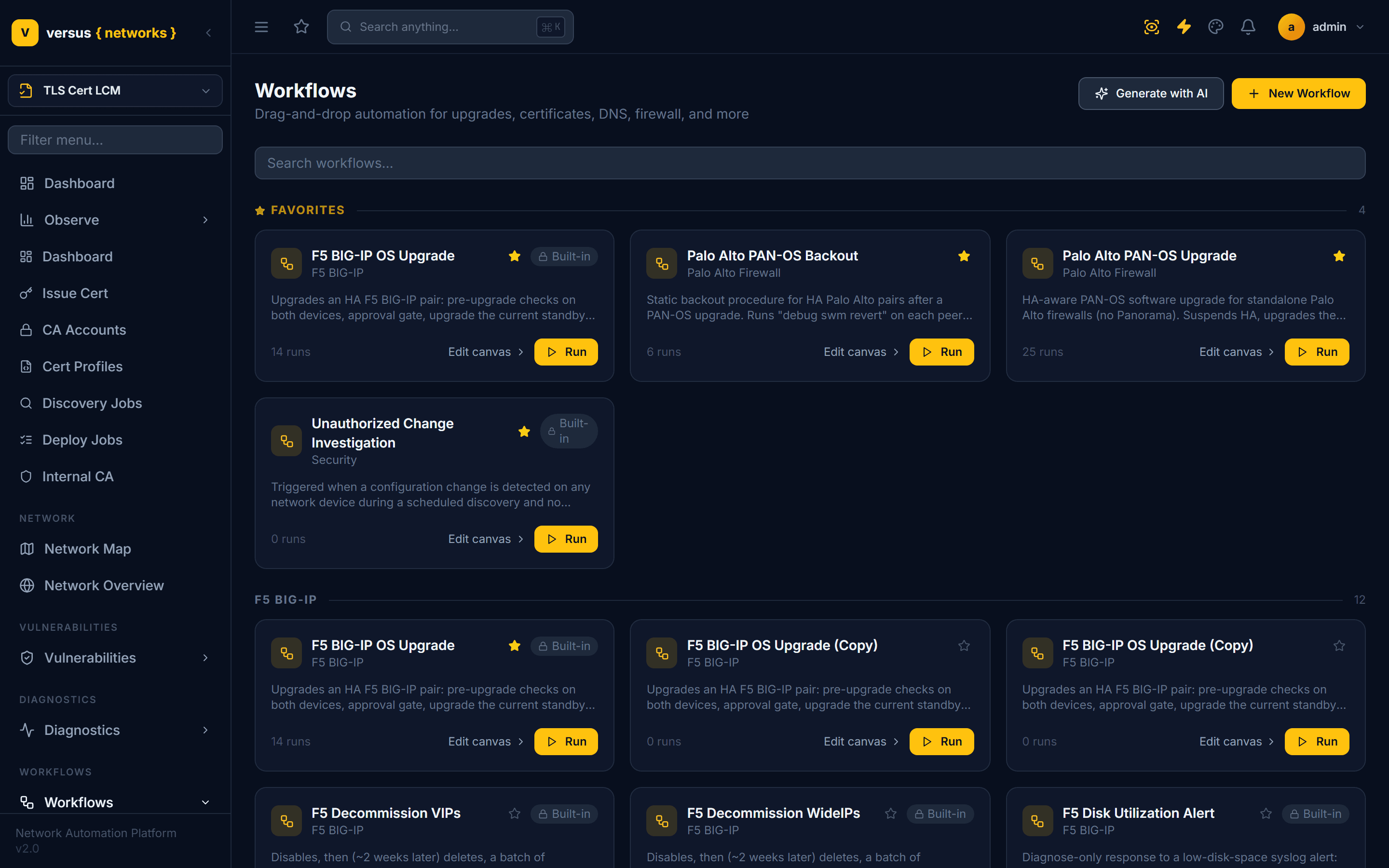
Two buttons sit above the list: New Workflow (covered below) and Generate with AI, which drafts a workflow from a plain-language description — see AI Workflow Generator.
Node Types
The canvas supports seven node types. Action nodes come from a searchable step library on the left; the rest — Decision, Approval Gate, Delay, Section, and End — live under a Structure group in that same panel (Start is placed automatically and isn't something you add):
- Start — the entry point; every workflow has exactly one, created automatically. It represents the values collected on the "Run workflow" form when someone starts a run.
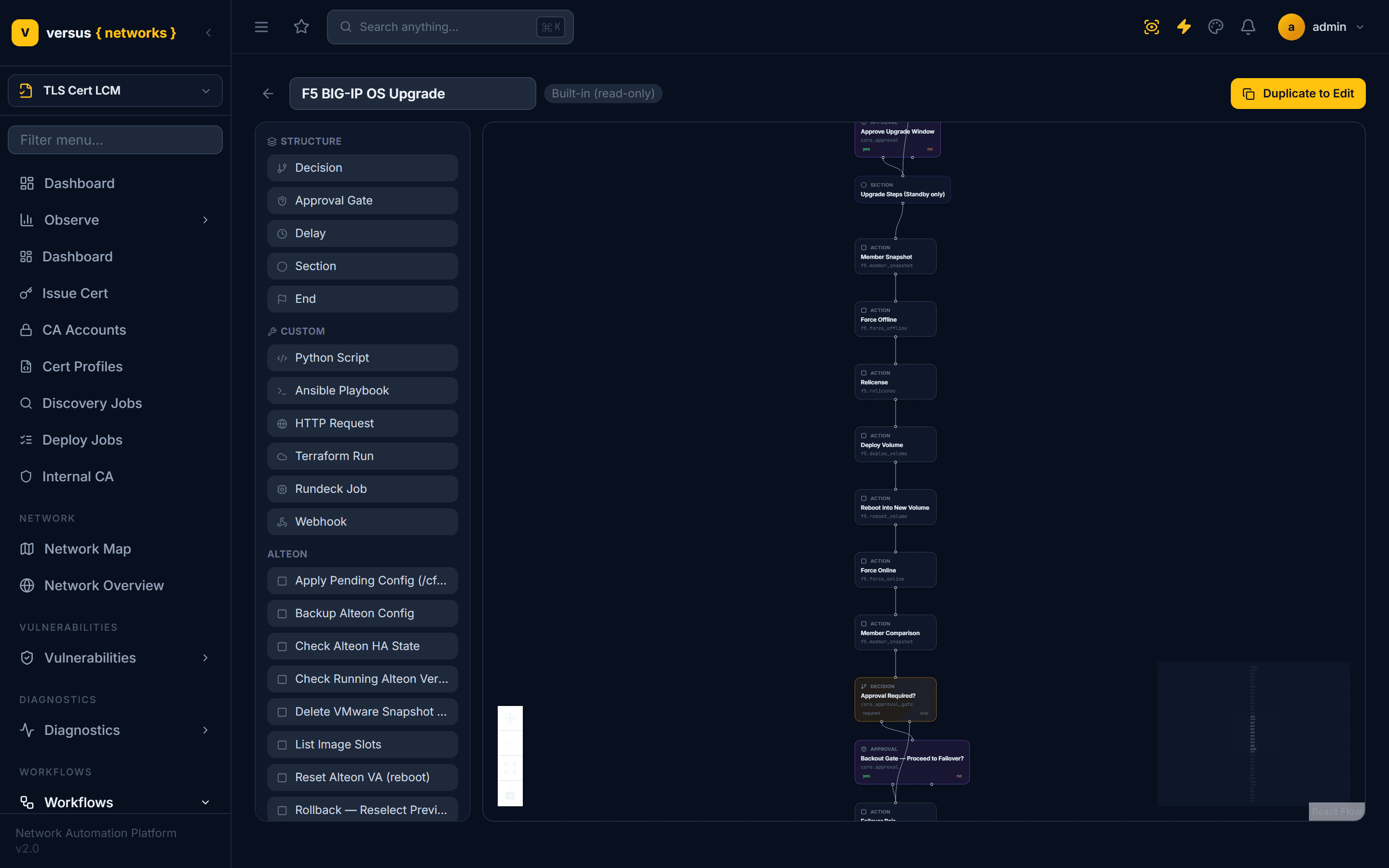
- Section — a visual grouping node with a label; does not affect execution. Built-in workflows use it heavily to organise long procedures into named phases, e.g. "Pre-Upgrade Steps (both devices)", "Upgrade Steps (Standby only)", "Post-Upgrade Steps (both devices)".
- Action — executes one step from the step library (e.g. an F5
force_offlinestep, a NetScalersave_and_syncstep, a ServiceNow change check). The most common node type. - Decision — branches down a green yes or red no path based on a boolean flag collected on the workflow's run-creation form (e.g. an optional checkbox) — not a live expression evaluated against step output.
- Approval Gate — pauses the run until a human approves or rejects it (e.g. a ServiceNow change approval), then branches green yes / red no.
- Delay — pauses execution for a configured duration before the next node runs.
- End — a terminal point. A workflow can have more than one End node for different completion paths — for example an "End (Matched)" path and a separate "End" path for an unmatched/escalated outcome.
Opening the Builder
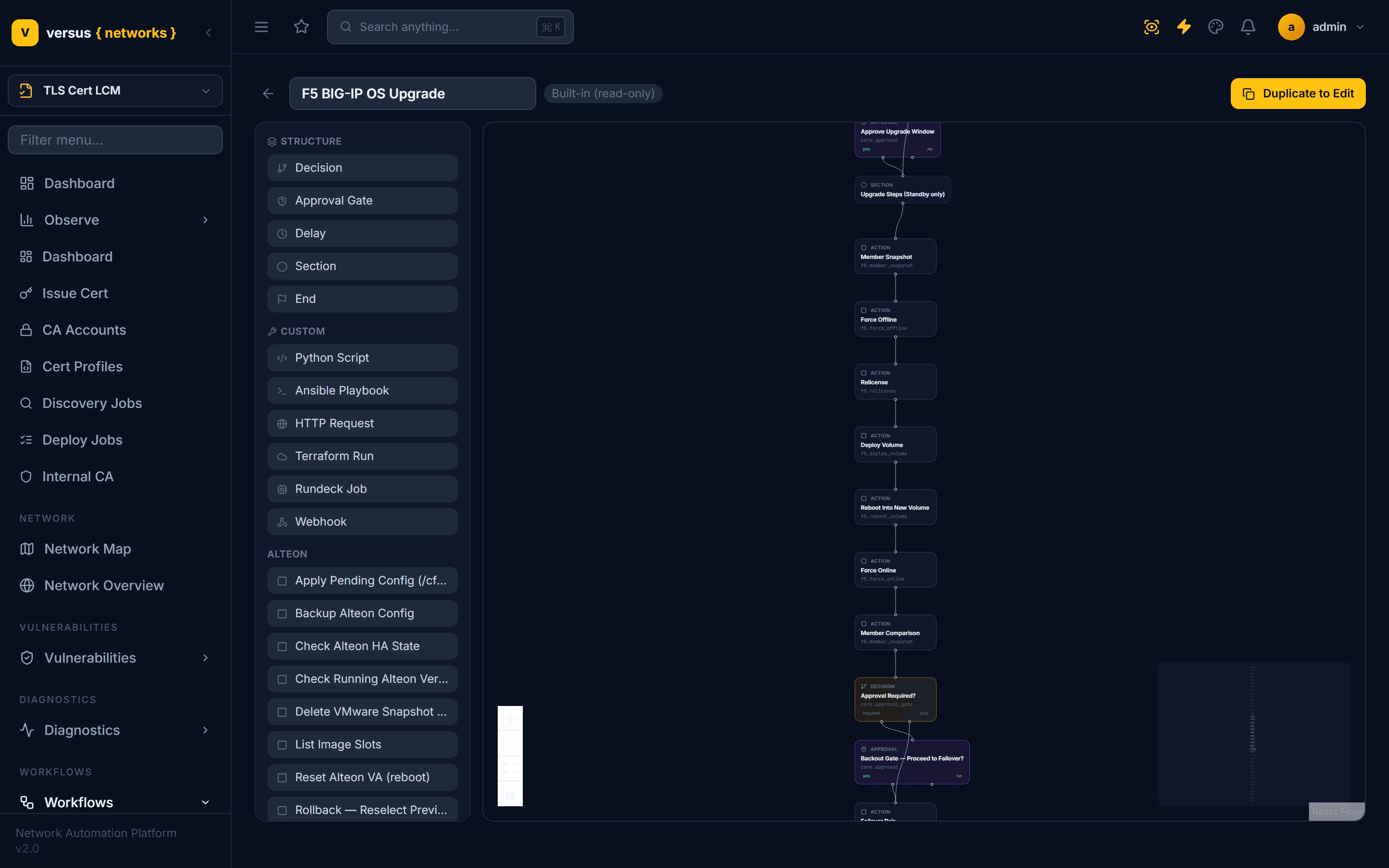
From Workflows → All Workflows, click New Workflow. This drops you straight into the canvas editor — there's no separate name/description form first. The workflow is titled "New Workflow" (click the title to rename it) and starts with a single Start node already on the canvas.
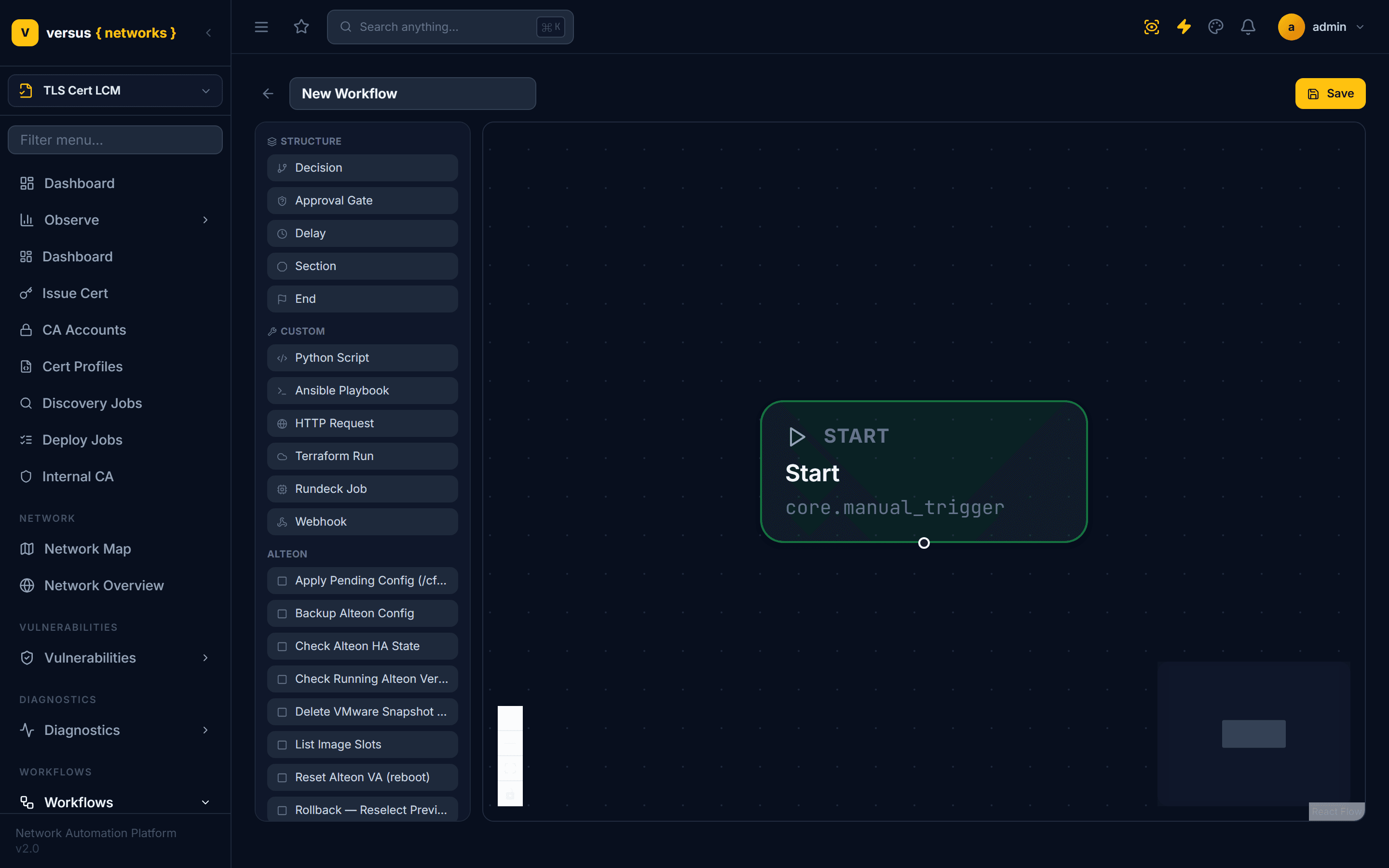
To edit an existing workflow, click Edit canvas on its card in the Workflows list. Built-in workflows open with a Built-in (read-only) label next to the title and can't be saved over — use them as a reference, or as a starting point you save under a new name.
Customizing a Built-In Workflow (Duplicate to Edit)
Built-in workflows are read-only on purpose — so an upgrade or change-management procedure Versus ships can't be altered out from under you. When you want to change one — add a step, reorder a phase, insert an extra approval, or wire in a site-specific check — you don't edit it in place. You fork it: open the built-in workflow's canvas and click Duplicate to Edit in the top-right, where Save sits on an editable workflow.

Duplicate to Edit creates a new, fully editable copy — named "<original> (Copy)" and no longer marked built-in — with the entire node graph copied over: every step, edge, branch, approval gate, and its configuration. The copy opens straight in the editor, and the original built-in is left completely untouched, still available as the pristine reference.
From there the copy behaves like any workflow you built yourself — rename it, add or remove nodes, Save, Run, and put it on a Schedule. A common pattern is to duplicate a built-in upgrade workflow and drop a Python Script or HTTP Request step into it for a check specific to your environment, without giving up the tested procedure underneath.
Nodes are added by dragging them from the left-hand panel onto the canvas — there's no "+" button or right-click menu. The panel has three sections:
- Structure — Decision, Approval Gate, Delay, Section, End
- Custom — Python Script, Ansible Playbook, HTTP Request, Terraform Run, Rundeck Job, Webhook
- Vendor step libraries — one group per integration (F5, NetScaler, Palo Alto, Check Point, Alteon, Cisco, AWX, ServiceNow, CrowdStrike, Zscaler, Certificate, and more), each listing the specific Action steps available for that system
Drop a step anywhere on the canvas to place it as an Action node, then draw edges to wire it into the workflow (see Step 2 below).
Every node has a small circular connector handle. Drag from one node's handle to another node to draw an edge. Edges are the execution path — Versus runs nodes in the order the edges define.
Decision and Approval Gate nodes each expose two handles instead of one: a green yes branch and a red no branch. Connect each to whatever should happen next on that path — built-in workflows commonly route the "no" branch to its own End node rather than merging back into the main flow.
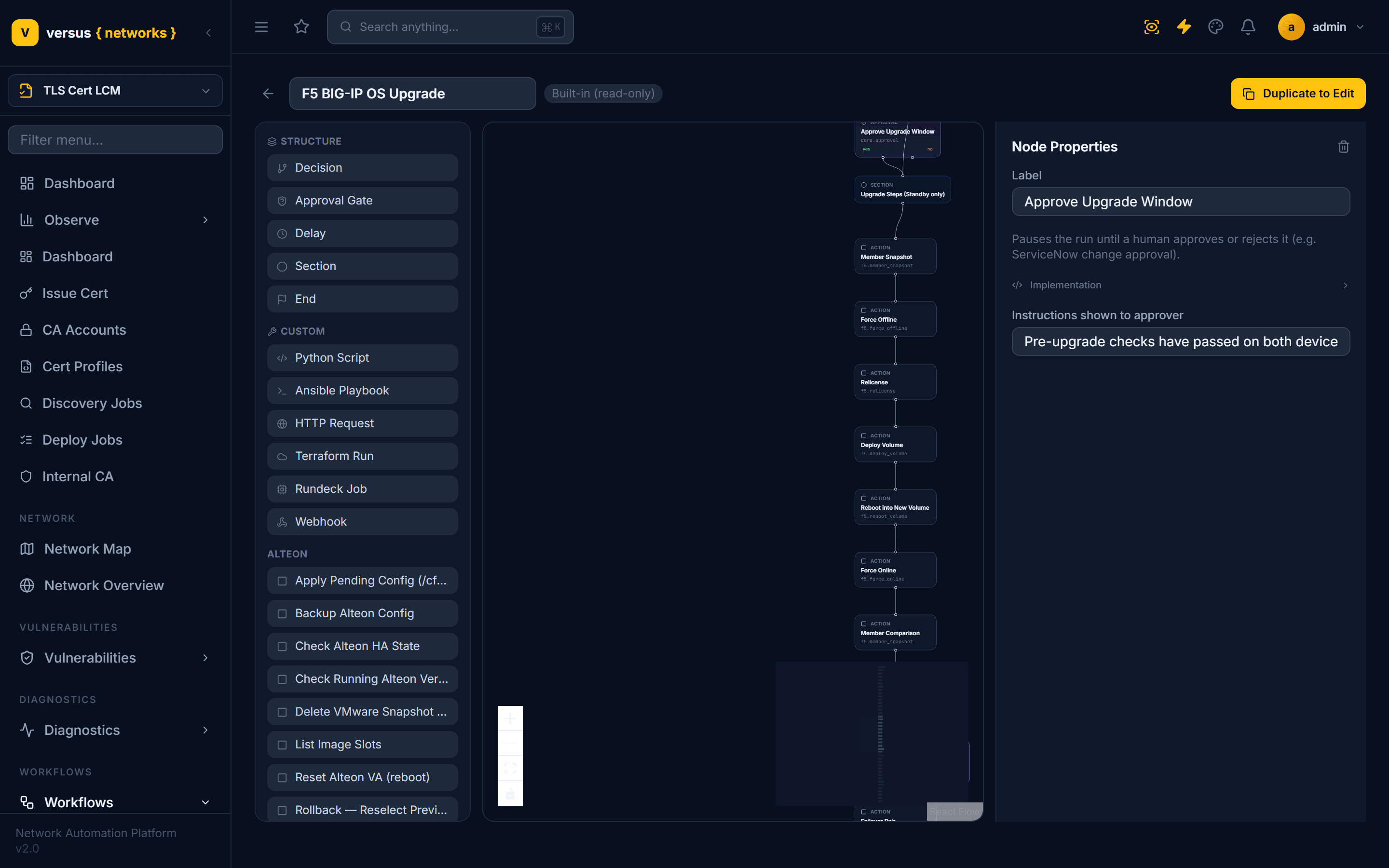
Click any Action node to open its Node Properties panel on the right. Every step shows an editable Label (rename the node — this is what shows on the canvas and in run history) and a description of exactly what the step does. Steps that need more than that expose further fields in the same panel; many built-in steps take no extra configuration at all, since they act on the device or device group selected on the workflow's Start node.
Drag an Approval Gate node from the Structure section anywhere a human sign-off is required — built-in F5 and NetScaler upgrade workflows use it before the upgrade window opens and again as a backout gate before failover. Its Node Properties panel has a Label and an Instructions shown to approver field — a message giving the approver the context they need (e.g. "Pre-upgrade checks have passed…").
When a run reaches an Approval Gate, execution pauses at that node until a human approves or rejects it. The node then follows its green yes branch on approval or its red no branch on rejection, same as a Decision node.
Click Save in the top-right corner of the canvas, or go straight to Run from a workflow's card in the Workflows list to start a new execution.
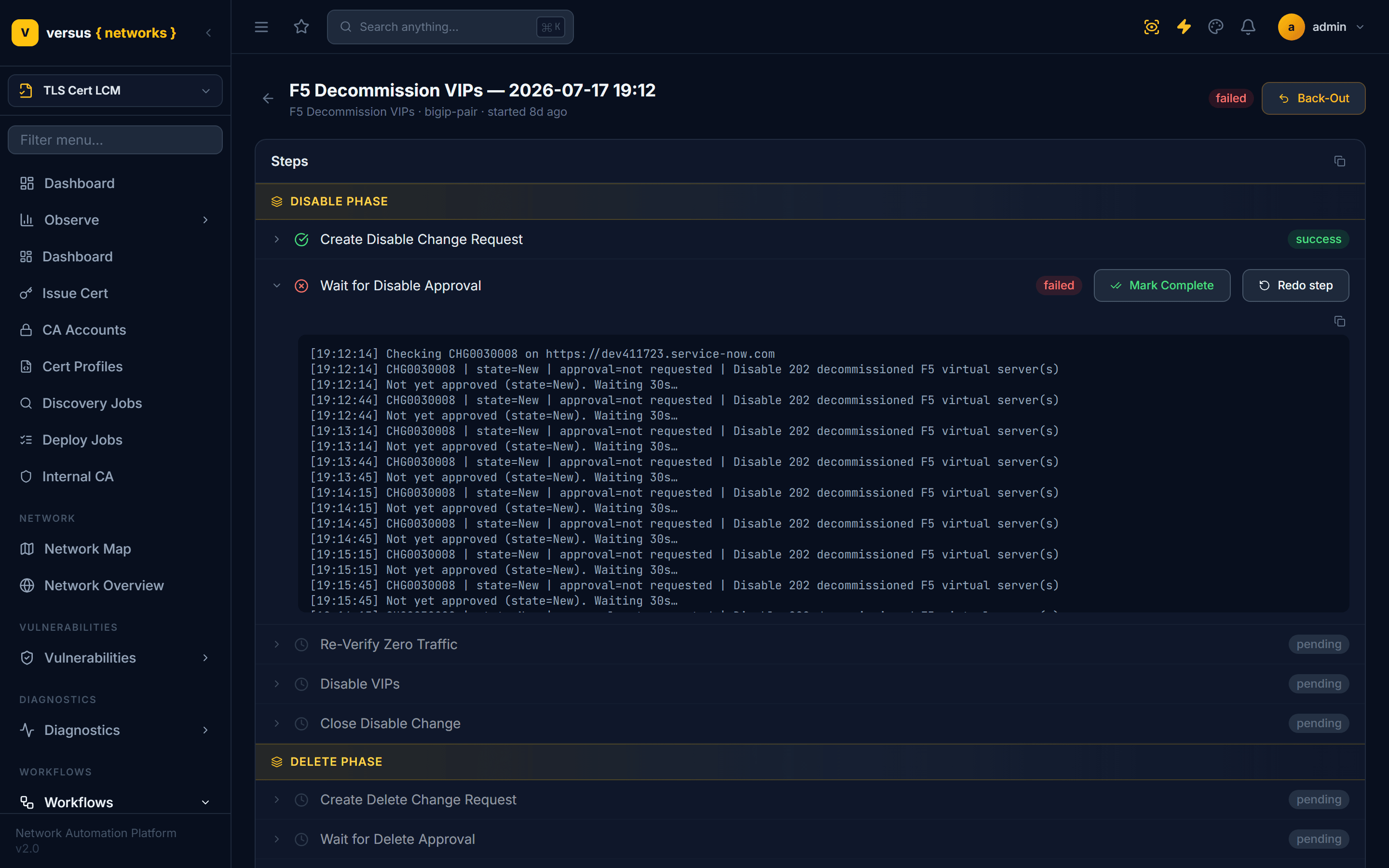
Runs show up under Recent Runs on the Workflows page, and each one opens into a Steps view listing every node in order with a live status: pending (not reached yet), success, or failed. A failed step expands in place to show its error output, and offers Mark Complete (accept it and move on) or Redo step (retry it) — the run itself has a Back-Out action at the top.
Quick Reference
| Node Type | Purpose | Outputs |
|---|---|---|
| Start | Entry point; created automatically, one per workflow | Values from the Run workflow form |
| Section | Visual grouping label only | None (pass-through) |
| Action | Executes a step from a vendor step library or Custom group | Step-specific |
| Decision | Branches on a boolean flag set at run creation | yes / no branch path |
| Approval Gate | Pauses for human sign-off | yes / no branch path |
| Delay | Pauses execution for a configured duration | None (pass-through) |
| End | Terminal point; a workflow may have more than one | None |