AI Workflow Generator
Generate a complete, ready-to-edit automation workflow from a plain-English prompt — Claude builds it directly onto the canvas, asking a quick clarifying question or two only when your request needs it.
What is the AI Workflow Generator?
The AI Workflow Generator lets you describe an automation task in plain English and have Versus build the workflow for you. Powered by Claude, it interprets your prompt and generates a complete, named workflow directly onto the canvas — already saved — which you can then open, review, and edit like any manually built workflow. If your request is ambiguous, it may first ask a short clarifying question or two; otherwise it builds straight from what you typed.
Opening the AI Generator
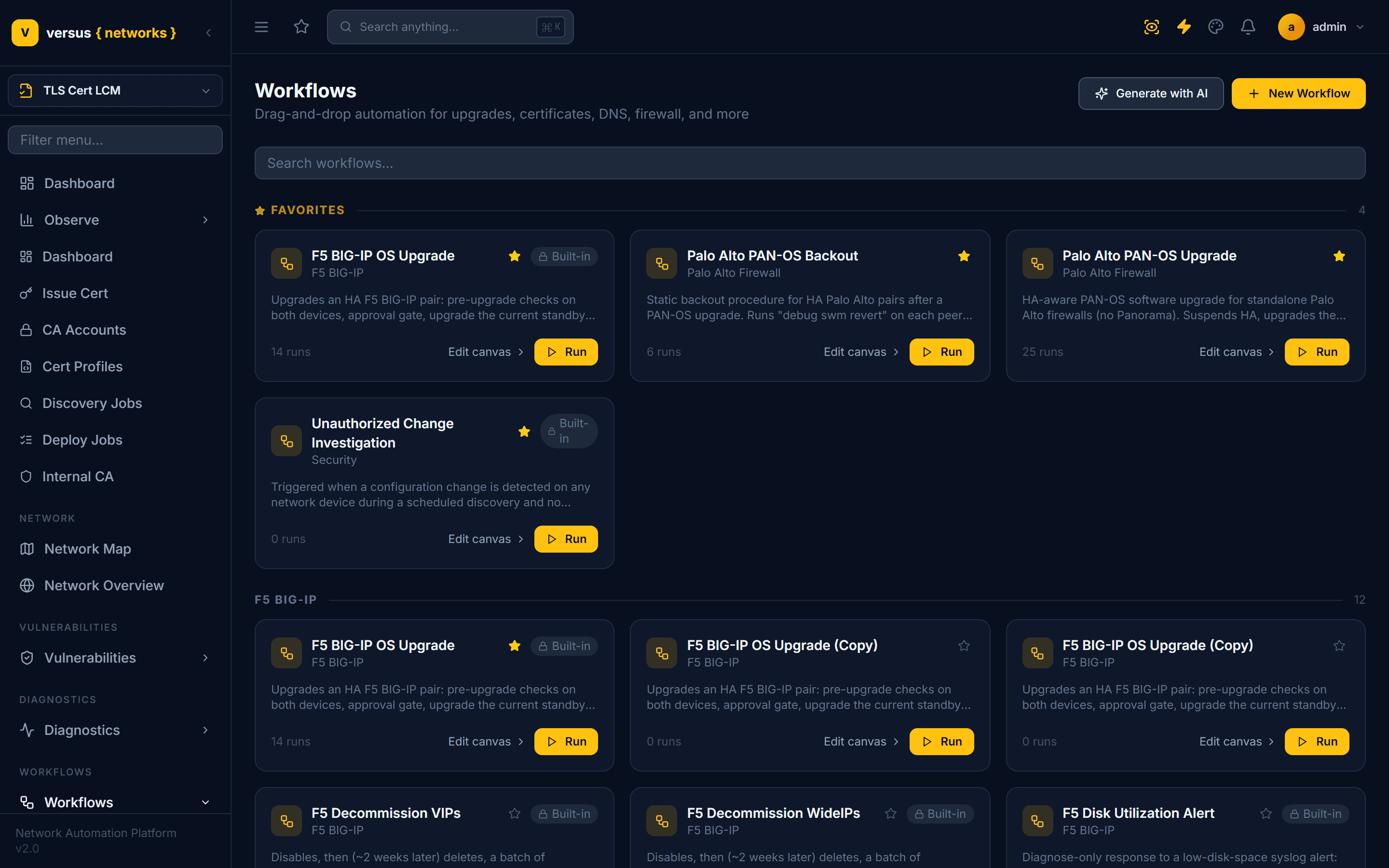
From the Workflows list page, click Generate with AI in the top toolbar. This opens the “Generate Workflow with AI” dialog. There is currently no way to insert AI-generated steps into an existing, already-open workflow — the generator always creates a new workflow.

In the Describe your workflow field, describe what you want the workflow to do — as specific or as high-level as you like. Click Generate or press Ctrl + Enter to submit.
Example prompts
These appear as clickable pills in the dialog:
- “Check F5 HA status, back up config, then upgrade firmware and verify”
- “Rotate SSL certificates expiring in the next 30 days and update ServiceNow”
- “Run a CVE security audit on all F5 devices and create tickets for critical findings”
- “Check BGP peers on all core routers and alert via webhook if any are down”
- “Approve → run Ansible hardening playbook → verify compliance on all firewalls”
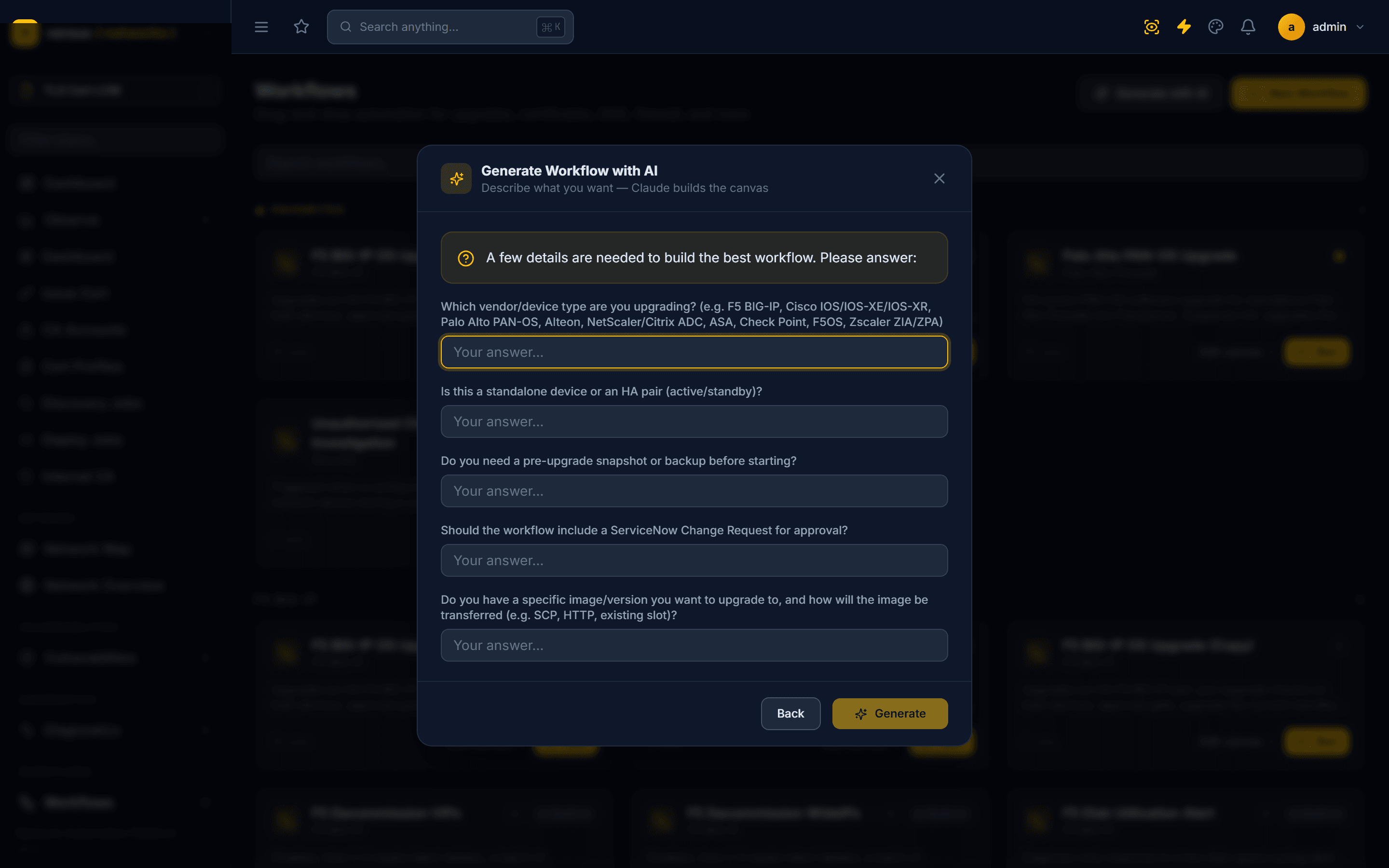
If your prompt is specific enough, Claude goes straight to building. If a key detail is missing, it first returns a short set of clarifying questions (for example, which device group to target, or whether an approval gate is required). Answer them inline and click Generate — your answers are folded into the build. You can also click Back to revise the original prompt instead.
Generation typically takes 15–20 seconds. When it finishes, the dialog shows a summary: the generated workflow’s name, a one-line description, its node and edge counts, and a category tag inferred from the prompt (for example f5 or certificate). The workflow is already saved at this point.
From here, click Generate another to discard this result and try a different prompt, or Open in editor to jump straight into the canvas.

Open in editor takes you to the same canvas editor used for manually built workflows, with the generated steps already in place. The node palette on the left includes structural blocks (Decision, Approval Gate, Delay, Section, End), custom step types (Python Script, Ansible Playbook, HTTP Request, Terraform Run, Rundeck Job, Webhook), and vendor-specific step libraries. Click any node to open its configuration panel, drag to reorder, delete steps you do not need, or add new ones from the palette.
Review the generated defaults before relying on the workflow — especially for destructive operations like firmware upgrades or failovers.
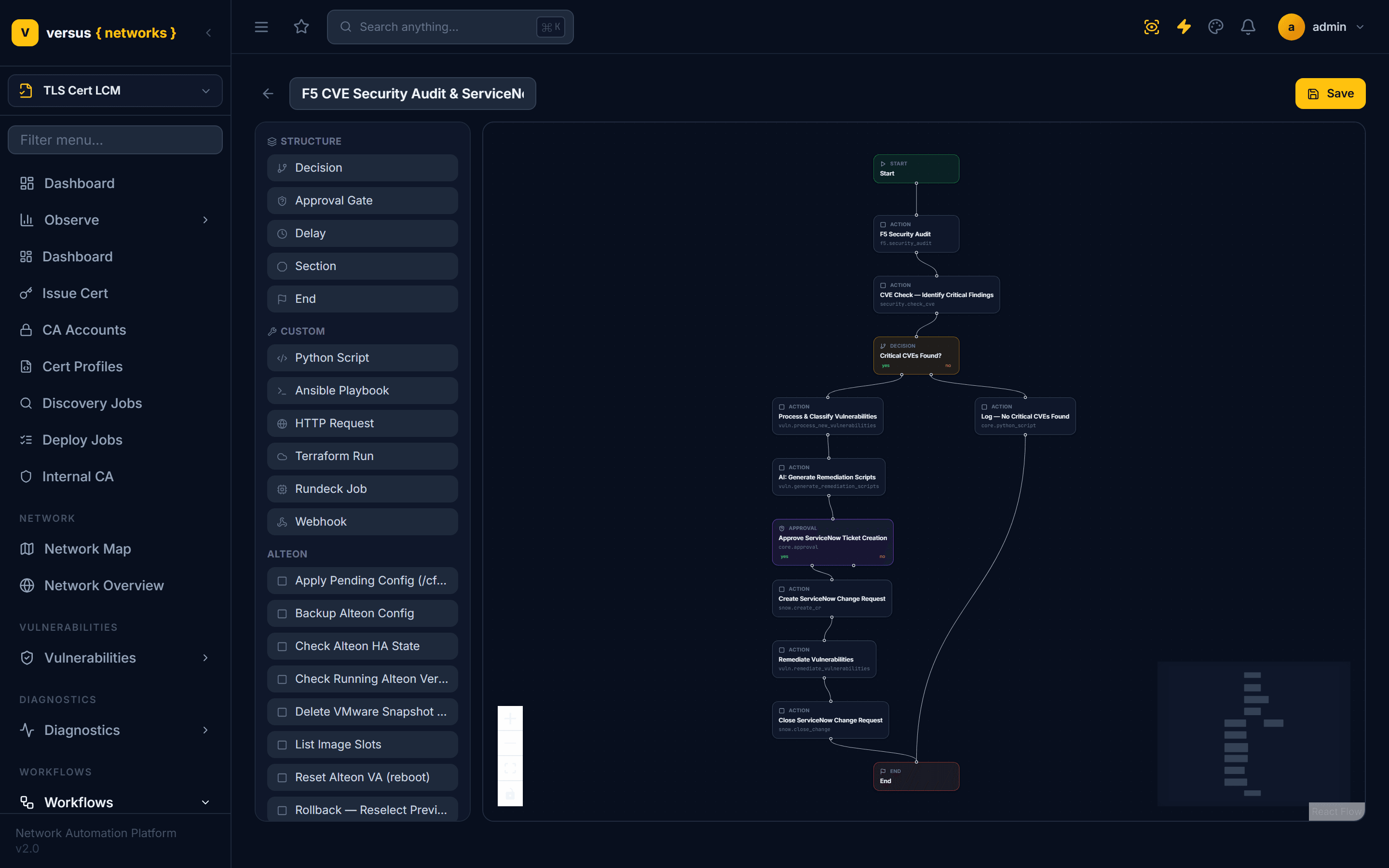
Because the generated workflow is named and saved automatically when it’s created, clicking Save in the editor simply persists further edits — there is no name-or-folder prompt. The workflow behaves exactly like any other: it appears in All Workflows, and can be run on demand, scheduled, or triggered from a syslog alert rule.
Tips for better prompts
- Mention the device type (F5 BIG-IP, NetScaler, Alteon) so Versus selects the right step types.
- Include success criteria — “confirm sync health”, “verify the upgrade succeeded” — to get verification steps included.
- Specify any approval or ticketing requirements — “create a ServiceNow ticket”, “alert via webhook” — to get those steps added.
- If the result is not quite right, click Generate another and refine your prompt — there is no in-place regenerate, so make edits directly in the canvas if you want to keep most of the result.
Quick Reference
| Action | How |
|---|---|
| Open AI Generator | Workflows → Generate with AI |
| Submit prompt | Click Generate or press Ctrl + Enter |
| See the result | Result card shows name, description, node/edge counts, and category |
| Edit a generated step | Open in editor → click the node in the canvas |
| Try a different prompt | Click Generate another |
| Save further edits | Click Save in the editor (already named and saved on generation) |