Fork & Extend a Built-in Workflow
Versus ships production-grade built-in workflows — F5 and NetScaler OS upgrades, ADC migrations, VM lifecycle, and more. They’re read-only by design, but you can make a fully editable copy in one click and tailor it to your environment.
Why fork instead of editing in place?
Each built-in workflow encodes a tested sequence — for example, the F5 BIG-IP OS Upgrade does a standby-first staged upgrade with backups, an approval gate, controlled failover, and automatic failback. Versus maintains these and improves them release over release. Keeping them read-only means:
- Platform upgrades can safely enhance the original without clobbering local edits.
- Your customizations live in a separate, clearly-named workflow you own.
- You always have a pristine reference to compare against or re-fork later.
Open Workflows from the sidebar. Built-in workflows carry a Built-in badge (with a lock icon) and are grouped by category — F5 BIG-IP, NetScaler, Certificate Management, ADC Migration, and so on. Use the search box to filter by name or description.
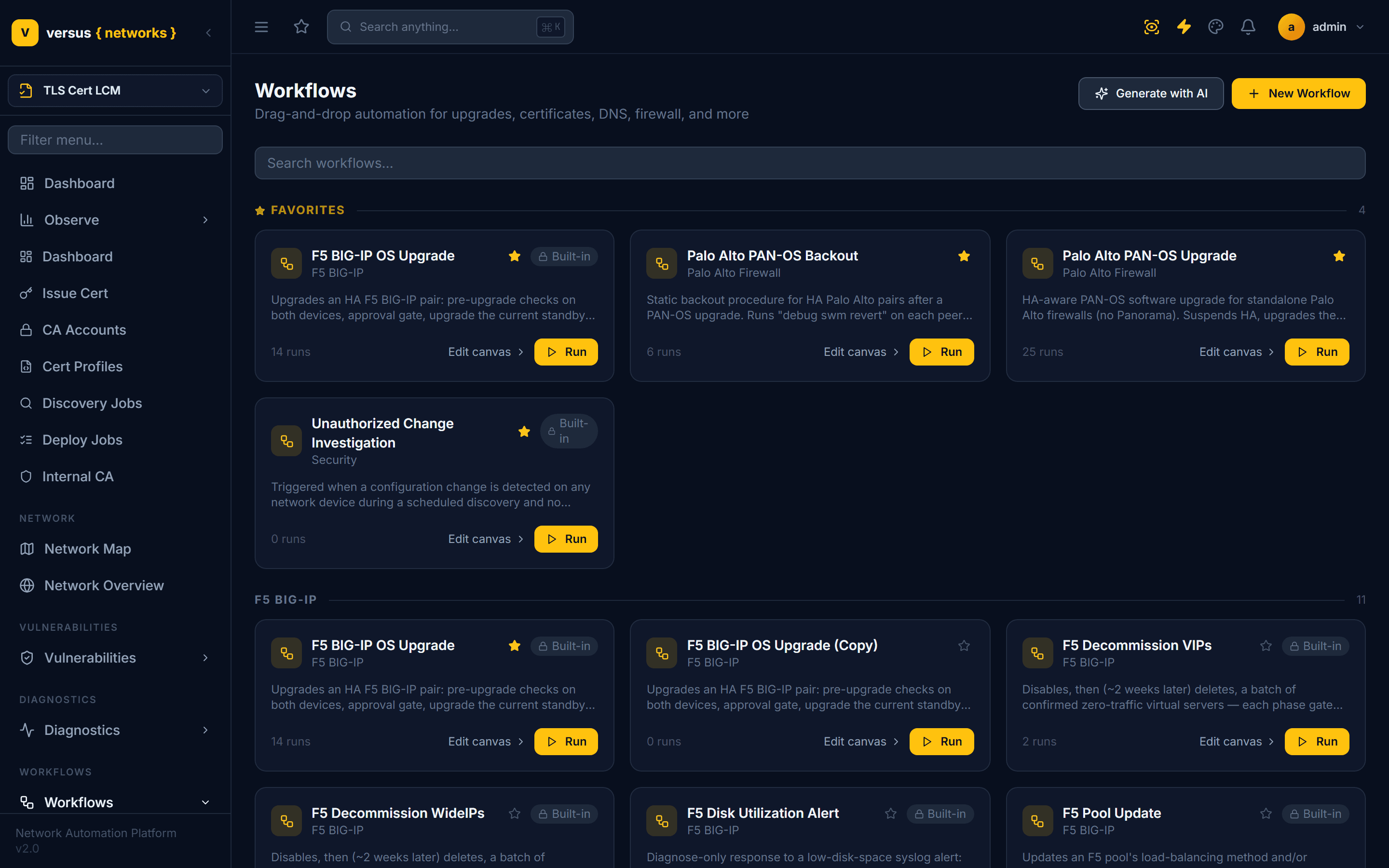
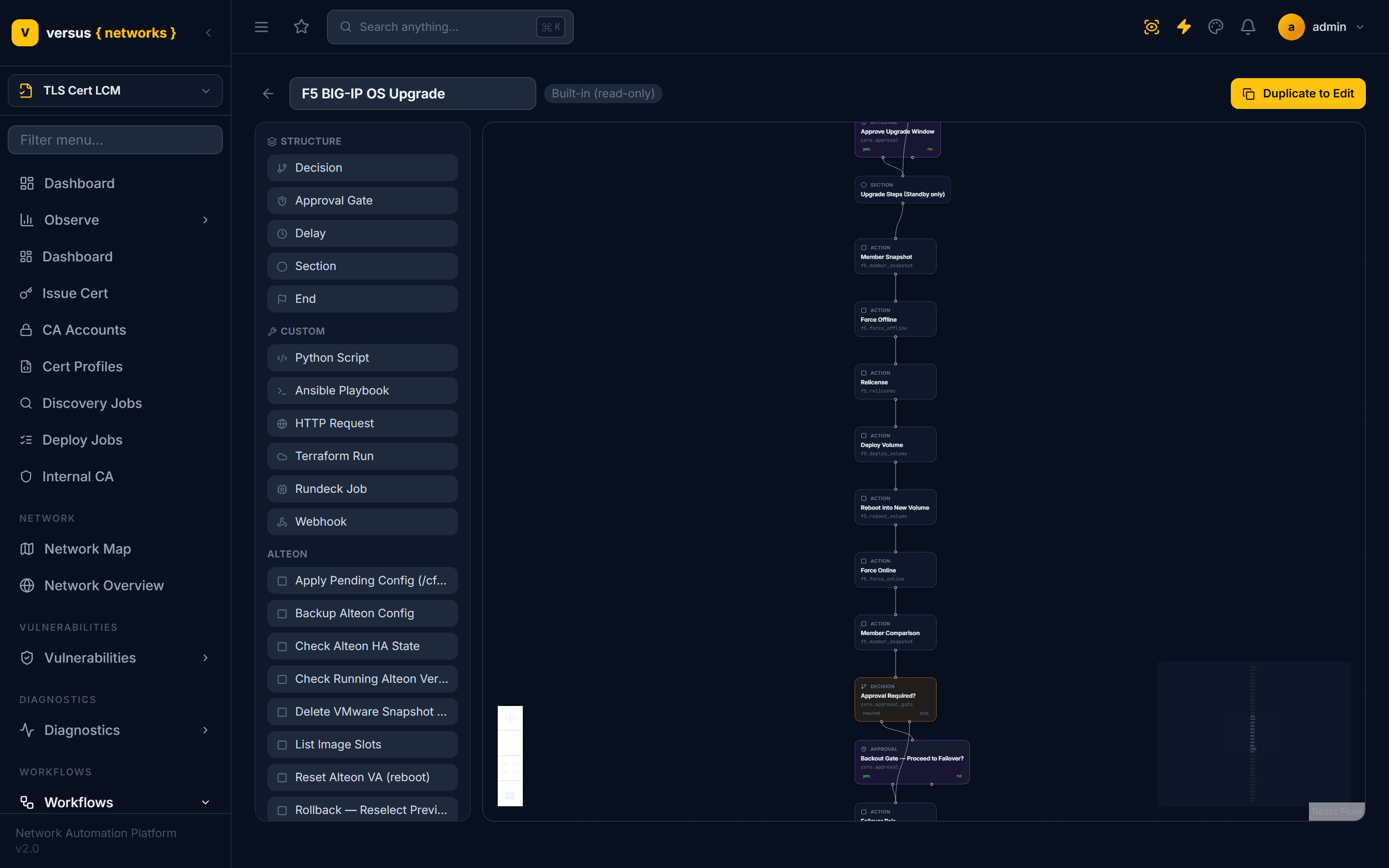
Click Edit canvas on the workflow card to open it in the builder. A built-in workflow shows a Built-in (read-only) label next to its name, the name field is disabled, and instead of a Save button you’ll see a Duplicate to Edit button in the top-right. You can pan, zoom, and inspect the graph freely — you just can’t change it.
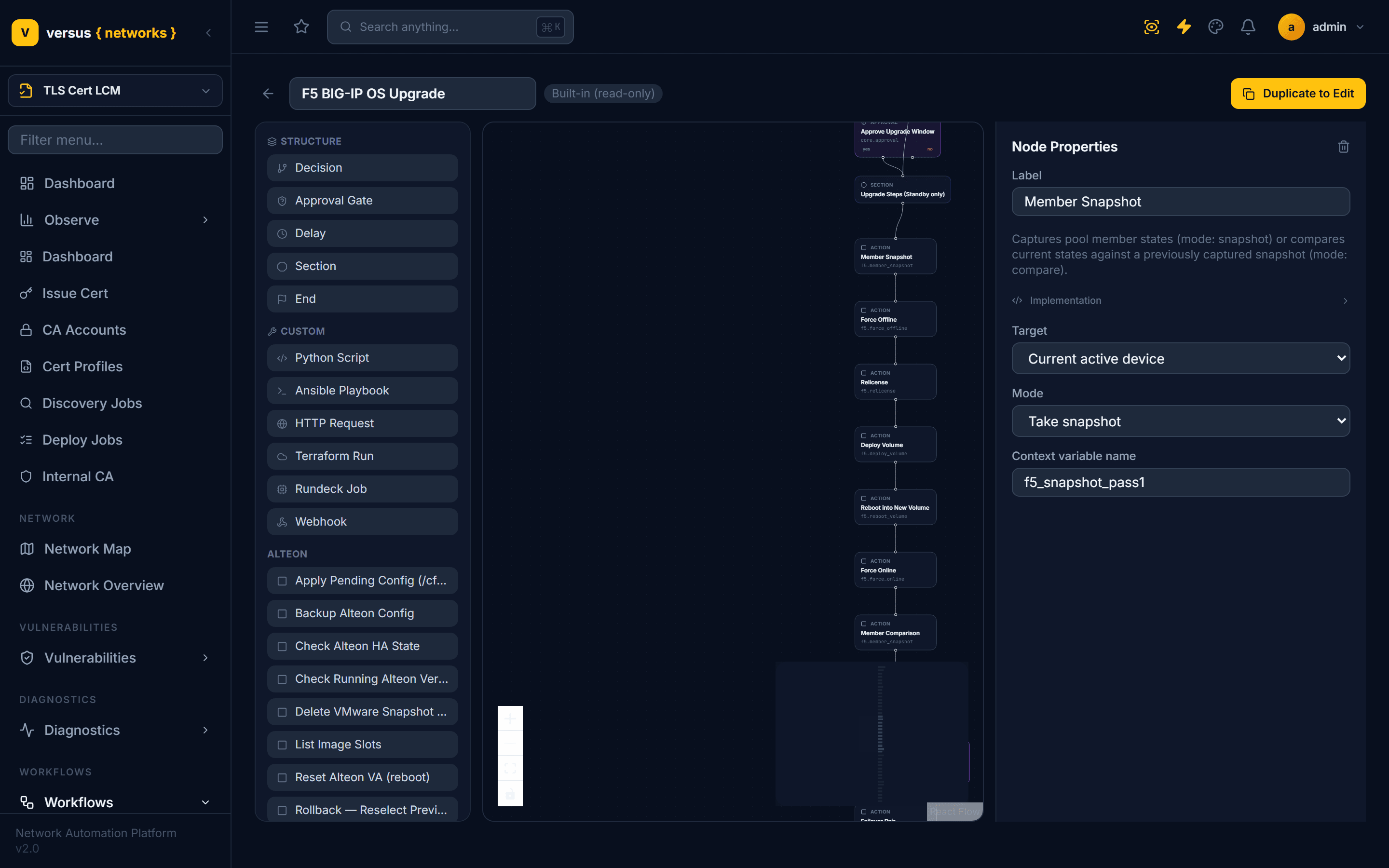
Click any node to inspect it. Its Node Properties panel shows the step’s label, configuration, and target — and for a built-in step, an Implementation section that reveals the exact code Versus runs. As the panel notes, that code is reference only: “this is the code Versus actually runs for this step, not something you can edit inline. To customize behavior, duplicate the workflow and add a Python Script step alongside it.”
Click Duplicate to Edit. Versus creates a complete, editable copy of the workflow — every node, edge, and configuration value — and opens it immediately. You’ll see a confirmation (“Created an editable copy”), the name field is now editable, and the Save button is back. The copy is a normal workflow: it is not built-in, so nothing about it is locked.
Rename it to something meaningful (for example “F5 OS Upgrade — ACME standby-only”) so it’s easy to find later.
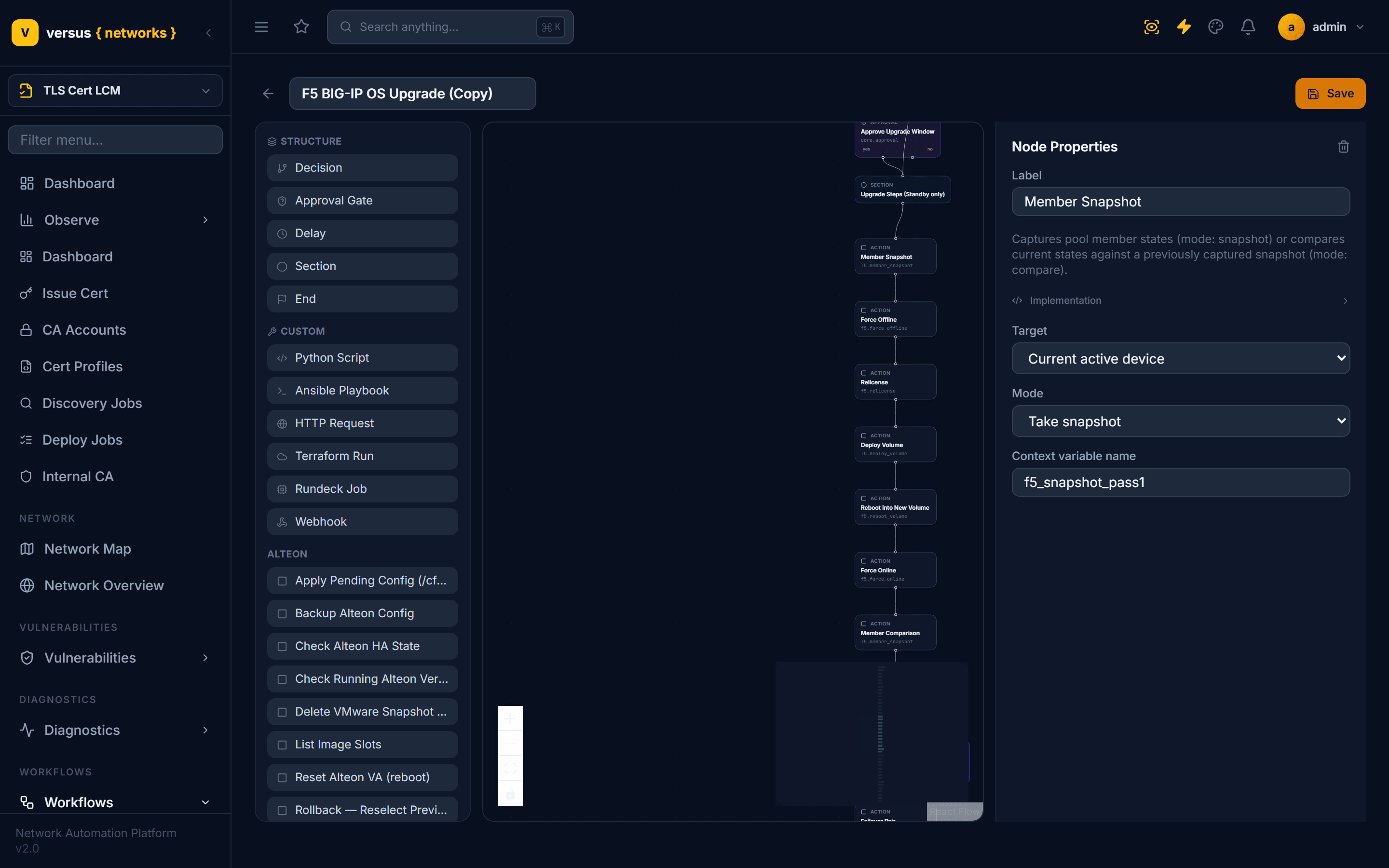
Your copy behaves exactly like a hand-built workflow. From here you can:
- Reorder or remove steps — drag nodes on the canvas, rewire edges, or delete steps you don’t need.
- Tune configuration — click a node and change its target, mode, thresholds, approval requirements, and context variables.
- Add structure — drop in a Decision, Approval Gate, Delay, Section, or End node from the palette.
- Add custom steps — from the Custom palette: Python Script (run your own logic against the
versusSDK), Ansible Playbook, HTTP Request, Terraform Run, Rundeck Job, or Webhook.
The most common way to extend a built-in is to graft a Python Script step alongside the existing sequence — for instance, to post a custom Slack notification, update an in-house CMDB, or run an extra pre-flight check the stock workflow doesn’t cover. See the Workflow SDK Reference for everything the versus and integrations objects expose to a script.
Click Save. Your forked workflow now appears in the Workflows list alongside the others (without the Built-in badge) and can be run on demand, scheduled, or triggered from an alert rule — exactly like any other workflow. The original built-in remains untouched and available, so you can always re-open it, compare, or fork a fresh copy after a future platform update improves it.
Quick Reference
| Action | How |
|---|---|
| Spot a built-in | Workflows list → “Built-in” lock badge on the card |
| Inspect it | Edit canvas → read-only canvas; click a node for Node Properties |
| Make it editable | Open the built-in → Duplicate to Edit (top-right) |
| Rename your copy | Edit the name field (now enabled) in the forked workflow |
| Extend behaviour | Drag a Python Script (or other Custom step) from the palette |
| Keep changes | Click Save — appears in Workflows without the Built-in badge |
Related
- Workflow Builder — the drag-and-drop canvas your fork opens in.
- AI Workflow Generator — build a brand-new workflow from a plain-English prompt.
- Workflow SDK Reference — the
versusAPI available to Python Script steps. - F5 Firmware Upgrade Workflow — a walkthrough of the built-in workflow used as the example above.