Workflow Schedules
Run workflows on a cron schedule, with JSON parameters passed into the run and Slack, pager, and email notifications.
Overview
Workflow Schedules let you run any saved workflow on a recurring basis — nightly compliance checks, weekly backup jobs, monthly certificate audits — without manual intervention. Each schedule pairs a workflow with a cron expression, an optional JSON parameters payload passed into the run, and notification settings for Slack, pager, and email.
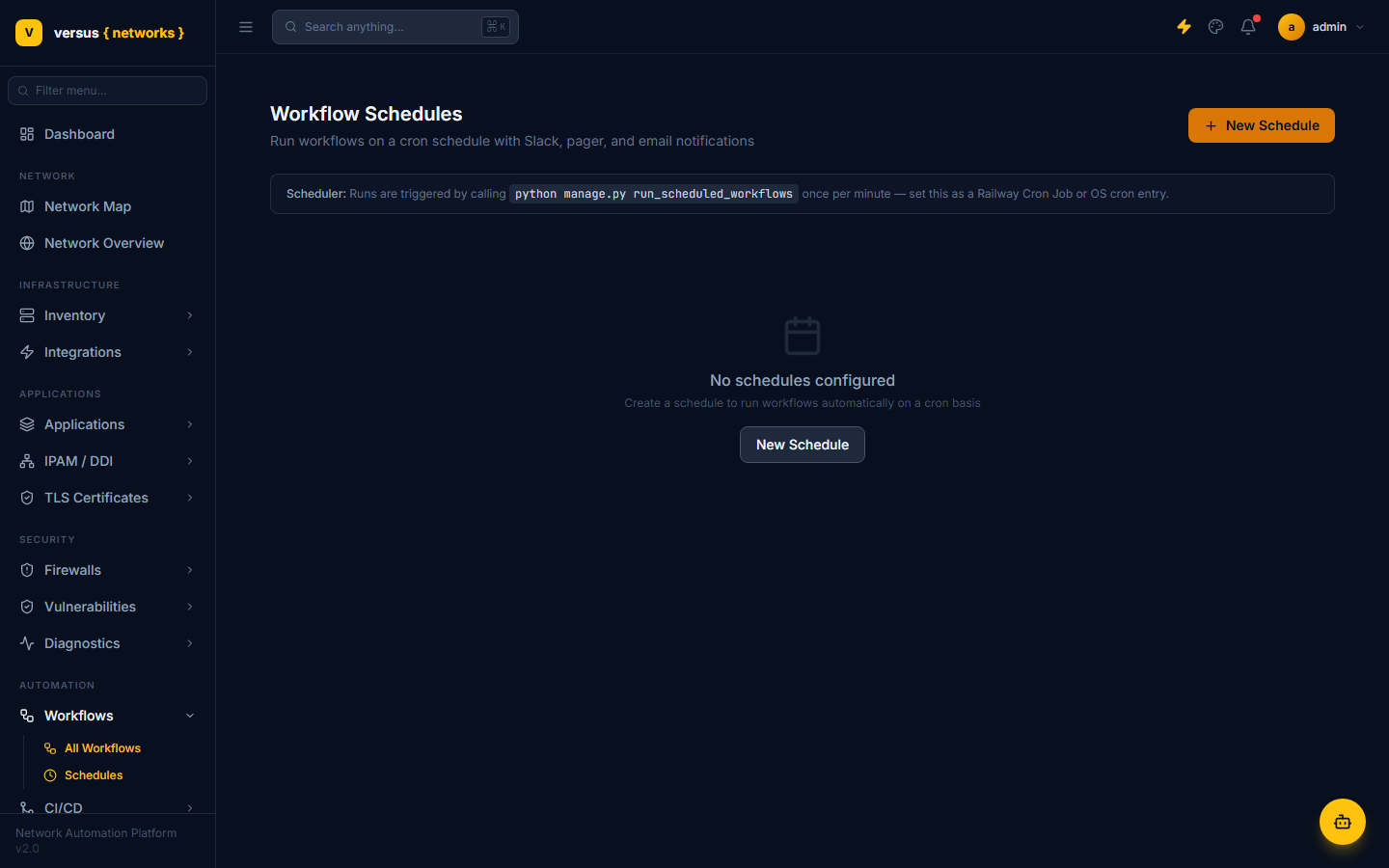
python manage.py run_scheduled_workflows once a minute to check for due schedules and run them — wire this up as a Railway Cron Job (or an OS cron entry) in your deployment. If that job isn't running, enabled schedules simply never fire.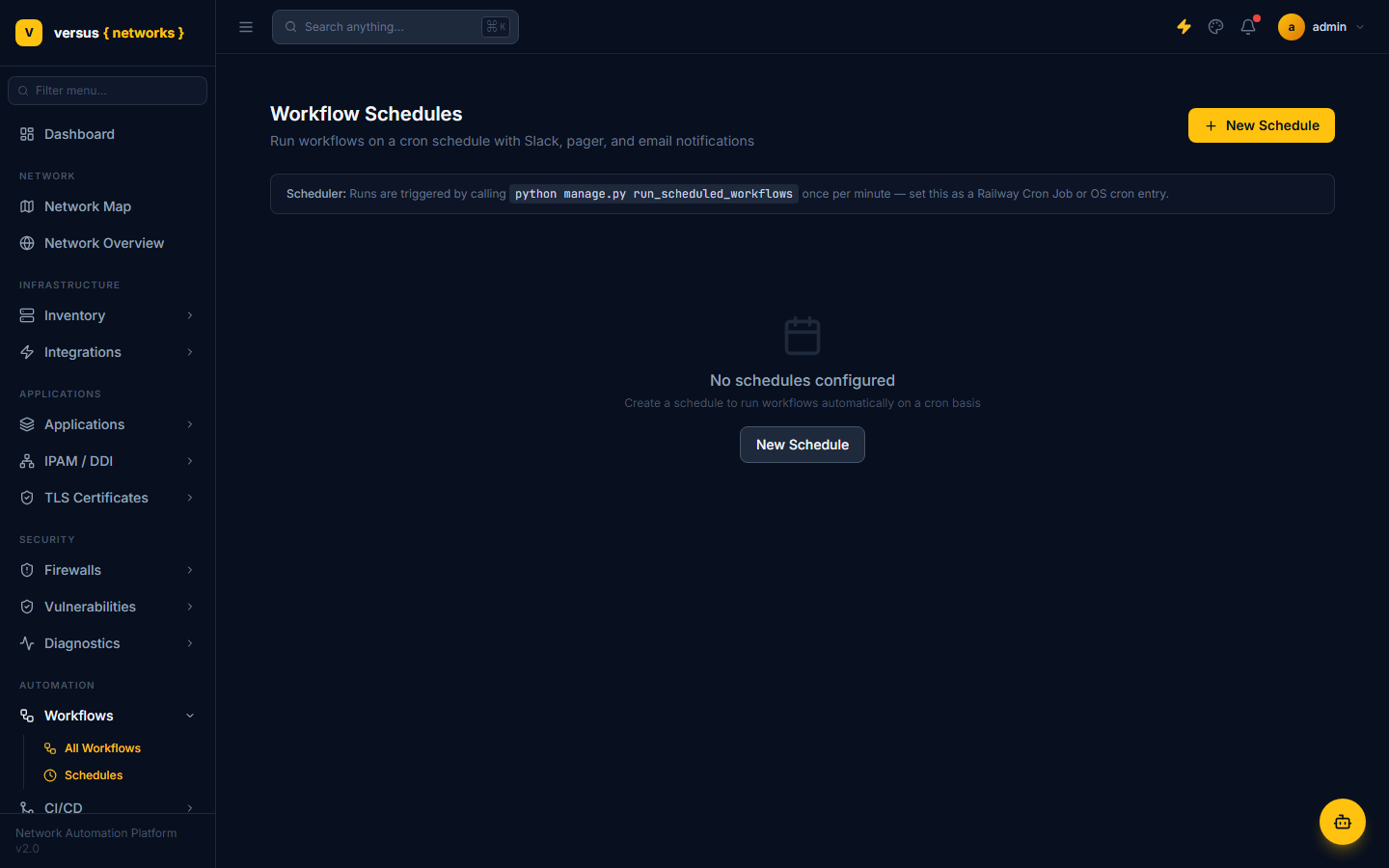
Navigate to Workflows → Schedules and click New Schedule. Give the schedule a name, select the workflow you want to automate from the full workflow catalog, and optionally add a description of what the scheduled run does.
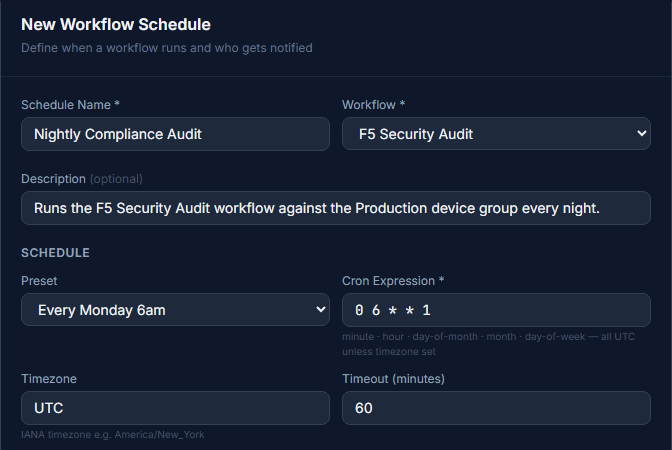
Use a standard five-field cron expression (minute hour day-of-month month day-of-week) to define the run cadence, or pick one of the built-in Preset options — Every hour, Daily at midnight, Daily at 2am, Daily at 6am, Every 15 minutes, Every Monday 6am, First of month 3am — and let it fill in the expression for you. Choose Custom… to type any expression directly.
Common examples:
0 2 * * *— every day at 02:000 3 * * 0— every Sunday at 03:000 0 1 * *— first day of every month at midnight*/15 * * * *— every 15 minutes
Cron expressions are evaluated in UTC by default. Set a Timezone on the schedule — an IANA zone name such as America/New_York — to evaluate the expression in a different zone instead; timezone is a per-schedule field, not a global setting. Each schedule also has a Timeout (minutes): a run still in progress past that limit is stopped and marked as a timeout. The default timeout is 60 minutes.
Workflow Schedules have no device or device-group picker of their own — device targeting lives inside the workflow, not on the schedule. A workflow like F5 Apply Ansible Playbooks already defines which device group it runs against as part of the workflow itself; scheduling it just runs that same workflow on a timer.
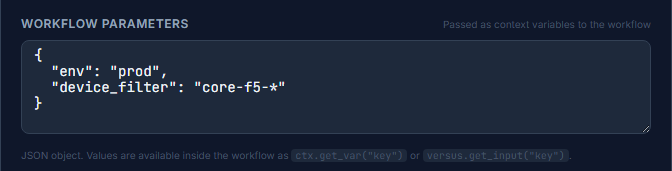
What the schedule does control is Workflow Parameters — a JSON object passed into the run as context variables:
- Values are available inside the workflow as
ctx.get_var("key")orversus.get_input("key"). - Use this to override things like an environment tag or a device-name filter — but only if the workflow was actually built to read that key. The available keys are entirely up to how each workflow was authored.
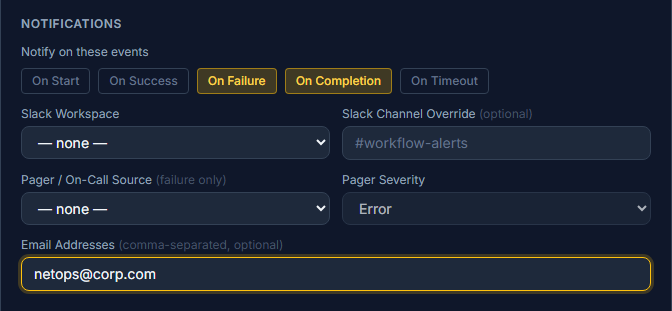
First pick which lifecycle events should trigger a notification — On Start, On Success, On Failure, On Completion, and On Timeout are all independent toggles, so any combination is valid (a new schedule defaults to On Failure only). Then configure where those notifications go:
- Slack Workspace — pick from the Slack workspaces already integrated with this Versus workspace, with an optional Slack Channel Override to post to a channel other than the integration's default.
- Pager / On-Call Source — fires on failure only; pair it with a Pager Severity of Critical, Error, Warning, or Info.
- Email Addresses — a comma-separated list of addresses. This is the only channel that doesn't require a pre-existing integration.
If the Slack Workspace or Pager / On-Call Source dropdown only offers — none —, no integration has been connected for this workspace yet — email is still available as a fallback.
Enabling and disabling schedules
Every schedule has an Enabled checkbox on its form. Uncheck it and save to pause future runs without deleting the schedule — useful for pausing a job during a maintenance window. Edit the schedule and re-check it when you are ready to resume.
Run Now
Click Run Now on any schedule to trigger an immediate, out-of-band execution. This counts as a manual run and does not affect the schedule's next calculated run time. Use it to test a schedule after creation or to kick off an unplanned run without waiting for the cron trigger.
Schedule history and logs
Each scheduled execution appears in the Schedule History tab with the start time, duration, outcome (success / failure / timeout), and the workflow parameters passed to that run. Click any row to open the full run log — the same detailed step-by-step view available for on-demand runs.
run_scheduled_workflows management command — they are not affected by browser sessions or user logout. There is no schedule-level retry setting; if a run needs to be repeated after a failure, use Run Now or wait for the next cron tick.Quick Reference
| Field / Action | Details |
|---|---|
| Cron format | 5-field: minute hour day-of-month month day-of-week |
| Presets | Every hour · Daily at midnight/2am/6am · Every 15 min · Every Monday 6am · First of month 3am · Custom… |
| Timezone | Per-schedule IANA zone (e.g. America/New_York); UTC if unset |
| Timeout | Per-schedule, in minutes — default 60 |
| Workflow parameters | JSON object → ctx.get_var("key") / versus.get_input("key") inside the workflow |
| Device targeting | Defined inside the workflow itself — schedules have no device/group picker |
| Notification events | On Start, On Success, On Failure, On Completion, On Timeout — any combination |
| Notification channels | Slack (workspace + channel override), Pager/On-Call (severity), Email addresses |
| Enable / Disable | Enabled checkbox on the schedule form — does not delete the schedule |
| Run Now | Immediate out-of-band run; does not shift cron next-run time |
| Schedule history | Schedules → [schedule name] → History tab |
| Scheduler trigger | python manage.py run_scheduled_workflows, run once/minute via Railway Cron Job or OS cron |