F5 Firmware Upgrade Workflow
Run the built-in F5 BIG-IP OS Upgrade workflow — standby-first staged upgrade, controlled failover, automatic failback, and UCS/QKView backups before and after.
Pre-Upgrade Checks
Upgrade Standby
Failover
Upgrade + Failback
Overview
F5 BIG-IP OS Upgrade is a built-in Versus workflow template (Workflows → F5 BIG-IP category, marked Built-in) that automates the safest path for upgrading an F5 BIG-IP HA pair: run pre-flight checks on both units, upgrade the current standby first, verify it, fail traffic over to it, then upgrade the new standby (the original active unit) and automatically fail back so the pair ends up on the same active/standby roles it started with — all on the target firmware version.
Prerequisites
- Both units of the F5 HA pair already present in Versus Device Inventory as the same device group, with working iControl REST credentials and SSH credentials (UCS/QKView, relicensing, and reboots run over SSH; HA-status and volume-install calls run over iControl REST).
- The target BIG-IP ISO image already uploaded to Versus — it's selected from a dropdown in the run form, not typed in as a path or URL.
- Enough free disk space for a new boot volume on both units (the workflow's Cleanup and Calculate Volume steps reclaim space automatically if needed).
- Optionally, the target BIG-IP version string — used only to check whether the current license's service-check date covers it; the workflow re-licenses automatically if not.
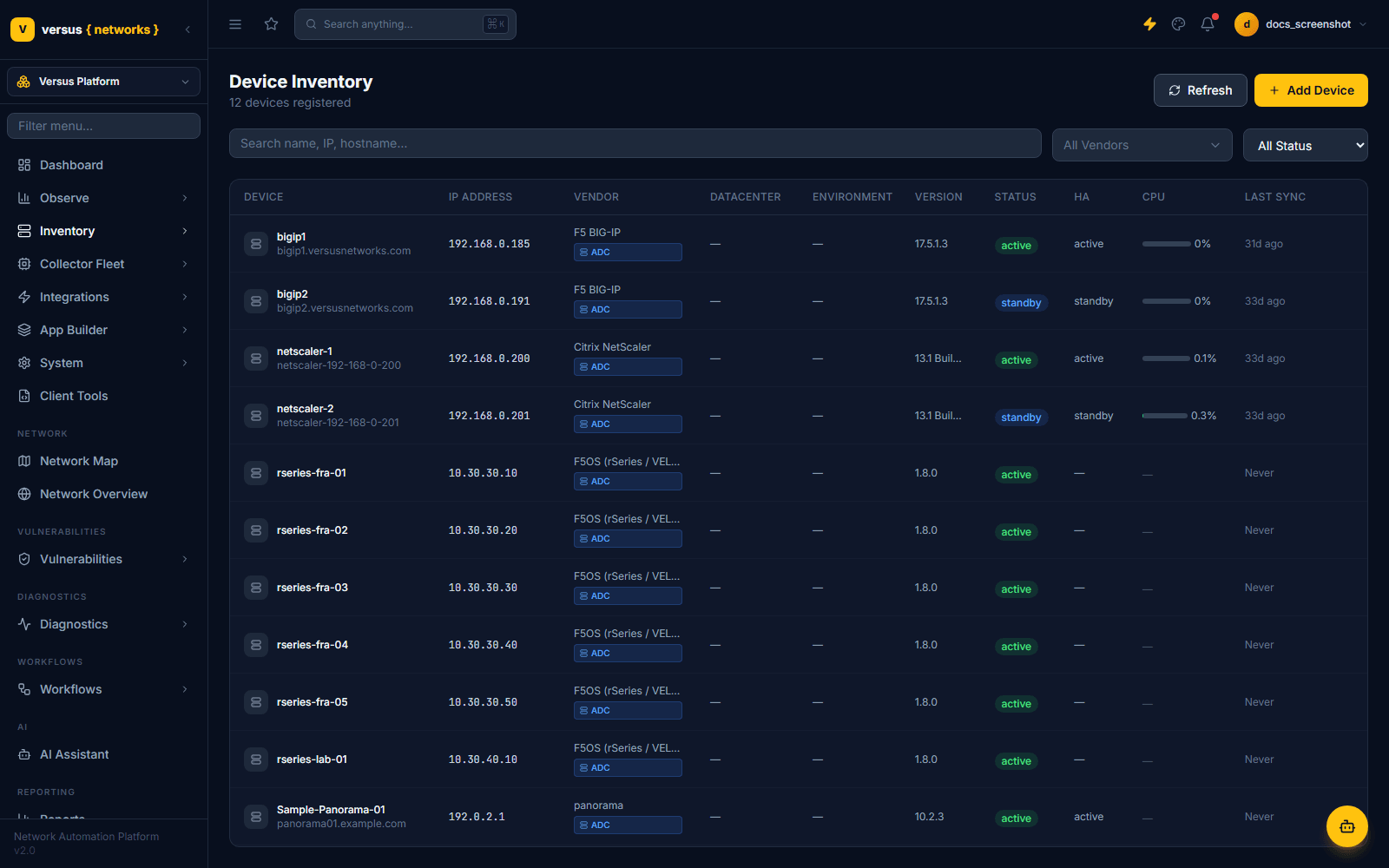
Finding and Running the Workflow
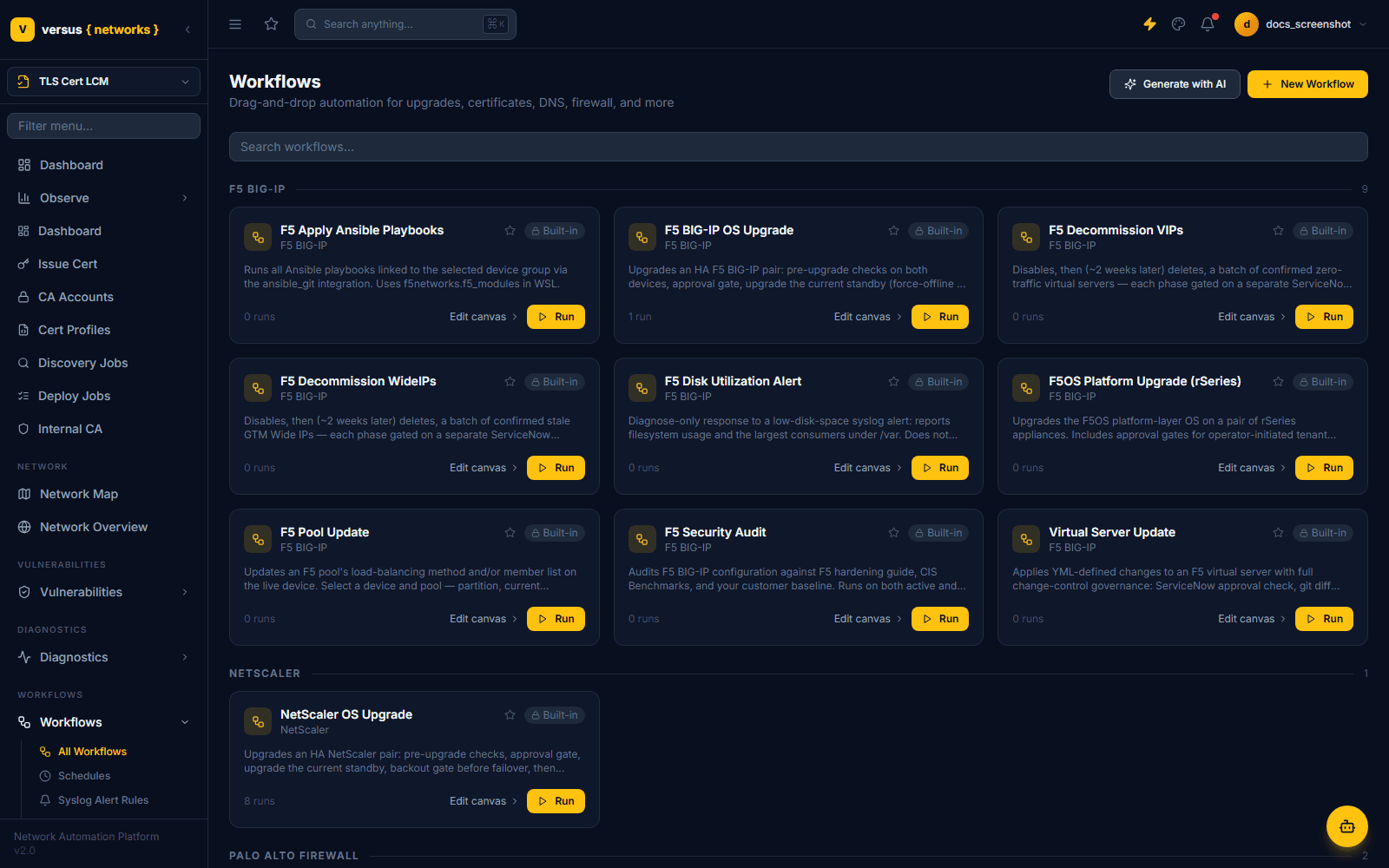
Go to Workflows and find F5 BIG-IP OS Upgrade in the F5 BIG-IP section, alongside the other built-in F5 templates (Decommission VIPs, F5OS Platform Upgrade, Security Audit, and so on). Built-in workflows are read-only — you run them directly rather than editing the canvas.
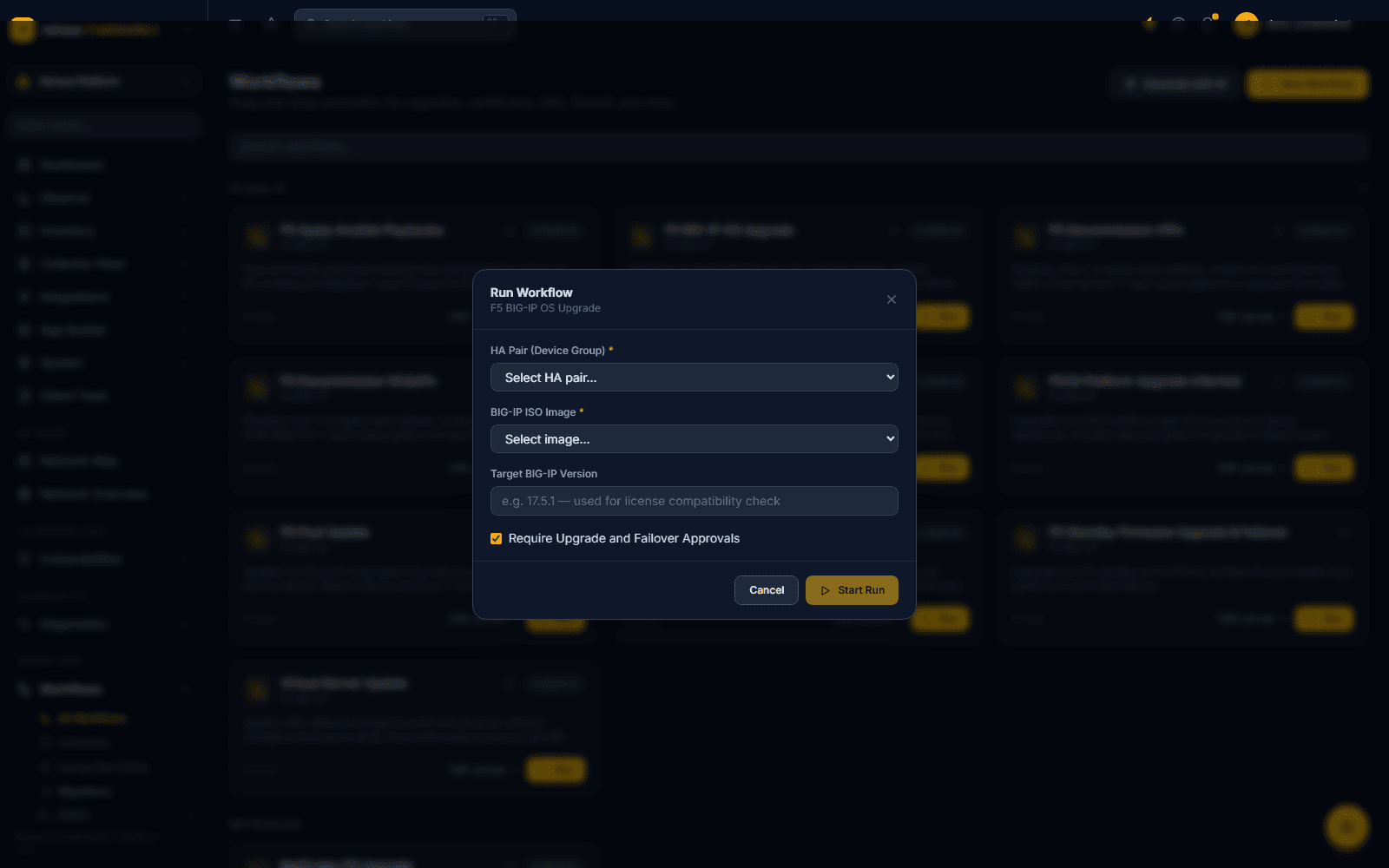
Click Run to open the run form. It asks for exactly four things:
- HA Pair (Device Group) — the two-device group to upgrade.
- BIG-IP ISO Image — selected from images already uploaded to Versus.
- Target BIG-IP Version (optional) — free-text version string used only for the license service-check comparison.
- Require Upgrade and Failover Approvals — checked by default. When on, the run pauses for a human to approve twice: once after pre-checks pass and before the standby is touched, and again at the backout gate immediately before failover. Unchecking it runs the whole sequence unattended.
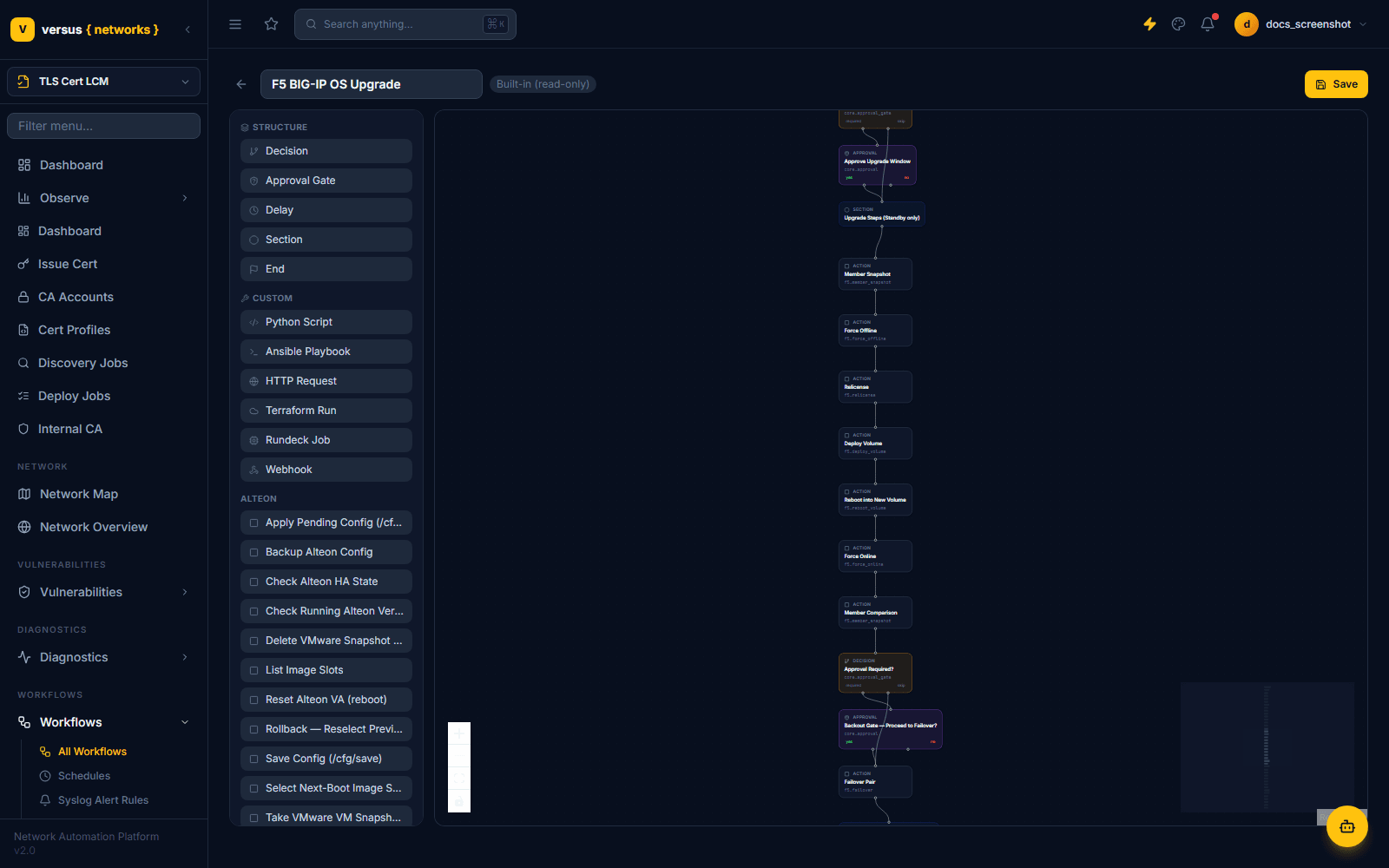
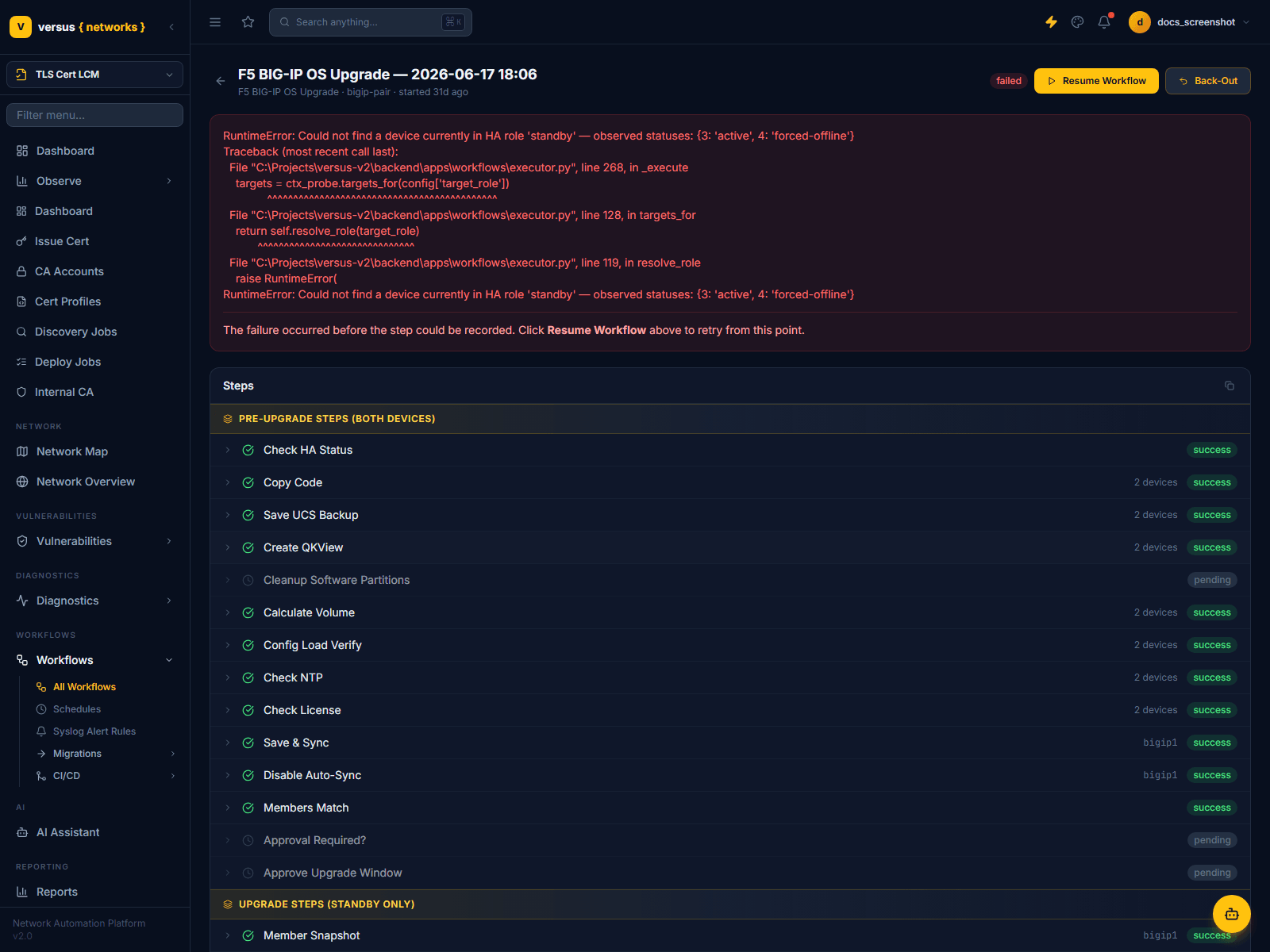
Once started, the run's progress is tracked step by step. The template's canvas (read-only, since it's built-in) shows the underlying step graph, including the two approval decision nodes and the backout gate:
Before either unit is touched, the workflow runs a battery of checks and backups against both devices:
- Check HA Status — confirms exactly one unit is Active and one is Standby.
- Copy Code — uploads the ISO to
/shared/images/on both units over SCP (skipped if already present with a matching checksum). - Save UCS Backup and Create QKView — both archives are downloaded to the Versus file store.
- Cleanup Software Partitions — deletes inactive boot volumes (and optionally old image files) to free space.
- Calculate Volume — determines the boot-volume slot the new image will install to.
- Config Load Verify, Check NTP, and Check License — config integrity, a synchronized NTP peer, and license coverage for the target version.
- Save & Sync and Disable Auto-Sync (active unit) — commits and syncs config, then turns off auto-sync so nothing races the upgrade.
- Members Match — records a baseline comparison of pool-member health between the two units.
If any check fails, the run halts here — nothing has been installed or rebooted yet.
With approval granted (or immediately, if approvals are disabled), the standby unit is upgraded:
- Member Snapshot — captures current pool-member state for later comparison.
- Force Offline — forces the standby out of the cluster so it stops taking traffic decisions.
- Relicense — re-activates the license only if the service-check date doesn't already cover the target version.
- Deploy Volume — installs the ISO to the boot volume calculated in Step 1, polling until complete.
- Reboot into New Volume — reboots and waits for all BIG-IP services to report running.
- Force Online — clears forced-offline; the unit rejoins as standby, now on the new version.
- Member Comparison — confirms pool-member state didn't drift against the Step 1 snapshot.
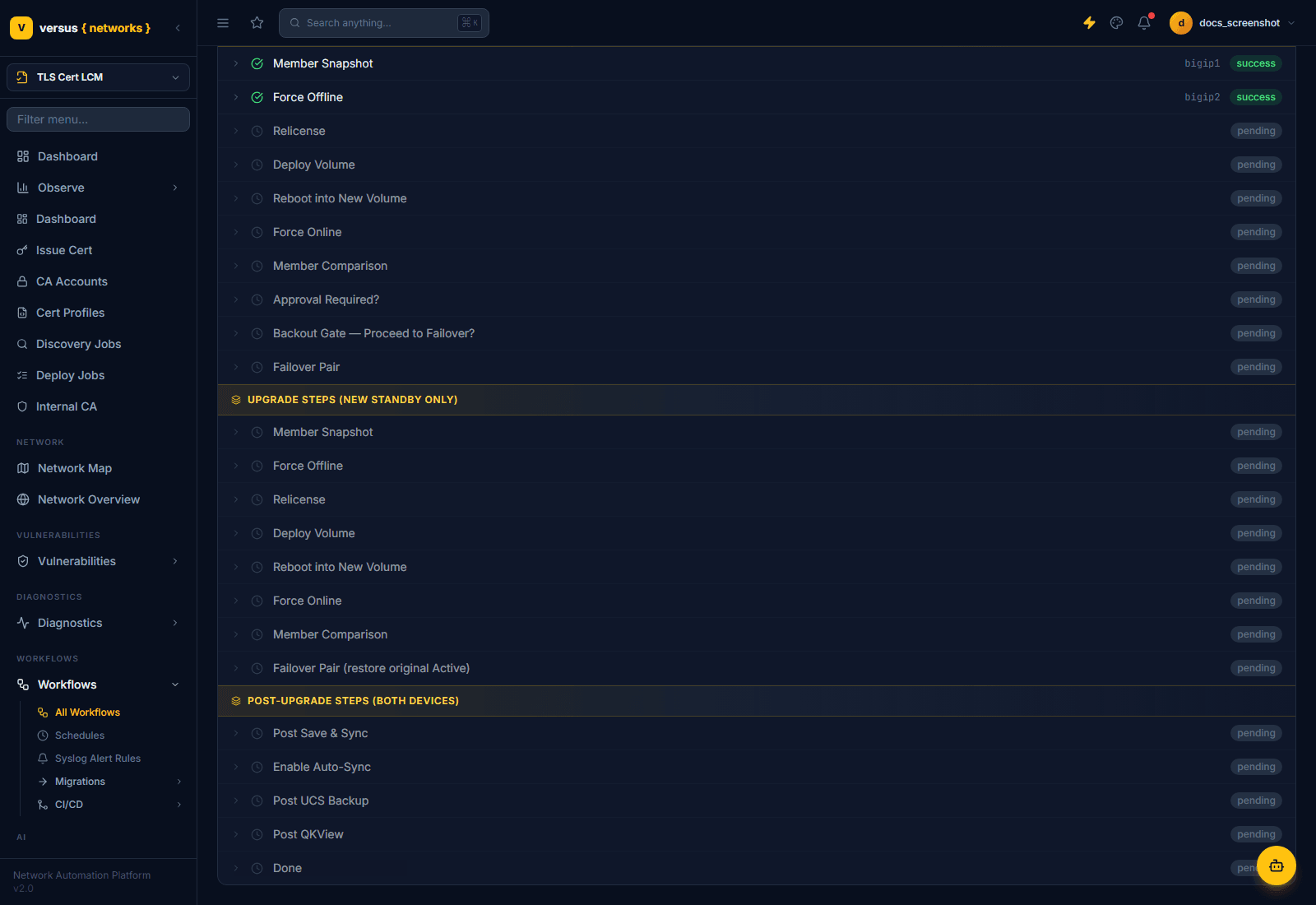
With approvals enabled, the run pauses a second time ("Backout Gate — Proceed to Failover?") — this is the last point at which backing out is a simple "don't proceed" rather than an active reversal. Approving it triggers Failover Pair: tmsh run sys failover standby on the current active unit, promoting the freshly-upgraded standby to active. Versus confirms the role swap before continuing.
Traffic is now running on the upgraded unit. The same seven-step sequence from Step 2 (Member Snapshot → Force Offline → Relicense → Deploy Volume → Reboot into New Volume → Force Online → Member Comparison) repeats on the new standby — the original active unit.
Once that finishes, the workflow runs Failover Pair (restore original Active) — this is not an optional toggle. Failback to the original active unit always happens as the last step of the sequence, so the pair finishes on the target version with the same active/standby roles it started with.
The workflow closes out with Post Save & Sync, Enable Auto-Sync (re-enabling what Step 1 disabled), and a second round of Post UCS Backup / Post QKView — both units backed up again, now on the new version. The run is marked Done once every step succeeds.
If a Step Fails: Resume or Back Out
A failed step pauses the run rather than continuing blind. From the run detail page you have two options:
- Resume Workflow — retries from the failed step once the underlying issue is fixed.
- Back-Out — builds a reversal plan from the run's reversible steps (for example, Force Offline reverses to force the unit back online, and Reboot into New Volume reverses to reboot back into the volume it was on before). Steps are reversed in the opposite order they were applied, and each one requires individual operator approval before it executes — nothing is undone automatically or silently.
The UCS backups captured in Steps 1 and 5 also remain available from each device's Backups view for a manual tmsh load sys ucs restore if you need to go further than the automated back-out.
Quick Reference
| Stage | What Happens | Traffic Impact |
|---|---|---|
| 1 — Pre-Upgrade Checks | HA status, backups, license/NTP/config checks on both units | None |
| 2 — Upgrade Standby | Force offline, relicense, install, reboot, force online | None |
| 3 — Failover | Promotes upgraded standby to active | ~5–30 s HA failover |
| 4 — Upgrade New Standby | Same sequence on the original active unit | None |
| 4 — Automatic Failback | Restores original active unit — always runs, not optional | ~5–30 s HA failover |
| 5 — Post-Upgrade | Save & sync, re-enable auto-sync, UCS/QKView backups | None |