Quick Start Guide
Get up and running in 5 steps — add a device, discover inventory, create a workflow, view a dashboard, and set up an alert.
Add a Device
Discover Inventory
Create a Workflow
View a Dashboard
Set Up an Alert Rule
This guide walks through the five actions needed to go from a blank Versus environment to a working, monitored estate — all from the Versus Platform workspace (Inventory, Workflows) and the Observe section that's available from every workspace.
Before you begin, confirm that you have at least operator role level (3) and the management IP address plus API/TMUI credentials for at least one ADC device.
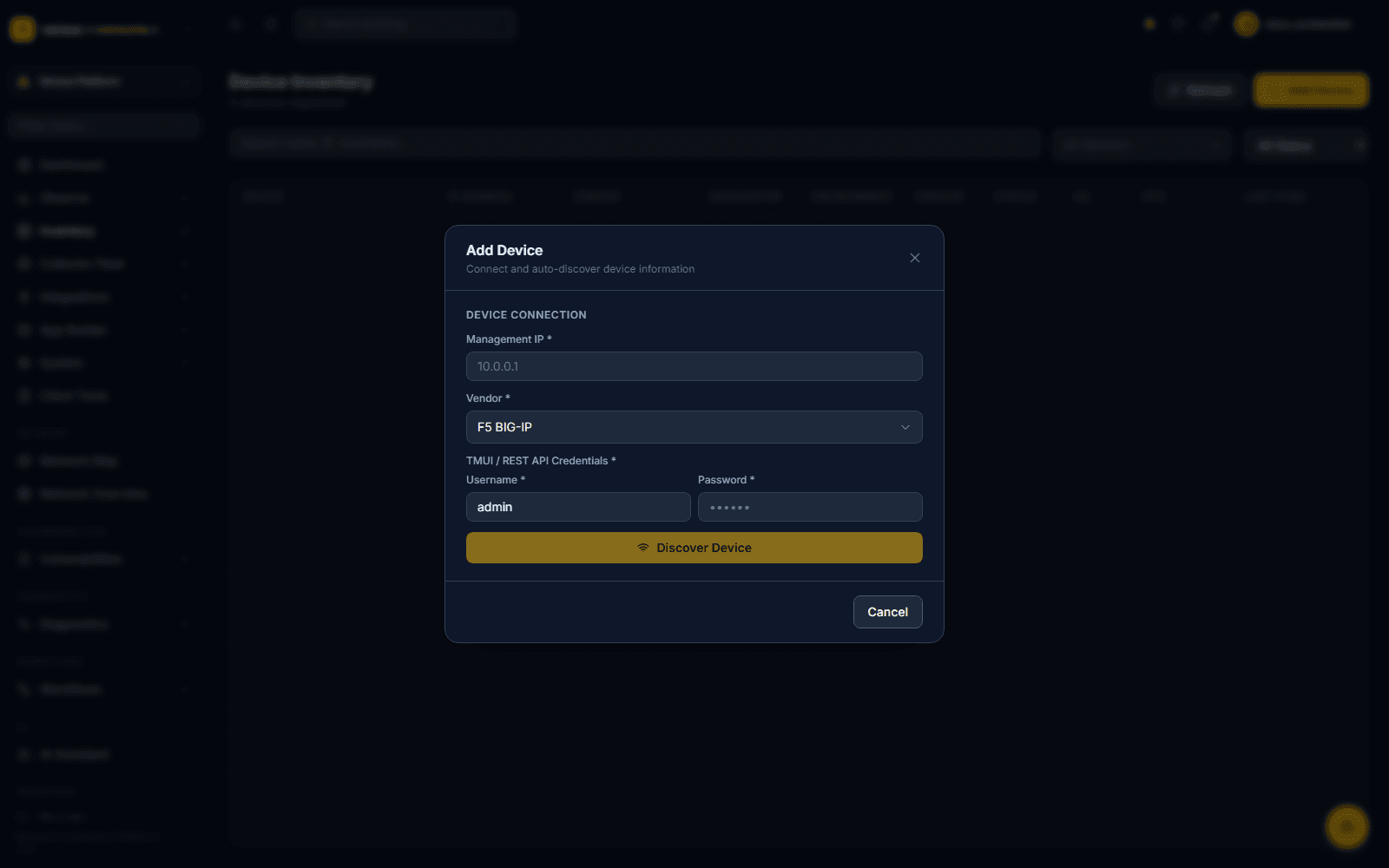
Switch to the Versus Platform workspace and go to Inventory → Managed Devices. Click Add Device in the top-right corner. The dialog is a single connect-and-discover step, not a multi-field form:
- Management IP — the device's management address
- Vendor — F5 BIG-IP, NetScaler, and other supported ADC/firewall platforms
- TMUI / REST API Credentials — username and password Versus uses to authenticate to the device's management API
Click Discover Device. There's no separate "test" and "save" step — Versus connects, authenticates, and adds the device to inventory in one action, pulling its vendor, firmware version, and HA status immediately.
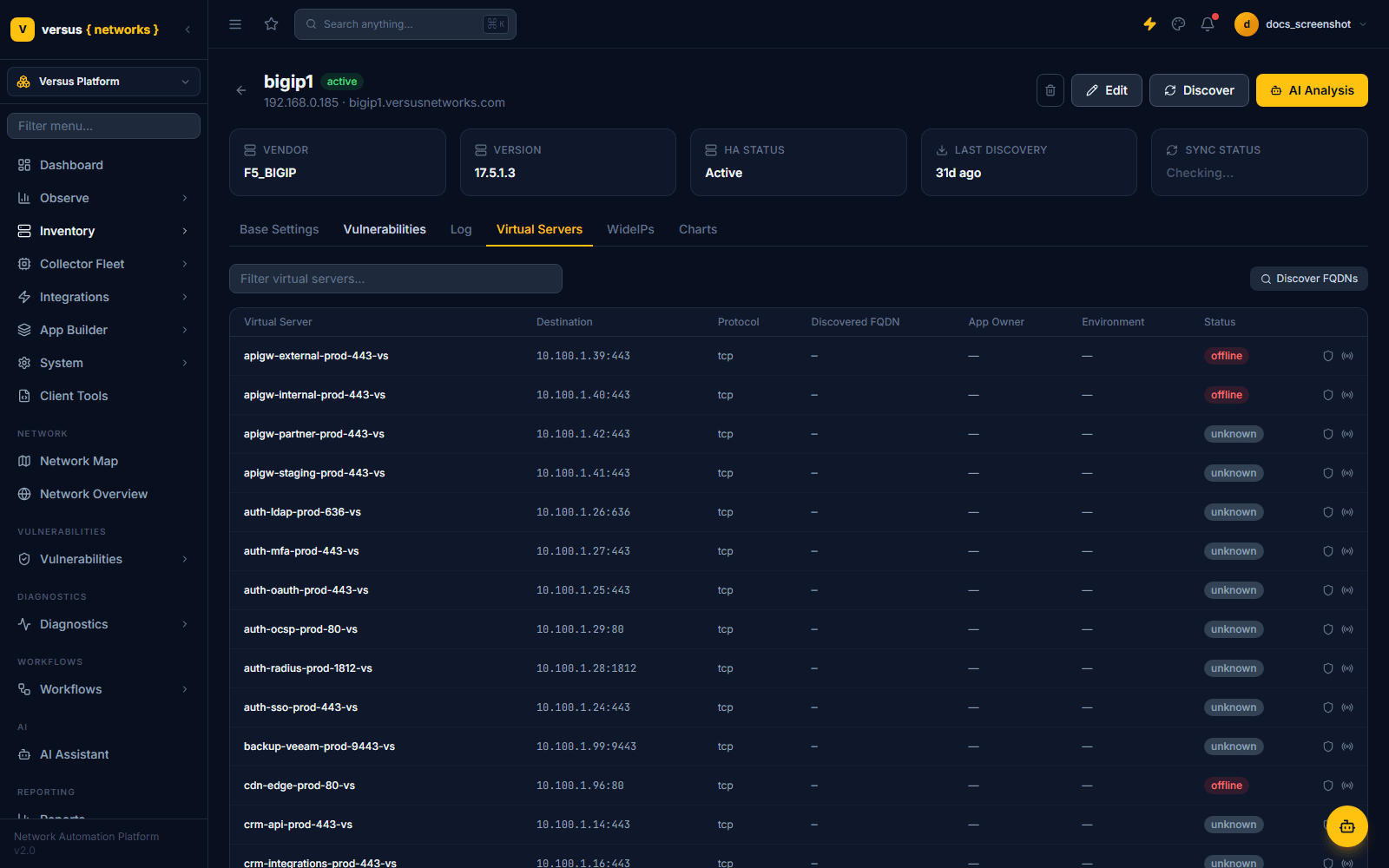
Discovery runs automatically as part of adding the device, and can be re-run any time from the Discover button on the device's detail page (click the device name from Device Inventory to open it). The detail page shows live status tiles — vendor, firmware version, HA status, time since last discovery, and sync status — above a set of tabs:
- Base Settings — device configuration summary
- Vulnerabilities — CVEs matched against this device's firmware
- Log — discovery and sync history
- Virtual Servers — every VS discovered on the device, with destination, protocol, discovered FQDN, and status
- WideIPs — GTM Wide-IPs (F5 GTM devices)
- Charts — device-level metrics
A device with an established management connection but no live traffic will show discovered virtual servers with an unknown or offline status rather than a hard failure — that's expected for a lab or demo device and doesn't block the rest of discovery.
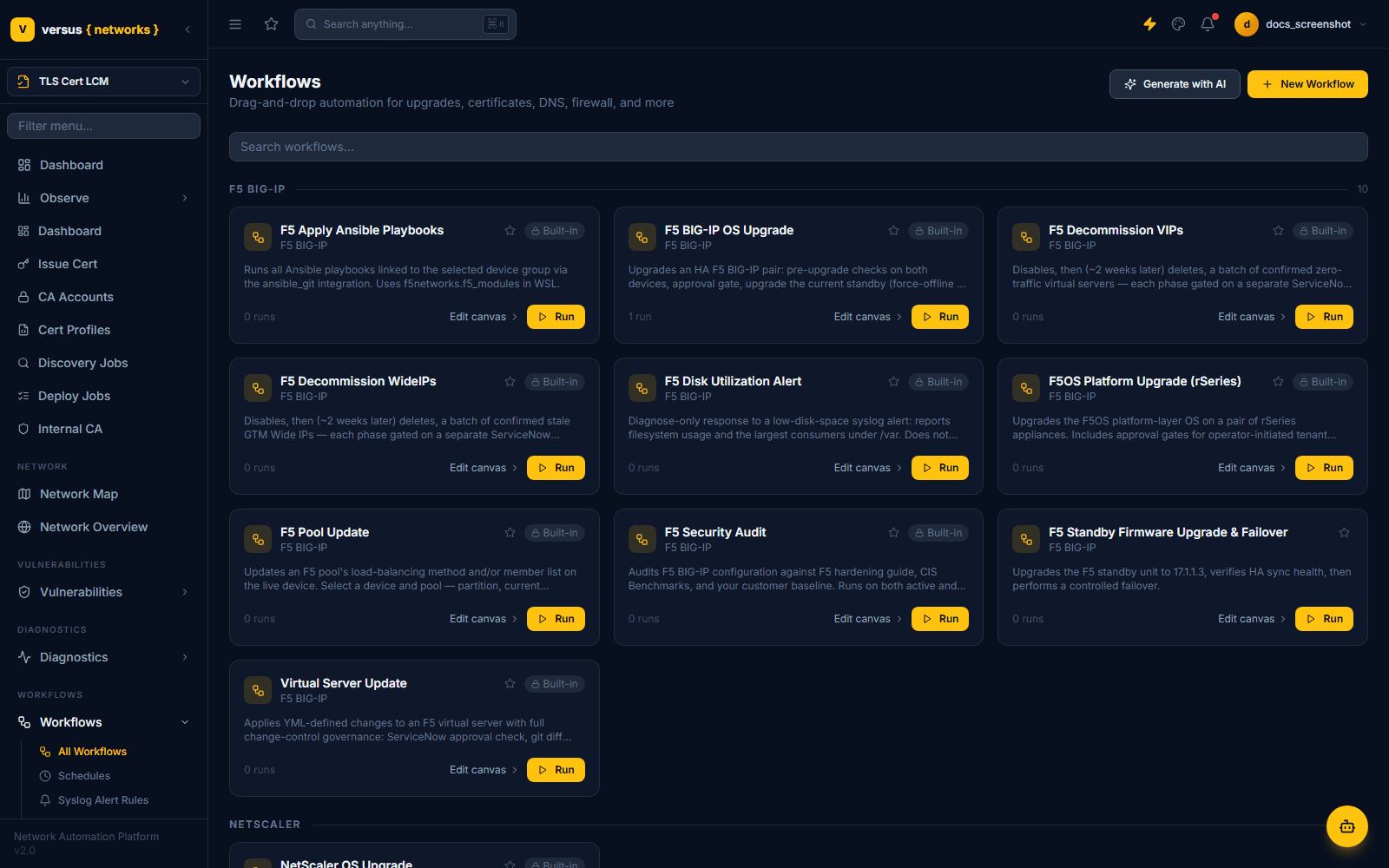
Navigate to Workflows. Rather than a blank canvas, you land on a library of built-in workflow templates grouped by vendor (F5 BIG-IP, NetScaler, and others) — things like OS upgrades, pool updates, VIP decommissioning, and security audits, each with Run and Edit canvas actions ready to use as-is:
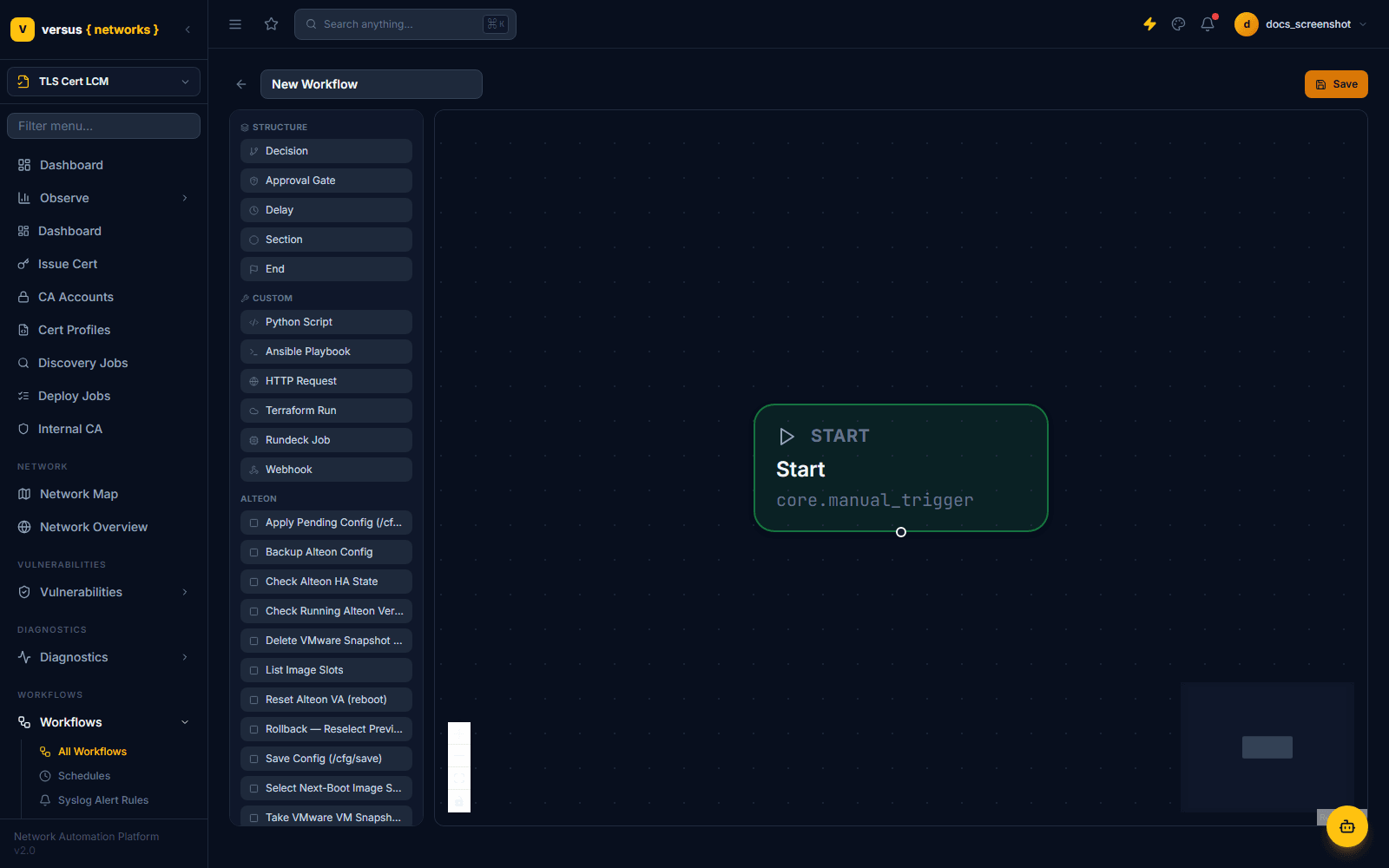
To build your own instead, click New Workflow (or Generate with AI to describe what you want in plain language — see the AI Workflow Generator doc). A new workflow opens with a single Start node already on the canvas, plus a node palette on the left:
- Structure — Decision, Approval Gate, Delay, Section, End
- Custom — Python Script, Ansible Playbook, HTTP Request, Terraform Run, Rundeck Job, Webhook
- Vendor-specific actions — the palette also lists actions for whichever device platforms you have connected (F5, Alteon, and others), such as pool updates or config backups
Drag nodes onto the canvas and connect them, then click Save. Built-in templates are read-only (you'll see a Built-in (read-only) badge) — duplicate one first if you want to customize it rather than build from scratch.
The Dashboard link at the very top of the sidebar (above your current workspace's own items) opens a widget-based operational dashboard, organized into tabs (e.g. Dev and Production) that you can add to with Add Widget and rearrange by dragging. Widgets include per-device panels — connections, request counts, throughput in/out, a connection-count time series — and estate-wide panels like Unauthorized Changes:
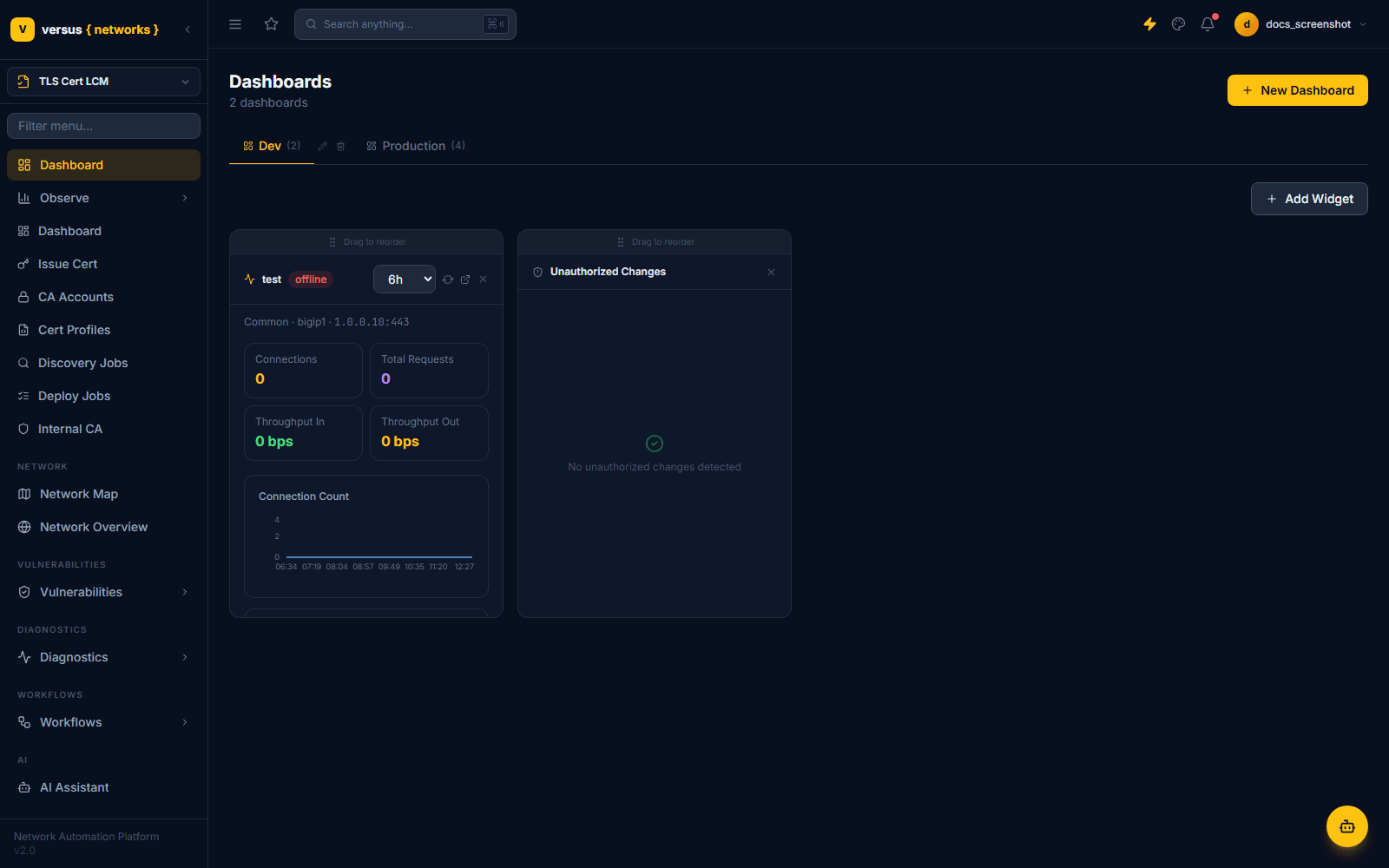
This is a different surface from Observe → Dashboards, which is a fuller, Grafana-style dashboarding system wired to connected datasources (Prometheus, Loki, PostgreSQL, or demo data) — see Observe Dashboards for that system in depth. On a fresh instance, Observe → Dashboards starts empty until you connect a datasource and build one.
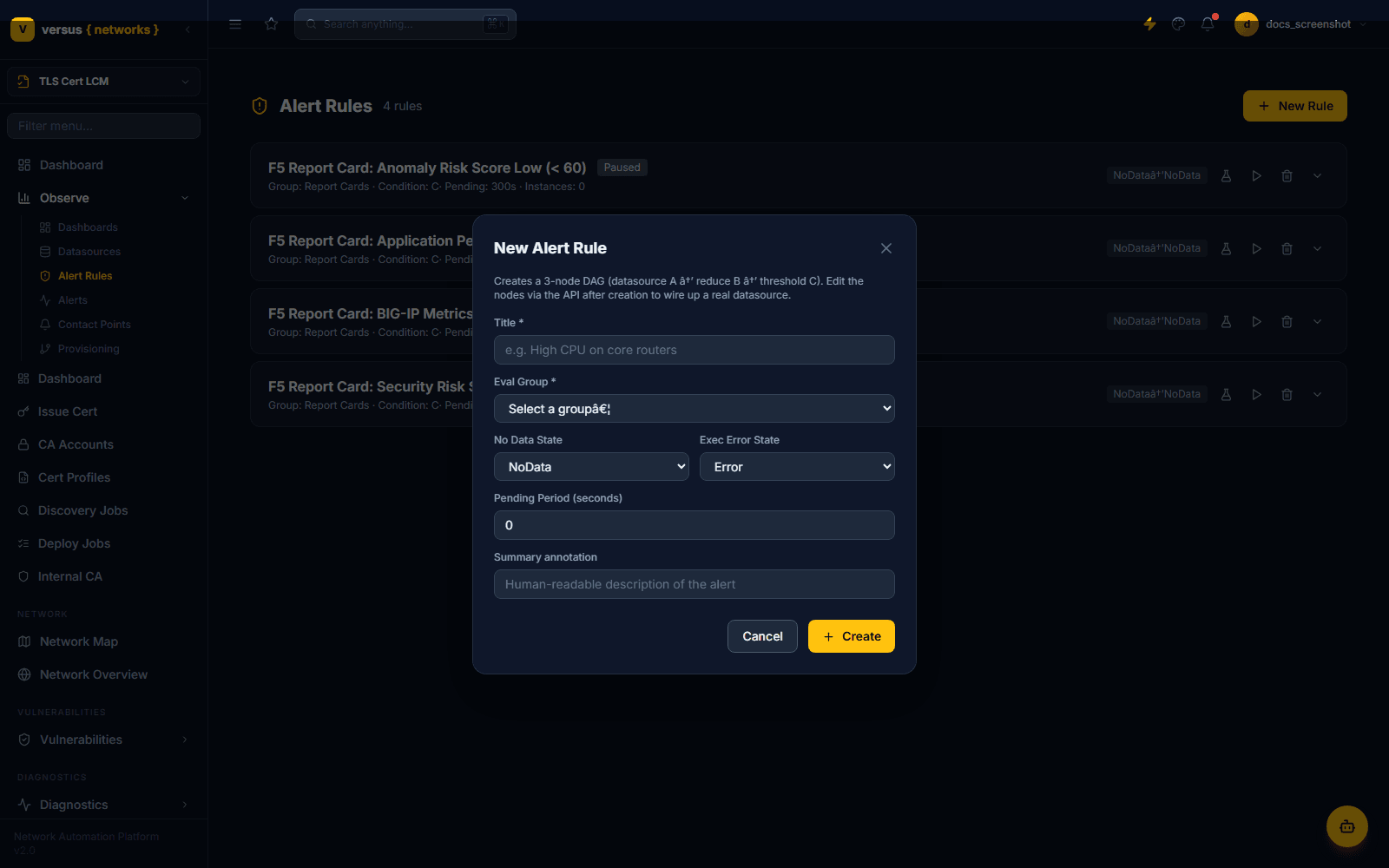
Navigate to Observe → Alert Rules and click New Rule. Versus's alerting is built on an expression engine rather than a simple trigger-type picker — creating a rule scaffolds a 3-node DAG (datasource → reduce → threshold) that you then wire to a real datasource:
- Title — a human-readable name (e.g. "High CPU on core routers")
- Eval Group — which evaluation group this rule belongs to, controlling how often it runs
- No Data State / Exec Error State — how the rule behaves when its query returns nothing or fails
- Pending Period — seconds a condition must hold before the alert fires
- Summary annotation — the human-readable description shown on the fired alert
After creation, edit the rule's datasource, reduce, and threshold nodes (via the rule detail view or the API) to point at the metric you actually want to monitor — for example, certificate expiry or device offline status. Route the fired alert to a channel under Observe → Contact Points (Email, Webhook, ServiceNow, Slack, Microsoft Teams, or PagerDuty) — see Alert Contact Points.
Quick Reference
| Step | Location | What you need |
|---|---|---|
| 1 — Add Device | Versus Platform → Inventory → Device Inventory | Management IP, vendor, credentials |
| 2 — Discover | Device detail page → Discover | Runs automatically on add; re-run any time |
| 3 — Create Workflow | Workflows → New Workflow (or a built-in template) | Start node + action nodes from the palette |
| 4 — View Dashboard | Dashboard (top of sidebar) | No config required — widgets are pre-populated |
| 5 — Set Up Alert Rule | Observe → Alert Rules → New Rule | Title, eval group, then wire a datasource |