Observe Dashboards
Build dashboards with Time Series, Table, and Logs panels — connected to Prometheus, Loki, or PostgreSQL data sources.
Observe Dashboards is the visualisation layer of Versus Observe, available from the Observe section in the sidebar of every workspace. A dashboard is a collection of panels — each panel runs one query against one data source and renders the result. Dashboards belong to whichever workspace you created them in.
Data Sources Come First
Before you can build a panel, connect at least one data source under Observe → Datasources. Versus Observe supports three data source types:
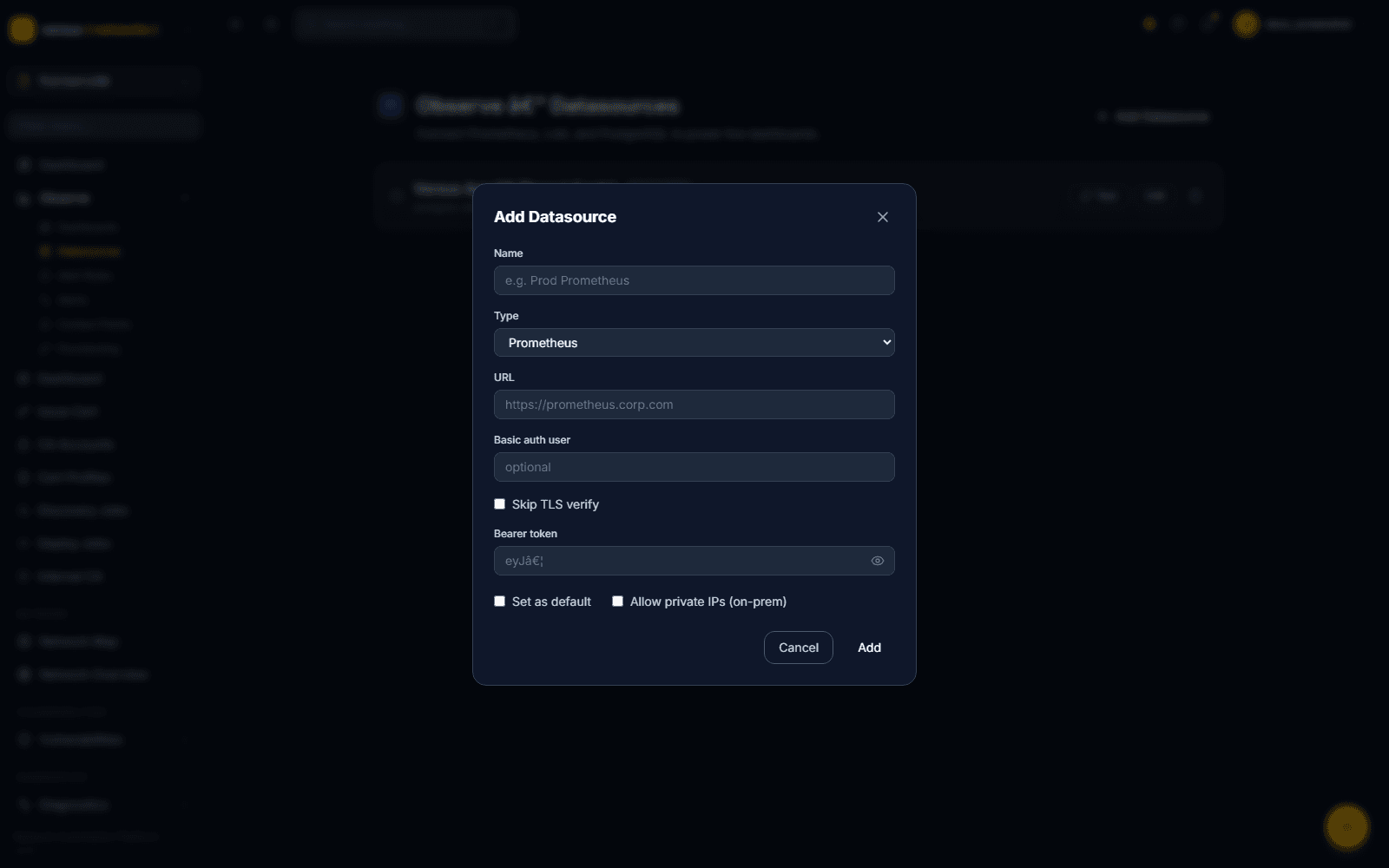
- Prometheus — URL, optional Basic auth user, Bearer token, and a Skip TLS verify toggle.
- Loki — URL and an optional Tenant ID (sent as
X-Scope-OrgID). - PostgreSQL — Host, Port, Database, User, Password, and SSL mode.
Every type also has a Set as default checkbox and an Allow private IPs (on-prem) checkbox, which permits the data source to point at an internal/private address. Each configured source gets a Test button on the Datasources list to verify connectivity, plus Edit and delete controls.
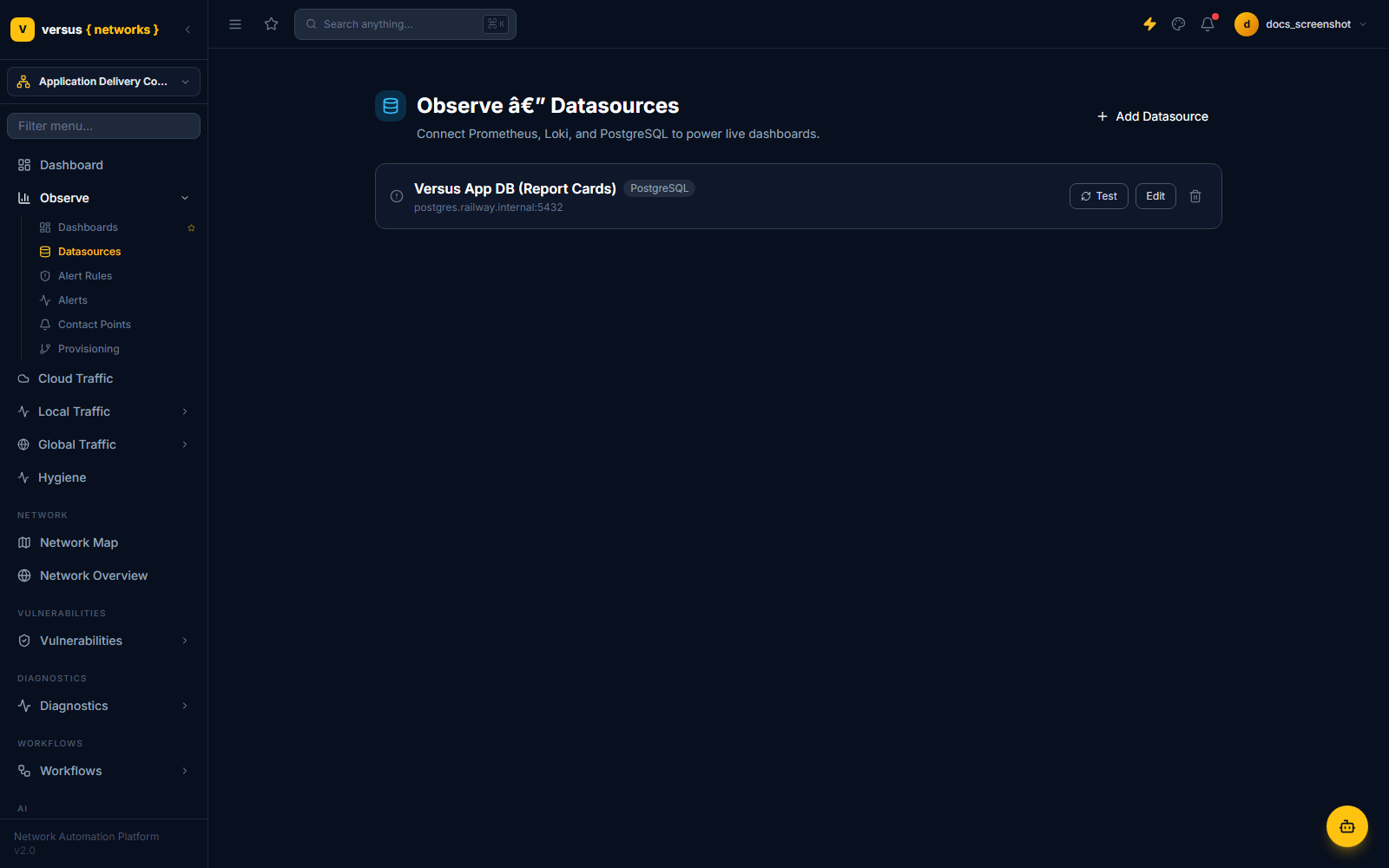
Click Add Datasource to connect a new one. The form's Type dropdown switches the fields shown below it — a Prometheus source asks for a URL and auth options; a PostgreSQL source asks for Host/Port/Database/User/Password instead.
Creating a Dashboard
Give the dashboard a title and click Create. There is no folder picker at creation time — the dashboard opens straight into its editor.
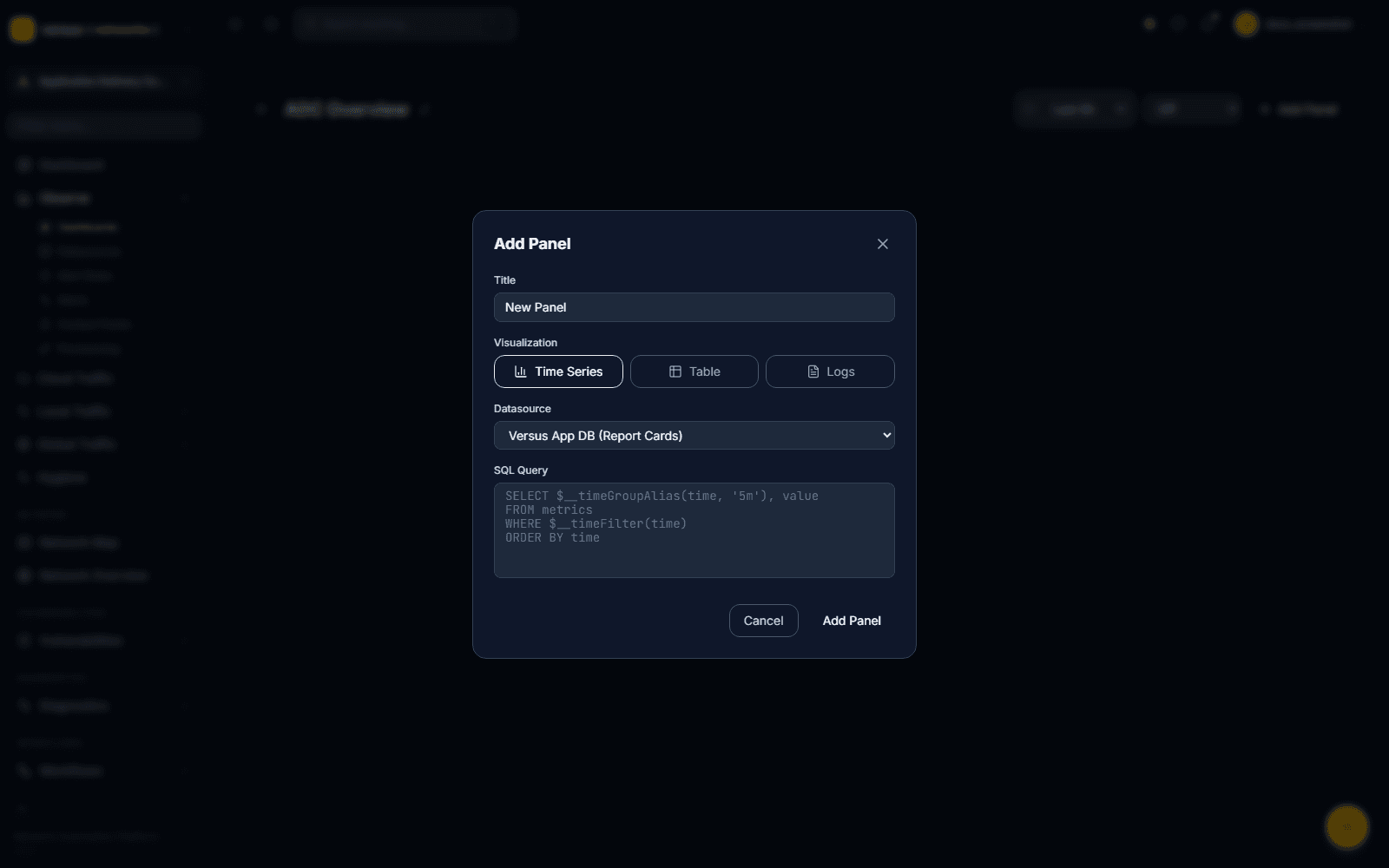
Click Add Panel. Unlike a split query-builder/preview layout, this is a single form: give the panel a title, pick a Visualization, pick a Datasource, and write the query in the box below (its language follows the data source type — SQL for PostgreSQL, PromQL for Prometheus, LogQL for Loki). Click Add Panel to render it onto the dashboard immediately — there is no separate live-preview step before it's added.
Panel Types
Versus Observe currently ships three panel visualizations:
- Time Series — line chart over time. For throughput, latency, error rate, or any metric that changes over the selected time range.
- Table — tabular query results.
- Logs — a log line stream, for Loki queries.
Editing and Removing Panels
Hovering a panel reveals two icons: a refresh icon to re-run its query on demand, and a delete icon to remove it. There is no in-place panel editor — to change a panel's query, visualization, or data source, delete it and add a new one with Add Panel.
Time Range and Refresh
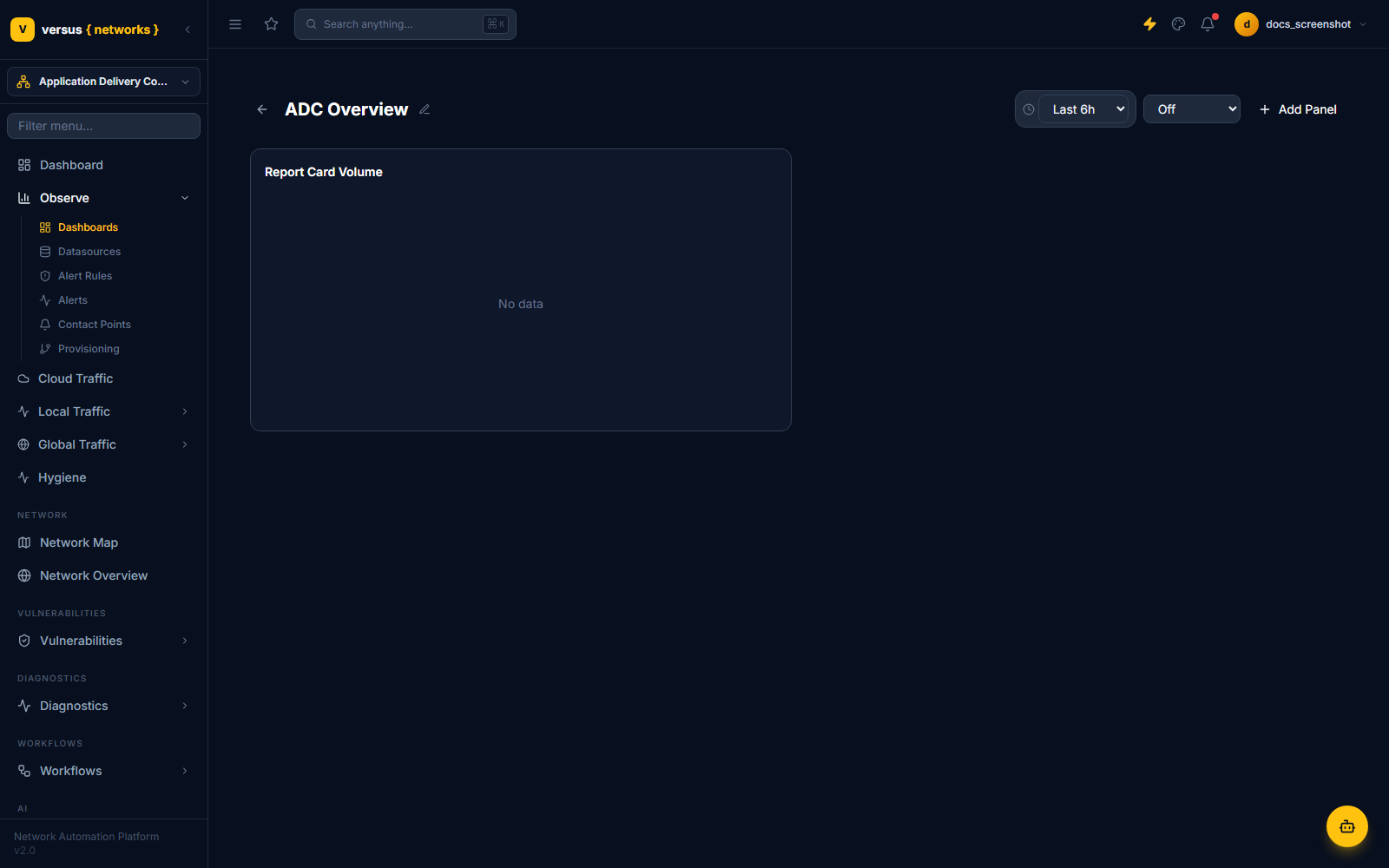
The time range dropdown in the top-right of the dashboard controls the query window for every panel at once: Last 5m, 15m, 1h, 6h, 24h, or 7d (default is Last 6h). The adjacent dropdown sets an auto-refresh interval — Off, 10s, 30s, 1m, or 5m (default Off).
Renaming a Dashboard
Click the pencil icon next to the dashboard title to rename it in place. There is no manual Save button anywhere in the editor — creating the dashboard, adding a panel, and renaming it all persist immediately.
Folders and Sharing
The Dashboards list itself has no folder or share/export controls. Folders do exist as a resource type, but only through Dashboard Provisioning — a kind: Folder entry in a provisioning manifest is the only way to create one. There is currently no link/embed/export-JSON sharing menu on a dashboard.
Quick Reference
| Item | Detail |
|---|---|
| Panel types | Time Series, Table, Logs — no Bar Chart or Stat yet |
| Data source types | Prometheus, Loki, PostgreSQL — no built-in Demo source |
| Adding a panel | Single "Add Panel" form: title, visualization, datasource, query — added immediately |
| Editing a panel | Not supported in place — delete and re-add it |
| Time range presets | Last 5m / 15m / 1h / 6h / 24h / 7d (default 6h) |
| Auto-refresh intervals | Off, 10s, 30s, 1m, 5m (default Off) |
| Saving | Automatic — no Save button |
| Folders | Only via Dashboard Provisioning (kind: Folder manifests) |