Lifecycle Management — Software Currency & Upgrades
An on-premises deployment has two things to keep current: the platform and the collectors in your network. Versus is one image across every form factor, so upgrades are consistent — pull a newer image, let the forward-only migrations run, roll the app tier. Collectors keep themselves current. Here's how to do it safely on each install type.
Web/app tier + database. Upgrade by pulling a newer image (or OVA); forward-only migrations run before it serves. Rolls with little/no downtime on Helm and clusters.
Run the bundled supervisor and they self-upgrade — signed, health-checked, with automatic rollback. Currency across the fleet with no manual effort.
FIELD_ENCRYPTION_KEYbefore every upgrade — the key is what makes encrypted columns readable; losing it is unrecoverable. (2) Test the upgrade in staging first for anything beyond a patch.Know what you're running
- Version. Shown in Versus Platform → System → Settings (version shown there) and returned by
GET /api/updates/health/(also the load-balancer/liveness check). Each install writes aversion.jsonat startup. - Release notes & channel. New builds + changelog are published at Support → Downloads with SHA-256 checksums and a detached signature — watch it, or ask Support to add you to security-advisory notifications. See Staying informed & getting a build below.
- License currency is separate from software version — the signed
.veslichas its own validity + daily heartbeat. See On-Premise Licensing.
Supported-version policy. The two most recent minor releases receive fixes and security updates; upgrade one minor at a time so migrations apply in order. Security releases ship on their own and are called out explicitly in the release notes with the CVEs they address — apply them promptly. Keep collectors on auto-update so the fleet tracks the platform.
Security releases & vulnerability remediation
Versus runs a documented vulnerability-management program. Remediation targets for issues in the software — subject to upstream patch availability and risk assessment — are:
| Severity | Remediation target |
|---|---|
| Critical | 7 days |
| High | 30 days |
| Medium | 90 days |
| Low | 180 days |
Behind every build:
- Secure development pipeline — code review, dependency and container-image scanning, static analysis (SAST), secret scanning and dynamic testing (DAST) run in CI on every change.
- Independent assurance — annual third-party penetration testing, a SOC 2 Type 2 examination in progress, and a published responsible-disclosure path. See Security & Compliance.
- Both directions — the same platform continuously watches CVE feeds across your managed vendors (F5, Cisco, Palo Alto, Check Point, Zscaler, plus NVD and CISA KEV) and surfaces what affects your estate — see Security Operations.
Versioning & release types
Versus uses MAJOR.MINOR.PATCH version numbers (the current line is 2.x). The running version is shown in System → Settings and returned by GET /api/updates/version({ version, build_time, git_hash }) and the GET /api/updates/health/ check.
| Release | Example | What it means |
|---|---|---|
| Major | 2.x → 3.0 | Significant change; may carry non-trivial migrations or changed defaults. Read the upgrade notes and test in staging. |
| Minor | 2.3 → 2.4 | New features, backward-compatible. Forward-only migrations run automatically on startup. Test in staging. |
| Maintenance / patch | 2.4.0 → 2.4.1 | Bug fixes and security fixes — no feature or schema surprises. Safe to apply promptly. |
Security fixes ship as maintenance releases and are called out explicitly with the CVEs they address — see Security releases & vulnerability remediation above. A minor release stays supported — fixes and security patches — until the second newer minorships; a line's end-of-support is flagged in the release notes ahead of time so you're never surprised.
Staying informed & getting a build
Knowing a release is out. Compare your running version (above) against the latest on Support → Downloads, where each build is published with its release notes, SHA-256 checksum and detached signature. Security releases are flagged so you know to apply them promptly — ask your Versus contact to add you to the security-advisory notificationslist so those reach you directly. There is no auto-updater for the platform: upgrades are a deliberate, operator-run step. Collectors, by contrast, keep themselves current — see below.
Getting the build. On-premise images live under Support → Downloads → On-Premise Installers — a VMware ESXi OVA and a KVM qcow2, each entitlement-gated and shipped with a SHA-256 checksum and signature (Kubernetes / Helm packaging follows the appliance). Always verify the checksum and signature before loading.
Pre-upgrade checklist (all form factors)
- Read the release notes for the target version (breaking changes, required steps).
- Back up PostgreSQL (
pg_dump/snapshot) — your rollback path across a migration. - Confirm
FIELD_ENCRYPTION_KEY(and the appliance DB password) are escrowed somewhere safe and separate. - Snapshot the VM (appliance) or note the current image tag (compose/Helm).
- Pick a maintenance window — Helm/clustered roll with little/no downtime; a single appliance has a brief restart.
- Upgrade staging first for minor/major releases.
Your first upgrade, start to finish
A worked example — a single-node appliance moving to the next release. Every form factor has the same shape; only the apply command differs (see the per-install-type sections below).
- Check where you are. System → Settings shows your version; open the target release's notes on Support → Downloads for breaking changes and required steps.
- Back up.
pg_dumpthe database and confirm yourFIELD_ENCRYPTION_KEYis escrowed separately — that pair is your way back across a migration. - Snapshot. Take a VM snapshot (appliance), or note the current image tag (Compose / Helm).
- Get + verify the build. Pull the signed image or
docker loadthe tarball; verify the SHA-256 and signature first. - Apply. Click Upgrade in System → Settings → Software Updates, or run
./versus-upgrade.shon the host — it recreates the stack (forward-only migrations run on startup), health-checks the new version, and rolls back if it doesn't come up. (By hand:docker compose up -d, then watchdocker compose logs -f web.) - Verify.
GET /api/updates/health/is OK, System → Settings shows the new version, licensing reads Active, and a known workflow or path check succeeds. - If anything looks wrong, roll back. Restore the VM snapshot (or revert the image tag), and restore the database from your backup only if a migration ran — see Rollback.
Kubernetes, clustered appliances, and air-gapped sites follow the same seven steps with the commands in the sections below.
A · Single-node appliance (OVA / KVM) & Docker Compose
The appliance runs the stack (Caddy + web + bundled Postgres) via Docker Compose in the VM. Upgrade it two equivalent ways:
- From the UI — System → Settings → Software Updates → Upgrade. A small on-host service (
versus-upgrade.sh --serve) carries it out. - From the host — run the bundled script, which does the same safe sequence:
cd deploy/appliance
./versus-upgrade.sh            # upgrade to the latest signed release
./versus-upgrade.sh 2.4.2      # or pin a specific version
Either way it pulls the signed image, recreates the stack (forward-only migrations run on web startup), health-checks the new version, and rolls back automatically if it doesn't come up. To drive it by hand instead: docker compose pull && docker compose up -d (watch docker compose logs -f web); on an air-gapped host docker load the tarball first and the script continues offline.
A run is a transparent, timestamped log — each phase, then the outcome on the last line:
$ ./versus-upgrade.sh 2.1.0
2026-10-25T16:40:02Z [versus-upgrade] target: version=2.1.0 image=versus/web-onprem:2.1.0
2026-10-25T16:40:02Z [versus-upgrade] upgrading to 2.1.0 (image versus/web-onprem:2.1.0); previous=versus/web-onprem:2.0.0
2026-10-25T16:40:02Z [versus-upgrade] [downloading] pulling versus/web-onprem:2.1.0
[+] Pulling 2/2
 ✔ web      Pulled
 ✔ gateway  Pulled
2026-10-25T16:40:48Z [versus-upgrade] [migrating] docker compose up -d — forward-only migrations run on web startup
[+] Running 4/4
 ✔ Container versus-postgres-1  Healthy
 ✔ Container versus-web-1       Started
 ✔ Container versus-gateway-1   Started
 ✔ Container versus-caddy-1     Running
2026-10-25T16:41:05Z [versus-upgrade] [verifying] waiting up to 240s for 2.1.0 to report healthy
2026-10-25T16:41:35Z [versus-upgrade] [succeeded] upgrade to 2.1.0 complete
2026-10-25T16:41:35Z [versus-upgrade] DONE: upgraded to 2.1.0
If the new build doesn't pass its health check, the script reverts the image on its own and says so — no manual recovery, no half-upgraded state:
2026-10-25T18:04:06Z [versus-upgrade] [verifying] waiting up to 240s for 2.1.1 to report healthy
2026-10-25T18:08:06Z [versus-upgrade] ROLLING BACK to versus/web-onprem:2.1.0 (new build did not report healthy within 240s)
2026-10-25T18:08:19Z [versus-upgrade] [rolled_back] rolled back to previous image
2026-10-25T18:08:19Z [versus-upgrade] NOT upgraded (rolled back or failed) — see above- Migrations run automatically on web startup; the bundled Postgres is upgraded in place, not replaced.
- Downtime is the brief web restart.
- Rollback: restore the VM snapshot, or revert the image tag and
docker compose up -d— restore the database from backup only if a migration ran that the older build can't read (hence the snapshot).
You only need a fresh OVA/qcow2 to pick up base-OS patches — routine app upgrades just pull the image.
B · Kubernetes (Helm) — including OpenShift
helm upgrade versus deploy/helm/versus --reuse-values --set image.tag=<new>- A pre-upgrade migrate Job applies the schema before new web pods roll out — race-free.
- The web Deployment rolls behind the Service/Route/Ingress → zero- or near-zero-downtime. The single worker and alert-scheduler recreate; CronJobs pick up the new image next run.
- Rollback:
helm rollback versus <REVISION>; restore the external DB from backup too if the migration wasn't backward-compatible. - OpenShift (OCP): identical flow — push the image to the internal registry, then
helm upgrade. See On-Premise Installationfor the OpenShift specifics (Routes, restricted-v2 SCC, arbitrary-UID image).
C · Clustered appliances behind a load balancer
Multiple app nodes share one external database.
- Upgrade the shared schema once, from a single node (pull the new image / run
migrate), withRUN_SEEDS=0on the others. - Roll the app nodes one at a time behind the LB — drain, pull, bring back, confirm
/api/updates/health/OK, next. No full outage. - Rollback: roll nodes back to the prior image; restore the shared DB from backup only if a non-reversible migration was applied.
Air-gapped upgrades & migrations
No install needs outbound internet. To upgrade an air-gapped site:
- Load the image offline —
docker loadthe shipped tarball (or mirror it to your internal registry; on OpenShiftoc image mirror). On appliance / Compose, then run./versus-upgrade.sh <version>: it sees the image is already present and continues without reaching a registry. On Helm, pointimage.tagat the mirrored image. - Verify the SHA-256 + detached signature before loading.
- License renewals apply via the offline path — upload the new
.veslicunder System → Licensing.
Migrations are forward-only and run automatically before the app serves traffic. They're the reason the pre-upgrade database backup matters — it's the supported way back across a schema change.
Collectors — automated currency
Collectors keep themselves current — the main lifecycle win. You run the bundled supervisor, which performs signed, health-checked self-upgrades with automatic rollback. See Keeping the Collector Running and the Collector Control Plane.
- Automated self-upgrade. Run the supervisor with
-manifest-url <URL> -update-pubkey <HEX>(both from Client Tools). On a new signed build it stages, launches, and health-checks it; if the new version can't establish a healthy session it rolls back. A collector never gets stuck on a bad build. - Signed & verified against the update public key — only builds Versus signed ever run.
- Staged rollout. Roll to a canary site first, confirm in the fleet, then let it flow to the rest.
- Fleet visibility. Collector Fleet → Collectorsshows each collector's version and session state — currency at a glance.
- Pinning / manual updates. For change control, withhold the manifest flags and update manually (drop in the new binary; the supervisor relaunches it), or pin a site to a known-good version.
- Redundancy. Enroll 2+ collectors per site so work continues while one updates — see Deployment Options.
- Compatibility / skew. The collector talks a stable, versioned control-plane contract and is outbound-only and fail-safe (pauses at the last checkpoint, resumes on reconnect), so a collector one release behind the platform keeps working. Upgrade the platform, then let collectors auto-update.
Updating from inside Versus
System → Settings → Software Updates shows the version you're running and whether a newer release is available on your channel — read from a signed release manifest, so the check itself is tamper-evident. Security releases are flagged distinctly. From the card you open the release notes and, depending on form factor, either apply the upgrade in one click or copy the exact command:
- Appliance / Docker Compose — one click runs the on-host
versus-upgrade.shservice, which pulls the signed image, lets the migrations run, health-checks the new build, and rolls back automatically if it doesn't come up. Prefer the terminal? The same script runs standalone:./versus-upgrade.sh. - Kubernetes / clustered — the card surfaces the exact
helm upgrade(or node-roll) command. These upgrades stay declarative — Versus never mutates your cluster from inside itself.
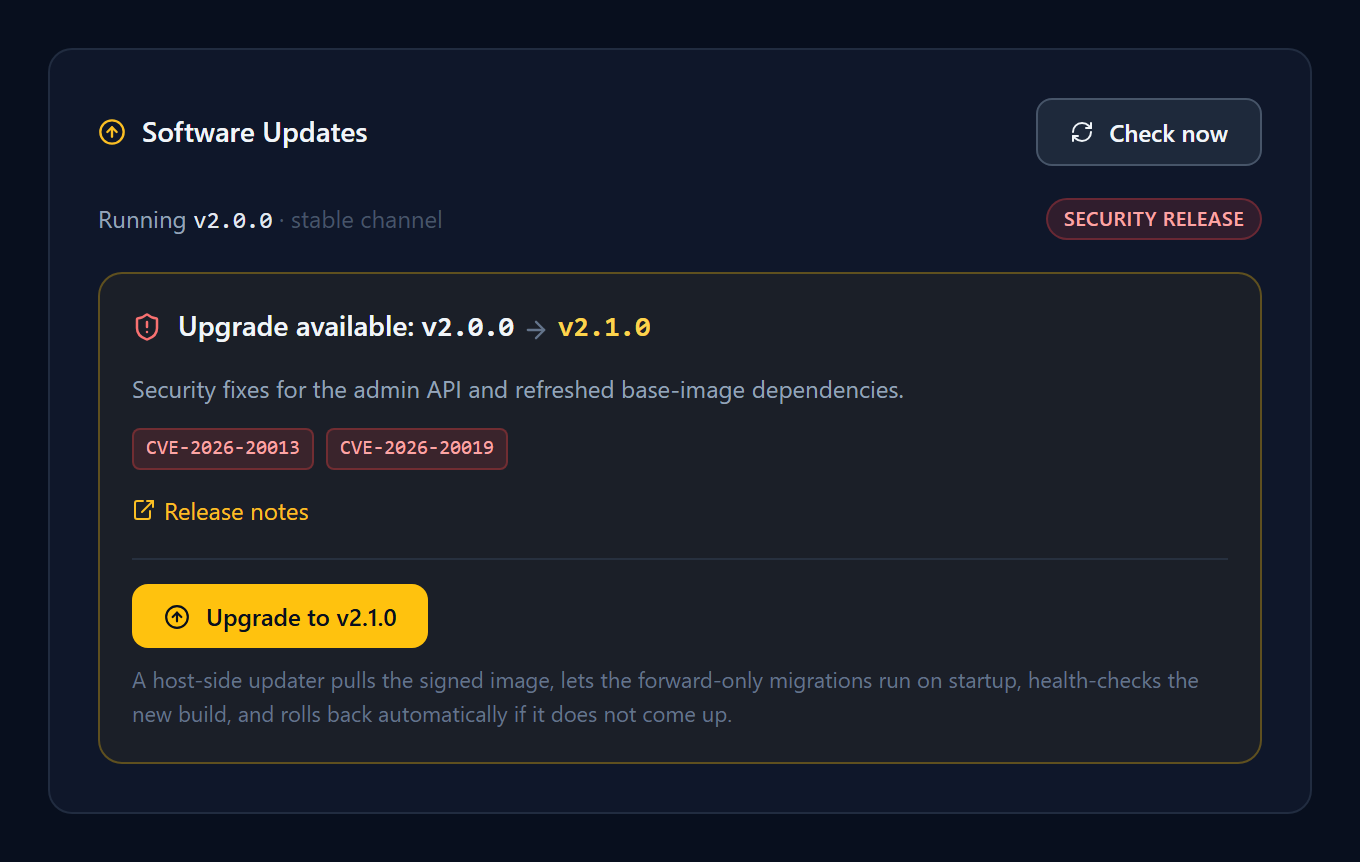
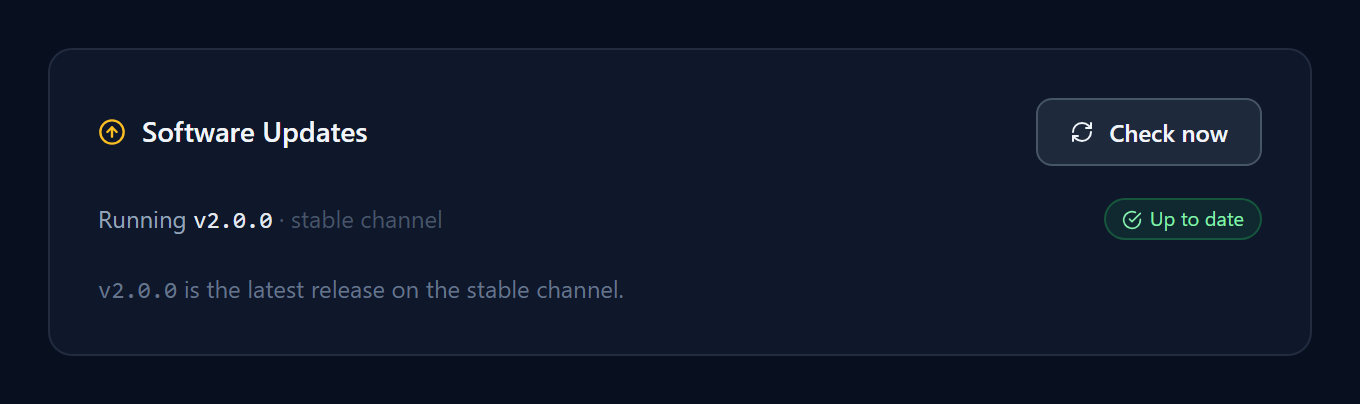
The check is read-only and needs no outbound telemetry beyond fetching the manifest; an air-gapped site points it at an internal mirror (or just uses the procedures above). There is deliberately no silent auto-updater — upgrading the platform is always something you choose.
Self-healing upgrades
Upgrades are built to fail safe, in three layers — and the same machinery that keeps a running deployment healthy backs the last two:
- Prevent — only Versus-signed builds are ever applied; collectors roll to a canary site first; and the pre-upgrade database backup + key escrow is your guaranteed way back.
- Detect — the post-upgrade verify step (health, version, licensing, a known workflow), plus Sentinel: if the new build throws an unhandled exception, Self-Healing catches it as a deduplicated crash issue under System → Self-Healing instead of letting it hide in a log.
- Recover — collectors auto-roll-back a self-upgrade that fails its health check; the appliance/compose host updater does the same; otherwise the documented rollback (snapshot / image tag + DB restore). If something still slips through, assemble a redacted, signed support bundle about the issue and transmit it sealed to Versus Support — no manual log-gathering.
See Self-Healing: Detected Issues & Support Bundles for how detection, redaction, signing, and transmission work.
Verify after any upgrade
- Health:
GET /api/updates/health/→ OK once the DB is reachable + migrated. - Version: Versus Platform → System → Settings shows the new build (version shown there).
- Licensing: System → Licensing shows Active (not Grace/Expired).
- Collectors: Collector Fleet shows sessions Active on the expected versions.
- Function: run a known workflow / path check and confirm a device operation succeeds.
Rollback at a glance
| Form factor | App-tier rollback | If a migration ran |
|---|---|---|
| Appliance (VM) | Restore VM snapshot, or revert image tag + up -d | Restore DB from pre-upgrade backup |
| Docker Compose | Set prior image tag, docker compose up -d | Restore DB from pre-upgrade backup |
| Kubernetes / Helm / OpenShift | helm rollback versus <REV> | Restore external DB from backup |
| Clustered appliances | Roll nodes back to prior image | Restore shared DB from backup |
| Collector | Supervisor auto-rolls back a bad upgrade; or drop in the prior binary | n/a |
The consistent thread: the app tier rolls back in seconds; the database rolls back from the backup you took first. Take the backup.