ADC Hygiene
Find and retire what nobody cleaned up on your BIG-IPs — stale virtual servers, stale GTM wide IPs, unreferenced pools, monitors, iRules, certificates and SSL profiles, and iApp-owned virtual servers — with scans that prove an object is unused and a decommission that runs through approved change requests.
Every BIG-IP accumulates configuration that outlived its purpose: the virtual server for a campaign that ended, the pool a migration left behind, a monitor nobody attached, a certificate that expired in 2023 and is still bound to a profile. Each one is a line in the next upgrade's risk register and a question in the next audit. Hygiene (Application Delivery Controller → Hygiene) finds this configuration across every managed BIG-IP, keeps the evidence that it is unused, and retires it through change requests rather than a late-night tmsh session.
The page has four tabs:
| Tab | What it finds | How it is refreshed |
|---|---|---|
| Stale Virtual Servers | VIPs that are disabled, or have carried zero traffic for longer than your threshold | Live traffic counters, read by Scan Now or the scheduled check |
| Stale WideIPs | GTM wide IPs that are disabled, or whose pools have had no healthy virtual server for longer than your threshold | Computed from the imported GTM objects — no device call |
| Unreferenced Objects | Pools, monitors, iRules, certificates, keys and SSL profiles nothing references | Device scan by Scan Now or the scheduled check |
| Detach iApps | Virtual servers still owned by an F5 iApp (Application Service) | Filled by device discovery / re-sync |
Stale virtual servers
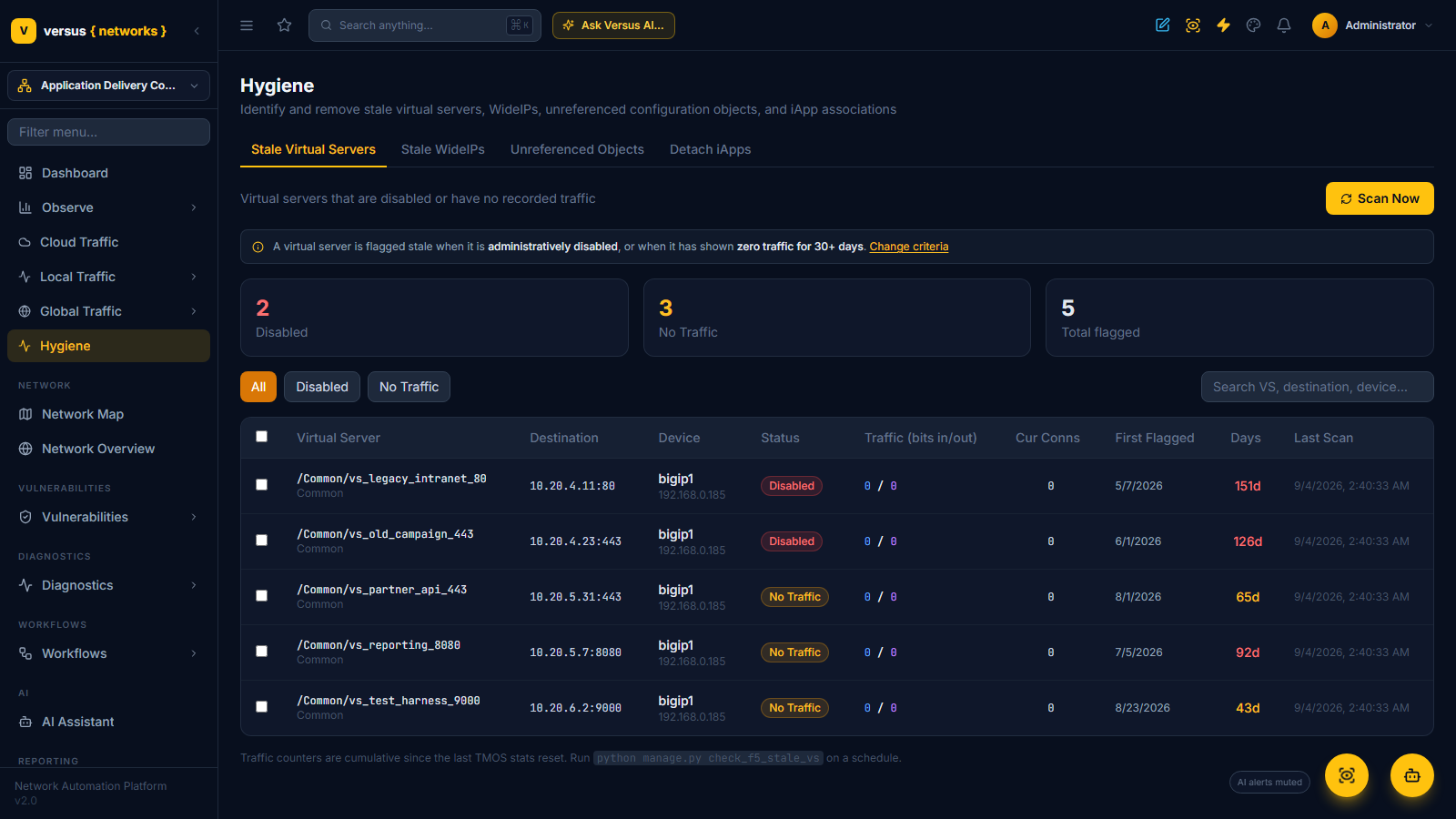
A virtual server is flagged stale when either of two things is true:
- it is administratively disabled — flagged immediately, or
- it has shown zero traffic for N days or more (30 by default). The zero-traffic window starts at the last TMOS statistics reset, or at the moment Versus first observed the VIP at zero if the counters were never reset explicitly.
Both rules and the day threshold are settings (System → Settings → Stale Virtual Servers); the banner above the table states the criteria in force and links to them.
Each flagged VIP shows its destination and port, the device, the reason (Disabled or No Traffic), cumulative bits in and out and current connections from the live counters, the date it was first flagged, and how many days it has been stale. Tiles summarise the three counts, the chips filter by reason, and the search box narrows by name, destination or device.
Scan Now reads the traffic statistics from every active BIG-IP again and updates the table in place: records keep their first-flagged date, and a VIP that has started passing traffic flips back to active rather than disappearing silently. The same scan runs on a schedule (check_f5_stale_vs) so the list is current when you open it.
Reset Status is the honest double-check. For the selected VIPs it resets the live TMOS counters on the device and restarts the zero-traffic window, so the next scan answers the question "has anything used this since we started watching?" from a clean baseline.
Decommissioning stale VIPs
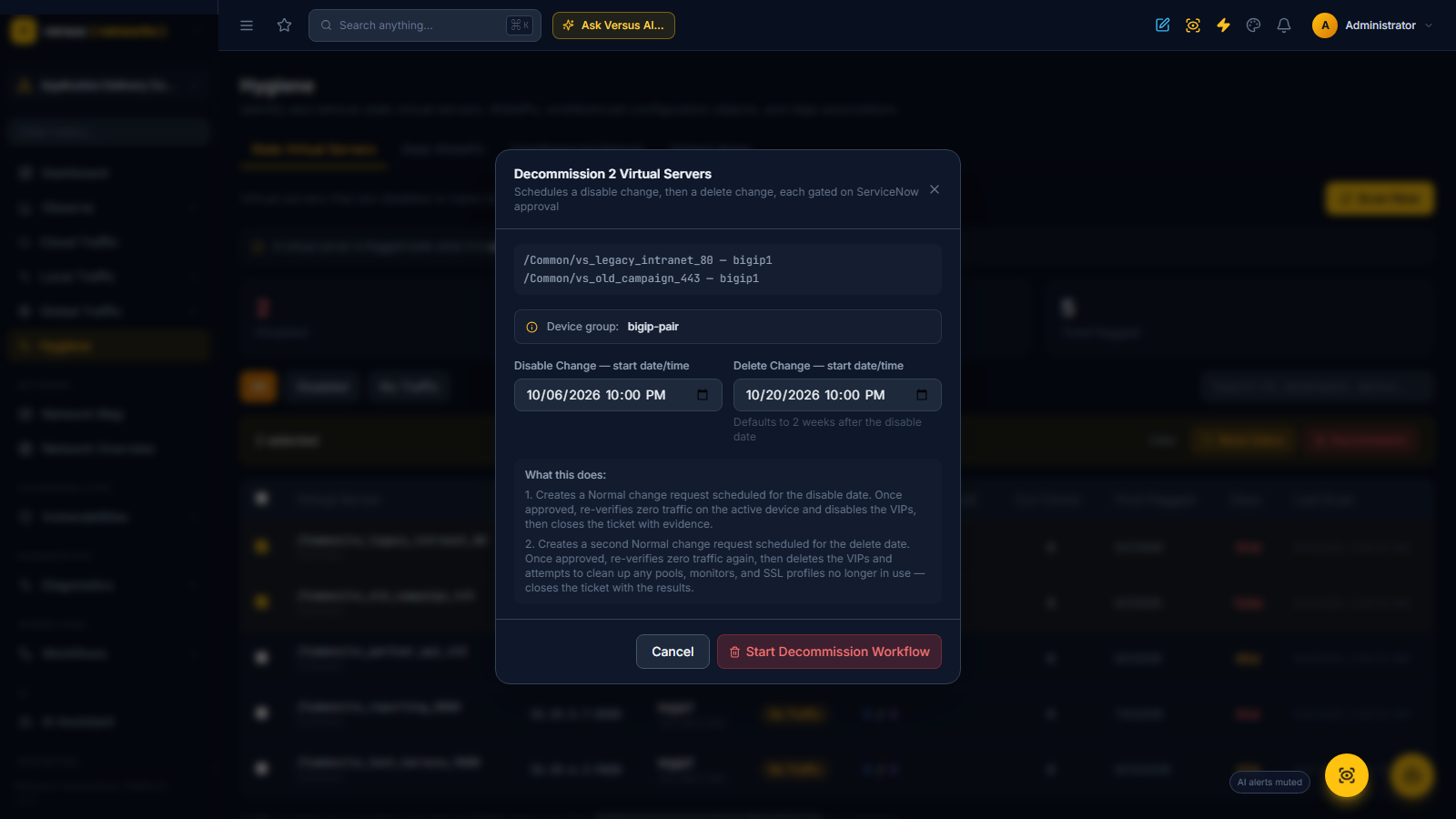
Select the VIPs you are sure about and choose Decommission. Nothing is deleted on the spot. Versus starts the built-in F5 Decommission VIPs workflow, which stages the removal as two changes:
- Disable change. A Normal change request scheduled for the disable date you pick. Once it is approved, the workflow re-verifies zero traffic on the active unit of the device group, disables the VIPs, and closes the ticket with the evidence attached.
- Delete change. A second Normal change request, scheduled by default two weeks after the disable date. Once approved, the workflow verifies zero traffic again, deletes the VIPs, and attempts to remove any pools, monitors and SSL profiles that are left with no references — then closes the ticket with the results.
The dialog takes you to the workflow run, where each step, its approval gate and its device output are visible. Because the workflow resolves the active unit at execution time, the selected devices must belong to a device group; the dialog says so if one is missing.
Stale wide IPs
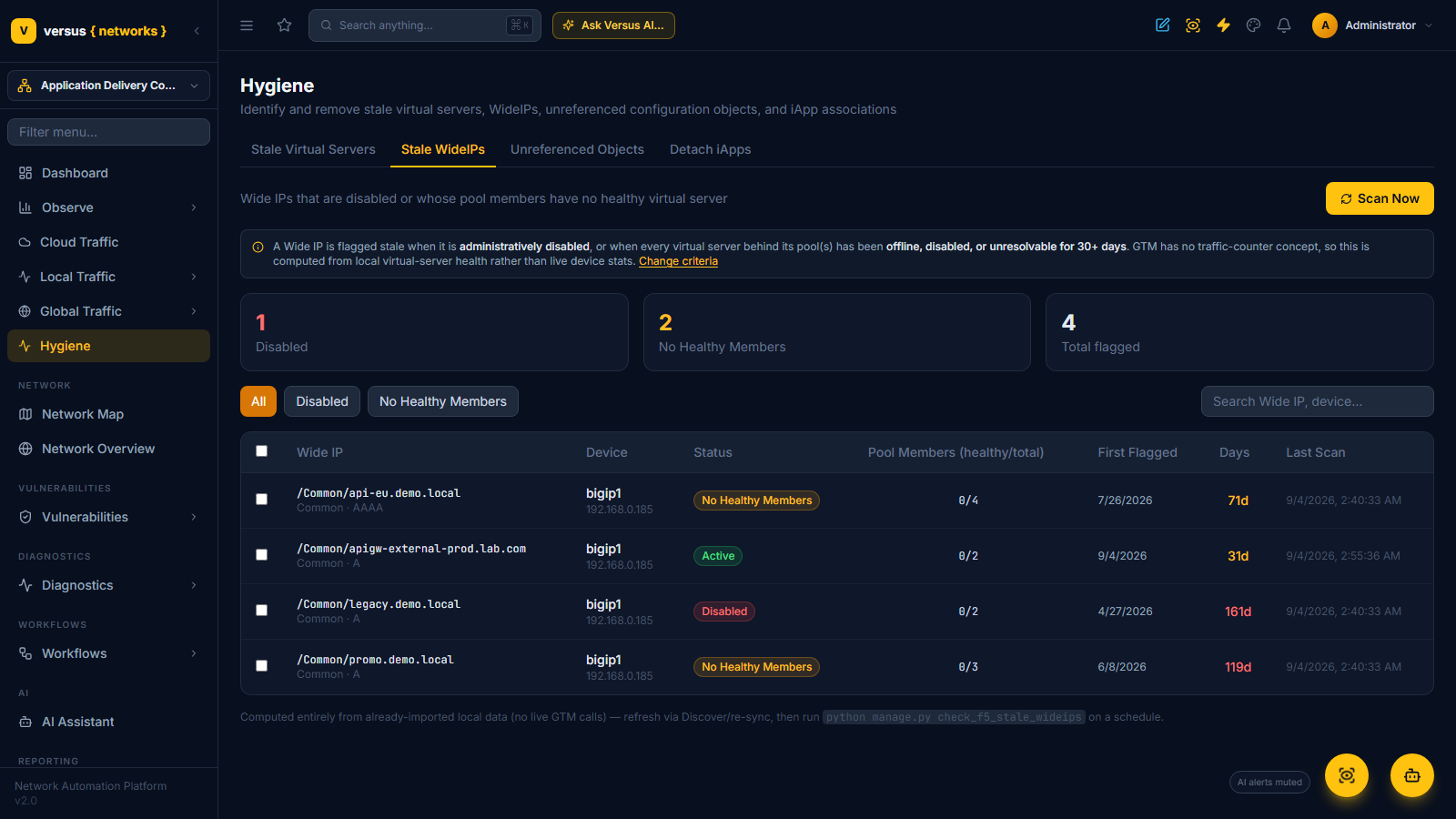
Global Traffic gets the same treatment. A wide IP is flagged stale when it is administratively disabled, or when every virtual server behind its pools has been offline, disabled or unresolvable for N days (30 by default; System → Settings → Stale WideIPs).
GTM has no traffic-counter concept, so this check never calls the device. It is computed from the wide IPs, GTM pools and virtual servers Versus already imports on each discovery or re-sync, which also makes it fast on large estates. The table shows the record type, the device, the reason, pool members as healthy / total, the first-flagged date and age.
Reset Status here only restarts the local timer (there are no device counters to reset). Decommission starts the F5 Decommission WideIPs workflow, which follows the same two-change pattern — a disable change, then a delete change — each gated on approval and each closing its ticket with evidence.
Unreferenced objects
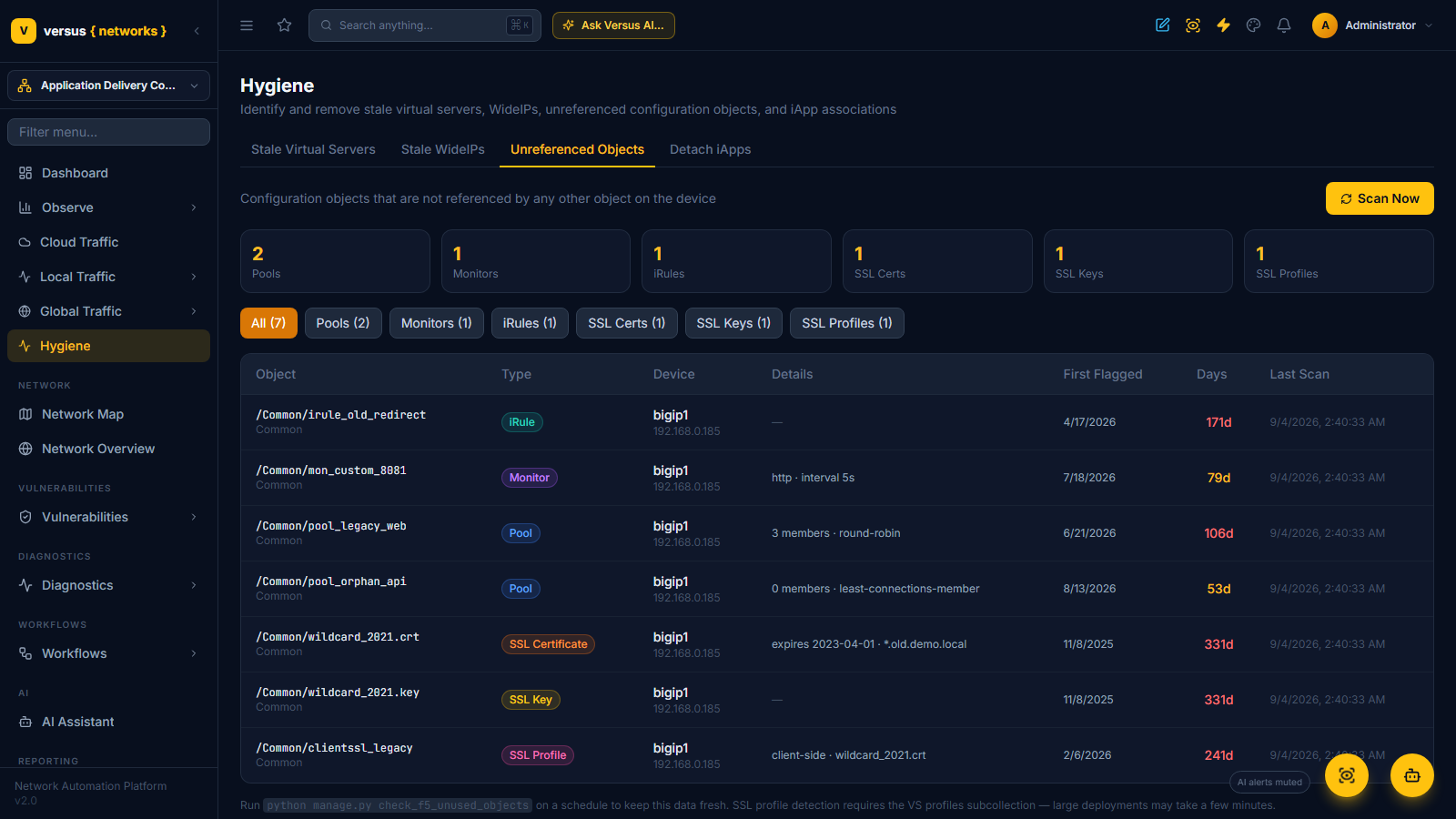
Unreferenced objects are the quiet half of the problem: nothing breaks when they stay, and nothing tells you they can go. The scan flags six kinds:
| Object | Flagged when |
|---|---|
| Pool | not the default pool of any virtual server |
| Monitor | not assigned to any pool |
| iRule | not attached to any virtual server |
| SSL certificate | not referenced by any client-ssl or server-ssl profile |
| SSL key | not referenced by any SSL profile |
| SSL profile | not attached to any virtual server |
System defaults (/Common/http, /Common/clientssl, default.crt, ca-bundle.crt and the rest of the shipped objects) are skipped, so the list is all signal. The Details column carries what you need to judge each one — a pool's member count and load-balancing method, a monitor's type and interval, a certificate's expiry and subject, the certificate an SSL profile binds — alongside the first-flagged date and age.
This tab reports; it does not delete. Removing objects is a configuration change like any other: the Decommission VIPs workflow already sweeps up pools, monitors and SSL profiles left orphaned by the VIPs it deletes, and for everything else a workflow or an AS3 change keeps the removal reviewed and reversible. For objects whose purpose nobody remembers, Config Archaeology reconstructs the intent behind an object and scores how safe it is to decommission.
SSL-profile detection reads each virtual server's profile subcollection, so the scan on a very large device can take a few minutes. It runs on demand (Scan Now) or on a schedule (check_f5_unused_objects).
Detach iApps
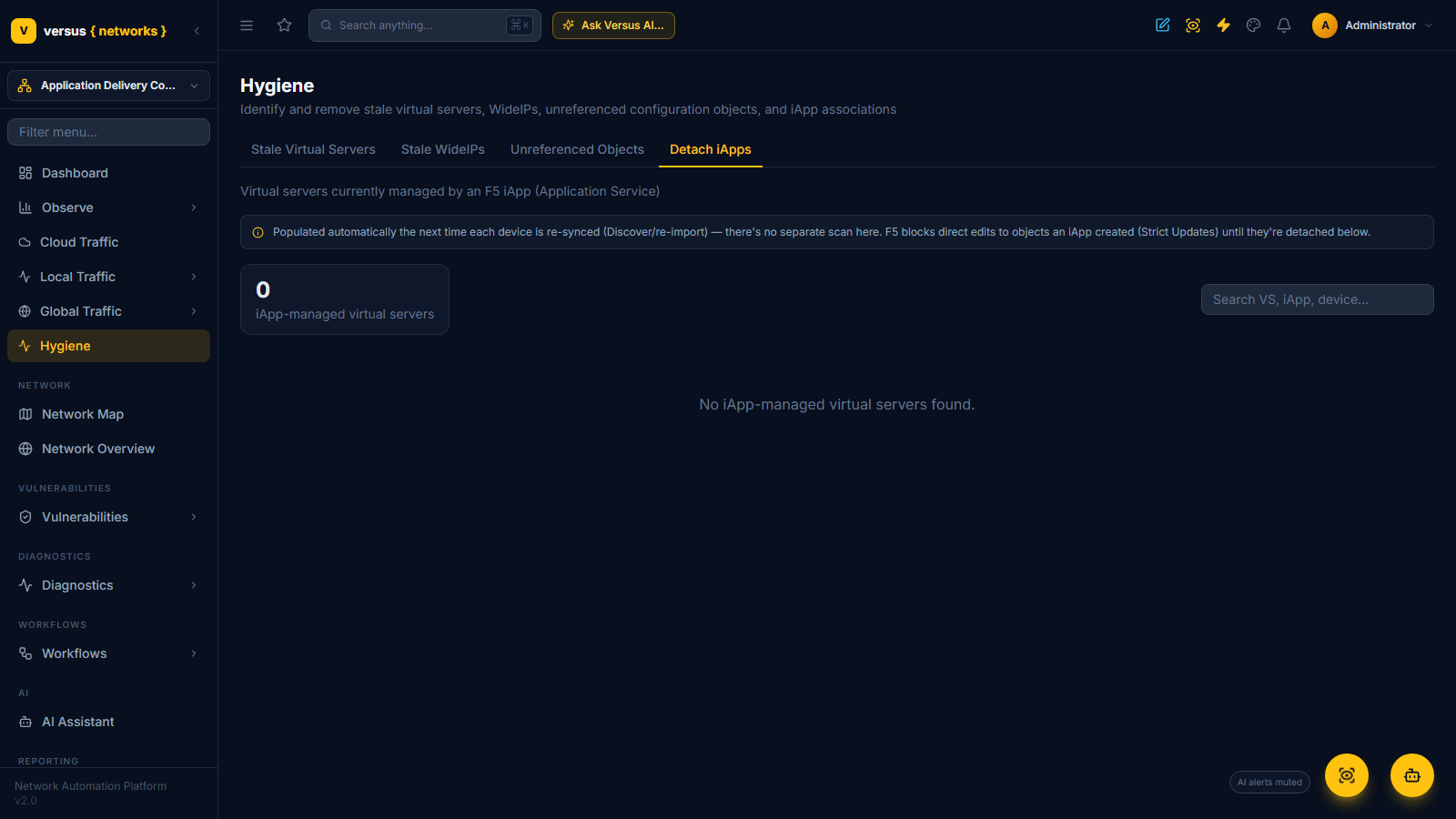
Virtual servers created by an F5 iApp (Application Service) are protected by Strict Updates: the BIG-IP refuses direct edits to objects the iApp owns, which also blocks the decommission workflow. This tab lists those virtual servers — populated automatically from each device's discovery or re-sync, there is no separate scan — and the Detach from iApp wizard releases the selected ones from their application service, one by one, reporting each result. Once detached, they are ordinary virtual servers: manage them, or decommission them, like any other.
Keeping it continuous
The three scans are management commands you can schedule on the Versus host or from the workflow scheduler, so the page reflects the estate as it is rather than as it was when someone last clicked:
python manage.py check_f5_stale_vs          # live traffic counters; --days 60 overrides the threshold once
python manage.py check_f5_stale_wideips     # local GTM data; no device I/O
python manage.py check_f5_unused_objects    # per-device object cross-reference; --device-id 3 for one box
The stale checks keep history: an object's first-flagged date survives every scan, which is what turns "nobody has used this" into a dated statement you can put in a change request.
API
| Call | What it does |
|---|---|
GET /api/f5-stale-vs/ | Flagged virtual servers (?device=, ?status=disabled|no_traffic) |
GET /api/f5-stale-vs/criteria/ | The thresholds in force |
POST /api/f5-stale-vs/trigger_scan/ | Run the VIP scan now ({"device_id": …} for one device) |
POST /api/f5-stale-vs/reset_status/ | Reset TMOS counters and restart the window for {"ids": […]} |
GET /api/f5-stale-wideips/, …/criteria/, …/trigger_scan/, …/reset_status/ | The same for wide IPs |
GET /api/f5-unused-objects/ | Unreferenced objects (?device=, ?object_type=pool|monitor|irule|ssl_cert|ssl_key|ssl_profile) |
POST /api/f5-unused-objects/trigger_scan/ | Run the object scan now |
GET /api/iapp-virtual-servers/, POST …/detach/ | iApp-owned virtual servers and the detach action ({"ids": […]}) |
Decommissions are ordinary workflow runs: start them with POST /api/workflows/{id}/run/ on the F5 Decommission VIPs or F5 Decommission WideIPs workflow and follow them under /api/workflow-runs/.
Related
- Virtual Servers — the inventory the stale-VIP scan reads.
- DNS & Wide IPs — the GTM objects behind the wide-IP check.
- Config Archaeology — intent and decommission-safety confidence for objects nobody remembers.
- F5 Report Card — where hygiene counts roll up per device.
- Versus Desk Change Management — the change requests the decommission workflows raise and close.