Whiteboards
A freeform canvas inside the Wiki — sketch with shapes and sticky notes, drop vendor‑accurate device stencils, wire nodes together with connectors, and pull live diagrams straight from your Versus inventory.
A Whiteboard is a freeform canvas that lives in the Wiki like any other document. Use it for network sketches, migration plans, incident war‑rooms, or architecture diagrams — mixing hand‑drawn shapes and sticky notes with vendor device stencils and live cards pulled from your real Versus inventory.
Create one from the page tree's New → Whiteboard, or use the Quick Whiteboard button in the console header for an instant board. See Wiki Content Types for the basics.
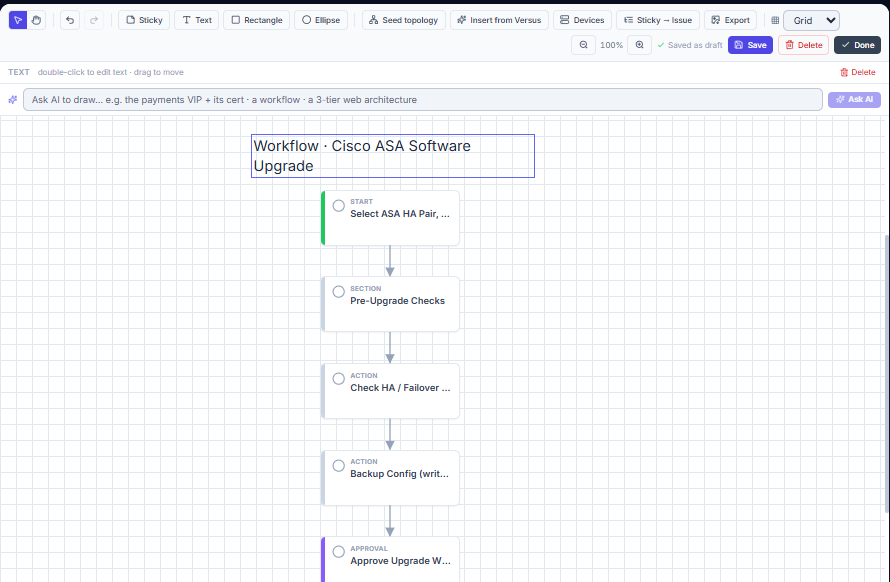
The toolbar
Everything is one click from the top toolbar:
- Select / Pan toggle — chooses what a plain drag does (see Moving around below).
- Undo / Redo — full history (also
Ctrl+Z/Ctrl+Shift+Z). - Sticky, Text, Rectangle, Ellipse — add elements to the canvas.
- Seed topology — expand a change/incident ticket's impacted devices and VIPs into live cards.
- Insert from Versus — draw an existing object (VIP, cert, WideIP, network map, workflow, diagnostic) and its relationships. Covered in AI Diagramming.
- Devices — the vendor stencil palette.
- Sticky → Issue — turn a selected sticky note into a Desk issue.
- Export — download the board as an image.
- Background — grid, dots, or plain.
- Zoom —
−/ percentage /+. - Save, Delete, Done.
There is also an Ask AI to draw… bar directly above the canvas — described in the AI guide.
Adding and editing elements
- Sticky / Text / Shape — click the toolbar button; the element appears in view. Double‑click any element to edit its text; click away to commit.
- Move — with the Select tool, drag an element. Selected elements move together.
- Resize — select a single element and drag the square handle at its bottom‑right corner (minimum size is enforced).
- Delete — select and press
Delete/Backspace, or use the floating action bar.
Moving around: Select vs Pan
The Select / Pan toggle at the far left of the toolbar decides what dragging empty canvas does:
- Select (default) — drag empty space to marquee‑select everything the box touches. This is the tool you'll use most.
- Pan — drag empty space to pan the canvas.
Regardless of the active tool, you can always pan by holding Alt while dragging, or dragging with the middle mouse button. Zoom with the toolbar controls (25 %–300 %); click the percentage to reset to 100 %.
Selecting multiple objects
- Marquee — with the Select tool, drag a box across empty canvas to select everything it touches.
- Shift‑click a node to add or remove it from the selection.
- Ctrl/Cmd‑A selects everything.
- With several selected, a floating N selected bar appears — Delete removes them all (and their connectors); Clear deselects.
- Dragging any selected node moves the whole group.
Connectors
Connectors are the arrows between nodes. You can draw your own and re‑route any existing one.
Draw a new connector
- With the Select tool, hover a node — four blue port dots appear on its sides.
- Drag from a dot toward another node. A dashed preview follows your cursor.
- Release over the target node; the connector snaps to that node's nearest side and is created (and selected, so you can adjust it right away).
Re‑anchor or delete a connector
- Click a connector to select it (it highlights).
- Drag either endpoint handle to move where it attaches — it snaps to the nearest side of whichever node you drop it on, or floats to a free point off any node.
- Press
Deleteto remove the selected connector.
Device stencils
The Devices button opens a palette of vendor stencils — clean, function‑based representations of the devices you manage, drawn in each vendor's brand colour with a short label. They're grouped by function: ADC / load‑balancer, firewall, router, switch, cloud WAF/CDN, DNS/IPAM, controller, chassis, and tap/monitor.
Click any vendor (F5, Citrix, A10, Cisco, Palo Alto, Fortinet, Arista, Cloudflare, Imperva, Akamai, Azure, and more) to drop that stencil on the board. Double‑click it to rename.
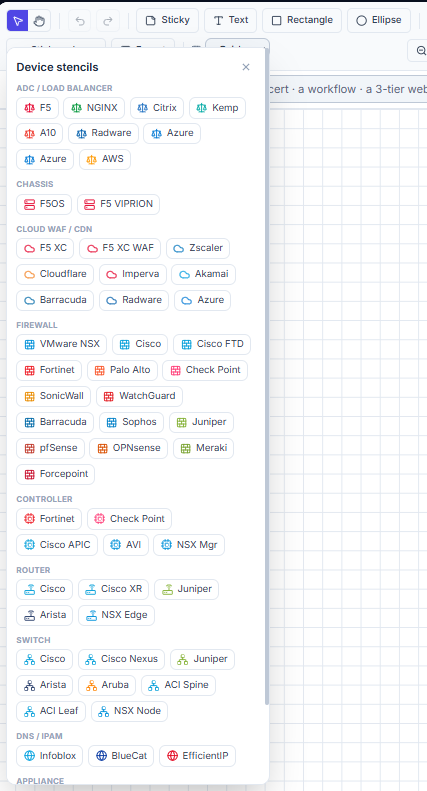
Note. Stencils are descriptive, function‑based icons — they identify the kind of device and its vendor, not a reproduction of any vendor logo.
Live cards from your inventory
Two features place live cards — nodes bound to a real Versus object that resolve their current name, status, and details on the board:
- Seed topology — enter a change or incident ticket number; Versus draws the devices and VIPs it impacts as connected live cards.
- Insert from Versus — pick any object and draw it with its relationships. See AI Diagramming.
A device card shows the device's name, management IP, vendor, and status, with the vendor's function stencil; a VIP card resolves the virtual server. Generated object cards (pools, members, certificates, WideIPs, WAF policies, findings) render in the same clean card style, colour‑coded by type.
Undo, save, and export
- Undo / Redo covers every action — adding, deleting, moving, resizing, connecting, and generated diagrams — via the toolbar buttons or
Ctrl+Z/Ctrl+Shift+Z. - The board autosaves as a draft continuously; Save forces an immediate write.
- Export downloads the board as an image (the export is a self‑contained, inert SVG/PNG — safe to share).
- Done saves and closes back to the tree; Delete removes the whole board (with a confirm).
Reuse a board elsewhere
Any whiteboard can be embedded inside a page — see Wiki Content Types → Embedding a whiteboard. The embed shows a live preview and links back to the full board.
Where to go next
- AI Diagramming on Whiteboards — describe what you want and have Versus draw it from real data, sketch a generic diagram, render a workflow, or plot a device metric graph.
- Wiki Content Types — Pages, Slides, Whiteboards, and Databases, and how they fit together.