Wiki Content Types
The Versus Desk Wiki is more than pages — build Slides, Whiteboards, and Databases alongside rich documents, embed one inside another, and manage them all from a single tree.
The Versus Desk Wiki (Desk → Wiki) is a full knowledge workspace. Alongside ordinary rich‑text Pages, you can create Slides, Whiteboards, and Databases — each a first‑class document that lives in the same space tree, shares the same permissions and version history, and can be linked or embedded from anywhere else in the wiki.
Where things live. Every document — page, deck, board, or grid — is a node in a Space. Spaces appear in the left rail; the page tree for the active space sits beside it. Pick a space, then create or open documents from the tree.
The four content types
| Type | What it's for | Editor |
|---|---|---|
| Page | Rich text, tables, callouts, diagrams, embeds — the everyday document. | Block editor |
| Slides | A presentation deck — one document, many slides, with a full‑screen presenter. | Deck editor |
| Whiteboard | A freeform canvas of shapes, sticky notes, device stencils, and connectors. | Canvas editor |
| Database | A structured grid — typed columns, rows, and saved views (table / board / calendar / gallery). | Grid editor |
All four render on a light "paper" surface even when the rest of the console is in a dark theme, so documents stay readable and print cleanly regardless of your appearance setting.
Creating a document
- In the page tree, open the New menu (the +).
- Under New content type, choose Page, Slides, Whiteboard, or Database.
- The new document opens immediately in its own editor, already saved as a draft.
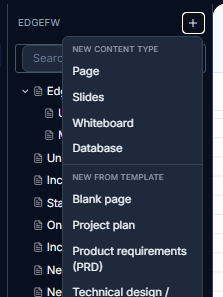
Each type seeds a sensible starting point — a blank page, a title slide, an empty canvas, or a grid with a starter Name column — so you're never staring at nothing.
Quick Whiteboard
For an on‑the‑fly board — a war‑room sketch, a topology you want to talk through — you don't need to navigate into the wiki first. Click the Quick Whiteboard button (the pen icon, top‑right of the console header). Versus creates a new whiteboard document (in your first wiki space, or a Whiteboards space it creates if you have none) and opens it straight away.

Quick Whiteboards are ordinary whiteboard documents — they're saved in the tree with a timestamped title, so nothing you sketch is lost.
Editing basics
- Everything autosaves as a draft. Each editor writes a draft as you work; a status indicator shows Saving… / Saved as draft.
- Publish promotes the draft to a new version (Pages and Slides). Whiteboards and Databases save continuously.
- Done (or Close) saves and returns you to the tree.
- Version history and restore are available on Pages exactly as before — the new content types ride the same page API.
Embedding a whiteboard inside a page
You can drop a whiteboard into any ordinary page so a diagram lives alongside your prose.
- Open (or create) a Page and start editing.
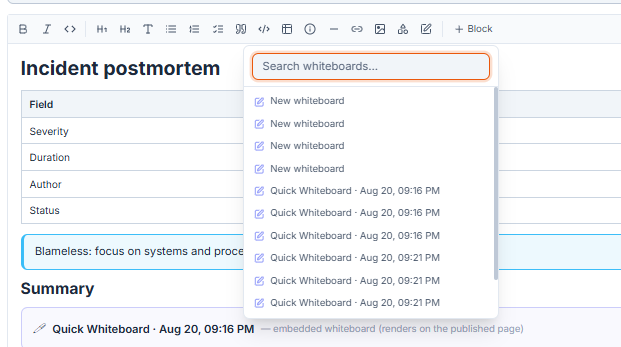
- In the editor toolbar click the whiteboard button (pen icon), or type
/and choose Whiteboard from the block menu. - A searchable picker lists your whiteboards — choose one.
- The board is embedded. On the published page it renders as a live preview of the board, and the whole embed is a clickable link — clicking it opens the full whiteboard.
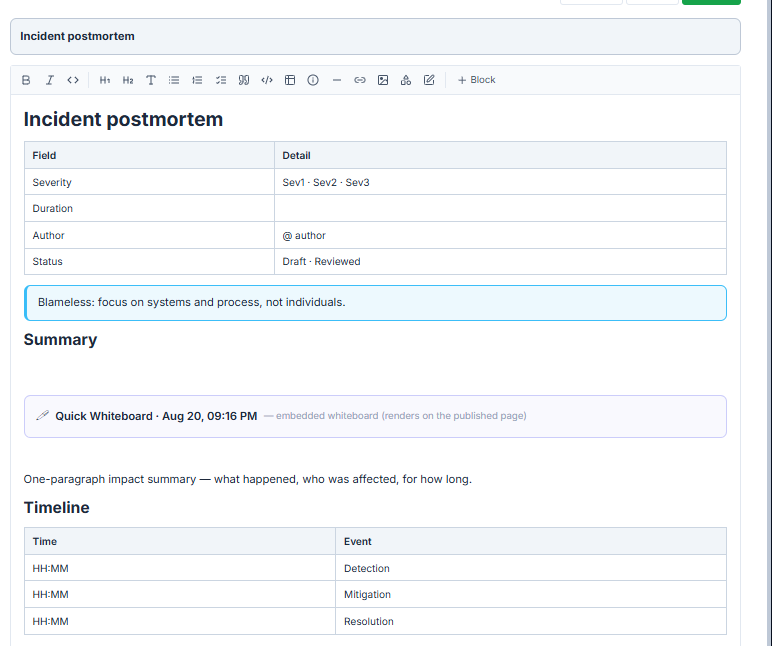
Note. The embed is a read‑only snapshot rendered from the board's current state — it refreshes whenever the page is re‑rendered. To edit the board, click through to it.
Deleting a document
Two ways, both with a confirmation prompt:
- From the tree — hover any document and click the trash icon.
- From the editor — Whiteboards, Slides, and Databases each have a Delete button in their toolbar.
Deleting a document removes it and its sub‑pages. This is handy for clearing out throwaway Quick Whiteboards after a session.
Where to go next
- Whiteboards — the canvas in depth: tools, shapes, device stencils, connectors, multi‑select, zoom & pan, and export.
- AI Diagramming on Whiteboards — describe a diagram in plain English and have Versus draw it from your real inventory (or sketch a generic one, a workflow, or a metric graph).