AI Diagramming on Whiteboards
Describe a diagram in plain English and Versus draws it — grounded in your real inventory (VIPs, certs, WideIPs, devices, workflows), as a generic sketch, or as a device metric graph. The AI only decides what to draw; the data is always real.
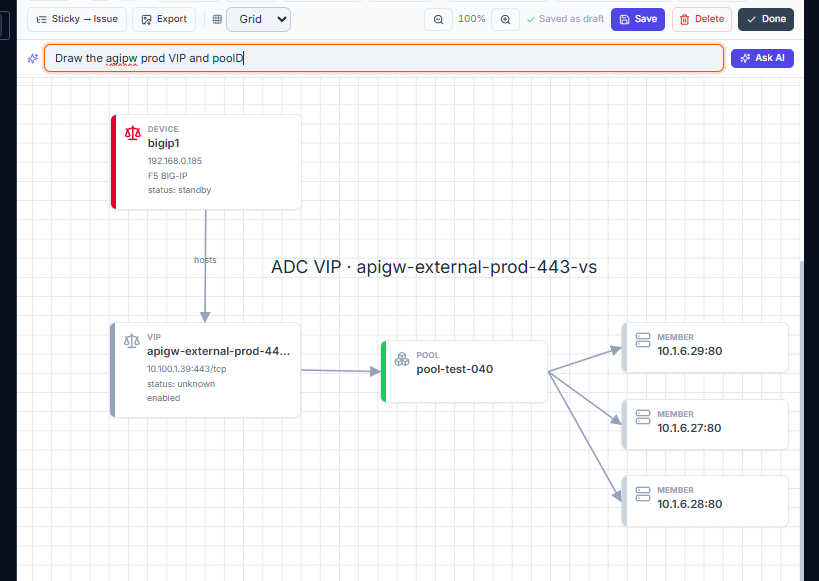
Every Wiki Whiteboard has an Ask AI to draw… bar. Type what you want in plain English and Versus draws it onto the canvas — a map of a real object and its relationships, a generic architecture sketch, a workflow, or a time‑series graph of a device metric.

Grounded, not invented. For anything tied to your environment, the model only plans what to draw — it picks the object type and a search term. Every node then comes from your real inventory through Versus's own builders. The AI never fabricates a device, IP, certificate, or metric value; if nothing matches, it says so rather than making something up.
Where to type
There are two entry points, both driving the same engine:
- The Ask AI bar — always visible directly above the canvas. Type and press Enter (or click Ask AI).
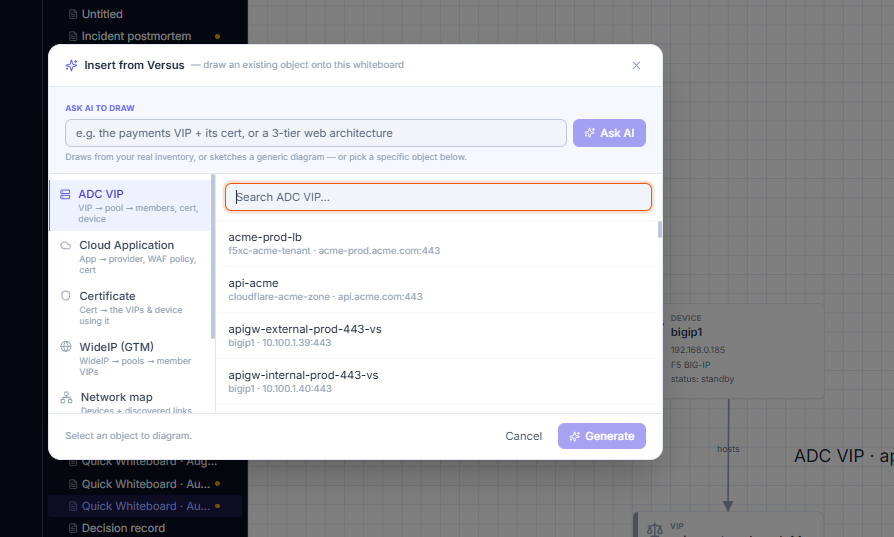
- Insert from Versus — the toolbar button opens a picker with an Ask AI to draw field at the top, plus a manual browse‑by‑type option below it.
What it can draw
1 — Your real inventory
Name (or imply) a real object and Versus resolves it and draws it with its relationships:
| Ask for… | You get… |
|---|---|
| an ADC VIP | the VIP → pool → members, its certificate, and parent device |
| a cloud application | the app → provider, WAF policy, and certificate |
| a certificate | the cert → every VIP and device using it |
| a WideIP (GTM/DNS) | the WideIP → pools → member VIPs |
| the network map | devices and their discovered links (each link labelled with the interface IP on each end) |
| a workflow | the workflow's steps as connected cards, laid out cleanly |
| an AI diagnostic session | the delivery path (client → GSLB → VIP → pool → member) and its findings |
Example prompts
- "Diagram the payments VIP and the certificate it uses"
- "Draw the WideIP for www and its member VIPs"
- "Show the network map around bigip1"
- "Draw the F5 upgrade workflow"
Devices and VIPs come in as live cards that resolve their real name, status, and vendor stencil; everything else renders as clean, colour‑coded cards.
2 — A generic diagram
When the request is conceptual — an example topology, a flowchart, an architecture that isn't tied to a specific object — the model draws it directly with shapes and connectors:
- "A 3‑tier web app behind a load balancer"
- "A flowchart: start → process request → decision → end"
- "An example DMZ with two firewalls and a jump host"
Generic shapes are produced safely — every element is passed through the same whiteboard sanitiser that guards all board content (fixed colour palette, clamped geometry, escaped text), so an AI drawing can never inject anything unsafe.
3 — A device metric graph
Ask for a metric over time and Versus plots a line chart from the device's stored telemetry:
- "Draw the CPU graph of bigip1 for the past 7 days"
- "Graph the memory of bigip1 over 30 days"
- "Plot throughput for core‑switch‑1 for the last 3 days"
Supported metrics: CPU, memory, disk, throughput (in/out), connections, TLS handshakes. The chart — grid, area fill, and an avg / max summary — is placed on the board as an image you can move and resize like any object.
Note. A graph reflects the telemetry Versus has collected for that device. If a device hasn't reported a metric, the line will be flat — that's the real data, not an error.
Mixing modes
A single prompt can combine grounded and generic drawing. "Show the payments VIP and next to it sketch the intended future design with two extra pools" will draw the real VIP from inventory and the proposed design as generic shapes, laid out so they don't overlap.
Tips for good results
- Name things the way they're named in Versus. Search is word‑based, so "F5 upgrade" matches "F5 BIG‑IP OS Upgrade" — you don't need the exact title, but each word should appear.
- Say the window for graphs — "…for the past 7 days", "…over 30 days". The default is 7 days.
- One board, many asks. Each prompt adds to the current board (it won't wipe what's there) and de‑duplicates, so you can build a picture in several steps.
- Rearrange freely. Everything the AI draws is ordinary whiteboard content — use marquee‑select, group‑move, connectors, and undo to refine it. See Whiteboards.
- If it can't find something, the message tells you why (nothing matched, or the AI provider isn't configured) instead of silently drawing nothing.
How grounding works (in brief)
- Your prompt goes to the model with a description of the available object types and the metric‑graph shape.
- The model returns a plan — a list of operations (object type + search term, and/or a metric‑graph request) and/or a set of generic shapes.
- Versus resolves each operation against your live data using its own builders, renders it as sanitised whiteboard nodes, and merges the result onto your board.
Because step 3 always runs against real records, the drawing is only ever as accurate as your inventory — and never invented.
Where to go next
- Whiteboards — the canvas tools you'll use to refine an AI‑drawn diagram: connectors, multi‑select, zoom & pan, stencils, and export.
- Wiki Content Types — Pages, Slides, Whiteboards, and Databases.