Palo Alto Configuration Backups
Back up a Palo Alto PAN-OS firewall's running configuration from its device page or on a schedule, inspect the XML, compare any two backups line by line, and keep the history under a retention policy — through a collector when the firewall sits on a private network.
Versus backs up a Palo Alto firewall the way you would before a change window: it pulls the committed running configuration over the PAN-OS XML API and stores it as a complete, importable XML file under the device. Every backup lands in the device's Backups card, where you can open it, download it, and — the part that matters when something changed overnight — compare it with any earlier backup and read the exact lines that differ.
This page walks through the whole lifecycle on a lab PA-VM (palo-2) that Versus reaches through a site collector. The same steps apply to any paloalto_fw device, including hardware appliances and HA pairs; see Palo Alto Firewall Integration for onboarding.
What a backup contains
A Versus backup of a PAN-OS firewall is the output of show config running — the configuration the firewall is actually enforcing, not the candidate — written exactly as PAN-OS pretty-prints it, one element per line:
<?xml version="1.0"?>
<!-- Versus backup of palo-2 (192.168.0.231) — PAN-OS 11.1.13-h7 — PA-VM serial 0079… — running configuration — 2026-10-03 23:33:39 UTC -->
<config version="11.1.0" urldb="paloaltonetworks" detail-version="11.1.13">
  <mgt-config>
    <users>
      <entry name="admin">
        …
The header comment records which firewall it came from, the PAN-OS version, model and serial, and when it was taken. Everything after it is a standard PAN-OS configuration: you can import it on the firewall with Device › Setup › Operations › Import named configuration snapshot (or type=import&category=configuration on the XML API) and load it, so a Versus backup is a real restore point, not just a reference copy.
Versus deliberately reads the running configuration rather than the candidate export (type=export&category=configuration). The candidate includes uncommitted edits and is returned as a single unbroken line, which makes it useless for a diff; the running config is what you would want back after a bad change, and it diffs cleanly.
Taking a backup from the device page
Open the firewall in Inventory → Device Inventory and switch to the Base Settings tab. The Backups card sits below the live configuration cards and lists every backup Versus holds for the device, newest first, with its size, age and who took it.
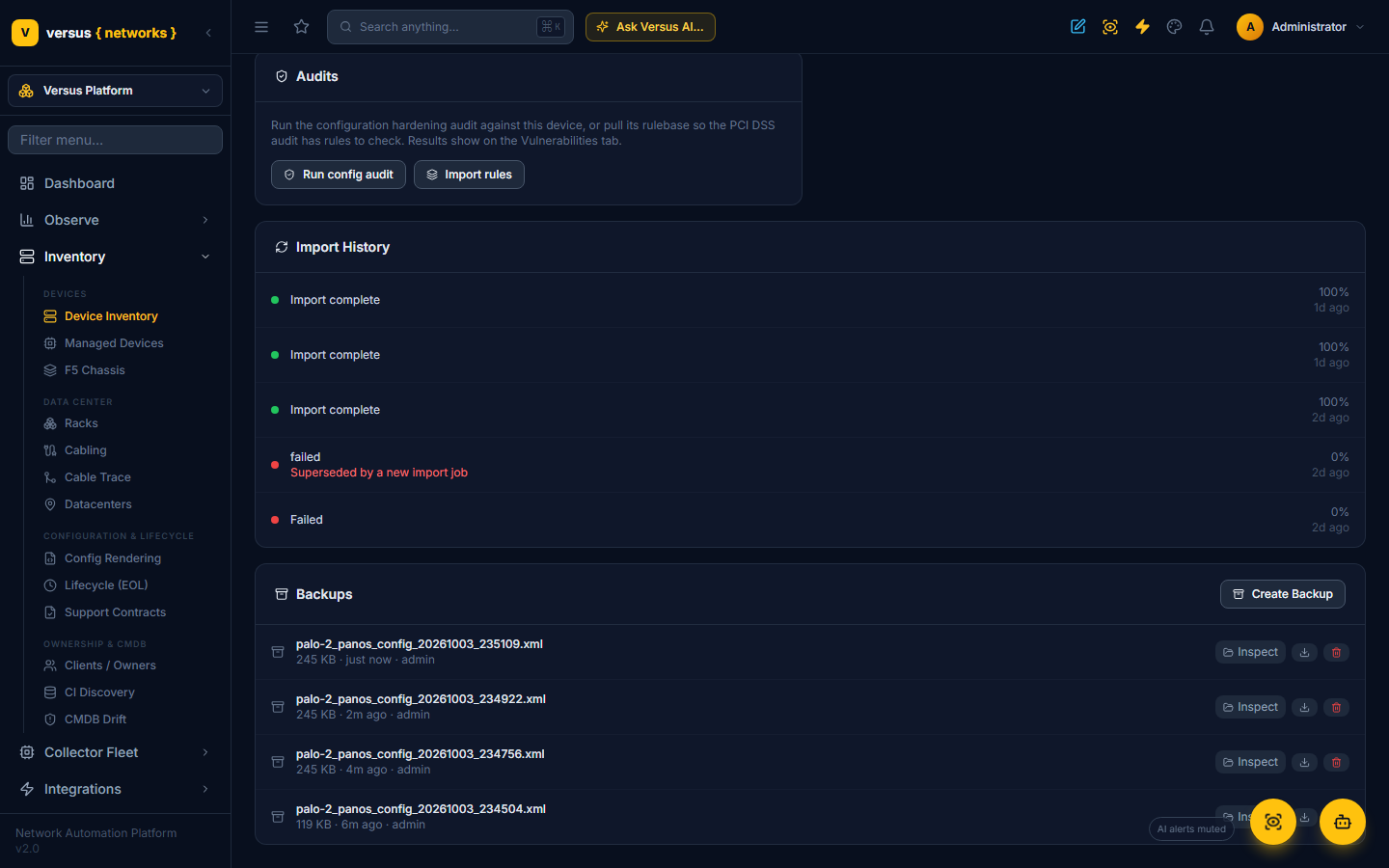
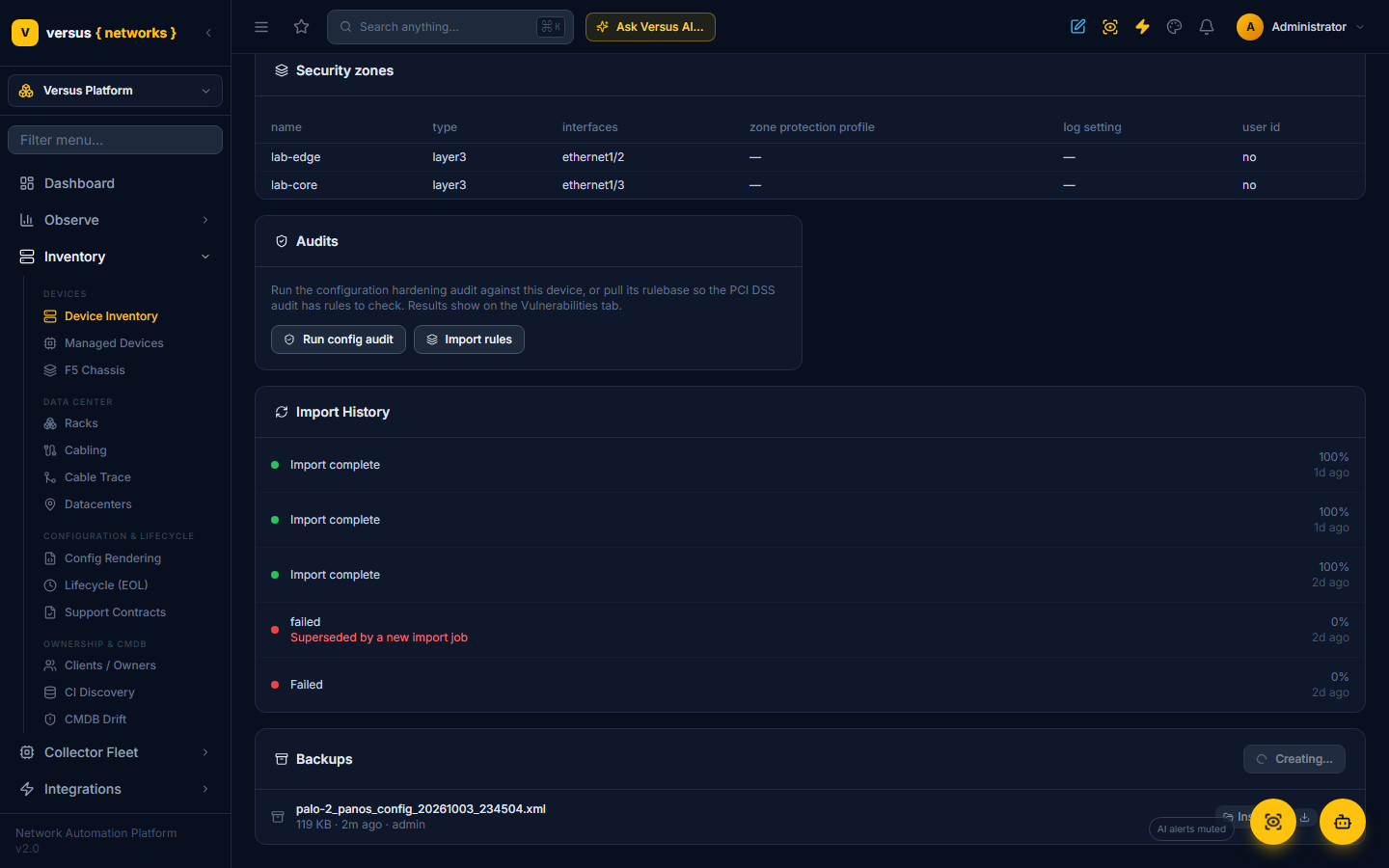
Click Create Backup. Versus mints an API key from the device's vault-held credential (or uses extra_config.api_key if you stored one), runs show system info for the header and show config running for the body, and writes the file. The button shows Creating… while it works — a second or two for a direct connection, a little longer through a collector tunnel.
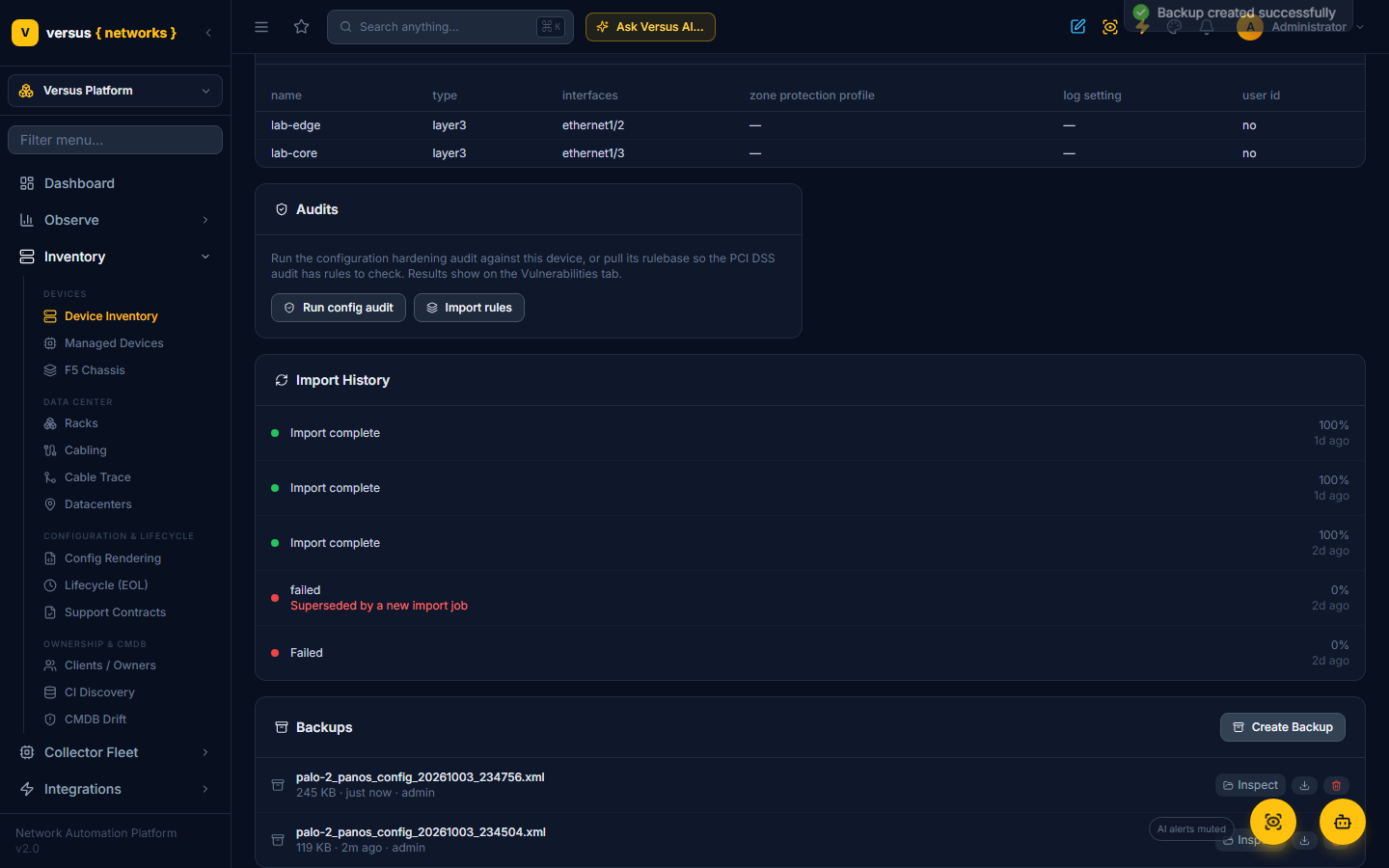
When the backup is stored a toast confirms it and the new row appears at the top of the card, attributed to your user.
If the firewall cannot be reached, or the credential is missing or rejected, the card shows the reason instead of a row — nothing partial is ever stored. PAN-OS occasionally answers Session timed out (API error code 22) when two requests for the same administrator overlap; Versus pauses, re-keys and retries that automatically.
Through a collector
palo-2 has no route from the Versus cloud: it lives on the lab LAN behind a site collector. Nothing changes for the operator. Because the device is bound to a site, Versus opens the collector's outbound byte tunnel to the firewall's management port, performs keygen and the API calls through it, and streams the configuration back. The collector stores nothing and needs no inbound exception; see Collector Security.
Inspecting a backup
Inspect opens the backup in the side panel. A PAN-OS backup is a single file, so the panel opens it straight away: the full XML with a Copy button, and the download icon in the header for the raw file.
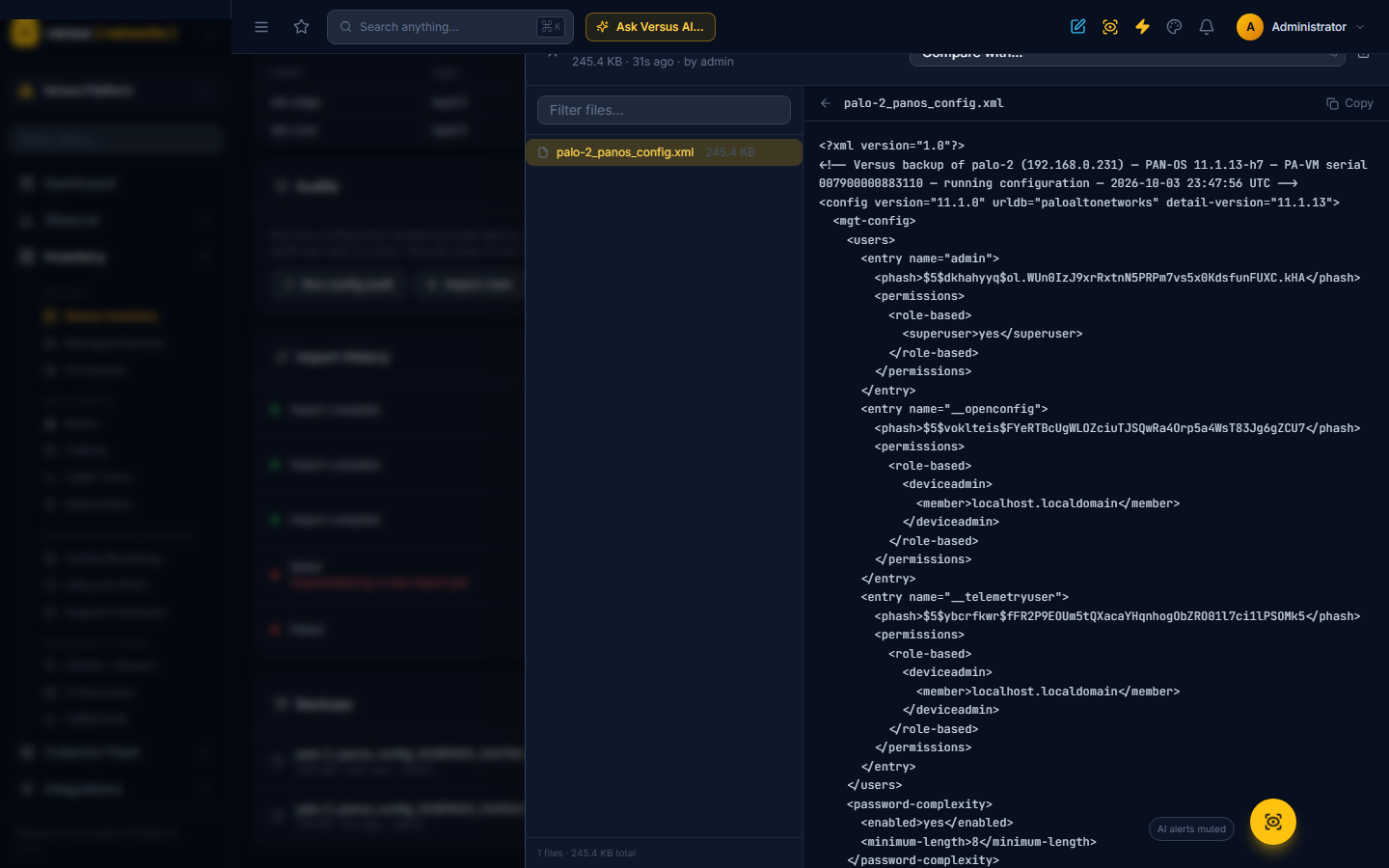
The file is listed under a stable name (palo-2_panos_config.xml, the backup filename without its timestamp). That is what lets two backups of the same firewall line up for comparison.
Comparing two backups
This is the reason to keep a history. Open any backup with Inspect, then pick another one from Compare with… in the panel header — the list shows each backup's date and filename. The panel switches to compare mode and shows a unified diff immediately.
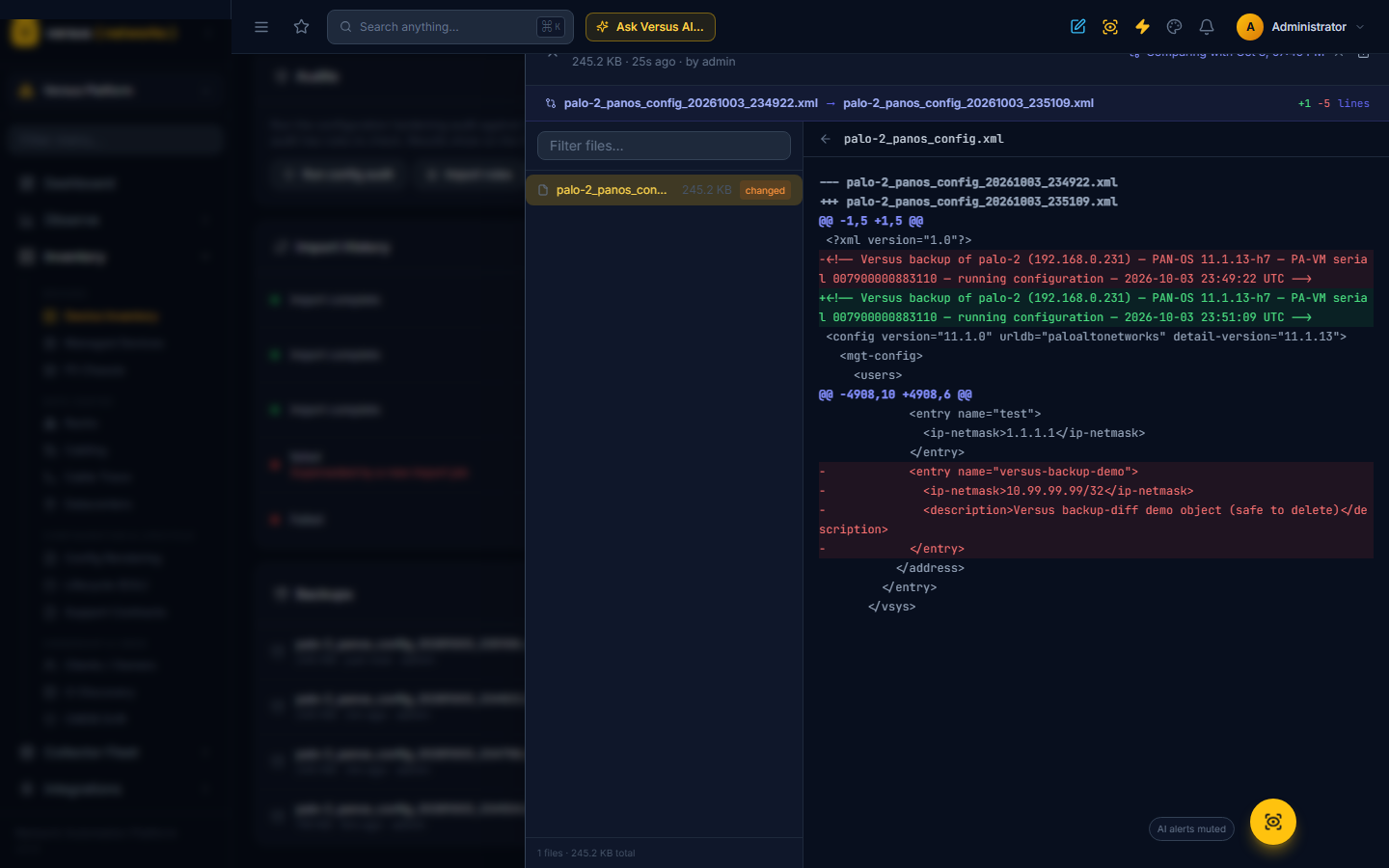
Reading the diff:
- Versus always diffs the older backup against the newer one, whichever you opened first. Green
+lines were added to the firewall between the two backups; red-lines were removed. The counter in the compare banner (+N −M lines) summarises the change. @@hunks carry the line numbers in each file, so you can jump to the same place in the full XML.- When nothing changed, the panel says Files are identical rather than showing an empty diff. Because the header comment carries the backup time, two backups of an unchanged firewall differ only by that one line.
In the example above an address object (versus-backup-demo, with a description) was deleted and the change committed between the two backups; the diff shows exactly the <entry> that disappeared from <address> and nothing else. The same view answers "what changed on this firewall since last night's backup?" with the precise rulebase, object, zone or interface lines, in the order PAN-OS keeps them.
One thing to know when reading a large diff: the first commit after an Applications and Threats content update also writes the new App-ID definitions (names, categories, risk, descriptions) into the running configuration, so the first backup after a content update can grow by a couple of thousand lines of application metadata. That is PAN-OS behaviour, not drift — the next diff is small again.
Scheduled backups and retention
Backups do not have to be manual. System → Settings → Backup Schedule runs a backup of every supported device — Palo Alto firewalls included, alongside F5 BIG-IP, NetScaler, Alteon, Check Point, Blue Coat ProxySG and Cisco ASA — on the days and time you choose. Offline devices are skipped rather than failed every night.
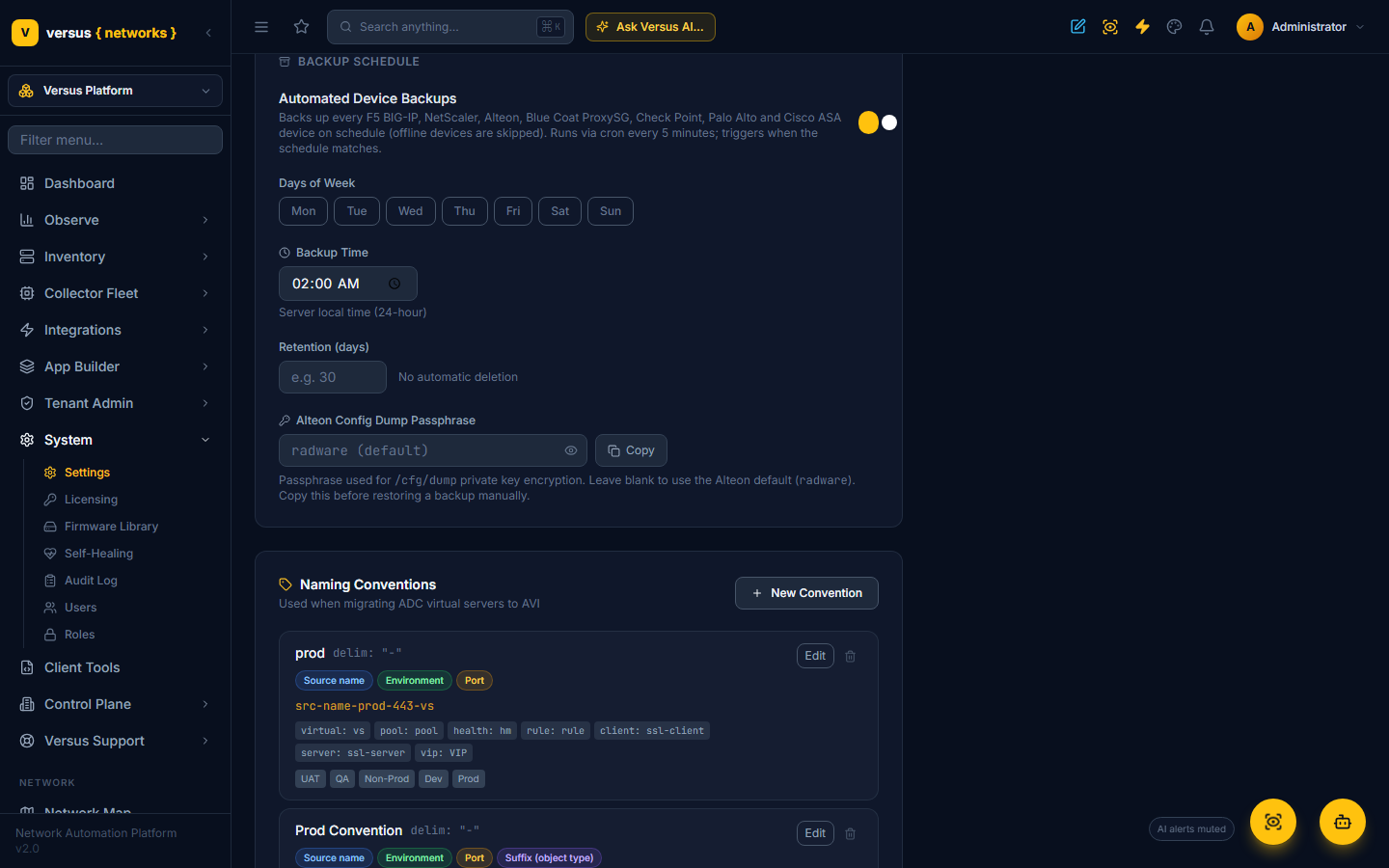
Retention is a number of days. Backups older than the window are deleted automatically — every vendor, however the backup was taken — and their storage is reclaimed. A device's most recent backup is always kept, even past the window, so a firewall that stopped backing up successfully never loses its last known-good configuration.
The built-in Palo Alto PAN-OS Upgrade and Backout workflows take the same backup before and after each hop (the Export Config Backup step), so an upgrade leaves a before/after pair you can compare in the same panel.
Where backups are stored
Backups are written to the platform's backup store — an S3-compatible object store when one is configured (Cloudflare R2, AWS S3, MinIO on-premises), otherwise the Versus host's local disk. Downloads and diffs are served through Versus itself, so no bucket is ever exposed. See How We Protect Your Backups for encryption, access control and the on-premises guarantees.
Automation
Everything on this page is available over the API with the same bearer token the UI uses:
| Call | What it does |
|---|---|
POST /api/devices/{id}/create_backup/ | Take a backup now; returns the backup record |
GET /api/devices/{id}/backups/ | List a device's backups, newest first |
GET /api/backups/latest/?device_name=palo-2 | The most recent backup for a device (&download=1 streams the file) |
GET /api/backups/{id}/download/ | Download the XML |
GET /api/backups/{id}/inspect/ | The file entry inside the backup (single_file: true for PAN-OS) |
GET /api/backups/{id}/file/?path=palo-2_panos_config.xml | The backup's text content |
GET /api/backups/diff/?backup1=A&backup2=B&path=palo-2_panos_config.xml | Unified diff older → newer, with added / removed counts |
Inside a workflow, a Python Script step has the same operations on the SDK object: versus.backup_device(device_id) before a change, versus.backup_device(device_id) again after it, then versus.backup_diff(before_id, after_id) — and versus.list_backups(device_id) to find last night's. A step can fail the run when added + removed in the diff exceeds what the change was allowed to touch:
before = versus.backup_device(device_id, notes='pre-change')
# … the change …
after = versus.backup_device(device_id, notes='post-change')
delta = versus.backup_diff(before['id'], after['id'])
if delta['added'] + delta['removed'] > 12:
    raise RuntimeError(f"unexpected drift: +{delta['added']} -{delta['removed']} lines")
Related
- Palo Alto Firewall Integration — onboarding, the access-request pipeline, PAN-OS upgrades.
- How We Protect Your Backups — storage, encryption and retention guarantees.
- Device Management — the device page and its tabs.
- Collector Security — how a private-LAN firewall is reached without an inbound path.