Device Management
Device Inventory — the platform-wide inventory of every device Versus connects to, spanning ADCs, firewalls, routers, switches, and more, added and monitored from one screen.
Where This Lives
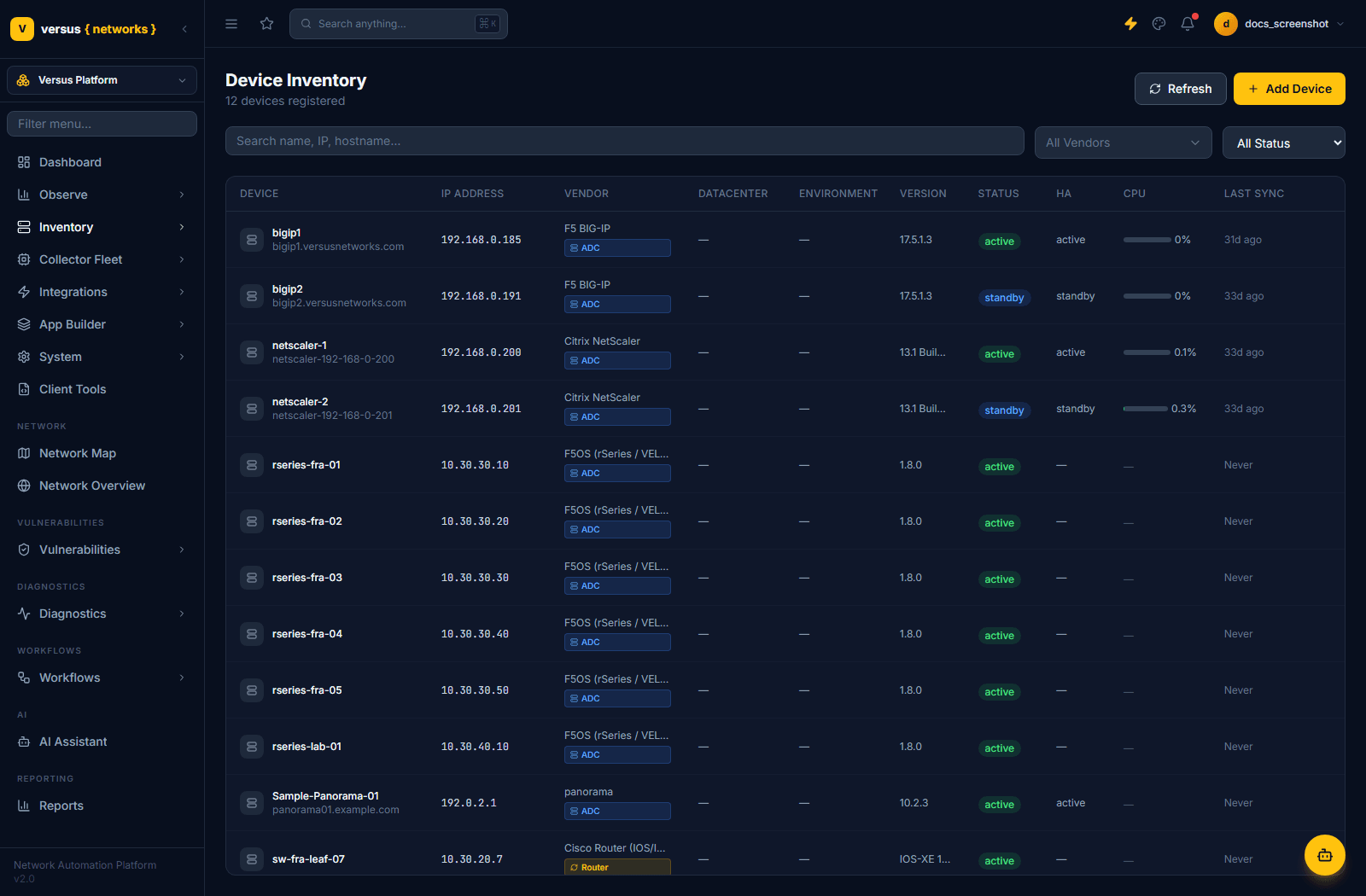
Device inventory is a Versus Platform concern, not an ADC-only one — switch the workspace switcher to Versus Platform, then open Inventory → Managed Devices (/inventory/devices). The same screen holds every device class the collector can talk to, not just ADCs — in this demo tenant the 12 registered devices include F5 BIG-IPs and NetScalers tagged ADC alongside an F5OS chassis fleet, a Panorama manager, and a Cisco router tagged Router rather than ADC.
Supported Device Types
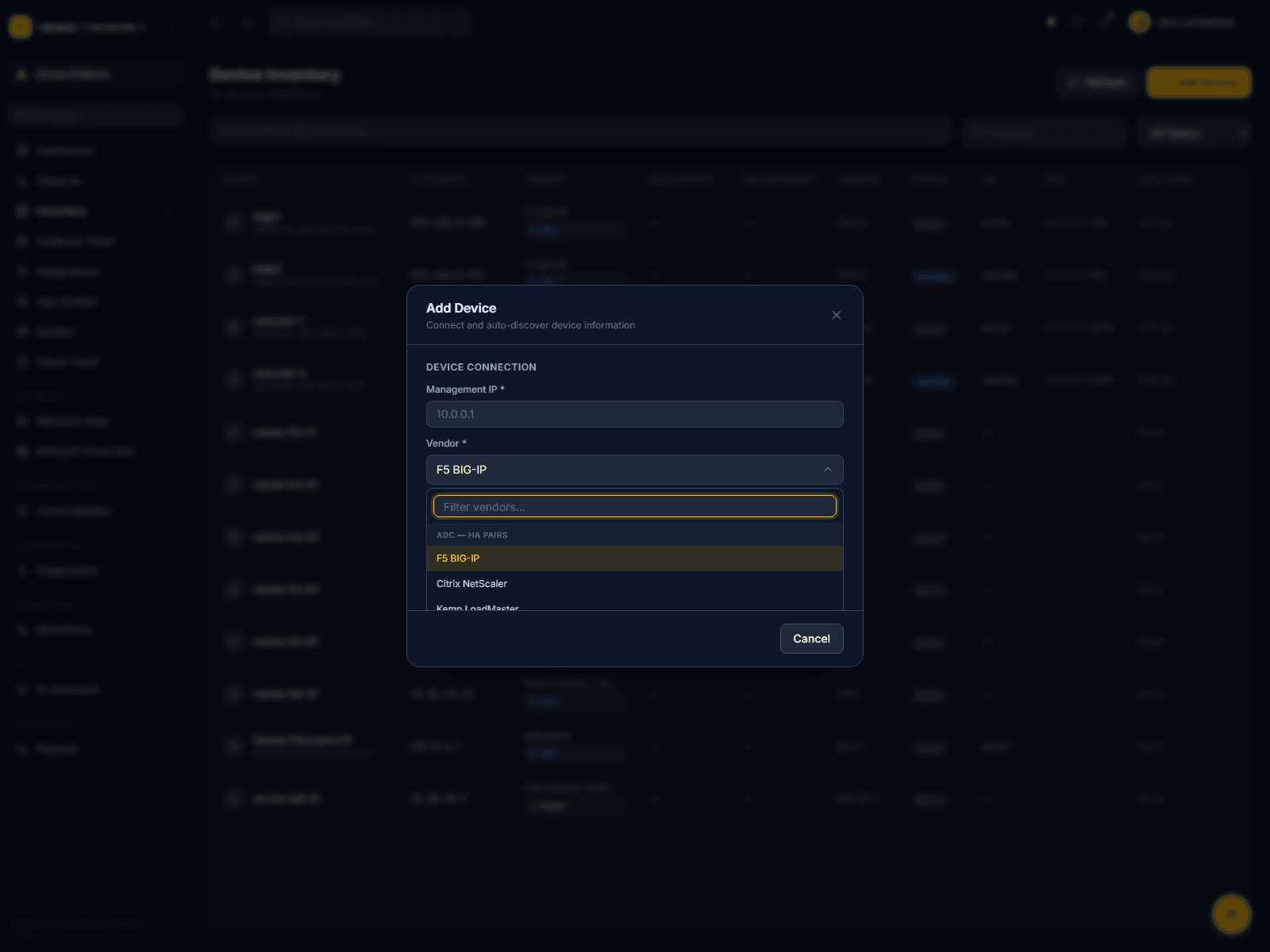
The collector's device support has grown well beyond ADC load balancers. The Add Device vendor picker groups everything it currently supports into categories; ADC platforms are only one of several:
- ADC — HA Pairs — F5 BIG-IP, Citrix NetScaler, Kemp LoadMaster, A10 Thunder, Radware Alteon
- Cloud — Application Load Balancer — Azure Application Gateway, Azure Load Balancer (Standard), AWS Application Load Balancer
- F5 — SaaS / Cloud — F5 Distributed Cloud (XC)
- F5 — Chassis Platforms — F5OS (rSeries / VELOS), F5 VIPRION Chassis
- Routers — Cisco IOS/IOS-XE, Cisco IOS-XR, Juniper MX Series, Arista EOS
- Switches — Cisco Catalyst/IOS-XE, Cisco Nexus (NX-OS), Juniper EX/QFX, Arista EOS, HPE Aruba AOS-CX
- Cisco ACI — APIC Controller, ACI Spine Switch, ACI Leaf Switch
- VMware NSX ALB — NSX ALB / AVI Controller
- VMware NSX-T — NSX-T Manager, Edge Node, Transport Node, NSX Firewall
- Firewall — Manager — Fortinet FortiManager, Check Point SmartCenter/SMS, and (via the collector) Palo Alto Panorama
- Firewall — Standalone — Cisco ASA, Cisco Firepower/FTD, Fortinet FortiGate, Palo Alto Firewall, Check Point Gateway, SonicWall, WatchGuard Firebox, Barracuda CloudGen, Sophos XG/XGS
- DNS / IPAM — Infoblox, BlueCat, EfficientIP (collector-supported; being rolled into the Add Device picker)
- Cloud Security — Zscaler ZIA/ZPA, Cloudflare WAF/CDN, Imperva, Akamai
internal/provider in the versus-agent repo) is broader still and includes Panorama, Infoblox, BlueCat, and EfficientIP — some of these are onboarded today via a dedicated flow outside the generic Add Device modal as that picker catches up to the full driver list.The Device Inventory List
Each row shows:
- Device — display name and management hostname
- IP Address — the management address
- Vendor — platform label plus a class tag (ADC, Router, etc.)
- Datacenter / Environment — optional grouping metadata
- Version — firmware/software version as last discovered
- Status —
active,standby, or similar, colour-coded - HA — this unit's role if it's part of an HA pair
- CPU — a live CPU utilization bar, where the driver reports it
- Last Sync — time since the last successful discovery, or
Never
Use the search box, the All Vendors dropdown, and the All Status dropdown (Active / Standby / Offline / Unknown) to narrow the list.
Adding a Device
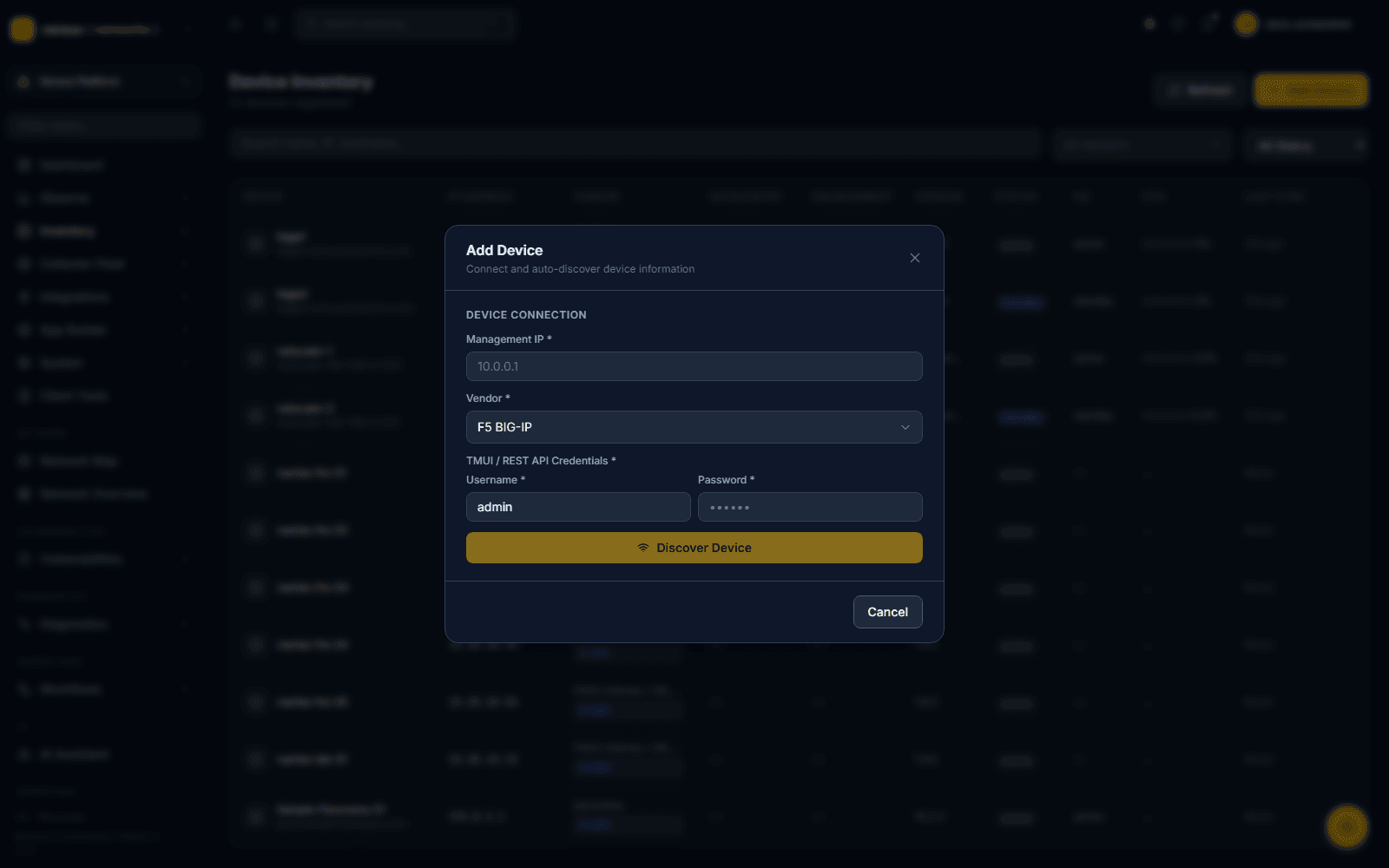
Click Add Device to open a modal titled "Connect and auto-discover device information." Three fields:
- Management IP — the device's management address
- Vendor — a searchable, categorized picker (see above)
- Credentials — a username/password pair; the label changes with the vendor (e.g. TMUI / REST API Credentials for F5 BIG-IP, NITRO API Credentials for NetScaler)
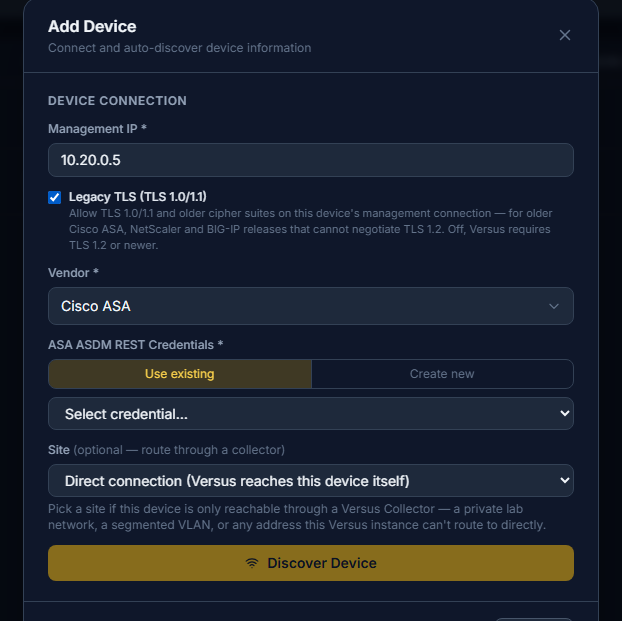
- Legacy TLS (TLS 1.0/1.1) — tick this for a management plane that cannot negotiate TLS 1.2: Cisco ASA before 9.3(2), early NetScaler and BIG-IP releases. Versus, and the site's collector, then accept TLS 1.0/1.1 and the older RSA/AES-CBC cipher suites for that device only; every other device stays on TLS 1.2 or newer. It can be changed later from the device's Edit dialog.
Click Discover Device — Versus connects with the given credentials and pulls identifying information (platform, version) before the device is saved to inventory.
Cisco ASA without the REST API. The ASA import uses the ASDM REST API when the rest-api agent is enabled (ASA 9.3(2) and later) and otherwise falls back to the CLI over SSH with the same credentials — show version, show failover and show running-config give it the serial, HA state, ACLs, objects and NAT rules. An ASA that answers the API with a 404 (its web server redirects /api/ to /admin/) is imported over SSH automatically; the transport that worked is remembered on the device. The SSH user needs privilege 15 or an enable password equal to the login password.
When to use Legacy TLS. Leave it off unless discovery fails with a TLS handshake error such as unsupported protocol or sslv3 alert handshake failure — the signatures of a device that only offers TLS 1.0/1.1. The checkbox applies to the discovery probe and to every later connection Versus or the site's collector makes to that device (imports, backups, rule pushes, upgrades). It only lowers the minimum version: a device that can do TLS 1.2 keeps using it. Collectors need 0.4.16 or newer to honour it; older ones keep requiring TLS 1.2. On an on-premises Versus host running RHEL or Rocky Linux the system-wide crypto policy can still refuse TLS 1.0 — if the connection keeps failing after ticking the box, switch the policy with update-crypto-policies --set LEGACY and restart Versus.
Automated Re-Discovery
Discovery is not only the button. Settings → Device Discovery Schedule re-discovers every device that has stored credentials on the days and times you pick (server local time, as many times per day as you like). Each run walks the inventory a few devices at a time through the same importer the Discover button uses, so inventory, HA status, virtual servers and pool members stay in sync without anyone clicking.
How to tell it is working:
- Settings → Device Discovery Schedule shows Next run, Last run and the outcome of the last run (how many devices completed, failed or were skipped, and which). While a run is in progress it shows the count so far.
- Run discovery now on the same panel starts a full pass immediately, so you can confirm the mechanism without waiting for the next slot.
- On the Devices list, Last Sync moves forward for every device the run reached. A device whose Last Sync stays put has no stored credential (only devices with a credential, or an API key for key-based vendors, are included), or its import failed — open the device and check its import history for the error.
- Each device's import history marks a job as manual or scheduled, so a scheduled pass is distinguishable from someone pressing Discover.
The schedule runs inside the Versus server process on single-node installs. Kubernetes installs run it as the run_scheduled_imports CronJob every five minutes, and on-prem installs may also cronmanage.py run_scheduled_imports the same way; every entry point shares one slot marker, so a scheduled time runs exactly once however many processes are watching it. A device with a discovery already in progress is skipped, and a job stuck in running for more than two hours is treated as a crash leftover and superseded.
Device Detail Pages Are Vendor-Specific
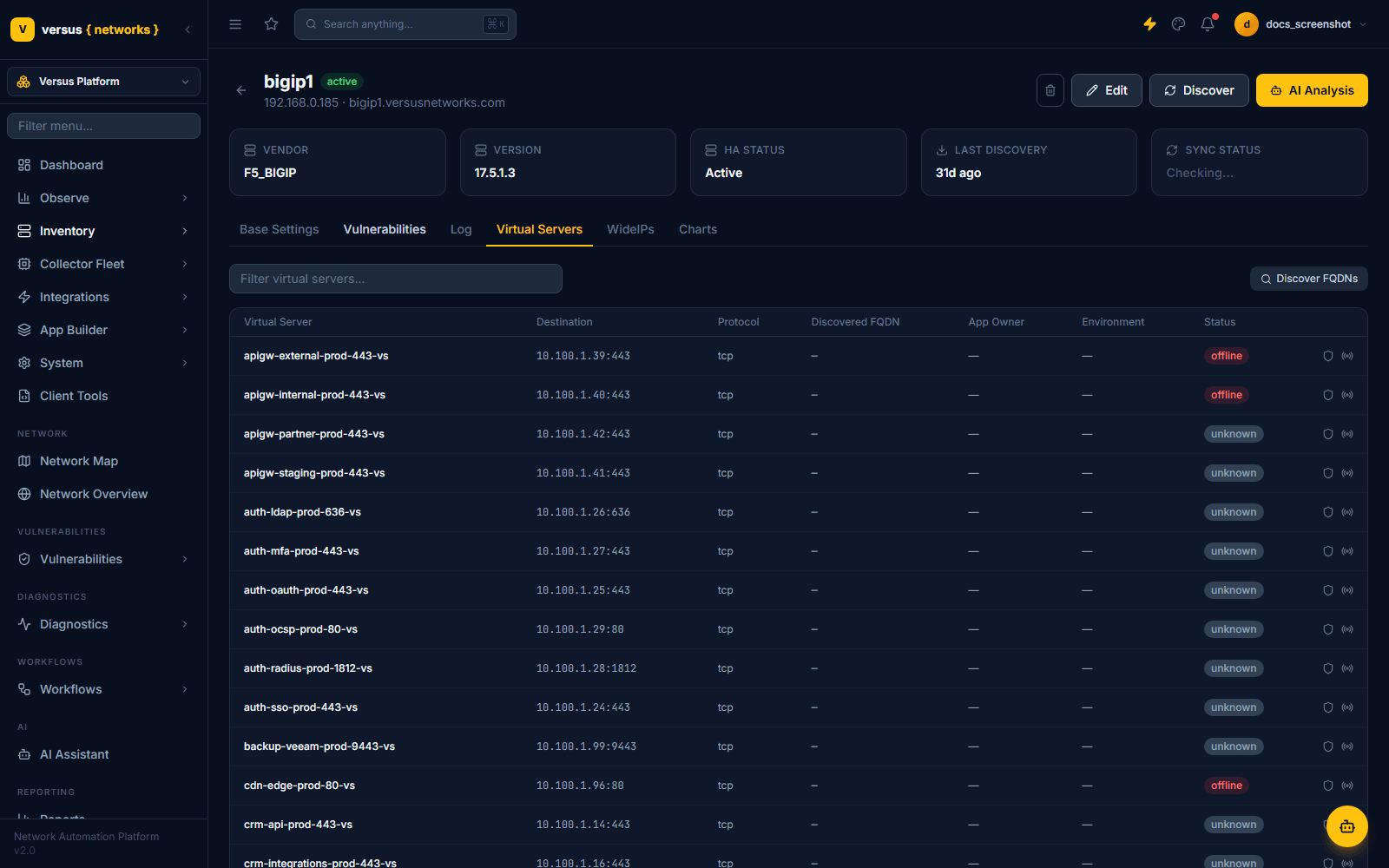
Clicking a device opens a detail page, and its layout depends on the driver. An F5 BIG-IP's detail page shows stat cards for Vendor, Version, HA Status, Last Discovery, and Sync Status, then six tabs:
- Base Settings — License, an approval-gated Upgrade Device workflow trigger for the device's HA group, a Run Audit action for F5/CIS/NIST security hardening checks, plus Authentication, Syslog, and DNS Servers panels
- Vulnerabilities — results from the Security Audit
- Log — device activity log
- Virtual Servers — every VS on this device, with a Discover FQDNs action
- WideIPs — GTM Wide-IPs on this device, if any
- Charts — CPU %, Memory %, Disk %, Throughput, and TLS Handshakes/s
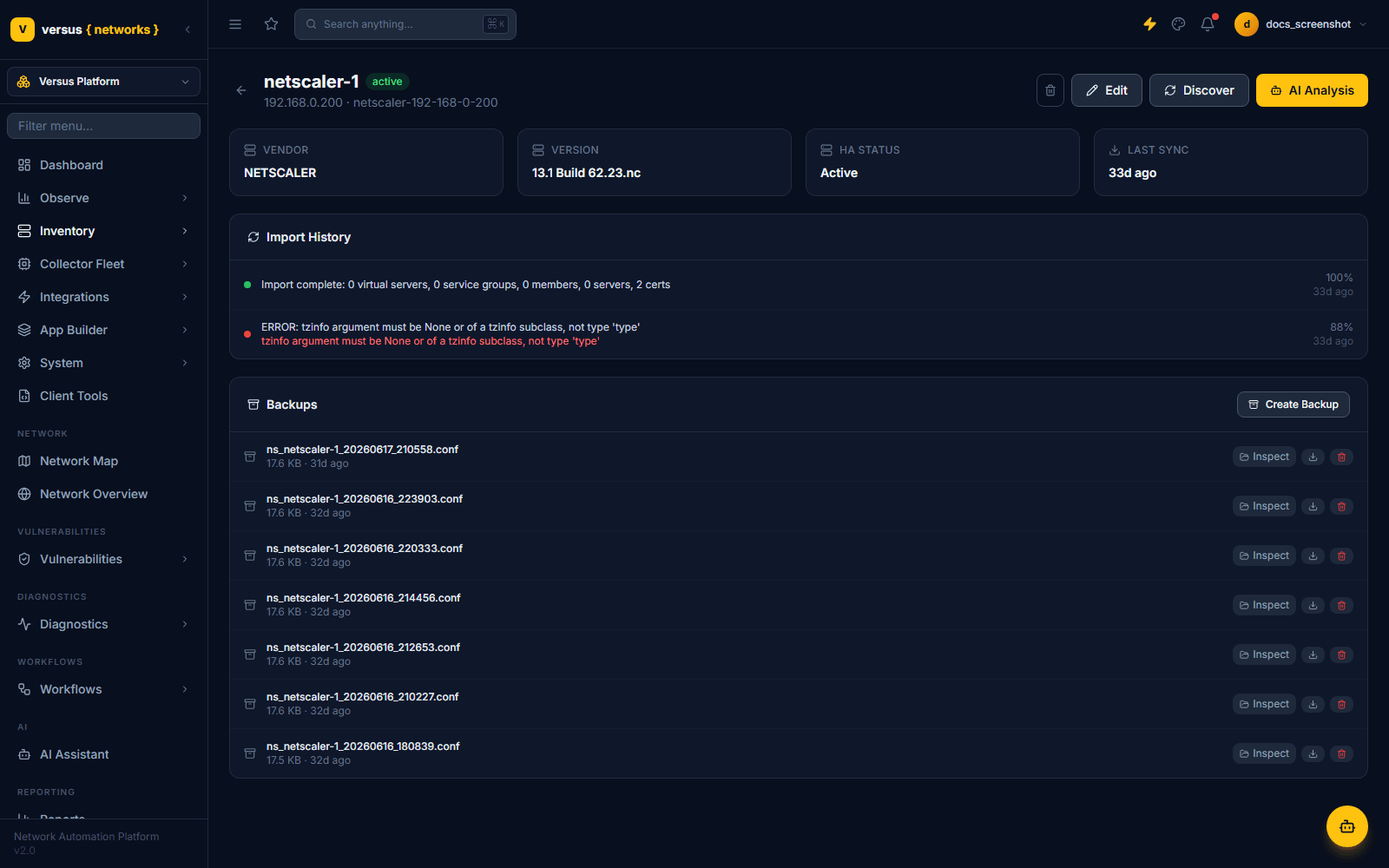
A NetScaler's detail page looks different: instead of the F5 tab set, it shows an Import History panel (object counts and any import errors from the last sync) and a Backups panel listing every configuration archive Versus has pulled from the device, each with Inspect, download, and delete actions, plus a Create Backup button to trigger a fresh one on demand.
HA Pairs
HA pairs are detected automatically during discovery for vendors that expose HA state via API — this demo tenant shows bigip1/bigip2 and netscaler-1/netscaler-2 as active/standby pairs, with each unit's individual role visible in the devices list's HA column.
Quick Reference — Device Classes
| Class | Example Platforms |
|---|---|
| ADC | F5 BIG-IP, F5OS (rSeries/VELOS), NetScaler, A10 Thunder, Kemp LoadMaster, Radware Alteon, AVI/NSX ALB |
| Firewall | Palo Alto (direct + Panorama), Cisco ASA, Fortinet FortiGate, Check Point, NSX Firewall |
| Router / Switch | Cisco IOS/IOS-XE/IOS-XR, Arista EOS, Juniper, Cisco Nexus, HPE Aruba |
| SDN | VMware NSX-T (Manager, Edge, Transport Node), Cisco ACI |
| DNS / IPAM | Infoblox, BlueCat, EfficientIP |
Clients / Owners
Inventory → Clients / Owners (/inventory/clients) records the organizations or lines of business a device is operated on behalf of — not user accounts. A client carries a description, a contact (name, e-mail, phone), an e-mail distribution group for notifications and an AD group for access control, and shows how many devices it owns. Devices and clients are many-to-many, so a shared appliance can belong to several clients; assignment happens on the device record. Client ownership is what NetBox tenancy maps onto during import and what owner-scoped reports and notifications group by.
Lifecycle Tracking
Vendor end-of-sale / end-of-support milestones, matched to the devices in this inventory by running version, live under Inventory → Lifecycle Tracking — see Lifecycle Tracking (EoL / EoS).