Packet Capture
Capture traffic two ways — a live, on-box tcpdump against an F5 virtual server with inline TLS decryption, or files pulled from tap and SCP capture servers — then feed either into AI diagnostics as evidence pinned to the delivery path.
Versus captures packets two different ways, for two different moments:
- Live capture on a virtual server — the "grab it now" path. From a virtual server, Versus runs a capture on the F5 BIG-IP itself, decrypts TLS inline, and streams the packets back to your browser in seconds. No tap, no export, no Wireshark round-trip.
- Capture servers & taps — the "already captured" path. Taps and appliances deposit
.pcapfiles onto a shared capture server; Versus browses and pulls them on demand, into either a Diagnostics Session or the standalone PCAP Analysis workbench.
Both feed the same AI diagnostics engine, where a capture becomes evidence pinned to a specific hop on the application delivery path. For the analysis side in depth, see Diagnostics — Sessions and PCAP Analysis.
Live Capture on a Virtual Server
Open Application Delivery Controller → Local Traffic → Virtual Servers. Every VIP row has a capture action; the virtual server's own address is used as the capture filter, so you only get the traffic for that application.
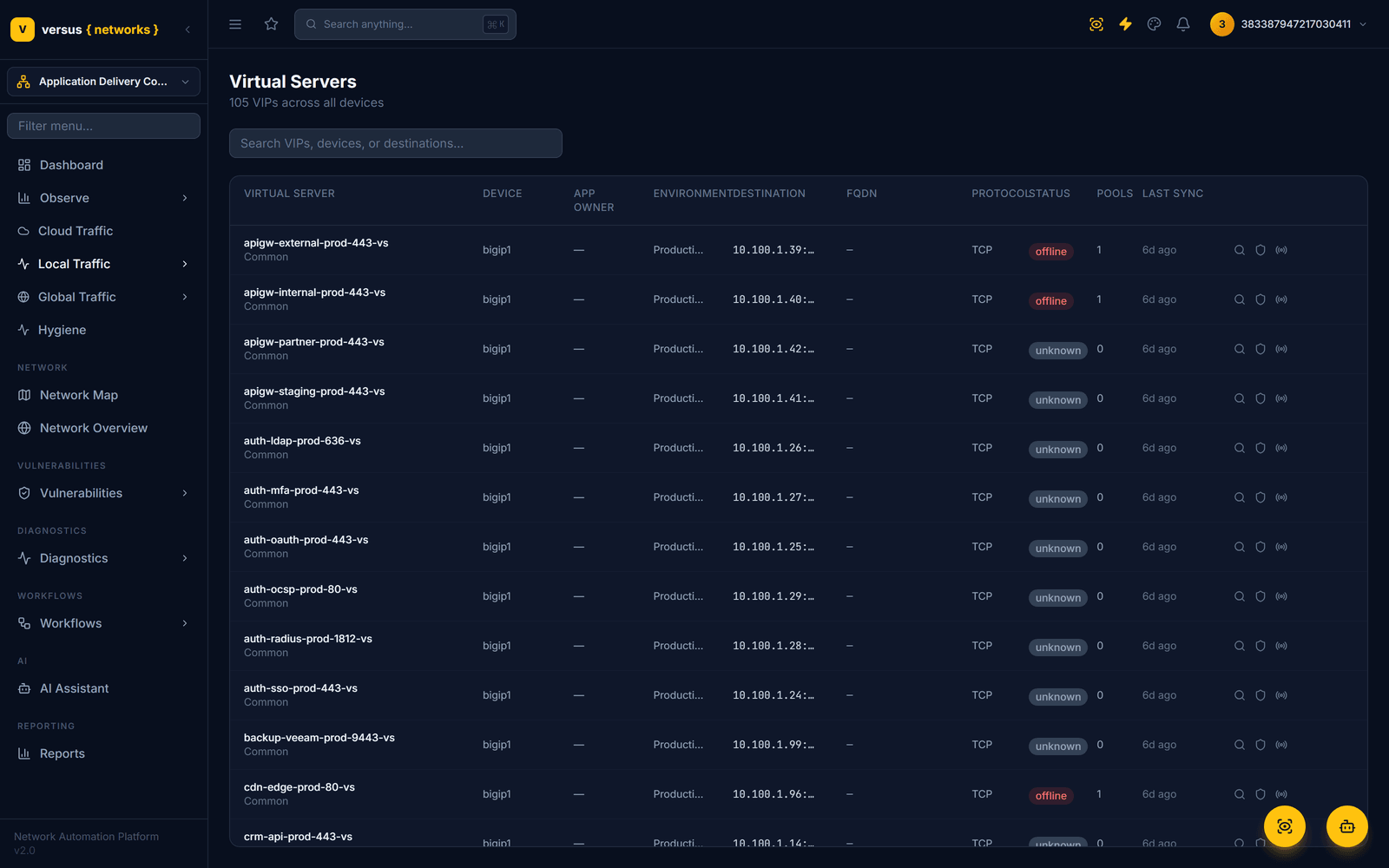
When you start a capture, Versus opens a session to the BIG-IP (directly, or through an on-prem collector when the device sits behind a customer network) and runs a self-contained capture on the box:
- Targeted to the VIP. The capture is filtered to
host <virtual-server-address>, optionally narrowed to a single client IP — so you see exactly the flows for that application, nothing else. - All interfaces. It captures across every TMM interface, including F5's packet metadata, so you don't have to know which interface the traffic is on.
- TLS decrypted inline. Before capturing, Versus enables F5's session-key export and captures with F5's SSL extension, embedding the TLS master secrets in the trace. The result is decrypted for you — you read the actual HTTP request/response, not ciphertext.
- Time-boxed. You choose a duration; it is clamped to a safe 5–120 seconds(default 30) and cleans up its temporary files when it finishes.
Conceptually, the on-box capture is:
# TLS master-secret export is enabled for the capture, then disabled after
tcpdump -nnei 0.0:nnnp host <VIP> --f5 ssl -C 100 -W 1 -w <file>
ssldump -r <file> -d -n              # decrypt + decode
tcpdump -r <file> -nn -v -A --f5 ssl
The capture returns to your browser with a packet list (parsed 5-tuples, flags, sizes), the decoded, decrypted application-layer text, and the raw pcap itself — so you can download it or hand it to the diagnostics engine.
You can Stop a running capture early, and Analyze a finished one — the latter sends the decoded output to an AI model for a plain-language read of what the packets show.
Capture Servers & Taps
Not every capture is taken on the box. Network taps and appliances write their traces to a shared capture server. Versus models that server as an SCP Server and pulls files from it over SFTP — it is a passive drop-box; Versus is always the puller, never a listener.
Under Diagnostics, add an SCP Server with a host and port (default 22), credentials — a password or a PEM private key (tried as RSA then Ed25519), stored encrypted — a default directory to browse, and an optional linked device for context.
A PCAP Tap represents a physical tap: it links to the capture server that receives its files, and to the switches it is cabled to. That switch attachment is what places the tap on the Network Map, so you can see where in the topology each tap sits.
From a capture server you can list files — Versus shows .pcap /.pcapng / .cap files newest-first with size and timestamp — and pull the one you want into a Diagnostics Session (as the session's packet evidence) or a PCAP Analysis capture (for the side-by-side workbench). Once a file lands, the same analysis that handles an uploaded pcap takes over automatically.
From Capture to Root Cause
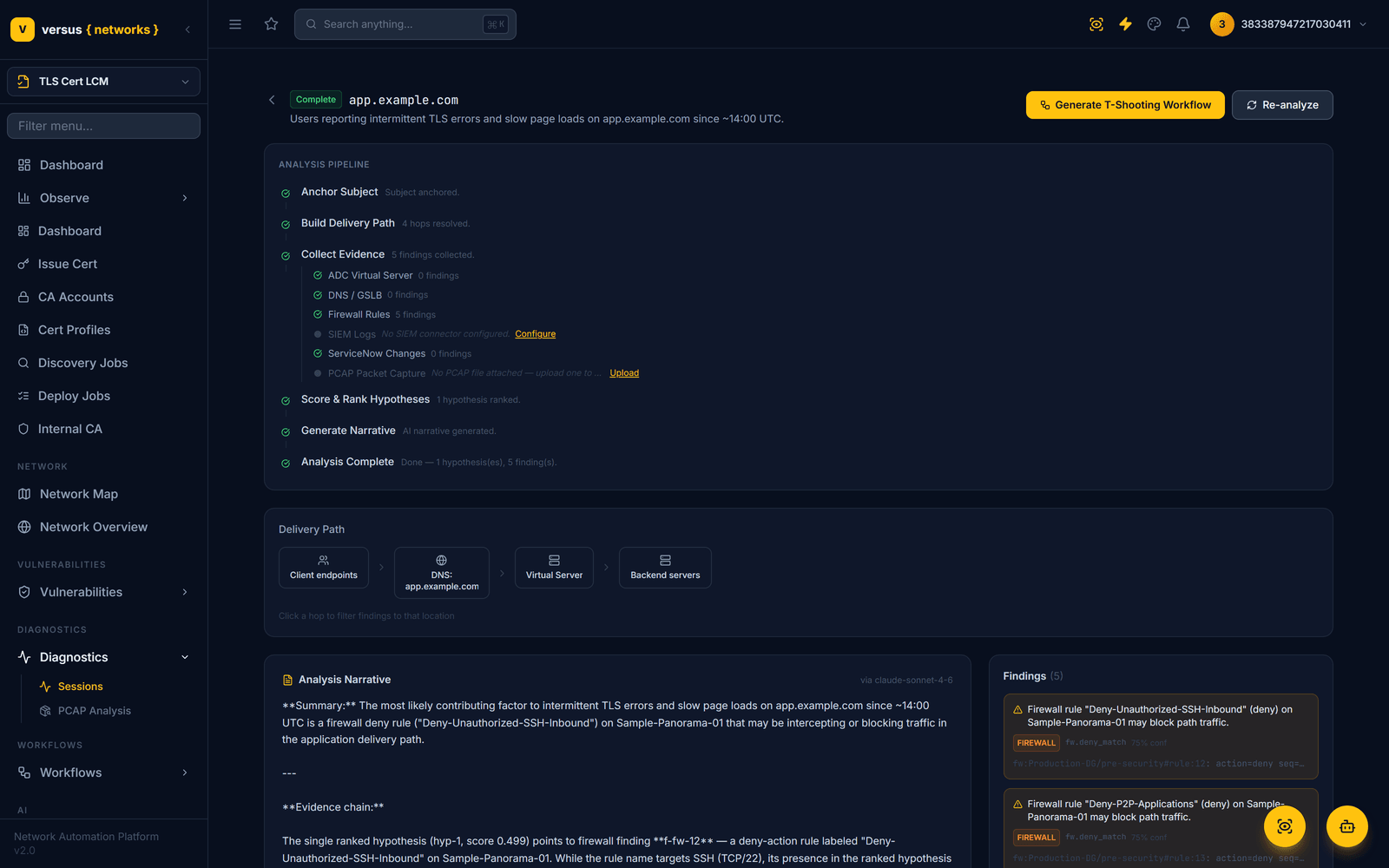
However a capture is obtained, it becomes evidence on a delivery path. A Diagnostics Session builds the full path — client → DNS/GSLB → any L3 routers → the ADC virtual server (and its SSL/persistence/iRule/WAF stages) → pool → members → backend — and the packet evidence is pinned to the hop where it was seen (RST storms, retransmission bursts, TLS alerts, HTTP 5xx). That hop-pinning is exactly what the scorer rewards when it ranks root causes.
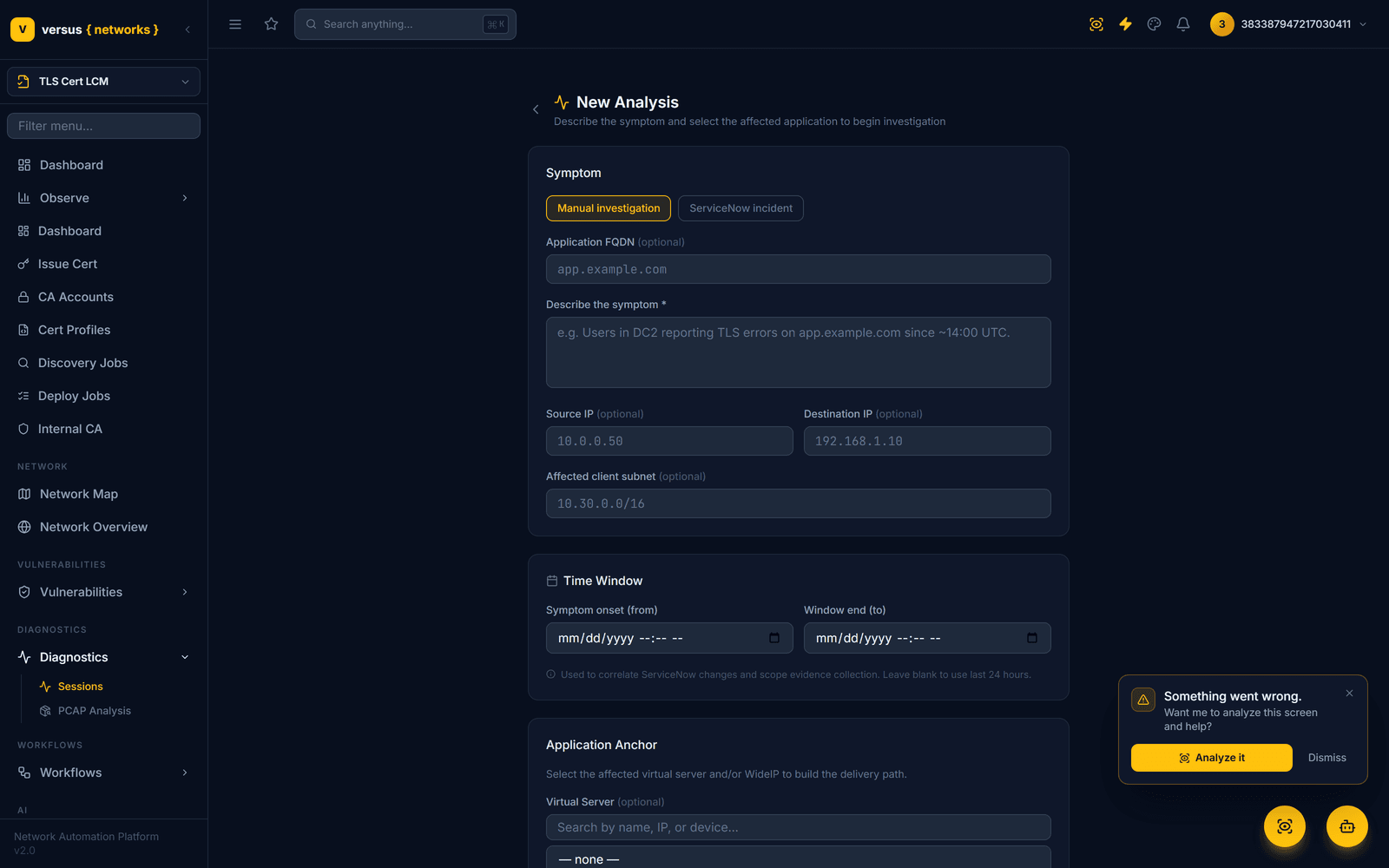
When you create a session, the Source IP, Destination IP, and Virtual Server you provide are the same inputs used to build the delivery path — and the same filters that focus a packet capture on the flow in question.
Inside a session — the six phases
Once a session starts, the packet capture is one of several evidence sources in a six-phase pipeline you can watch run live:
- Anchor — normalize the symptom and resolve the application.
- Path — build the delivery path (including the L3 route trace above).
- Collect — gather evidence from six sources in parallel: ADC, DNS/GSLB, Firewall, SIEM, ServiceNow, and Packet Capture. The packet source scans the pcap for RST storms, retransmission bursts, TLS alerts, and HTTP 5xx, tagging each to the hop it was seen at.
- Score — a deterministic (non-AI) pass ranks candidate root causes by timing, path proximity, evidence-source weight, and corroboration.
- Narrative — an AI model writes an evidence-chained explanation of the top hypothesis (with a structured fallback if the model call fails).
- Complete — the ranked hypotheses, narrative, and an optional AI-drafted troubleshooting workflow are ready.
Because scoring is deterministic, the same evidence always ranks the same way — the AI is only used to write the human-readable story. For the full session and workbench walkthrough, see Diagnostics — Sessions and PCAP Analysis.
Confirming a Tap Sees the Flow
Because a tap's position is drawn on the Network Map (via the switches it is connected to), and the delivery path names every hop between two IPs, you can confirm a given tap is actually on the path for the flow you are investigating: open the Network Map, find the tap, and check that its switches sit between the source and destination of the session. Pick the tap that covers the path, pull its capture into the session, and the packet evidence lands on the right hop.
Summary
| Live capture | Capture server / tap | |
|---|---|---|
| Where | On the F5 BIG-IP | External tap / appliance → SCP server |
| Trigger | Virtual Servers list action | Browse & pull from a capture server |
| TLS | Decrypted inline on the box | As captured by the tap |
| Speed | Seconds, returned to the browser | On demand, whatever is on the server |
| Feeds | Browser view + optional AI read | Diagnostics Session or PCAP workbench |
For the analysis engine — the pipeline, scoring, and AI narrative — continue to Diagnostics — Sessions and PCAP Analysis.