Sessions and PCAP Analysis
Diagnostics is the AI-assisted root-cause layer of Versus — Sessions trace a reported symptom across the full application delivery path and rank causal hypotheses, while PCAP Analysis parses and compares raw packet captures on their own, outside any specific session.
Overview
Both tools live under Diagnostics in the left navigation, alongside Vulnerabilities and Workflows — Diagnostics is a common section available in every workspace. Under the hood, both are powered by the same backend app (internally named throughline), but they solve different problems:
- Sessions (
/throughline) — start from a symptom ("users report TLS errors on app.example.com"), and Versus builds the delivery path, collects evidence from every source it has access to, scores possible root causes, and writes an AI narrative explaining which one is most likely and why. - PCAP Analysis (
/throughline/pcap) — a standalone packet-capture workbench. Upload or pull one or more.pcap/.pcapngfiles, get parsed TCP/TLS/HTTP/DNS statistics and anomaly findings for each, and ask an AI model to compare them and explain what changed.
A Session can also pull in a PCAP as one of its evidence sources — see Packet Capture as Session Evidence below — but the standalone PCAP Analysis tool does not require a session at all; it's useful any time you just have two capture files and want to know what's different between them.
Sessions — End-to-End AI Traffic Analysis
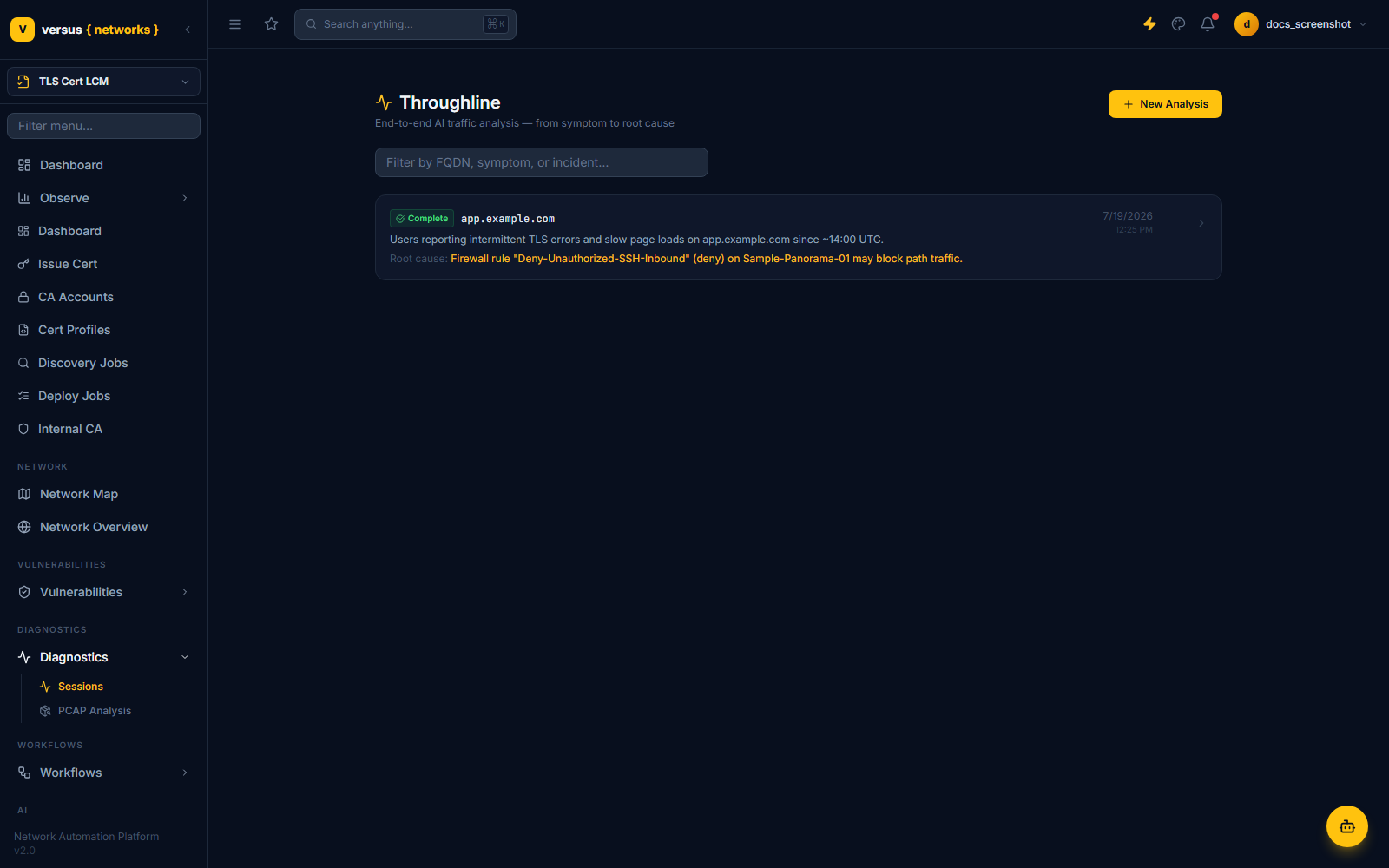
Open Diagnostics → Sessions to see every analysis session that's been run, each showing its status, the original symptom description, and — once complete — the top-ranked root cause in one line. On a fresh workspace with no sessions yet, this list is empty:
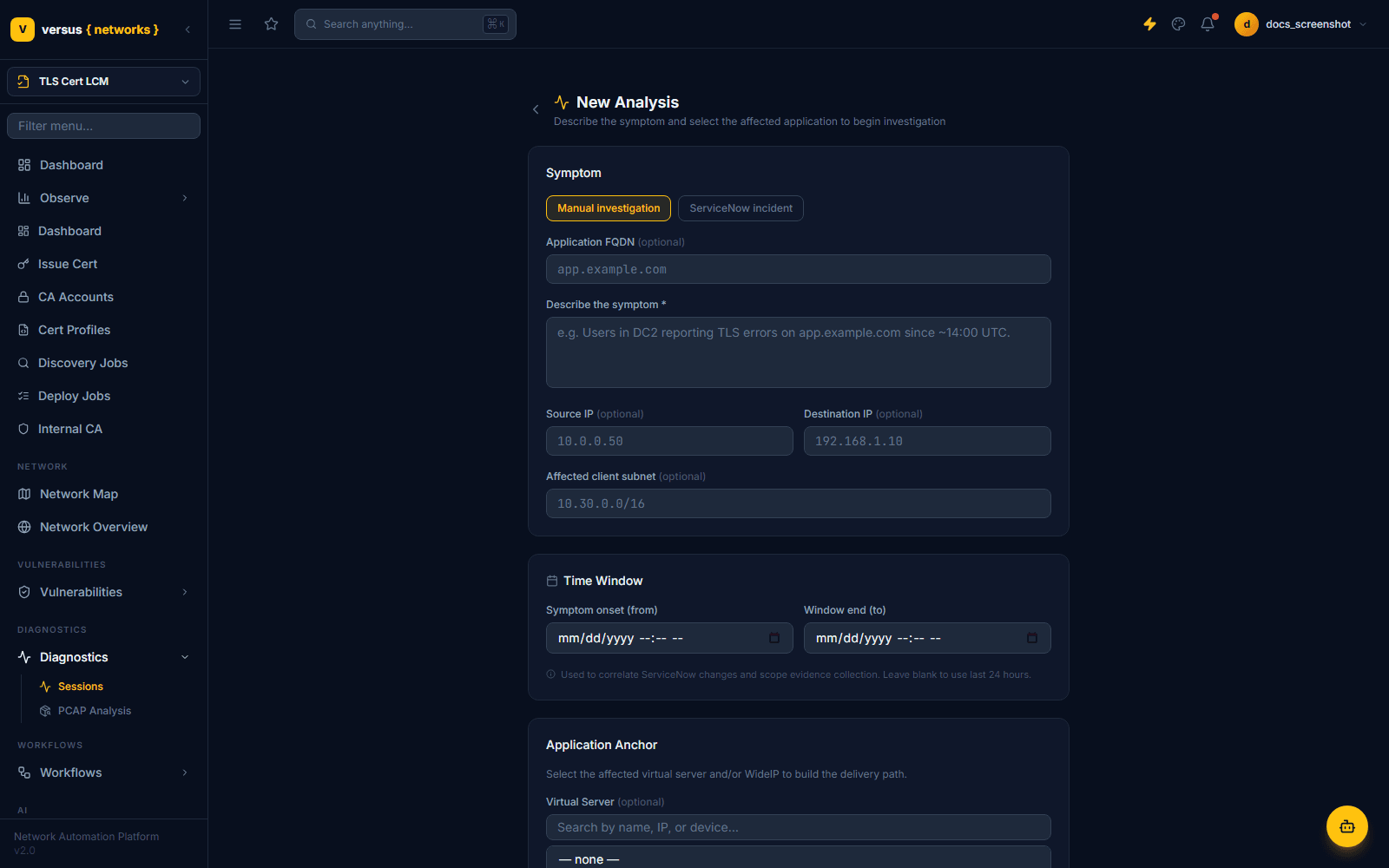
Click New Analysis to open the session form. Everything on it is optional except the symptom description — fill in as much as you know:
- Symptom source — Manual investigation (you type the symptom) or ServiceNow incident (pull symptom details from a linked ServiceNow ticket).
- Application FQDN and a free-text symptom description — e.g. "Users reporting intermittent TLS errors and slow page loads on app.example.com since ~14:00 UTC."
- Source IP / Destination IP — optional packet-level filters, useful once a PCAP is attached.
- Affected client subnet — narrows which clients are considered impacted.
- Time window (symptom onset / window end) — used to correlate ServiceNow changes and scope evidence collection. Leave blank to default to the last 24 hours.
- Application Anchor — search for and select the affected Virtual Server and/or WideIP, so Versus can build an accurate delivery path instead of guessing from the FQDN alone.
Click Start Analysis. Versus immediately begins two things in parallel:
- Runs the diagnostic pipeline described below, and
- Asks the AI to draft a multi-phase troubleshooting Workflow tailored to this symptom (connectivity checks, app-health checks, change/security correlation, and remediation steps) — see Generate a Troubleshooting Workflow.
The session detail page renders a live, step-by-step view of the pipeline as it runs — this is not a generic spinner, it's a WYSIWYG trace of exactly what Versus is doing:
- Anchor Subject — normalizes the symptom and resolves the application reference.
- Build Delivery Path — traces the hop chain: client endpoints → DNS/GSLB → any L3 routers on the path → the ADC virtual server (and its SSL/persistence/iRule/WAF processing stages) → pool → pool members → backend.
- Collect Evidence — runs one adapter per evidence source: ADC Virtual Server, DNS/GSLB, Firewall Rules, SIEM Logs, ServiceNow Changes, and PCAP Packet Capture. Each adapter runs independently and reports its own finding count.
- Score & Rank Hypotheses — a deterministic (non-AI) scoring pass ranks candidate root causes by temporal precedence, path proximity, evidence-source weight, and corroboration from other findings on the same hop.
- Generate Narrative — an AI model writes an evidence-chained explanation of the top hypothesis (or Versus falls back to a structured report if the AI call fails).
- Analysis Complete — results are ready for review.
Adapters that can't run are marked skipped rather than silently ignored, with an inline explanation and a link to fix it — for example, SIEM Logs shows "No SIEM connector configured" with a Configure link, and PCAP Packet Capture shows "No PCAP file attached" with an Upload link. This makes it obvious what additional evidence would strengthen the analysis, rather than leaving a gap unexplained.
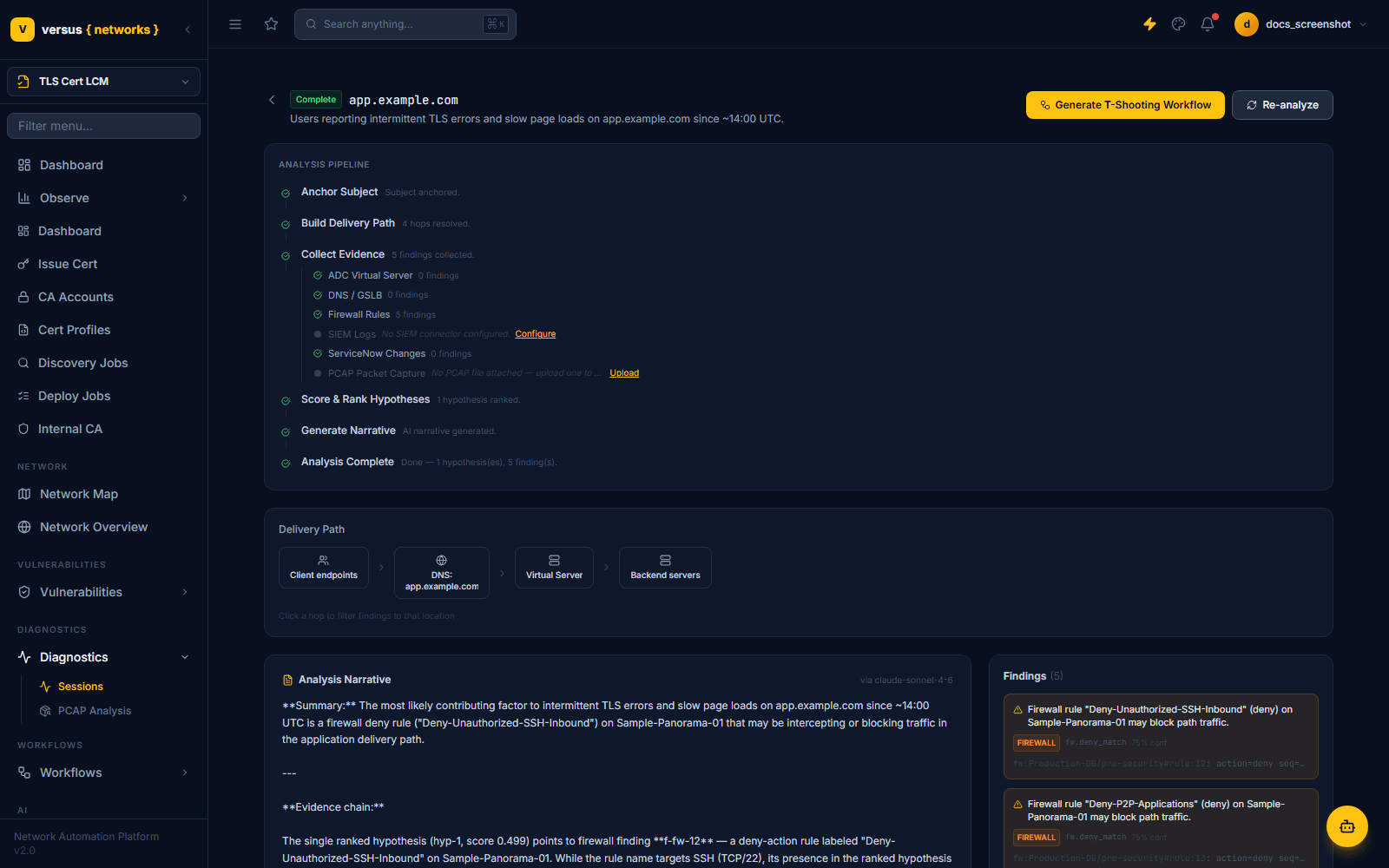
Once complete, the session shows an Analysis Narrative written by the AI model (labelled with which model generated it) structured as: a one-line summary, an evidence chain walking through why the top hypothesis is causal rather than symptomatic, supporting signals, and a numbered, prioritized list of recommended actions. Below it, Ranked Causal Hypotheses lists every candidate root cause the scoring pass produced, each with a severity badge and numeric score — click one to see exactly which findings support it.
A Findings panel on the side lists every individual piece of evidence collected (for example, a specific firewall deny rule match), tagged with its source and a confidence percentage, so you can trace any hypothesis back to the raw evidence it was built from. A Session Info panel summarizes the subject, time window, PCAP status, and finding/hypothesis counts.
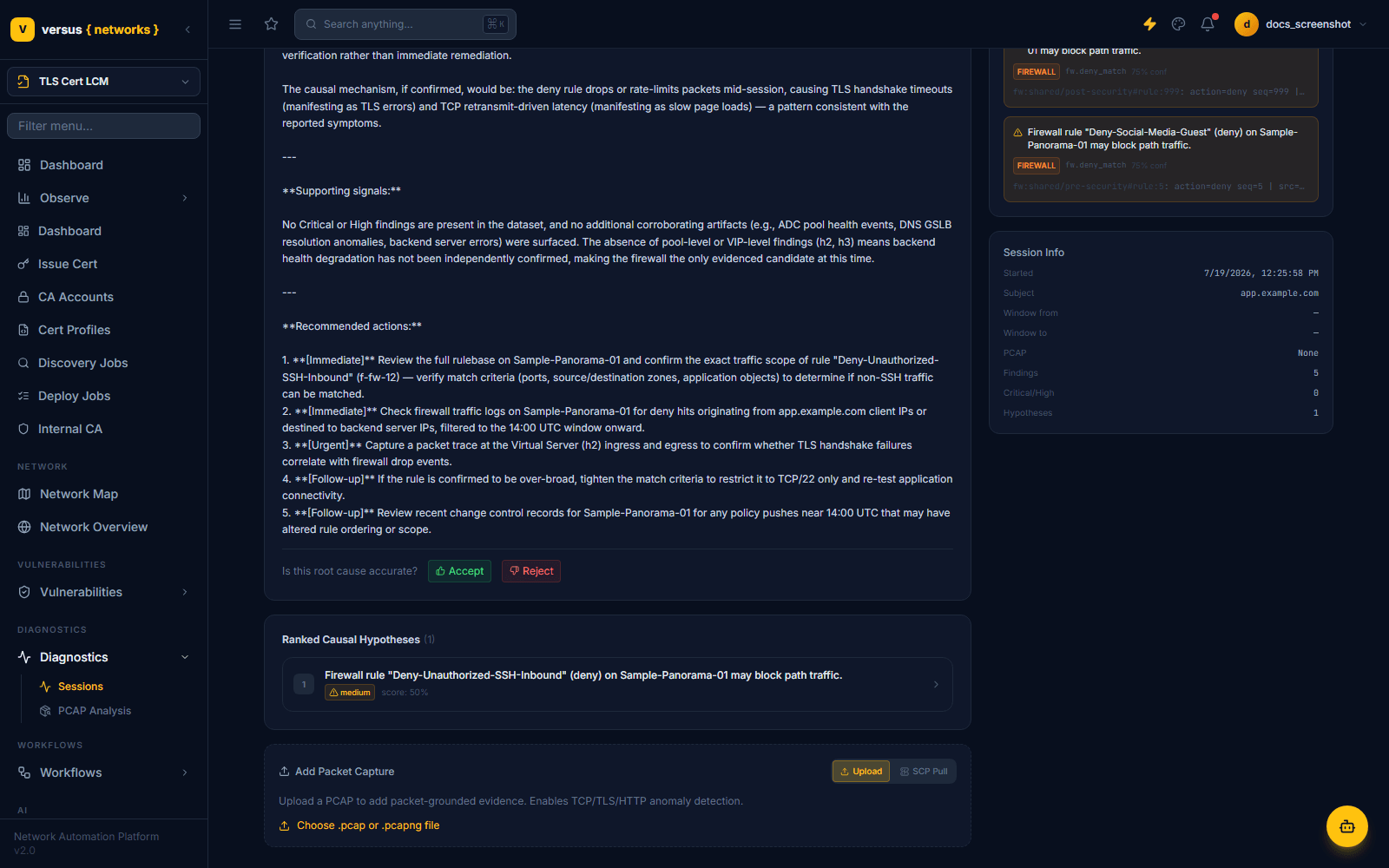
human_verdict) for accountability — it does not currently retrain or re-score anything automatically, but it's the record of whether the AI got it right.Packet Capture as Session Evidence
If the symptom looks like it needs packet-level proof, use the Add Packet Capture panel at the bottom of the session to attach a .pcap/.pcapng file — either by direct Upload or by pulling one from a configured SCP/SFTP server (SCP Pull, useful if a physical PCAP Tap is already writing captures there). Attaching a file automatically re-runs the pipeline, and this time the PCAP Packet Capture evidence adapter runs instead of being skipped — TCP retransmits, resets, TLS alerts, and HTTP error codes found in the capture become findings that feed straight into the hypothesis scoring, the same as any other source.
Generate a Troubleshooting Workflow
Click Generate T-Shooting Workflow at any time (it also runs automatically when a session is created) to have the AI draft a complete, ready-to-run Workflow from the session context — phased connectivity/app-health/change-security/remediation checks built from the same symptom, FQDN, affected virtual server, and time window as the session itself. This runs as a background job (poll wf_status: idle → generating → done | error); once done, the generated workflow is a normal entry in Workflows that you can review, edit, and run like any other. See the AI Workflow Generator doc for how that generation step works in general.
PCAP Analysis — Standalone Packet Capture Comparison
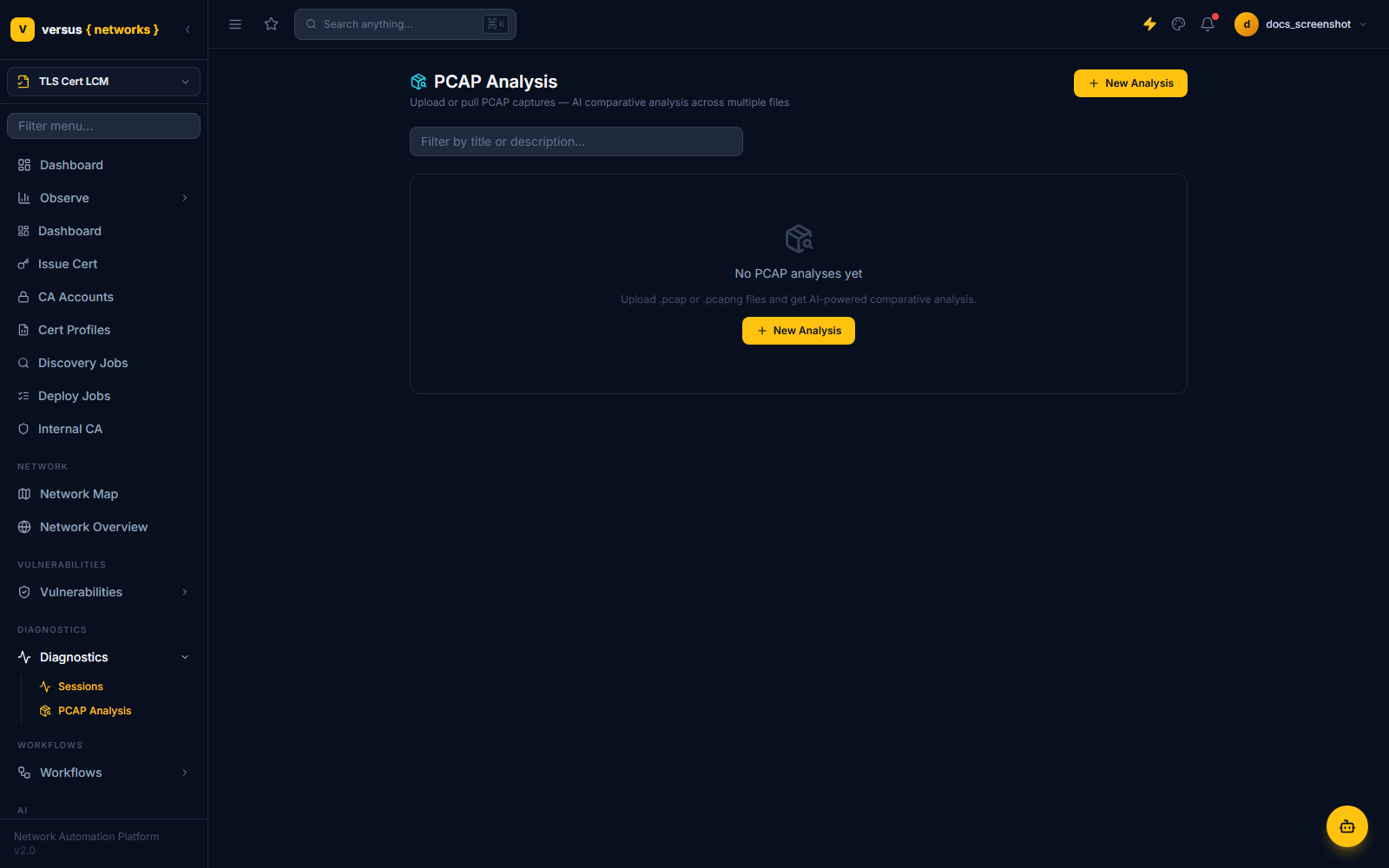
Open Diagnostics → PCAP Analysis for a workbench focused purely on packet captures — useful when you already have capture files (for example, a "before" and "after" a config change) and want a fast, AI-assisted comparison without creating a full diagnostic session. Like Sessions, the list is empty until you create an analysis:
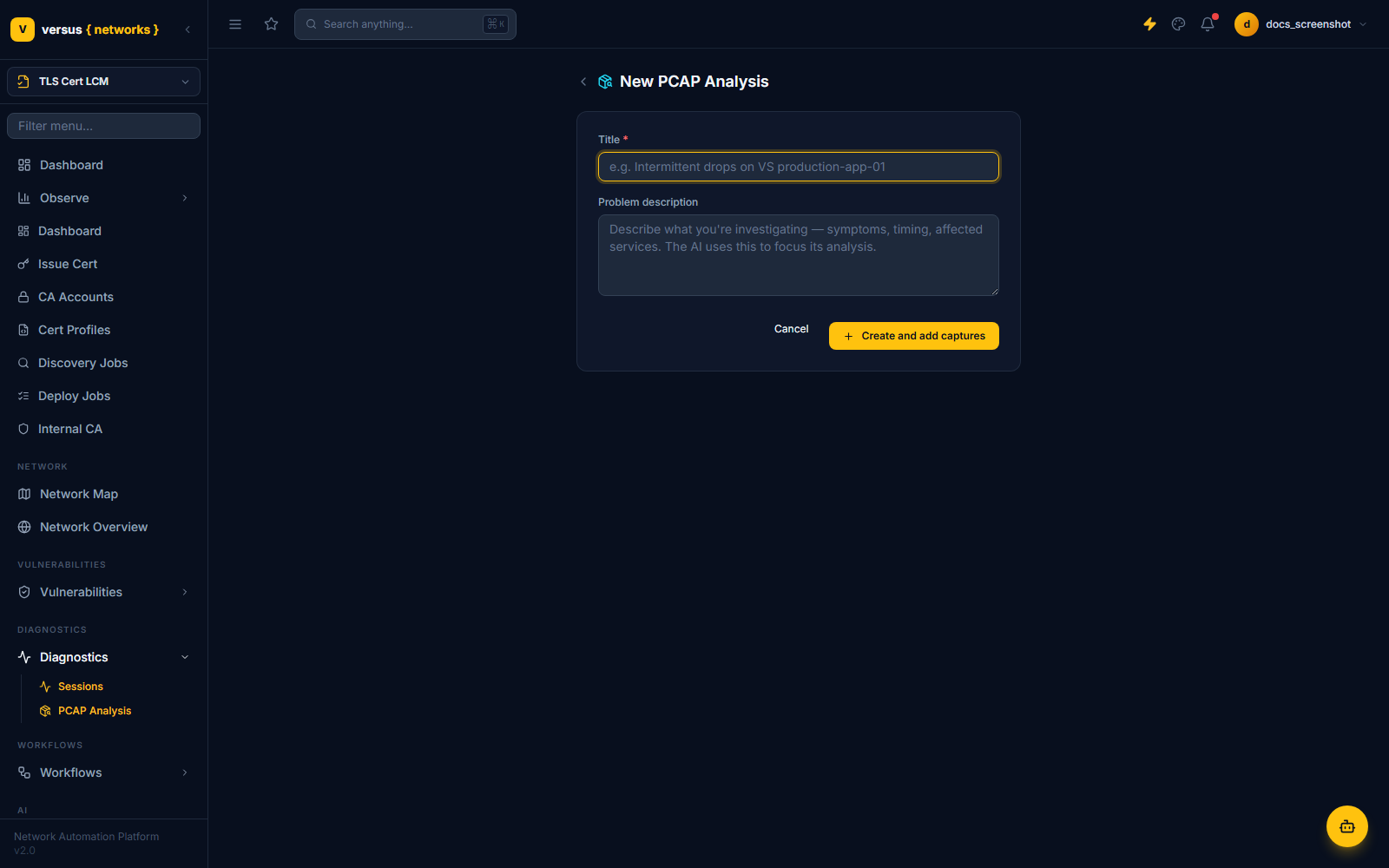
Click New Analysis and give it a title (required) and an optional problem description — the AI uses the description to focus its comparison, e.g. "Comparing a capture from before and after a firewall rule change to see if TCP retransmits and TLS errors improved."
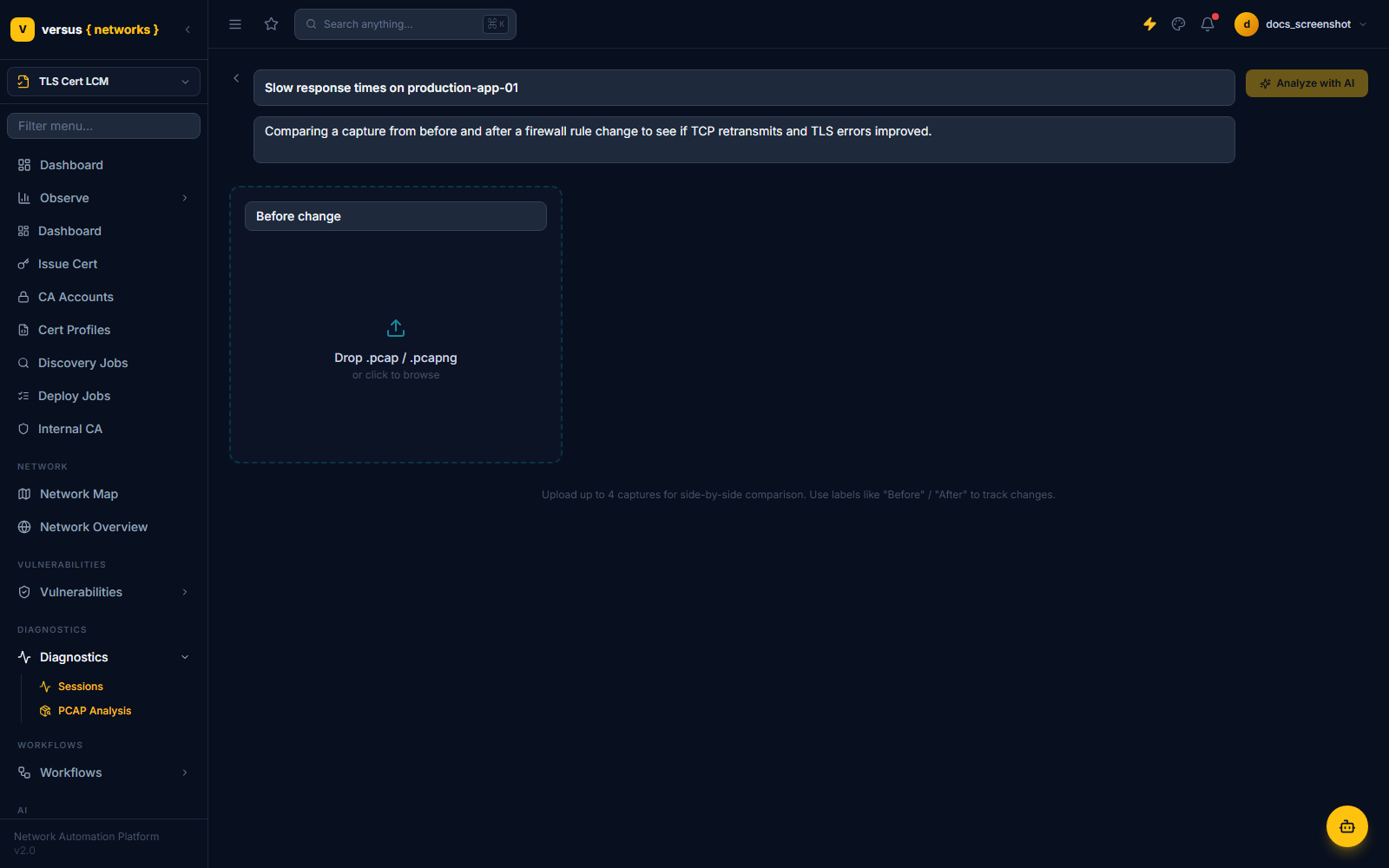
On the analysis detail page, upload up to 4 captures for side-by-side comparison (drag-and-drop a .pcap/.pcapng file, or pull one from a configured SCP server the same way Sessions can). Label captures descriptively — "Before change" / "After change", or by site/device — so the comparison narrative reads clearly:
Each capture is parsed immediately on upload (via tshark, with a basic frame-count-only fallback if tshark isn't available) into per-capture statistics and findings:
- TCP — RST count, retransmissions, out-of-order segments, zero-window events, duplicate ACKs, and round-trip-time (min/avg/max).
- TLS — alert count and type, negotiated versions, SNI names seen, cipher suites.
- HTTP — status code breakdown (with 4xx/5xx counts called out), methods, hosts.
- DNS — queries observed.
- Conversations — top IP pairs and TCP flows by packet count, plus an overall protocol breakdown.
From these stats, Versus automatically generates per-capture findings with a severity (e.g. "104 TCP retransmissions (2.1% of frames) — packet loss or congestion", or "2 TLS alert(s): decrypt_error ×2") — no need to eyeball the raw numbers yourself.
Once at least one capture is uploaded, click Analyze with AI. The AI is given every capture's full statistics and findings (plus your problem description) and returns a structured report: Summary, per-capture Capture Analysis, a Comparative Analysis section when there are 2+ captures (what changed — did the problem appear, worsen, or resolve?), a Root Cause Assessment with a confidence level, and ordered Recommendations.
You can also open the raw packet table for any capture and ask natural-language questions about it — e.g. "show only retransmitted packets" or "what's the RTT between the client and the pool member?" — the AI answers inline and can apply a matching filter (by TCP flag, protocol, method/type, IP, or port) directly to the table.
Quick Reference
| Tool | Starts From | Produces |
|---|---|---|
| Sessions | A reported symptom, ServiceNow incident, or NL query | Delivery path, ranked root-cause hypotheses, AI narrative, optional AI-generated troubleshooting workflow |
| PCAP Analysis | One or more uploaded/pulled .pcap or .pcapng files | Per-capture TCP/TLS/HTTP/DNS stats and findings, plus an AI comparative root-cause report |