vSphere / vCenter Integration
Connect VMware vCenter, launch the built-in VM lifecycle workflows, and understand what the vSphere integration does and does not do today.
Overview
Versus connects to a VMware vCenter Server — not directly to individual ESXi hosts — and drives VM lifecycle operations through four pre-built workflows: VM Create, VM Startup, VM Shutdown, and VM Decommission.
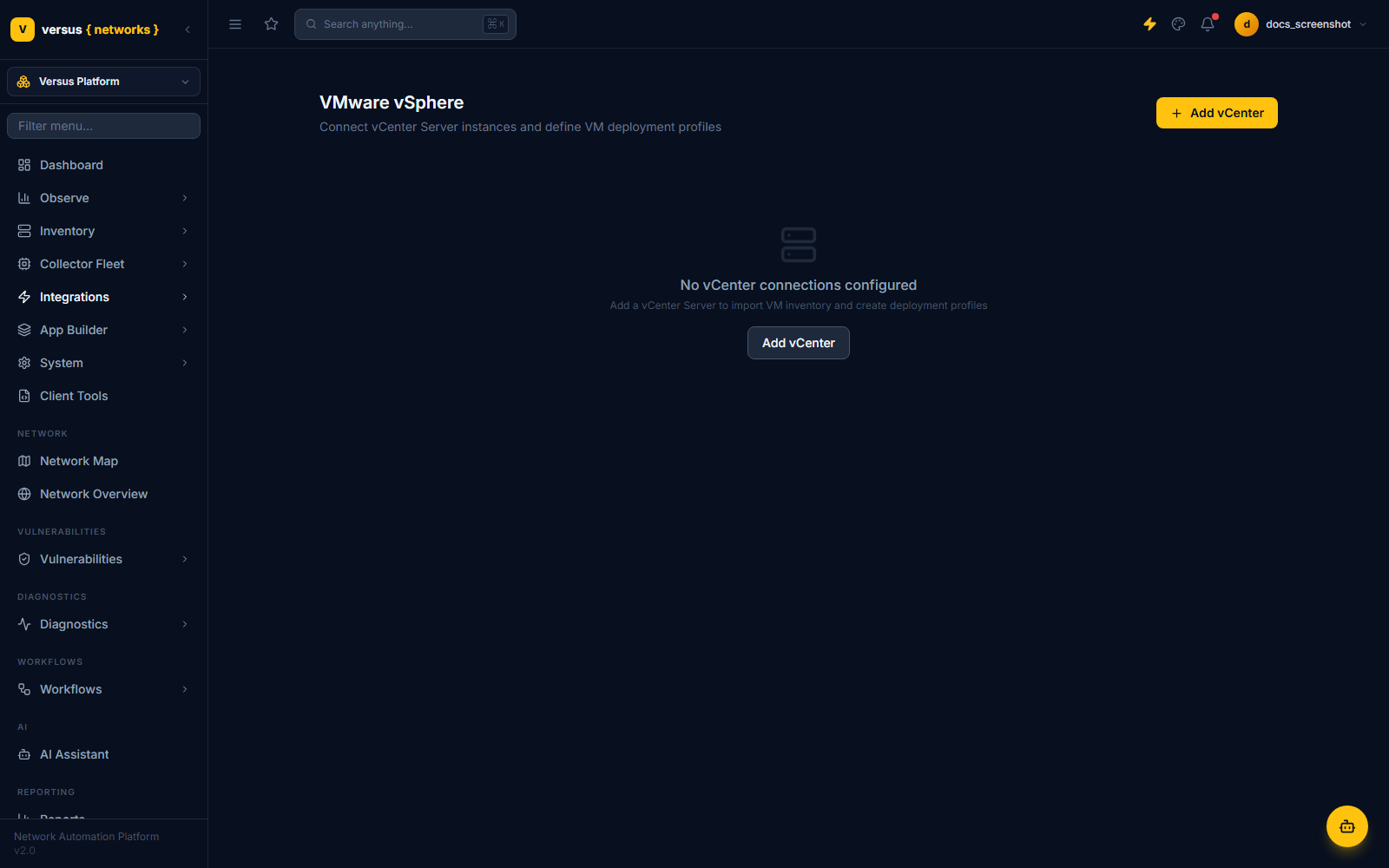
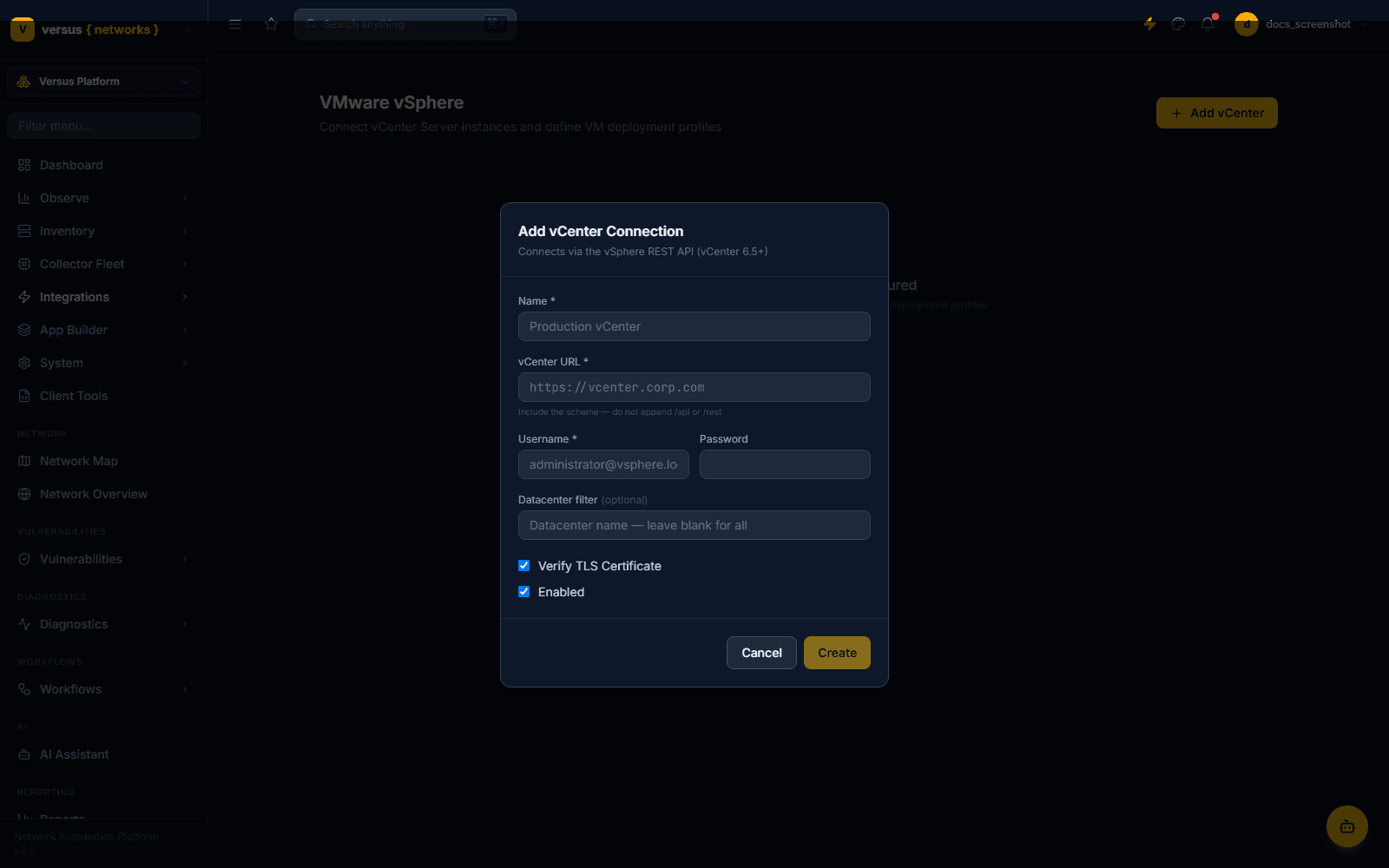
Navigate to Integrations → vSphere and click Add vCenter. The connection form (subtitled "Connects via the vSphere REST API (vCenter 6.5+)") has:
- Name — a label for this connection.
- vCenter URL — include the scheme (e.g.
https://vcenter.corp.com); do not append/apior/rest. There is no separate port field — if you need a non-default port, include it in the URL. - Username / Password — a vCenter SSO account (e.g.
[email protected]) or domain account. - Datacenter filter — optional; a single datacenter name to restrict discovery to. Leave blank to discover all datacenters.
- Verify TLS Certificate — on by default.
- Enabled — on by default.
Click Create to save. There is no "Test Connection" button on this form and no separate sync step — sync, where it happens at all, is a manual action on the saved connection card, not scheduled.
Two different APIs are actually in play
The connection test and the vCenter REST client (used for the "Create VM (vSphere)" and "Destroy VM (vSphere)" individual workflow steps described below) talk to vCenter's REST API. But the four working, pre-built workflows — VM Create, Startup, Shutdown, and Decommission — are built on a completely different code path using pyVmomi, the vSphere Web Services SOAP API. If you're troubleshooting connectivity, keep in mind these are two separate integrations under one UI, with pyVmomi as an optional dependency on the backend rather than something guaranteed to be installed in every deployment.
After adding a connection, VM operations live under vSphere → VM Dashboard — this is a small hub of four cards that link to the four built-in workflows, plus a "Recent VM Operations" list populated from workflow run history. It is not a live, searchable VM inventory table: there is no per-VM list showing name, power state, guest OS, IP, datastore, or cluster/host anywhere in the UI, and no per-VM detail page with power or snapshot buttons. Everything here starts by running one of the four workflows below.
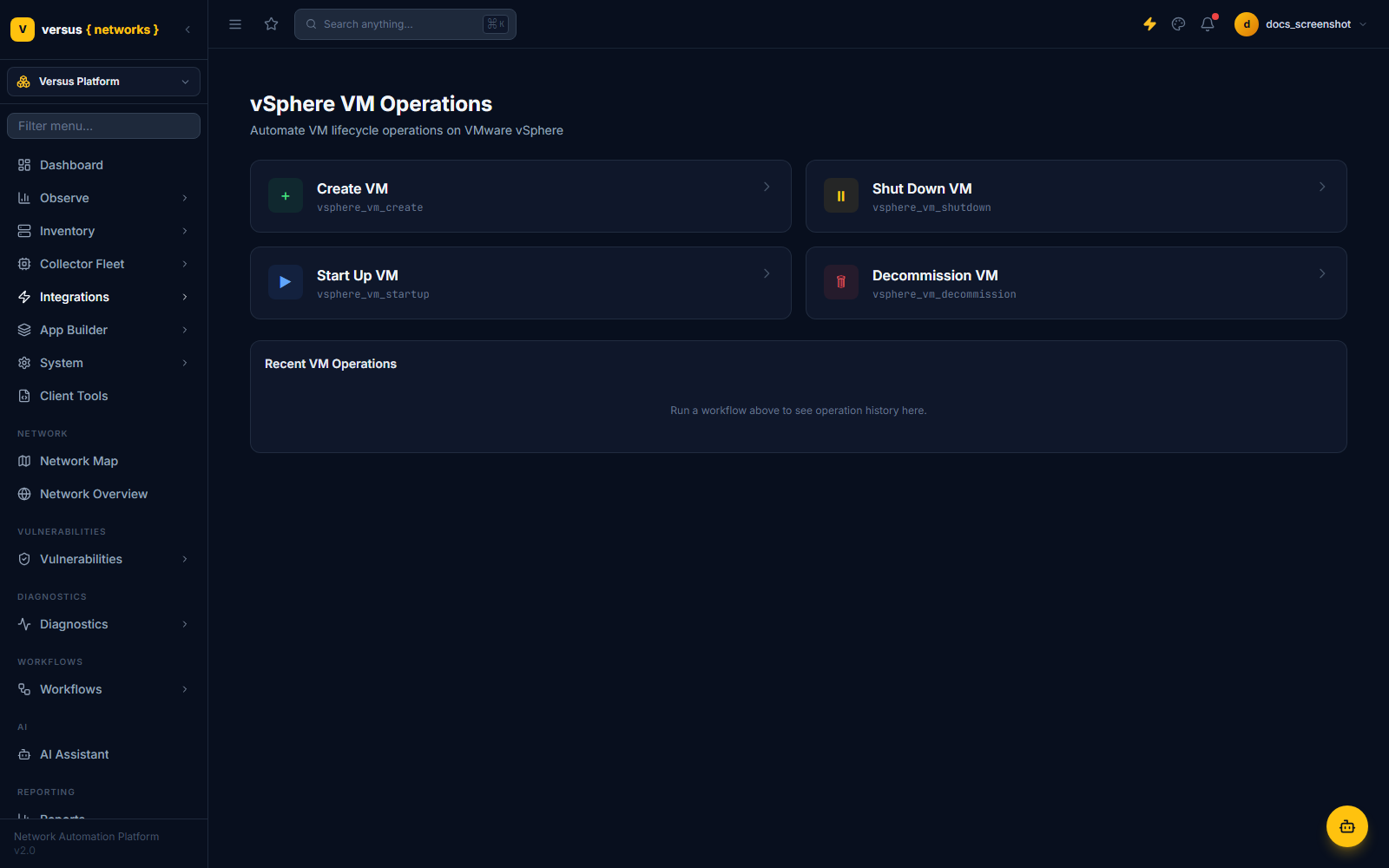
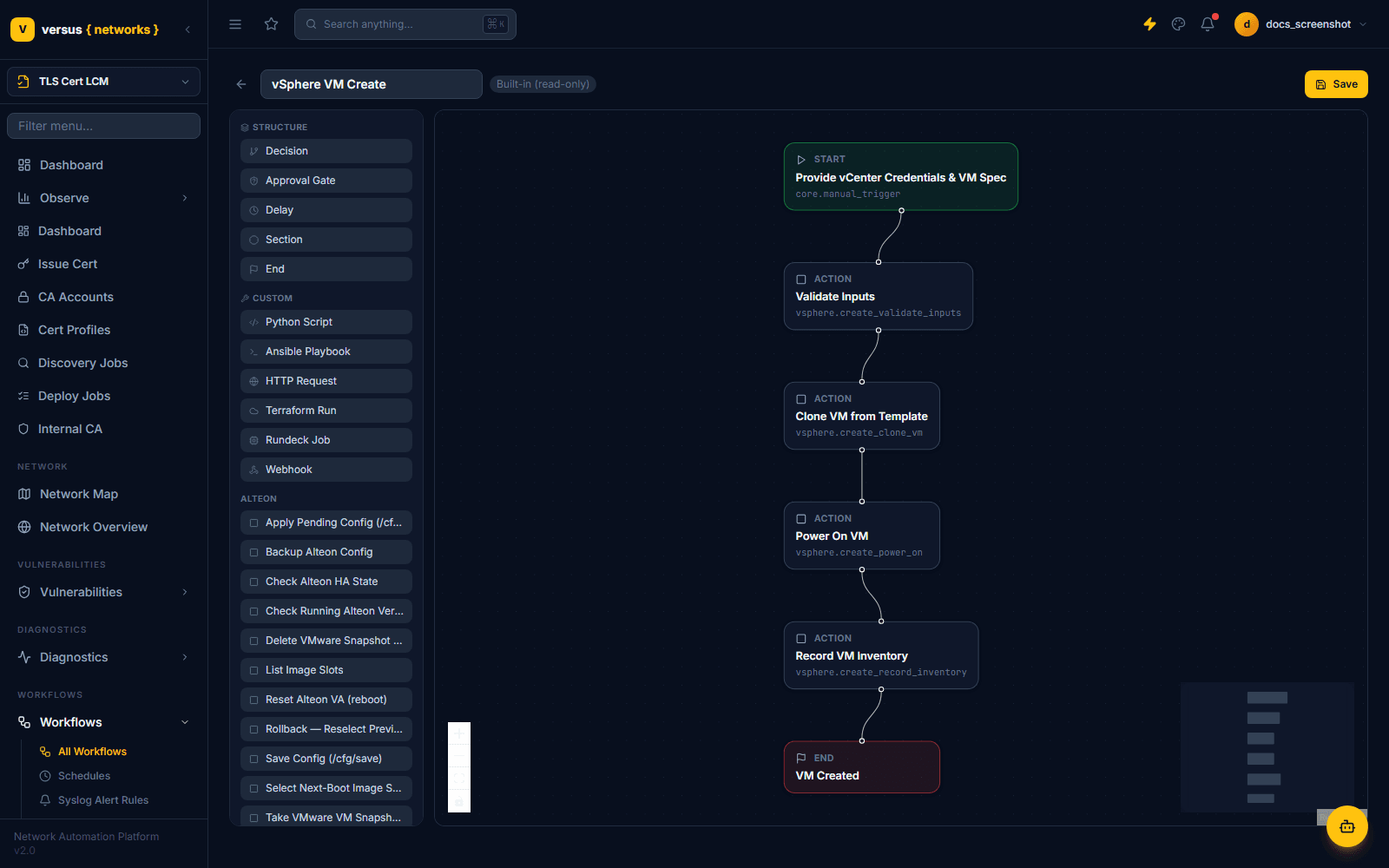
Clicking Create VM opens the built-in vSphere VM Create workflow, which clones a VM from an existing template using pyVmomi, in four steps:
- Validate Inputs — checks the requested vCenter objects (template, datacenter, cluster, datastore, network, folder) exist before doing anything.
- Clone VM from Template — performs the actual clone.
- Power On VM — powers on the new VM.
- Record VM Inventory — captures the resulting VM's details into the workflow run output.
This is the actual, working way to provision a VM through Versus today.
The other three built-in workflows follow the same pattern:
- VM Startup — checks current power state, powers on, and waits (up to 5 minutes) for VMware Tools to report the guest is ready before recording its IP.
- VM Shutdown — checks power state, shuts down the guest gracefully via VMware Tools, and verifies the shutdown completed.
- VM Decommission — checks dependencies, shuts the VM down, takes a pre-delete snapshot automatically (name and options are not user-configurable — it's a fixed, auto-named safety snapshot), then deletes the VM.
None of these individual pyVmomi steps (Power On VM, Shutdown Guest, Snapshot Before Delete, etc.) are exposed as standalone, reusable steps you can drop into a custom workflow — they only exist wired together inside these four built-in workflows. There is also no standalone "Reset VM" step or capability anywhere in the product.
Separately from the four built-in workflows above, the workflow builder's vsphere step category also lists two individually-configurable steps that look like a more general-purpose alternative:
- Create VM (vSphere) — inputs: source name, VM name, guest OS (select), datacenter/cluster/datastore, folder/network (optional), vCPU count, memory (MB), disk (GB).
- Destroy VM (vSphere) — inputs: source name, VM name or UUID, optional datacenter, and a "force power off" toggle (on by default).
create_vm,get_vm_by_name, delete_vm) that are not implemented anywhere in the backend — running either one fails with an error rather than provisioning or deleting anything. They are visible in the step palette but should be treated as not-yet-functional; use the built-in VM Create and VM Decommission workflows above instead, which use the separate, working pyVmomi path.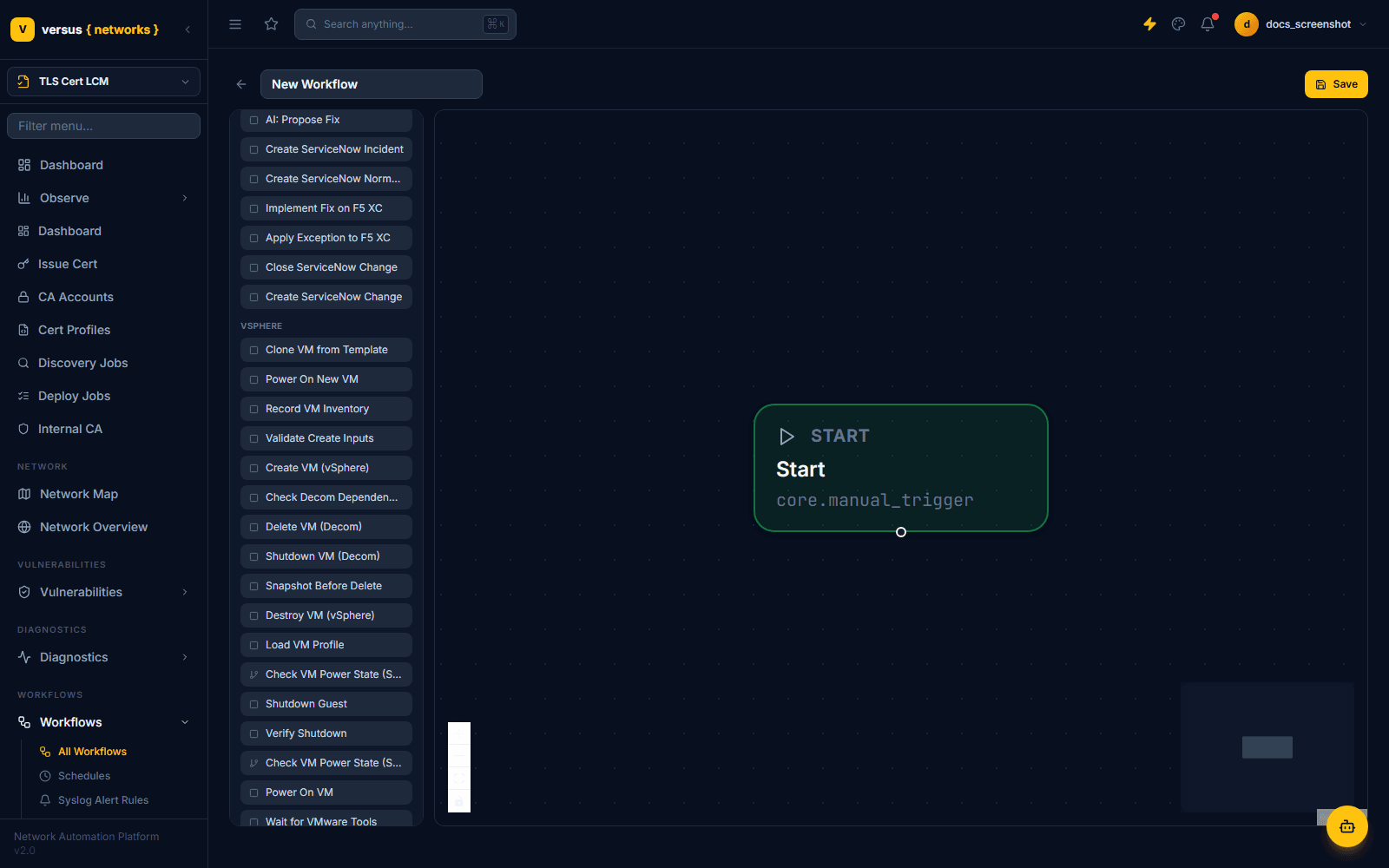
VM Profiles — deployment templates
Each vCenter connection card also has a collapsible VM Profiles panel for defining reusable clone templates (template name, datacenter, cluster, datastore, folder, network, resource pool, CPU/memory/disk sizing, customization spec, OS type) that the VM Create workflow can draw on. This panel only appears once a connection exists — it isn't reachable in this demo's current empty-connection state, so it isn't pictured here, but it's a real, working part of the vCenter connection card rather than a separate page.
Quick Reference
| Item | Details |
|---|---|
| Connects to | vCenter Server (not individual ESXi hosts) |
| Connection protocol | vSphere REST API over HTTPS (port embedded in the URL, no separate port field) |
| Built-in workflows | VM Create, VM Startup, VM Shutdown, VM Decommission — all pyVmomi/SOAP-based |
| Live VM inventory UI | Does not exist — no per-VM table, no per-VM detail page |
| Snapshot management UI | Does not exist as a standalone screen — Decommission auto-snapshots before delete, fixed/non-configurable |
| Sync | Manual only, on the connection card — there is no scheduled/automatic sync interval |
| Create VM (vSphere) / Destroy VM (vSphere) steps | Present in the step palette but non-functional — call backend methods that do not exist |
| Reset VM | Does not exist anywhere in the product |
| VM Profiles | Reusable clone templates, configured per vCenter connection card |