Support Contract Validation
Import the serial / SKU list a vendor sent for a support contract and check it against the live device inventory — which devices are covered, which managed devices are missing from the contract, and which serials on the contract no longer exist.
Every vendor sends the same thing at renewal time: a spreadsheet of serial numbers and SKUs that a support contract covers. Checking it against what is actually running is tedious, and it usually goes wrong in both directions — a device that was added last year and never made it onto the contract, and units on the contract that were decommissioned long ago and are still being paid for.
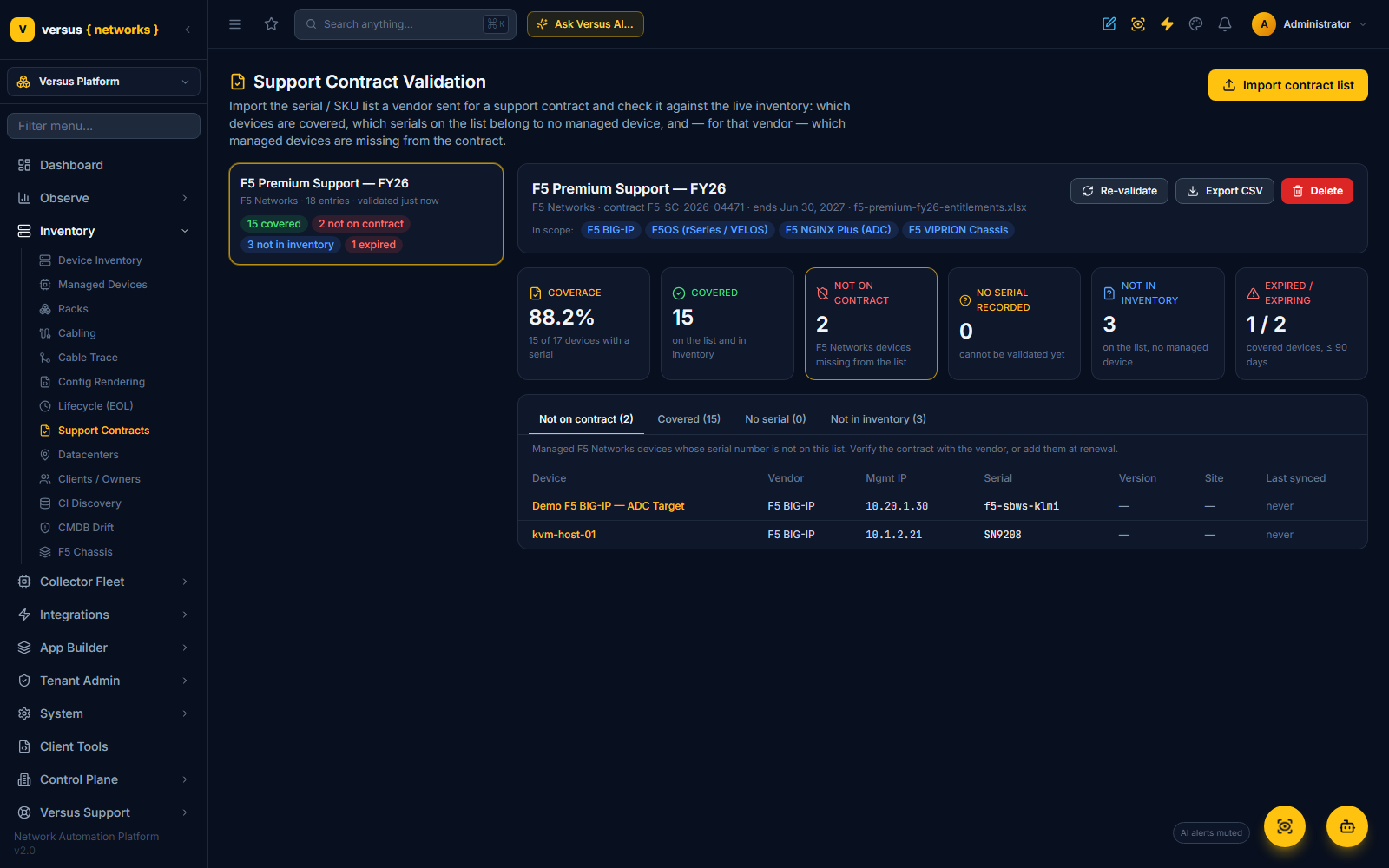
Inventory → Support Contracts does that check against the live inventory. Import the list, and Versus answers three questions for the vendor in question:
- Which managed devices are covered — their serial is on the list, with the SKU, service level and coverage end date next to them.
- Which managed devices are not on the contract — every device of that vendor in the inventory whose serial is missing from the list.
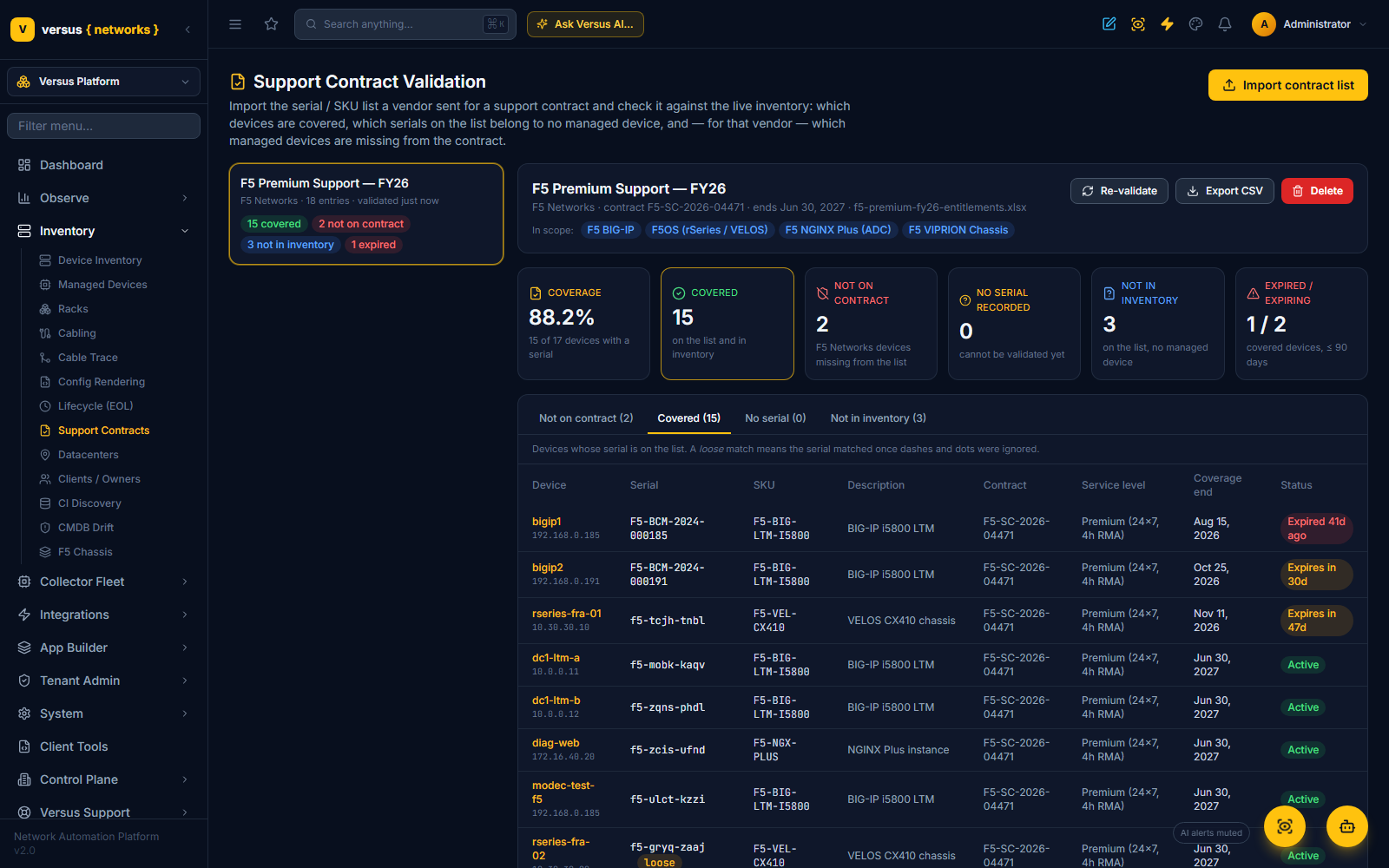
- Which serials on the contract are not in the inventory — entries that match no managed device: decommissioned units, cold spares, or devices not yet onboarded.
Importing a list
Click Import contract list. Two steps:
- Vendor and file. Pick the vendor (F5, Cisco, Citrix / NetScaler, Palo Alto, Fortinet, Juniper, Arista, VMware, …). The vendor decides which managed devices are in scope — an F5 list is checked against BIG-IP, F5OS, VIPRION and NGINX devices, a Cisco list against ASA, Firepower, routers and switches. Give the list a name, optionally the contract number and a contract-level end date, then attach the vendor's export as CSV, TSV or XLSX — or paste the serials, one per line, with an optional SKU after a tab or comma.
- Confirm the columns. Versus reads the header row and works out which column is the serial number, the SKU / part number, the description, the contract number, the service level and the coverage dates. Vendors all name these differently ("Serial Number" / "Product ID" / "End Date" on a Cisco export, "Serial" / "SKU" / "Coverage End" from MyF5, "Chassis Serial" / "Support End" from Juniper); the guess is shown against a sample of the rows and any column can be changed before importing. Only the serial column is required.
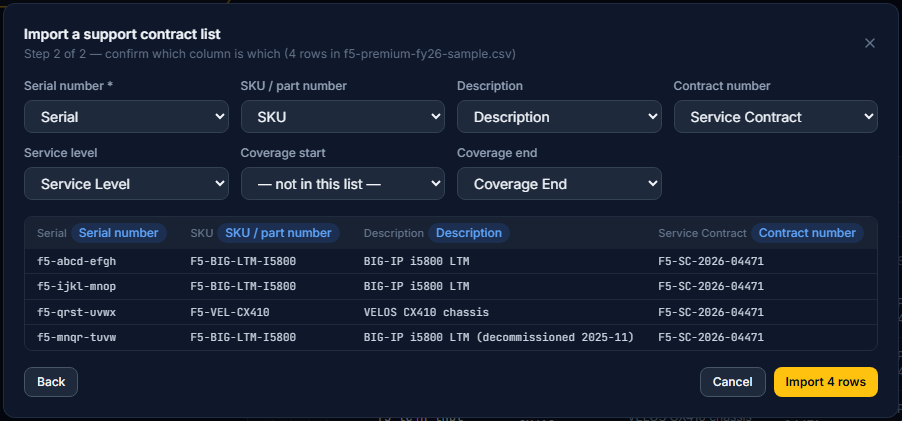
Rows without a serial-looking value are skipped. Dates are read in the usual formats (2026-12-31, 12/31/2026, 31-Dec-2026, real Excel dates); a row without an end date falls back to the contract-level date, and if there is none the entry shows as "no end date".
Reading the results
Validation is computed live, against the inventory as it is right now — nothing is cached, so re-discovering a device or adding one changes the result on the next load (Re-validate reloads it). The summary line across the top:
- Coverage — covered devices as a share of the in-scope devices that have a serial.
- Covered — in-scope devices whose serial is on the list. A loose badge means the serial matched only once dashes and dots were ignored (
f5-abcd-efghon the device,F5ABCDEFGHon the list). - Not on contract — in-scope devices whose serial is on no entry. This is the tab the page opens on.
- No serial recorded — in-scope devices Versus has no serial number for, so they cannot be checked either way.
- Not in inventory — entries whose serial matches no managed device.
- Expired / expiring — covered devices whose coverage has ended, or ends within 90 days.
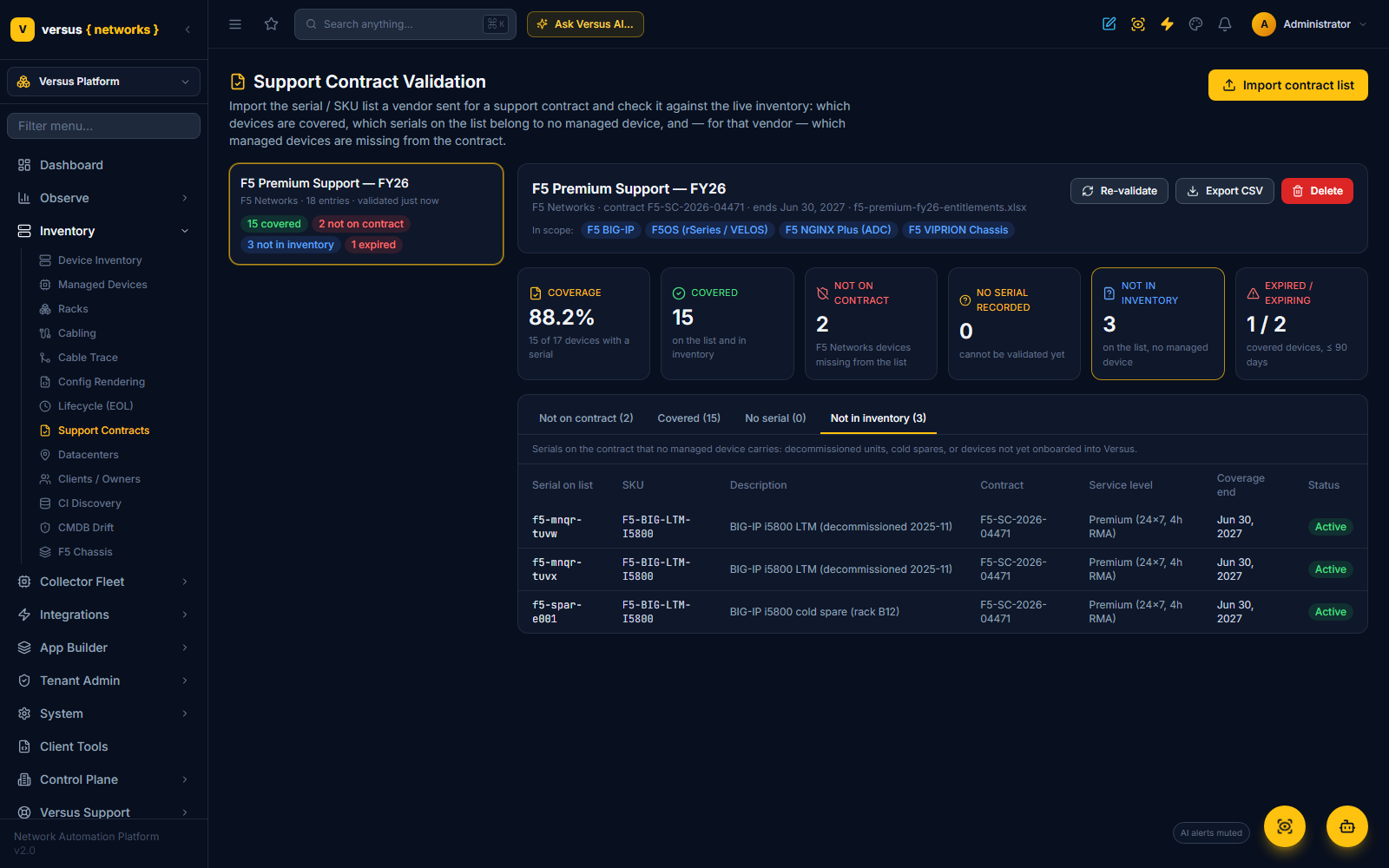
The Covered tab carries the contract detail per device — SKU, description, contract number, service level, coverage end — with a status badge: Active, Expires in N days, or Expired N days ago.
If a serial on the list matches a device of a different vendor, it lands in an Other vendor tab rather than being counted as covered — usually a list imported under the wrong vendor, or a device with the wrong vendor set.
Export CSV downloads every bucket as one file (device, serial, SKU, coverage end, status, match type) for the renewal conversation with the vendor.
Where serial numbers come from
A device can only be validated if Versus knows its serial. Discovery records it for F5 BIG-IP, F5OS / VELOS, Cisco ASA (REST or SSH) and NetScaler; NetBox sync brings it across for anything NetBox knows; and it can be set by hand on the device's Edit dialog. Devices in the No serial recorded bucket are the ones to re-discover or fill in first — until then they are invisible to the check.
Chassis platforms are matched on the chassis serial (VIPRION, VELOS), which is what the vendor contract lists; blade serials are not consulted.
Practical notes
- HA pairs are two devices with two serials; a vendor contract must list both. A pair where only one unit is covered shows the other under Not on contract.
- The vendor scope is fixed per vendor. For a list that covers mixed or unusual devices, choose Other as the vendor and tick the device vendors the list should be checked against.
- Lists are kept, so the same contract can be re-validated after every renewal cycle; delete a list when the contract is superseded. Deleting a list never touches devices.
- The page is available to administrators, under Inventory.