Policy Governance & Compliance
Rule lifecycle management, segmentation policy, compliance controls, and vulnerability-aware exposure risk scoring — five integrated modules for governing every firewall rule on your ADC and Cloud WAF / Bot estate.
Overview
The Policy Governance module gives security and network teams a continuous, automated view of rule quality, access recertification, compliance posture, segmentation intent, and vulnerability exposure across every managed ADC and Cloud WAF / Bot device. Rather than a one-off audit tool, it is designed to run continuously — findings are regenerated after every discovery run, compliance violations surface in real time, and exposure scores update when new CVEs are ingested.
The module is split into five functional areas, each accessible from the Policy Governance section in the left navigation:
- Rule Findings — automated detection of unused, shadowed, redundant, expired, overly permissive, and object-referencing rules
- Recertification — periodic review campaigns that ask rule owners to certify or decertify each rule
- Compliance — built-in controls mapped to PCI DSS and NIST frameworks, with exception management and violation lifecycle tracking
- Zone Matrix — intent-based segmentation policies that define which source/destination zone pairs are permitted, denied, or inspect-required
- Exposure Risk — CVE-aware scoring that identifies which rules create risk paths to vulnerable services
Module A: Rule Findings
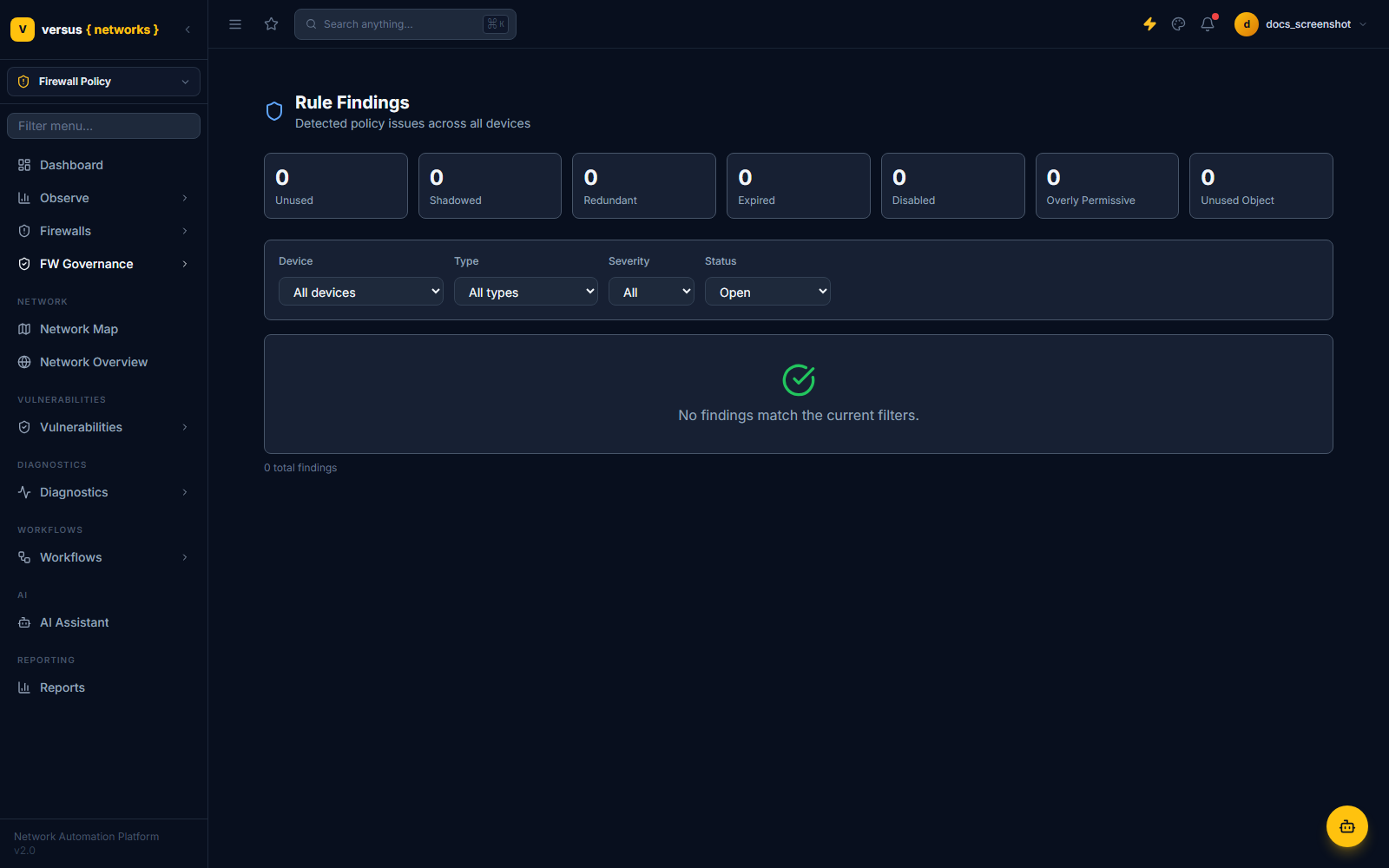
The Policy → Findings view presents every automated finding raised against the current rule inventory. Findings are computed by the policy_analyzer management command (run nightly by default, or triggered manually) and stored as RuleFinding records linked to the specific rule and device.
Finding Types
Versus detects six categories of finding:
| Type | Description | Default Severity |
|---|---|---|
| unused | Rule has seen zero traffic hits for the configured unused_days threshold (default 90 days) | Medium |
| shadowed | An earlier, broader rule already matches all traffic that would reach this rule — it can never be hit | High |
| redundant | An identical permit/deny exists elsewhere in the same policy set | Medium |
| expired | Rule has a time-based expiry attribute that has passed | High |
| overly_permissive | Rule permits access from any source or to any destination (0.0.0.0/0 or equivalent) | High |
| unused_objects | Address or service objects referenced by the rule are themselves not used by any other rule | Low |
Acknowledging and Suppressing Findings
When a finding is reviewed and determined to be a known exception, two actions are available:
- Acknowledge — marks the finding as reviewed without removing it. Acknowledged findings remain visible but are flagged so they do not generate repeated alerts. Requires the
policy.editpermission. - Suppress — creates a
PolicySuppressionrecord that prevents future analysis runs from re-raising this specific finding for a given rule. Suppressions have an optional expiry date; after expiry the finding is raised again on the next analysis run. Requires thepolicy.managepermission.
To acknowledge or suppress, open a finding row, review the rule context, and click Acknowledge or Suppress in the detail panel. For suppressions, enter a justification and optional expiry date.
Module B: Recertification
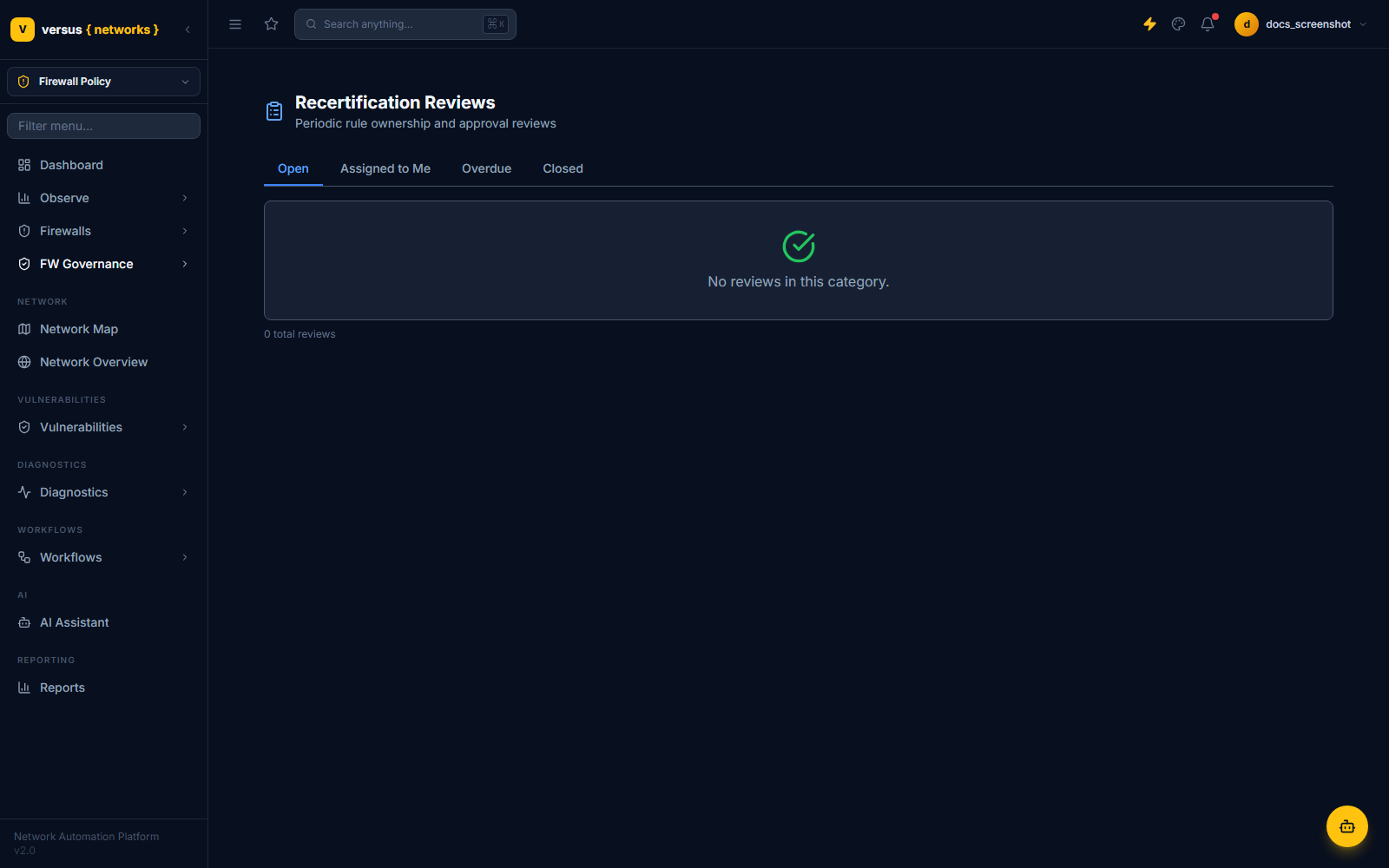
The Policy → Recertification view manages periodic rule recertification campaigns. A campaign selects a set of rules (by device, tag, age, or finding type) and assigns them to reviewers who must certify that each rule is still needed and correctly configured — or decertify it for removal.
Creating a Campaign
Navigate to Policy → Recertification and click New Campaign. Configure:
- Name & Description — human-readable name shown to reviewers
- Due Date — deadline by which all reviews must be completed
- Rule Scope — filter by device, tag, finding type, or age threshold
- Assignments — map rules to reviewers by device owner, team, or manual assignment
Once created, Versus generates one RecertReview record per rule-reviewer pair. Reviewers receive an in-app notification and can access their queue from the top navigation or from a direct link.
Reviewing Rules
In the review queue, each rule is shown with its traffic hit count, last-seen date, finding flags, and a diff against the last certified state (if this rule was previously certified). The reviewer selects one of:
- Certify — the rule is confirmed as correct and needed; a
RecertReviewEventis recorded with timestamp and reviewer identity - Certify with Comments — same as Certify but allows the reviewer to attach a note (e.g. "expiry date should be updated")
- Decertify — the rule is flagged for removal; a decertify event is created and the rule is added to a removal candidate list visible to admins
Admins can track campaign progress in real time — the campaign detail page shows completion percentage, outstanding assignments by reviewer, and a list of all decertified rules awaiting action.
Module C: Compliance
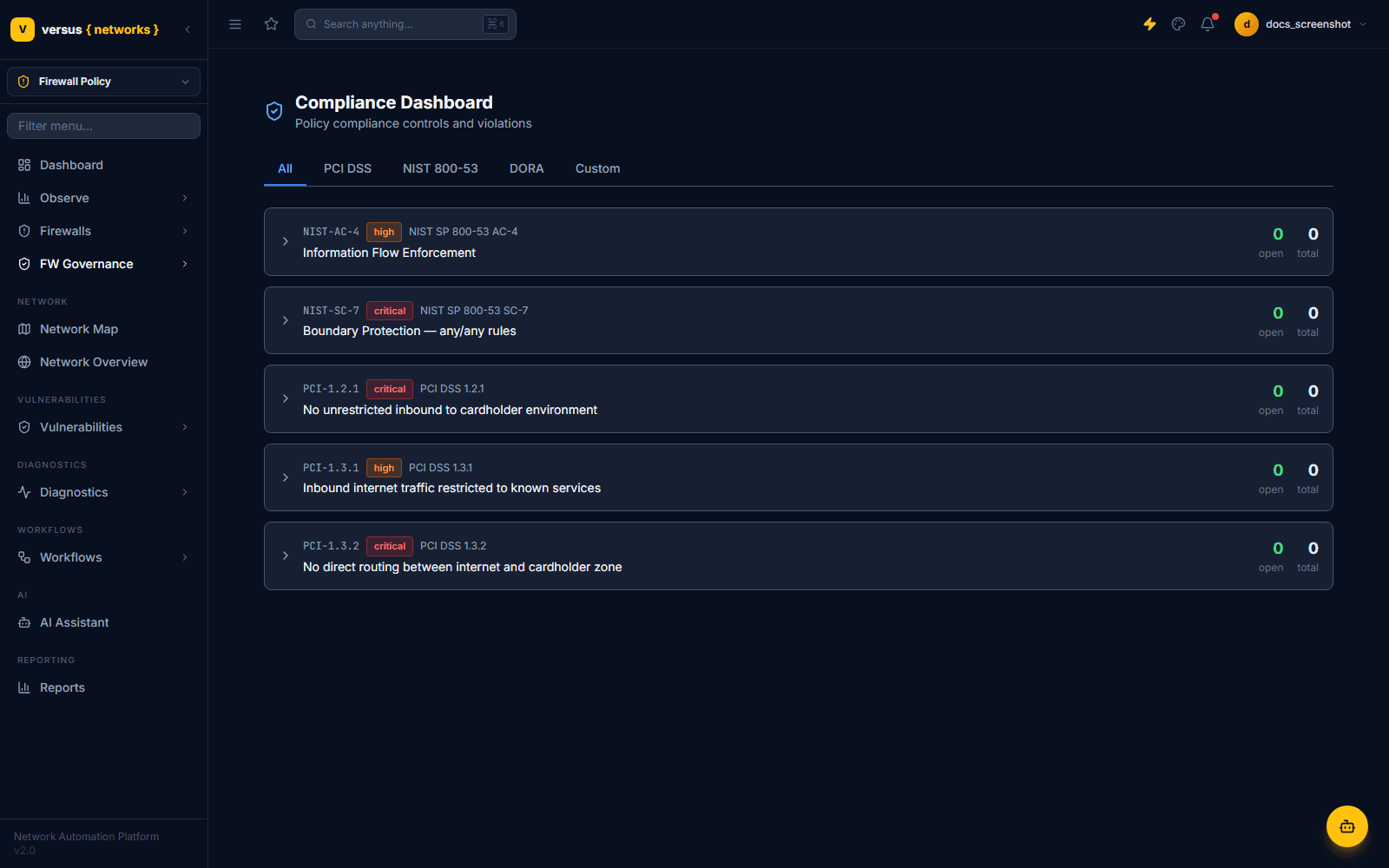
The Policy → Compliance view maps rule configurations against built-in compliance controls drawn from PCI DSS and NIST SP 800-53. Controls are seeded by the 0002_seed_controls migration and can be supplemented with custom controls via the API.
Built-in Controls
Versus ships with controls covering the most common ADC-relevant requirements from both frameworks:
- PCI DSS — Requirement 1 (firewall standards), Requirement 6 (secure systems), and Requirement 10 (logging & monitoring)
- NIST SP 800-53 — AC-4 (information flow enforcement), SC-7 (boundary protection), and SI-3 (malicious code protection)
Each control specifies an evaluation function. When the policy analyzer runs, it evaluates each rule against each applicable control and creates ComplianceViolation records for any rule that fails.
Violation Lifecycle
Compliance violations move through four states:
| State | Meaning |
|---|---|
| open | Newly detected violation — requires review |
| acknowledged | Reviewed and noted; remediation is planned but not yet complete |
| excepted | A PolicyException has been approved covering this rule/control pair |
| resolved | The rule was changed so it no longer violates the control; closed automatically on next analysis run |
Adding Exceptions
When a rule genuinely must violate a control due to a business requirement, a Policy Exception can be raised. Navigate to the violation detail panel and click Request Exception. The exception request includes:
- Justification — required free-text explanation of the business need
- Risk Owner — the person accepting the residual risk
- Expiry Date — optional; if set, the exception automatically expires and the violation returns to
openstate - Compensating Control — optional description of any mitigating control in place
Exception requests are routed to any user with the policy.exception.approve permission. Once approved, the associated violation transitions to excepted and is excluded from compliance dashboards and reports.
Module D: Zone Matrix
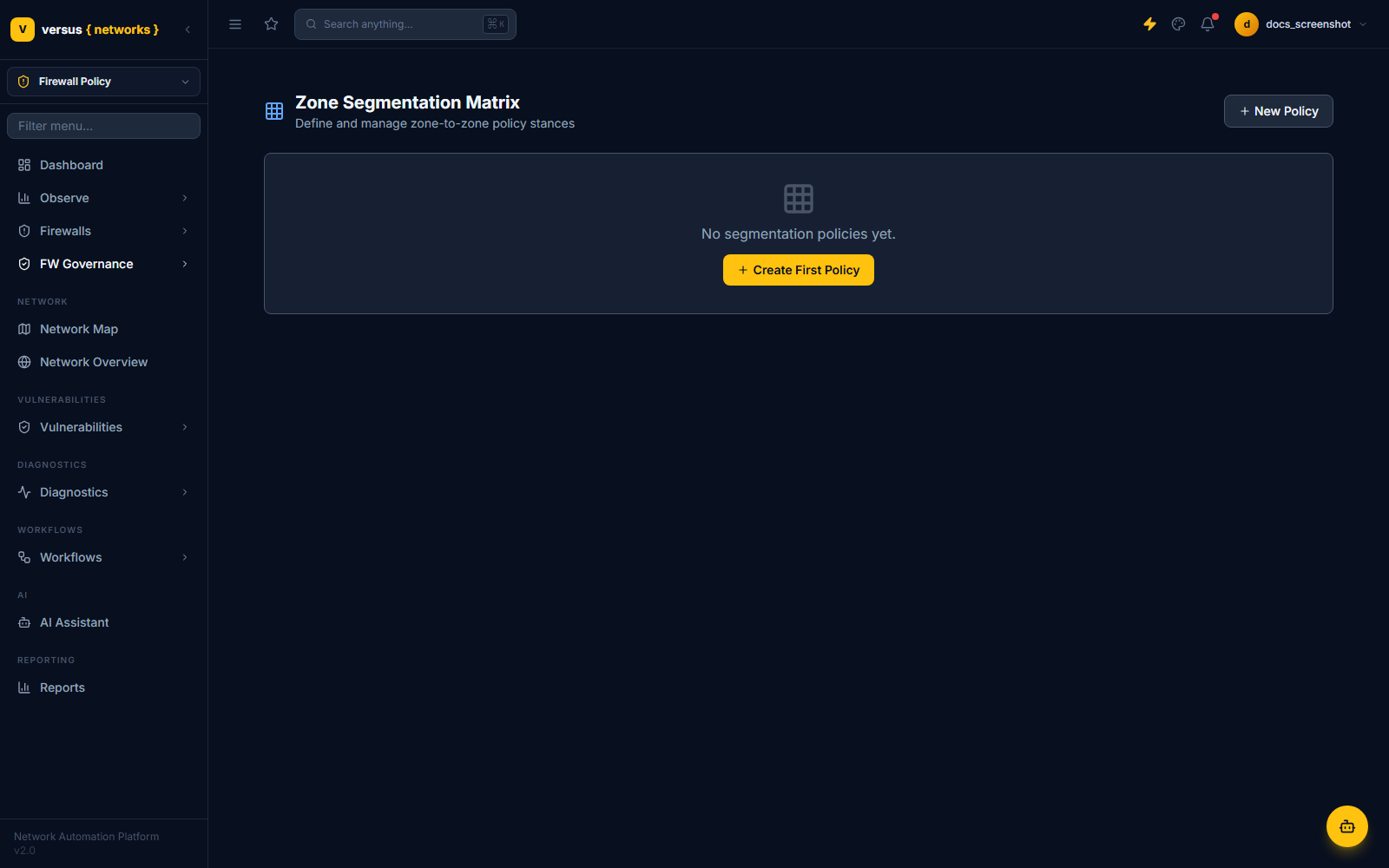
The Policy → Zone Matrix view lets you define and enforce intent-based network segmentation. A Segmentation Policy is a named matrix that declares the permitted traffic stance between each pair of zones in your environment.
Defining Zone Pairs and Stances
After creating a Segmentation Policy, the matrix editor presents a grid of all defined zones. For each source/destination pair, set one of three stances:
- permit — traffic from source zone to destination zone is allowed by policy intent
- deny — traffic should be blocked; any rule permitting this flow is a segmentation violation
- inspect — traffic is expected to pass through a deep-inspection service (IDS/IPS, WAF); a permit rule without inspection is a violation
Zone assignments are derived from device tags and subnet metadata. Each ADC interface or virtual server is tagged with a zone in the device inventory — these tags are used to resolve which zone-pair each rule spans.
Activating a Segmentation Policy
A segmentation policy must be activated before Versus evaluates rules against it. Only one policy per device group can be active at a time. To activate:
Open the policy and use the Preview Violations button to see a dry-run count of how many existing rules would immediately become violations if the policy were activated. Review each violation before proceeding.
Click Activate. Versus sets the policy status to active and immediately evaluates all in-scope rules. Resulting violations appear in the Compliance view tagged with the segmentation policy name.
For each violation, either update the rule to match the intended stance, or raise a Policy Exception with an approved risk owner. Over time your violation count should trend to zero.
Module E: Exposure Risk
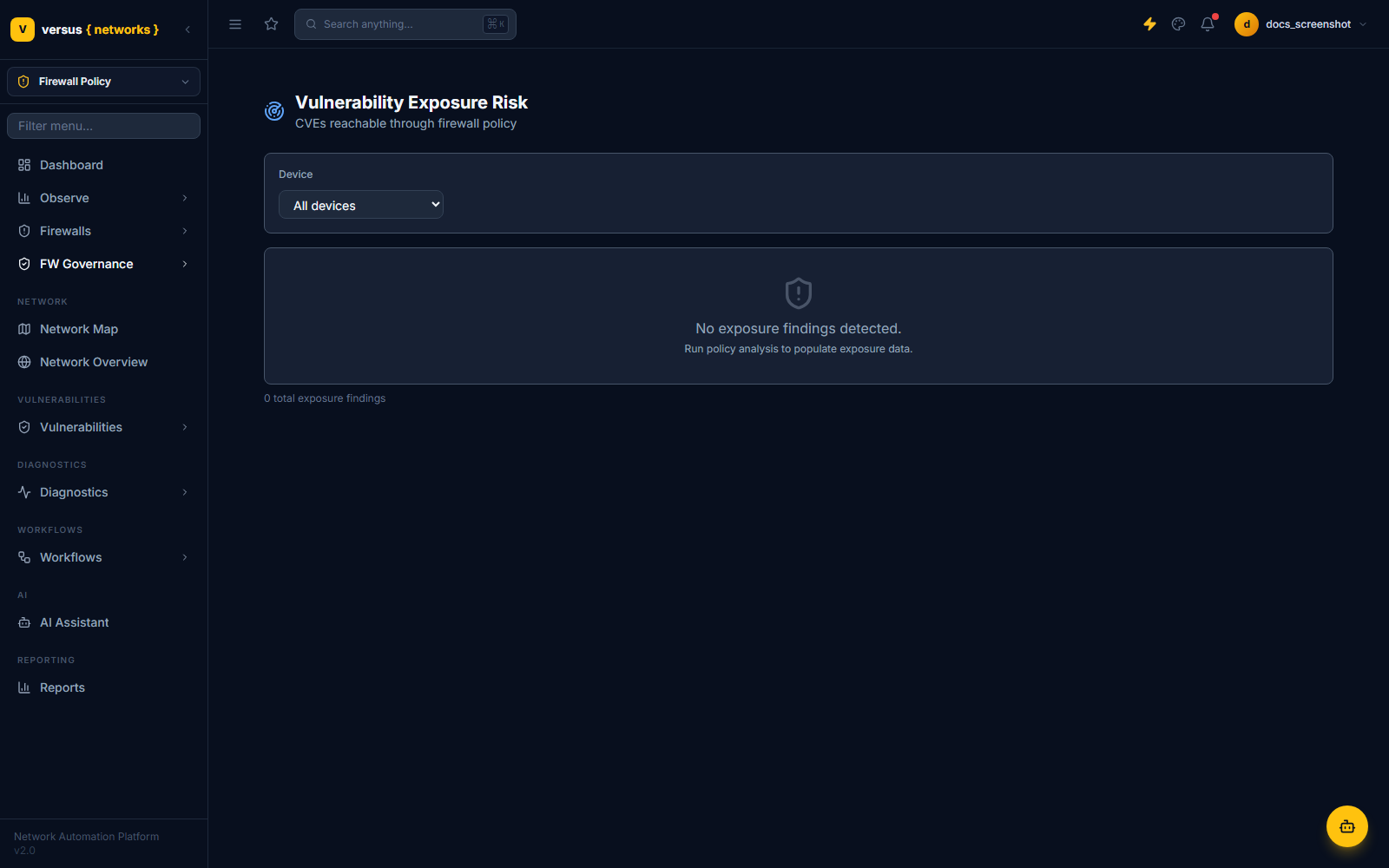
The Policy → Exposure Risk view combines your firewall rule inventory with CVE data from the Vulnerability Management module to identify which rules create network paths to vulnerable services.
How Scoring Works
For each open CVE affecting a pool member or node, Versus traces the set of rules that permit traffic to reach that member. Each such rule receives an ExposureFinding with a composite risk score computed from:
- CVSS Base Score — severity of the underlying vulnerability (0–10)
- Network Reach — whether the rule permits access from untrusted zones (multiplier 1.5×) or trusted-only zones (1.0×)
- Rule Specificity — overly permissive rules (any-source or any-destination) receive an additional 1.2× multiplier
- Asset Criticality — pool members tagged as
criticalin the asset inventory apply a 1.3× multiplier
The resulting score (capped at 10.0) is displayed per rule. The Exposure Risk list is sorted by score descending so the highest-risk rule/CVE combinations surface first.
Remediating Exposure Findings
From the Exposure Risk detail panel, you can:
- View the CVE — jump to the Vulnerability Management module for patch status and affected devices
- View the Rule — open the rule detail in the Findings view to see all other findings against this rule
- Trigger a Workflow — start a remediation workflow directly from the exposure finding, pre-seeded with the rule and CVE context
- Mark as Accepted Risk — if the exposure is acknowledged and accepted, record a risk acceptance note; the finding remains visible but is flagged as accepted
Exposure findings are automatically closed when the underlying CVE is marked as patched or not_affected in Vulnerability Management, or when the permitting rule is removed.
Getting Started: Running the Policy Analyzer
All findings (rule findings, compliance violations, and exposure findings) are generated by the policy_analyzer Django management command. On a fresh deployment, run it manually to populate initial data:
python manage.py policy_analyzerIn production, the command is scheduled to run nightly via a cron entry in the worker container. To trigger an immediate re-analysis after a rule change:
python manage.py policy_analyzer --device <device-id>Flags:
--device <id>— limit analysis to a single device--finding-type <type>— run only one finding type (e.g.unused,shadowed)--dry-run— print findings to stdout without writing to the database--force— re-evaluate rules that already have open findings (normally skipped for efficiency)
Quick Reference
| Module | Nav Path | Permission Required |
|---|---|---|
| Rule Findings | Policy → Findings | policy.view |
| Recertification | Policy → Recertification | policy.recert.review |
| Compliance | Policy → Compliance | policy.view |
| Zone Matrix | Policy → Zone Matrix | policy.view / policy.manage (activate) |
| Exposure Risk | Policy → Exposure Risk | policy.exposure.read |