Managing Projects & Issues
Versus ships a full, enterprise-class project & issue tracker inside the platform — projects, boards, backlogs, sprints, epics, roadmaps, reports, and a VQL search language. The difference that matters: your issues live next to the automation that fulfils them, so a story can launch a real Versus workflow and advance itself when the run completes.
1. Overview
The agile module lives under Versus Desk → Projects. It is built on the same tenant, RBAC, and audit foundation as the rest of the platform, so agile work inherits tamper-evident history and role-based access for free. Everything is one issue store, projected three ways — a Board, a Backlog, and a Timeline — and rolled up into cross-project Plans.
| Concept | What it is |
|---|---|
| Project | A container for work, with its own board, workflow, and schemes. Company- or team-managed. |
| Issue | The atomic unit — Bug, Story, Task, Epic, or Sub-task — with a key like NET-142. |
| Board | A Kanban or Scrum view of a project’s issues, grouped into columns by status. |
| Sprint | A time-boxed set of issues on a Scrum board — planned in the Backlog. |
| Workflow | The configurable state machine an issue moves through (To Do → In Progress → Done). |
| Plan | A portfolio roadmap that aggregates several projects onto one timeline. |
2. Projects
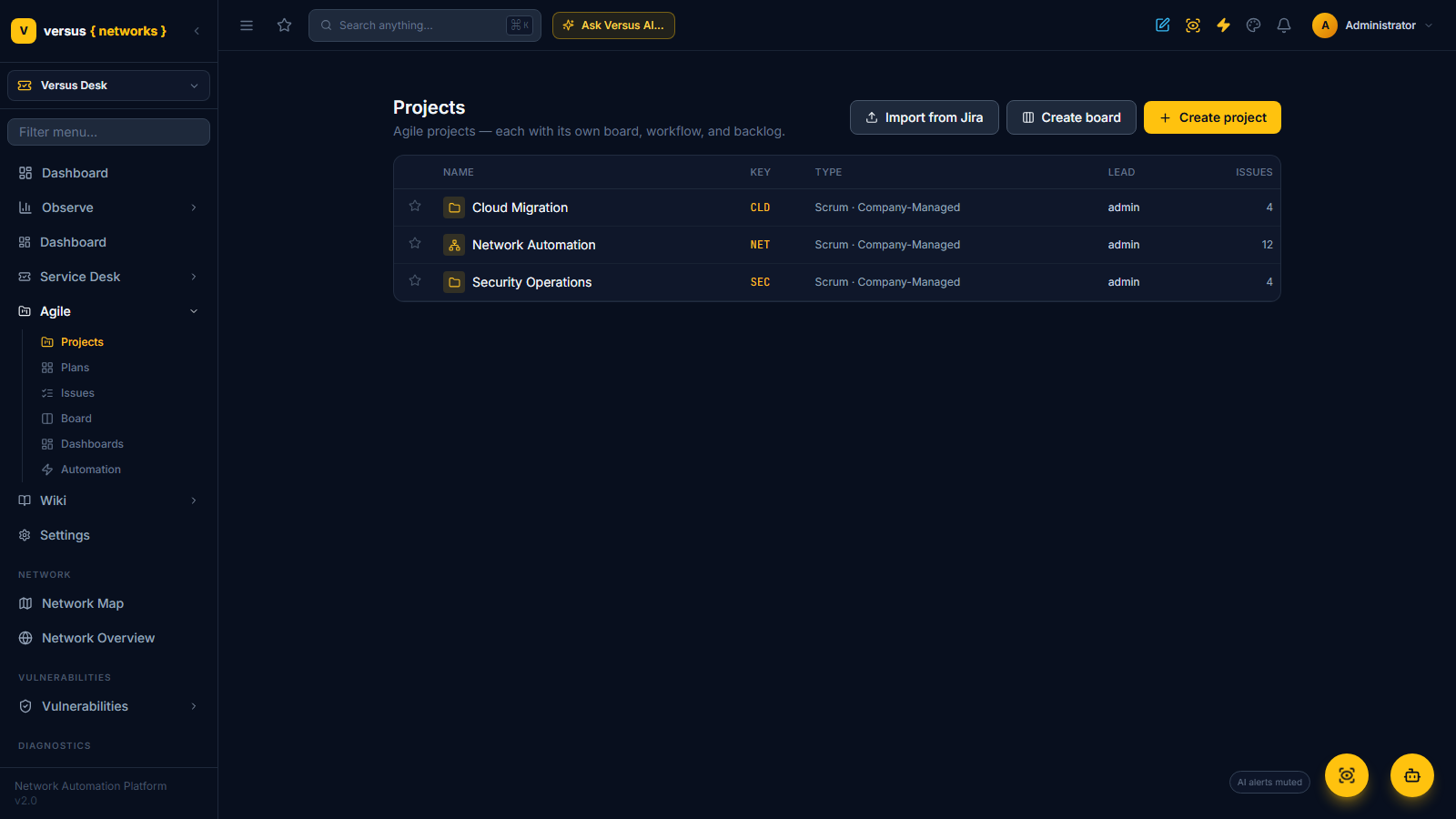
From Projects, click Create project. Pick a template (Scrum, Kanban, or Business), give it a name — the key (e.g. SEC) auto-fills and becomes the prefix for every issue in the project — and choose a management style:
- Company-managed — configuration (workflows, permissions, notifications) is shared from central schemes and reused across projects. Best when you want consistency across many teams.
- Team-managed — the project owns its configuration inline, so a team can adjust its own board and workflow without a platform admin.
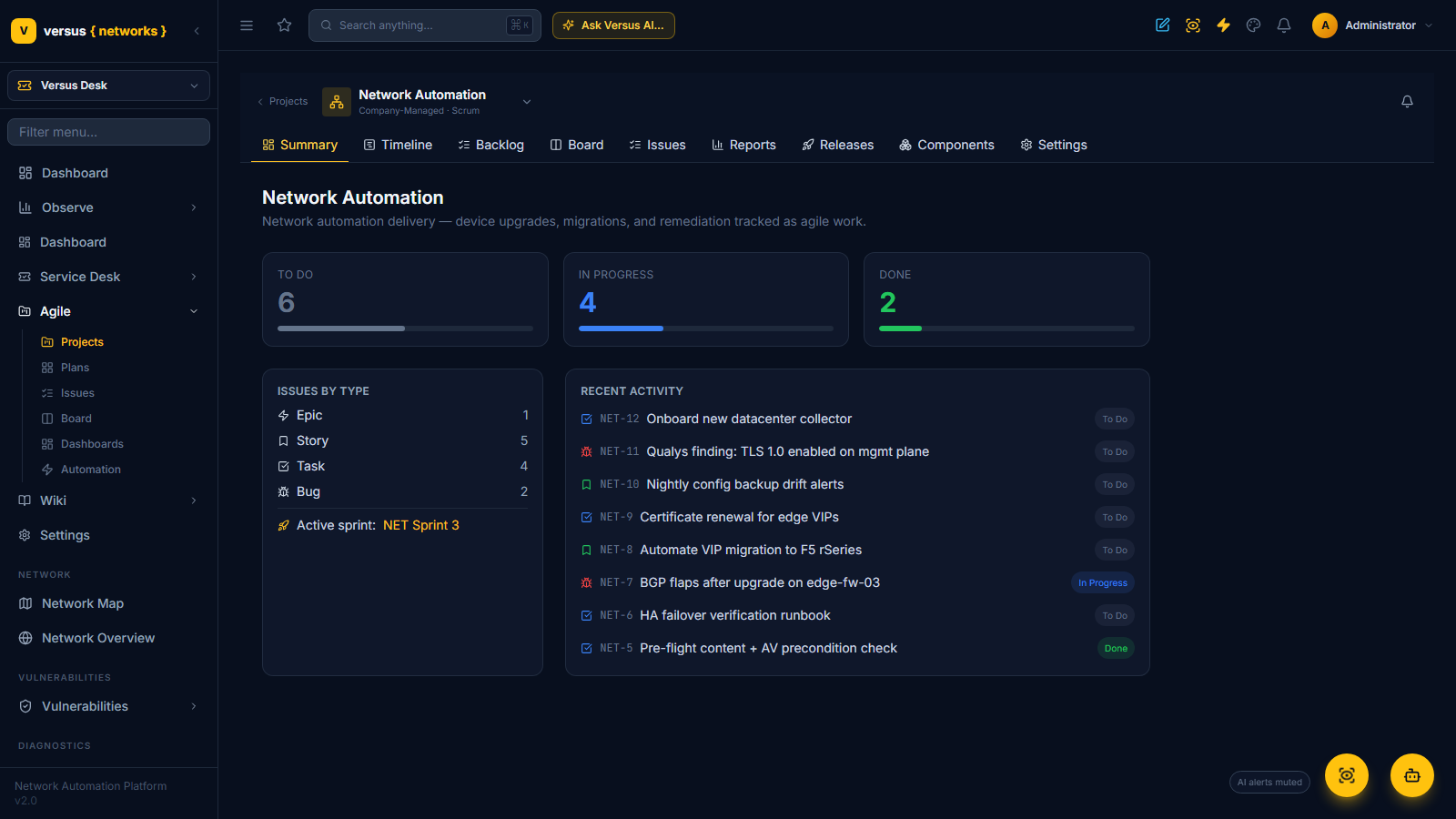
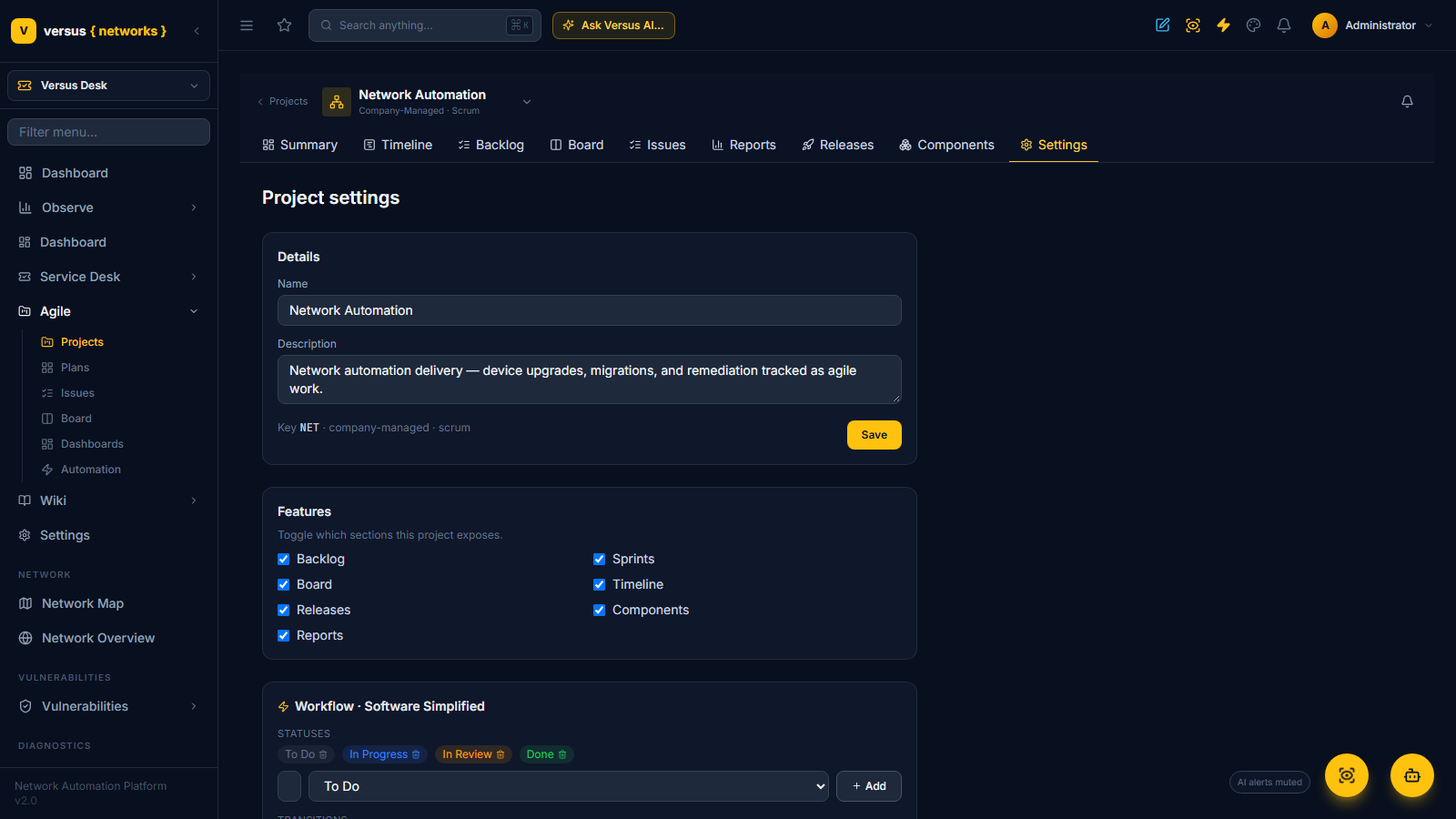
Opening a project drops you into its workspace: a left sidebar with Summary, Timeline, Backlog, Board, Reports, Releases, Components, Issues, and Settings — each scoped to that project. The project Settings tab lets admins rename it, toggle which features (sidebar sections) are enabled, and review the workflow and role assignments.
3. Issues
An issue is the unit of work. Every issue has a type — Epic (a large body of work), Story, Task, Bug, or Sub-task — a status, a priority, an assignee, story points, labels, and components. Stories, tasks and bugs can be grouped under an epic; sub-tasks hang off a parent issue.
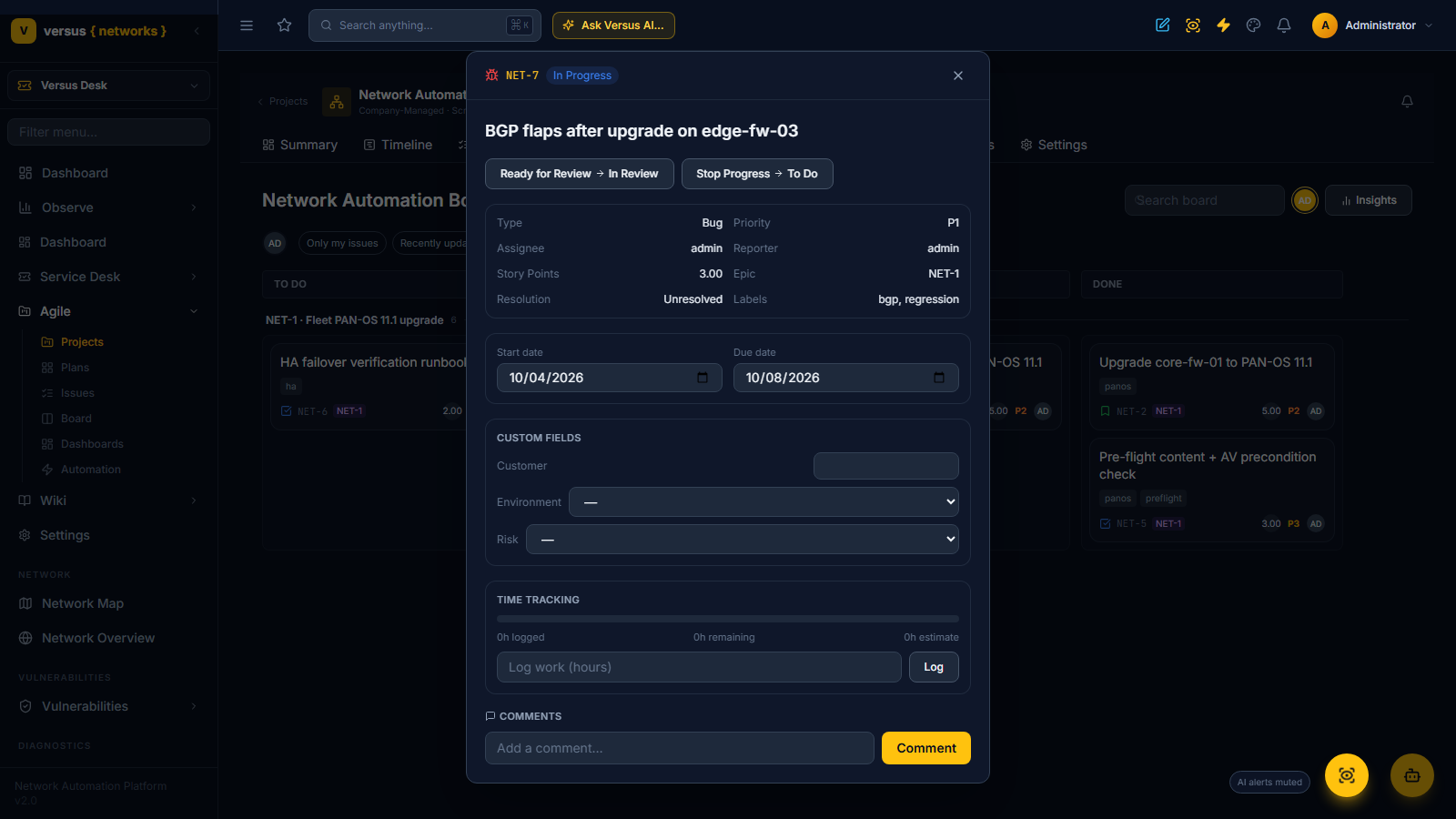
Click any card to open the issue detail, where you can edit fields, add comments, run transitions, log work, and set custom fields. Custom fields (for example Customer, Environment, or Risk) are defined once and rendered on the issues they apply to — and they are searchable in VQL with cf[key].
4. Boards
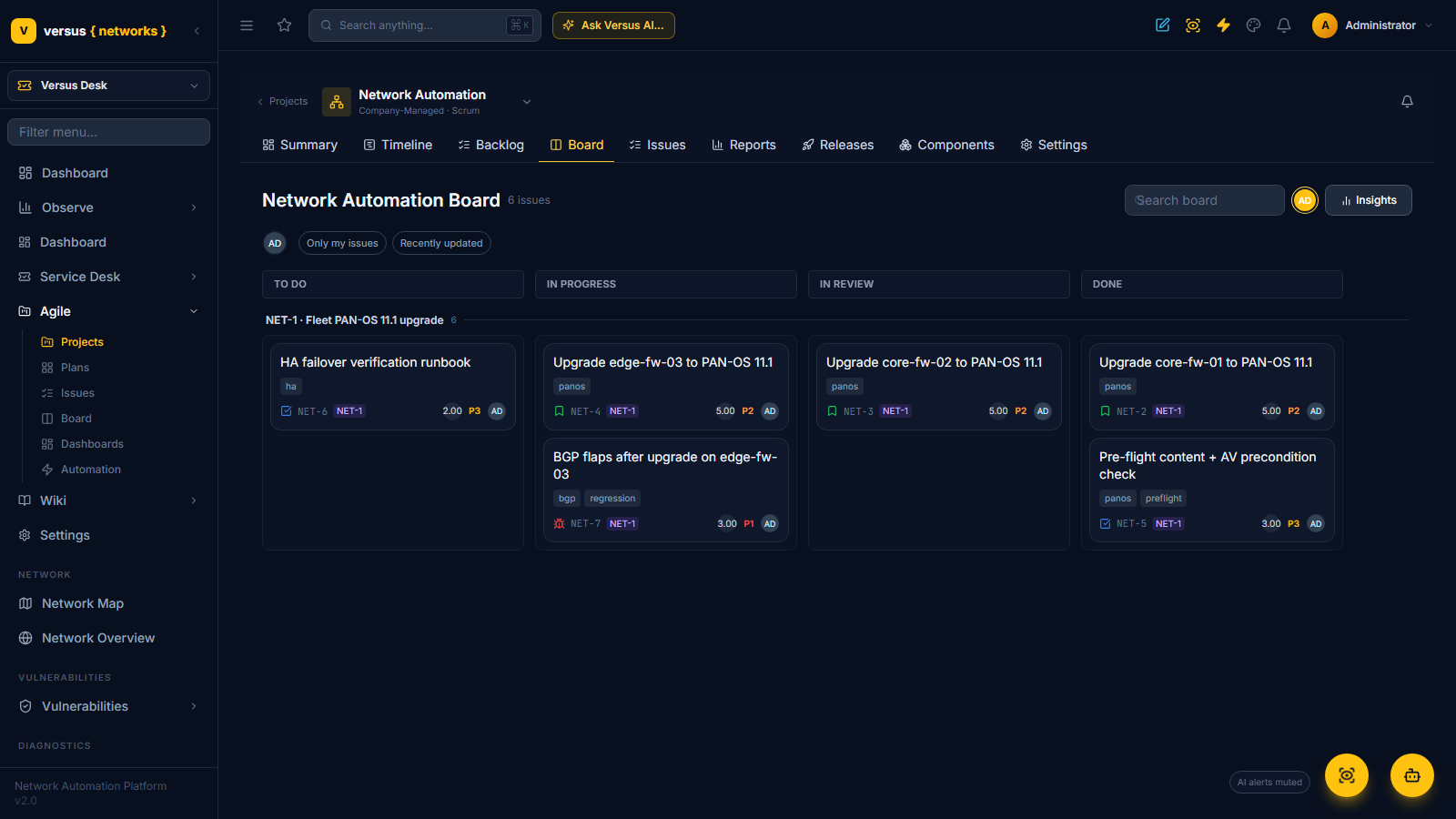
The Board shows a project’s issues as cards in columns that map to workflow statuses. Drag a card between columns to transition it — the board runs the real workflow, so a card only moves if the transition is valid. Boards support:
- Swimlanes — horizontal bands that group cards by epic, assignee, or component.
- Quick filters — one-click VQL chips like Only my issues and Recently updated.
- Avatars filter — click a teammate to show just their work.
- Insights — per-column counts, average age, and how many cards have gone stale.
On a Scrum project the board shows the active sprint; planning happens in the Backlog.
5. Backlog & sprints
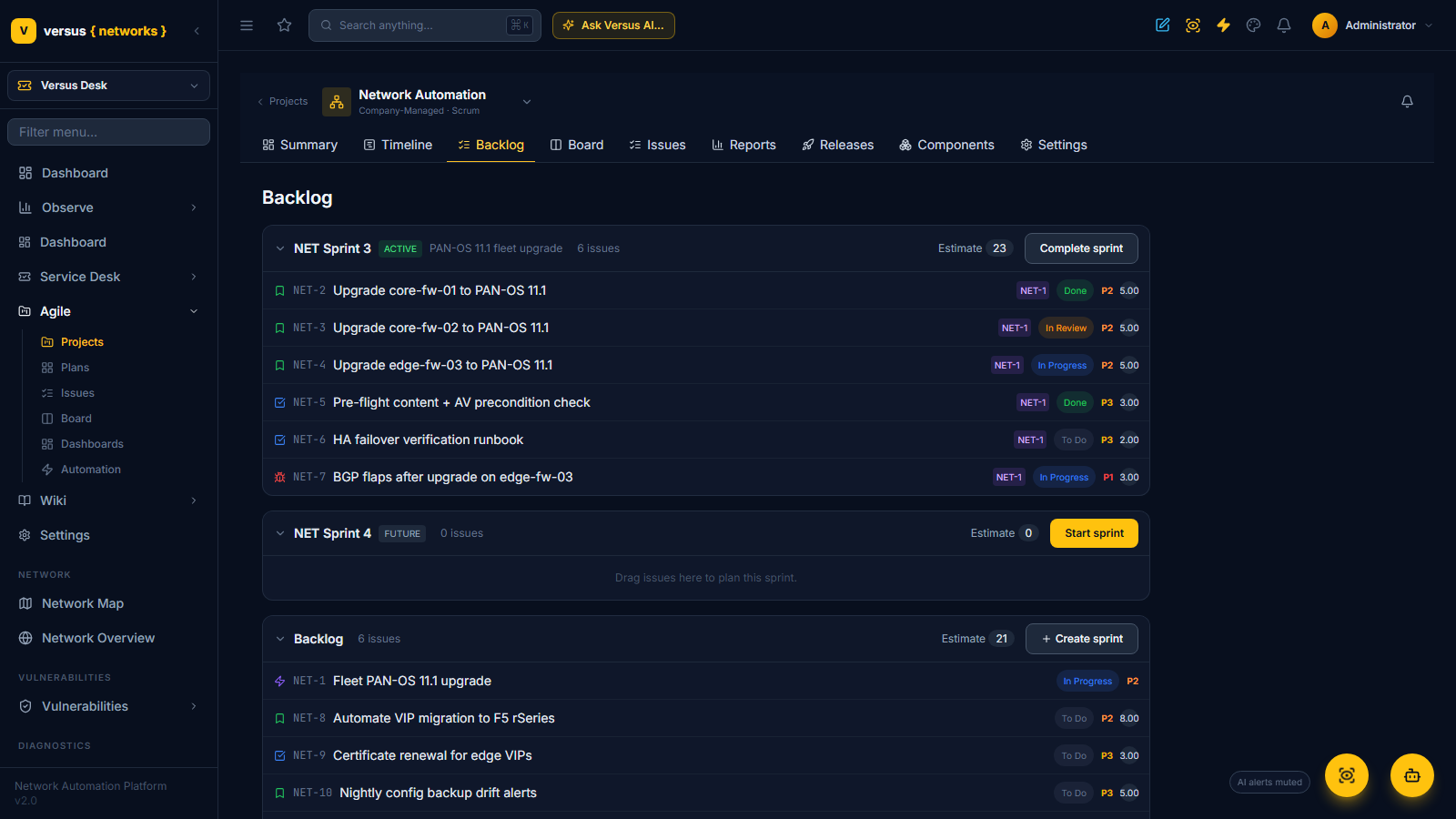
The Backlog is where a Scrum team plans. It lists future/active sprints and the rank-ordered backlog; drag issues between the backlog and a sprint to plan it, and each section shows a live estimate rollup.
- Start sprint — set a duration and goal; the board switches to that sprint.
- Complete sprint — closes it, moves any unfinished issues to the next sprint or the backlog, and records committed-vs-completed points for the velocity report.
6. Workflows & the automation seam
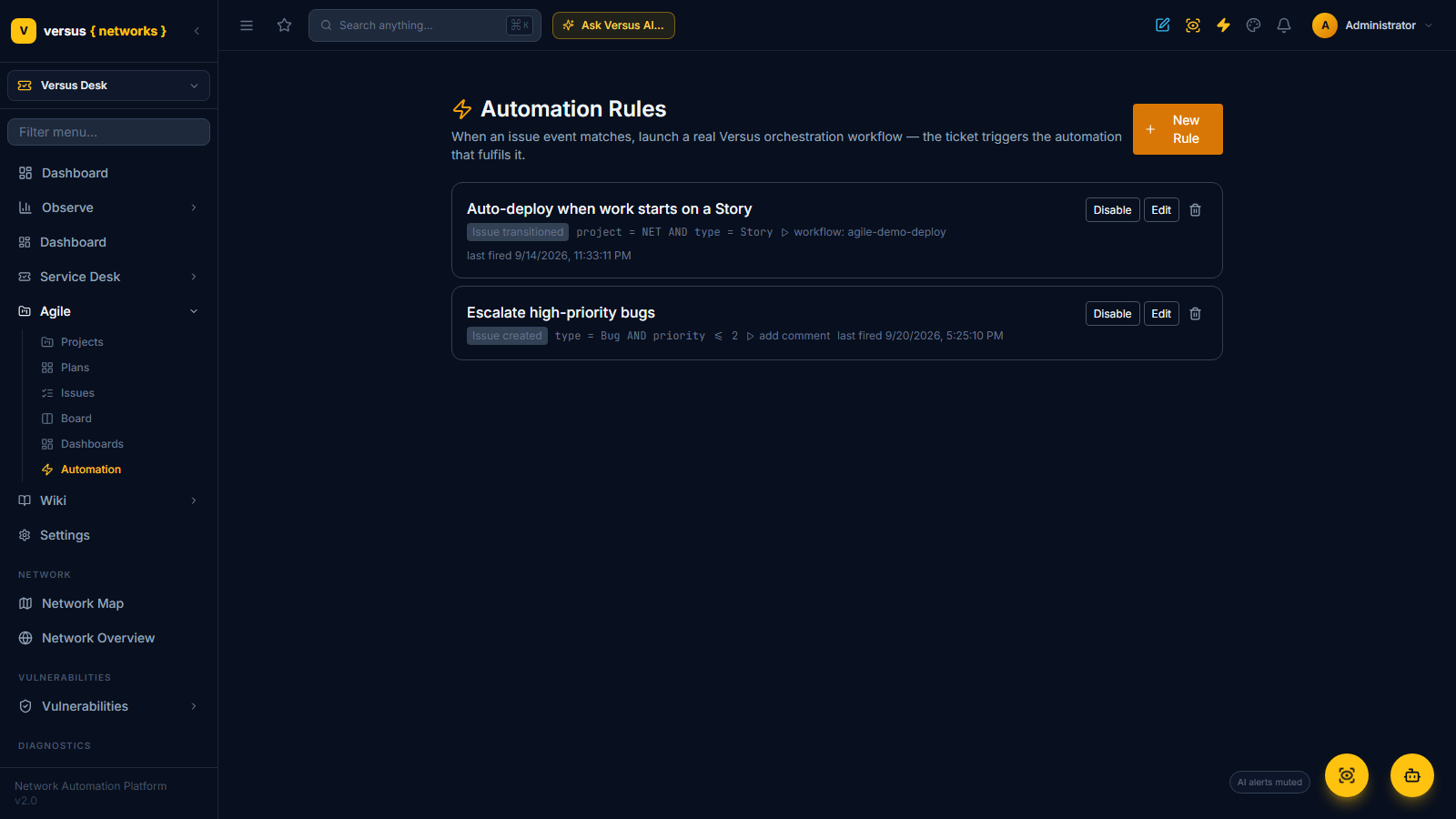
A workflow is a configurable state machine of statuses and transitions. Each transition can carry conditions, validators, and post-functions — and, uniquely to Versus, a binding to a real orchestration workflow.
When a bound transition fires, Versus launches an actual automation run — a PAN-OS fleet upgrade, a VIP migration, a certificate renewal — records the run on the issue, and auto-advances the card when the run completes (or comments the error if it fails). The board card shows a live run indicator while it executes. This is the line Jira can’t cross: the ticket and the automation that fulfils it are the same system.
7. VQL — searching issues
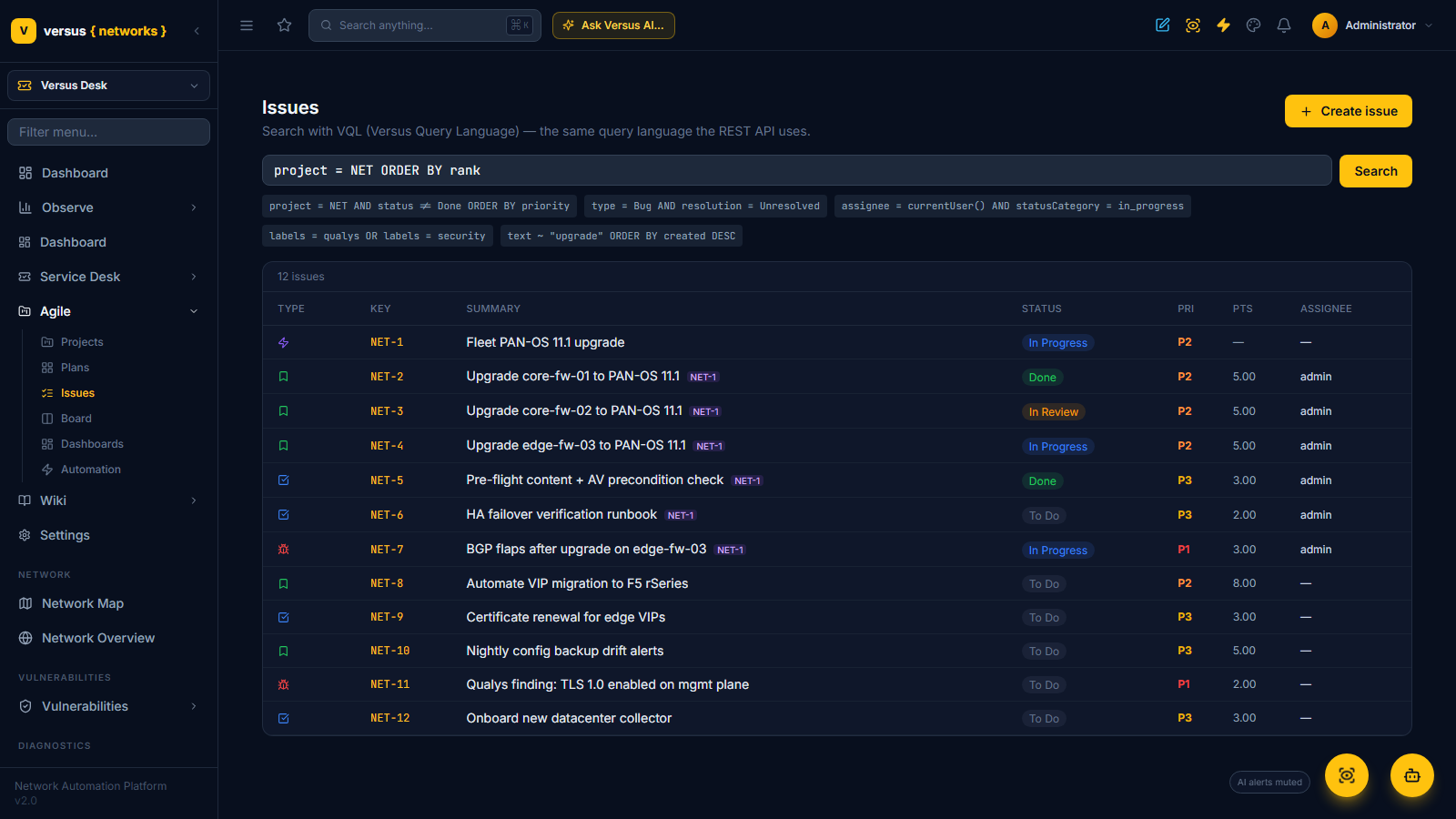
The Issues navigator uses VQL (Versus Query Language) — the same language the REST API uses, with syntax familiar to anyone who has written an issue query before. Combine fields, operators, ordering, and functions:
project = NET AND status != Done ORDER BY priority
type = Bug AND resolution = Unresolved
assignee = currentUser() AND statusCategory = in_progress
labels = qualys OR cf[risk] = High
text ~ "upgrade" ORDER BY created DESC
Supported fields include project, type, status, statusCategory, assignee, reporter, priority, resolution, labels, component, sprint, epic, created/updated, and any custom field via cf[key]. Invalid queries are flagged inline with the exact position of the error.
8. Timeline (roadmap)
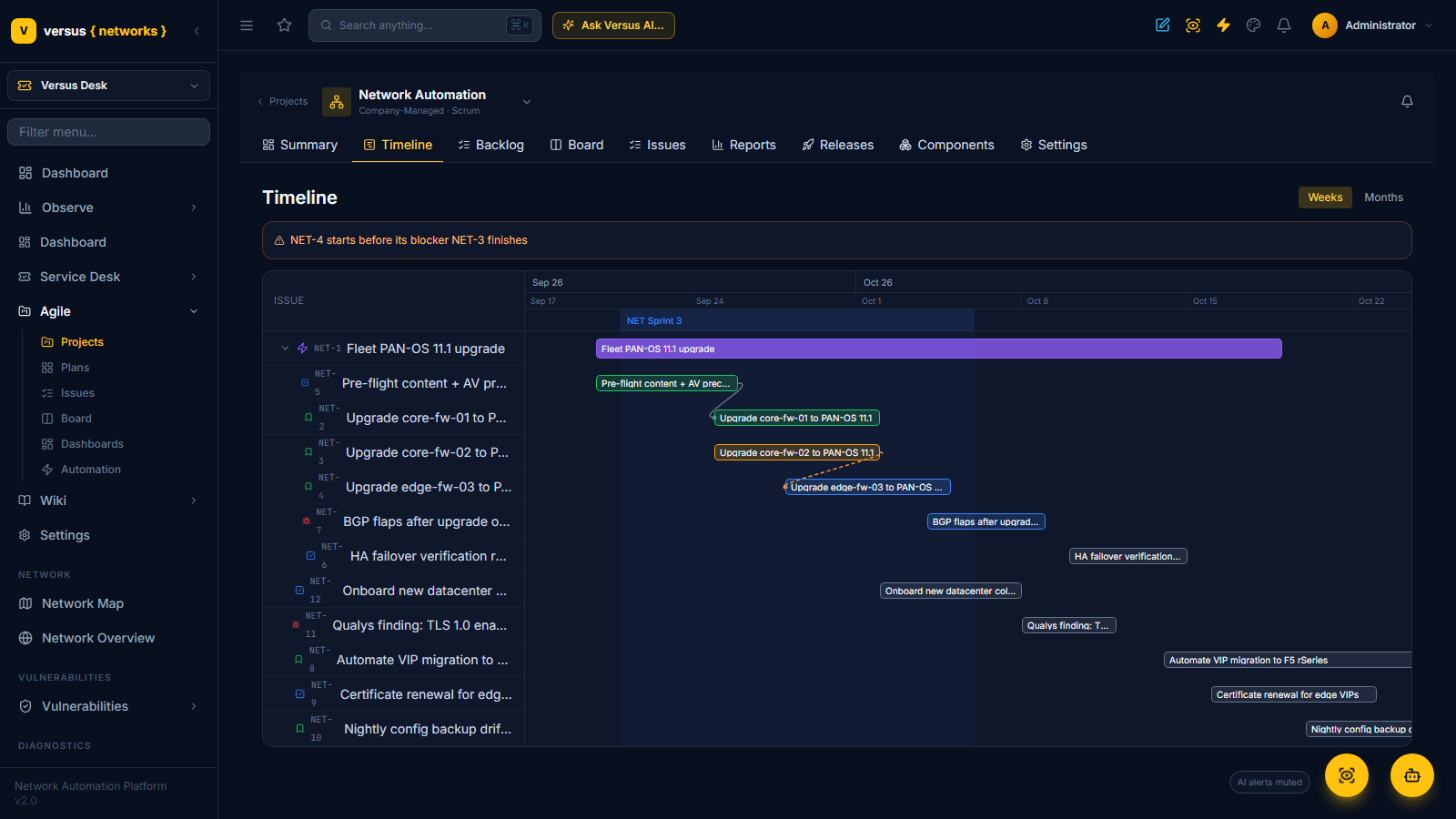
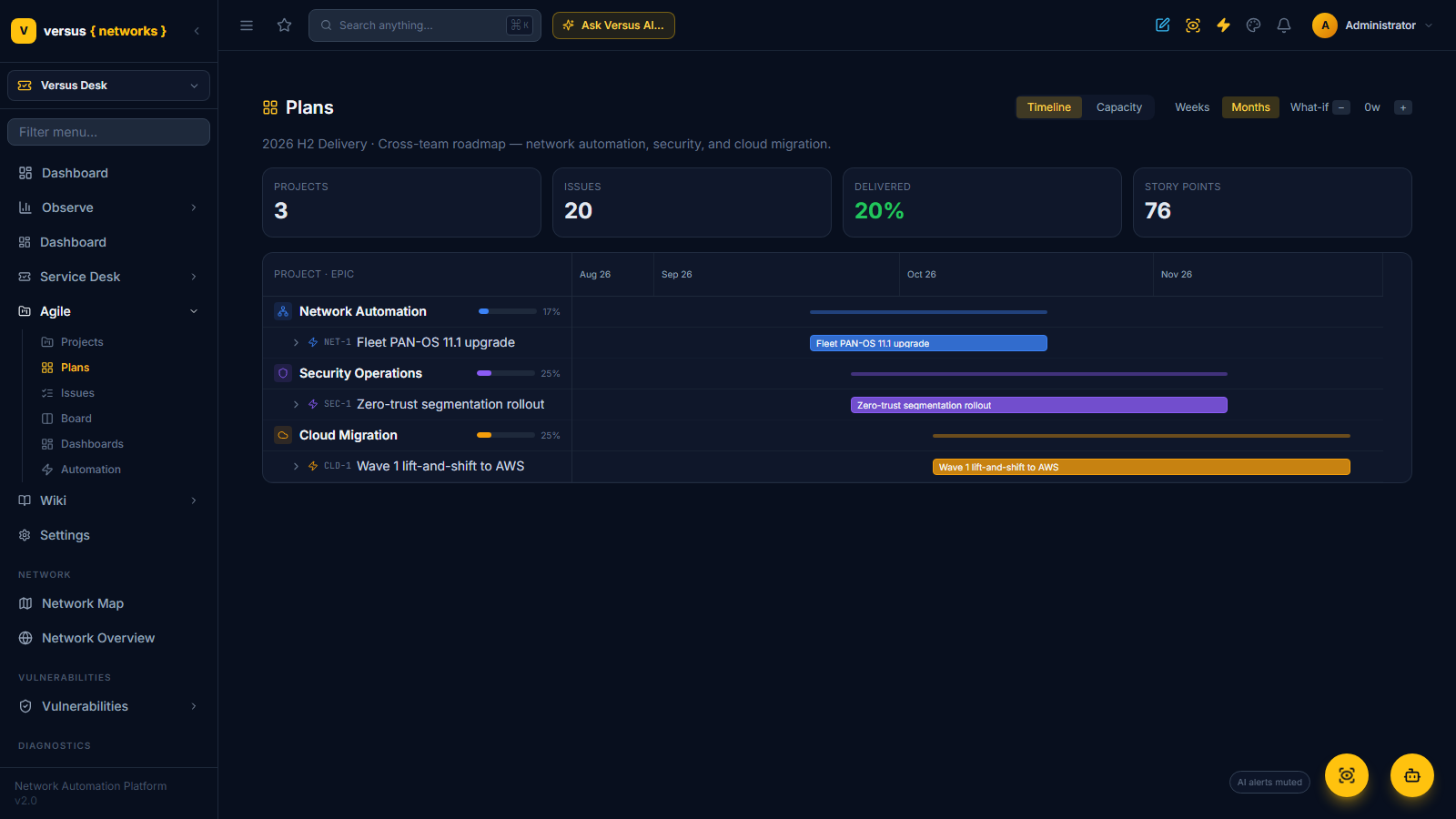
The Timeline is a single-project roadmap: epics and their child issues as bars on a date axis, with sprint bands behind the grid and dependency arrows between blocking issues. Drag a bar to reschedule it; a warnings panel flags scheduling conflicts (a dependency that starts before its blocker finishes). Toggle between a weeks and months view.
9. Reports
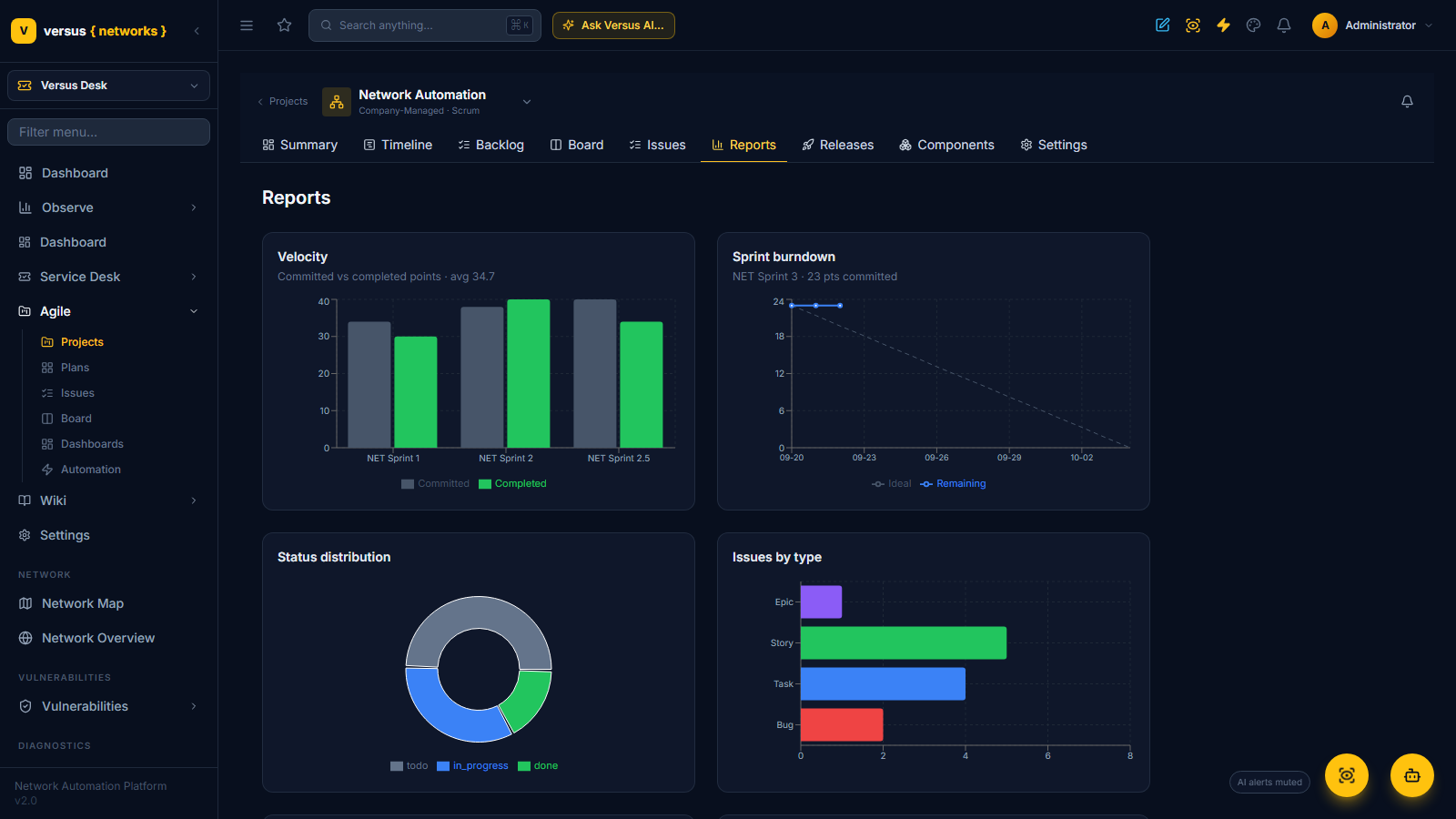
Each project’s Reports tab gives you the agile metrics teams expect:
- Velocity — committed vs completed story points across recent sprints.
- Sprint burndown — remaining work against the ideal line for the active sprint.
- Status & type distribution — where the work sits and what it’s made of.
10. Releases & components
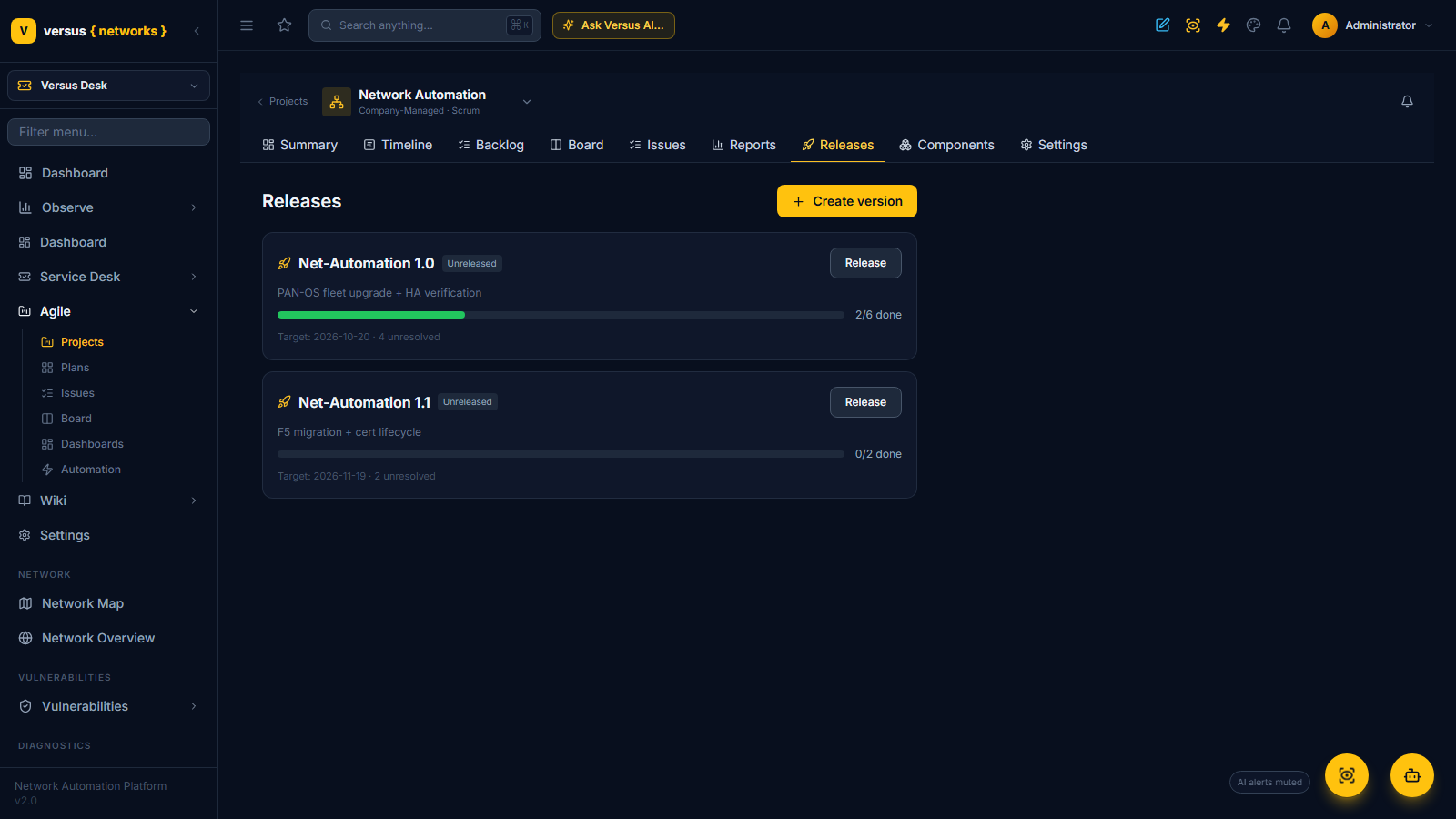
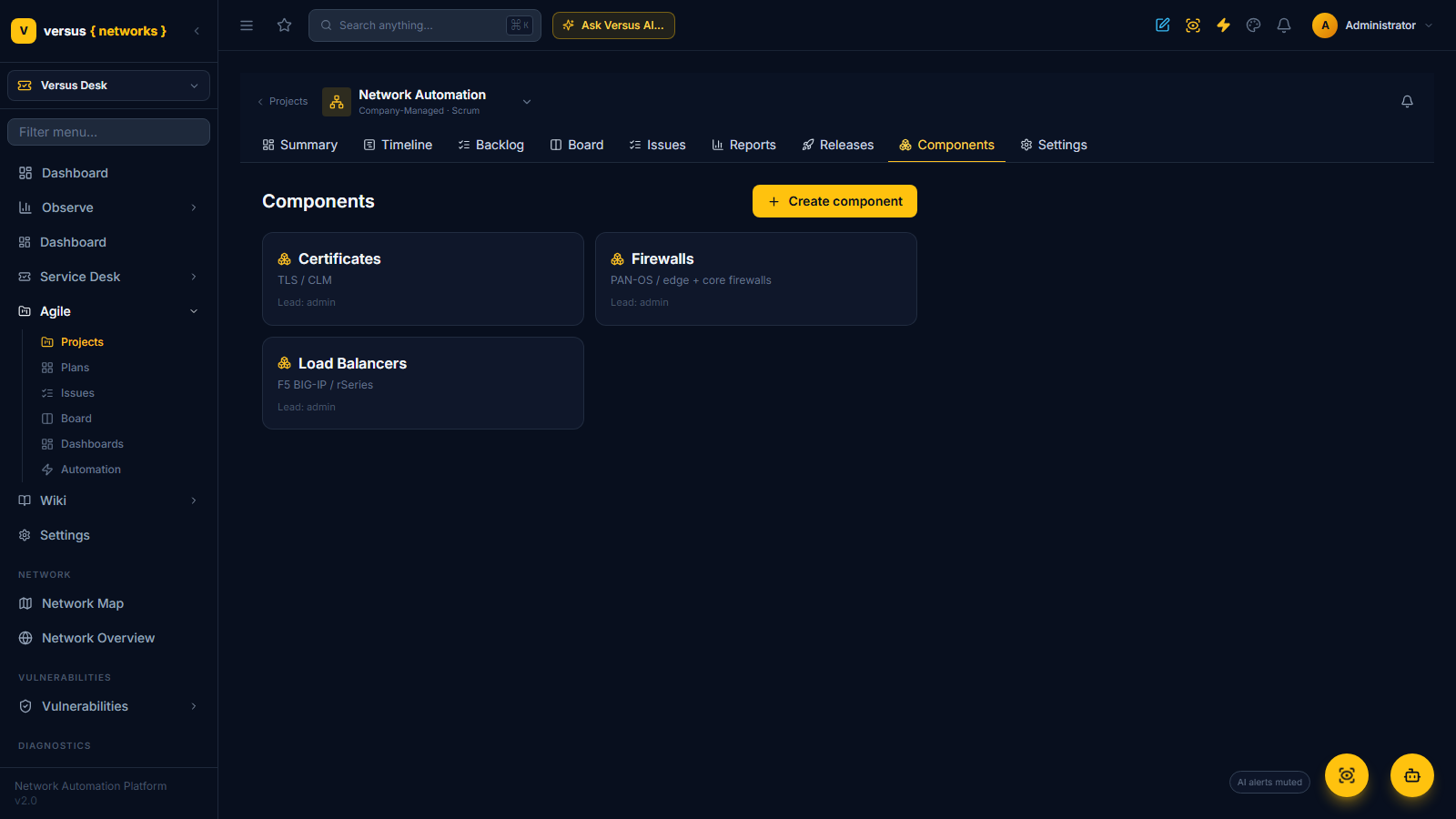
Releases (versions) group issues toward a shipping milestone, with a progress bar and a release action that warns on unresolved work. Components break a project into functional areas (for example Firewalls, Load Balancers, Certificates) with an owner and a default assignee.
11. Plans (portfolio view)
Versus Desk → Plans is the portfolio roadmap. A plan aggregates several projects onto one shared timeline — each project a group of epic bars — with per-project progress and an overall delivery rollup (projects, issues, percent delivered, story points). It’s the org-level answer to “where is everything, and when does it land?”
12. Time tracking
Set an original estimate on an issue and log work as you go — Versus rolls up time spent and burns down the remaining estimate, shown as a bar on the issue. Every worklog is attributed and timestamped.
Why track work in Versus
A standalone tracker records that work happened. Versus does the work. Because the issue tracker and the automation engine are one platform, an epic can track a fleet upgrade while each story runs the real device workflow and advances itself — no swivel-chair between a ticket and the tool that fulfils it, no per-seat license for the privilege, and one audit trail across planning and execution.
Jira, JQL, Confluence, and Atlassian are trademarks of Atlassian Pty Ltd. Versus Networks is not affiliated with, endorsed by, or sponsored by Atlassian. Any references are for comparison and interoperability only.