Kemp LoadMaster → VMware AVI Migration
Add a Kemp LoadMaster to Versus and migrate its virtual services to VMware AVI using the same Legacy ADC to AVI migration plan wizard used for A10 and other legacy ADCs.
Prerequisites
- Kemp LoadMaster added to Versus Device Inventory (API credentials — see below) — a live, reachable LoadMaster is required for the migration wizard to discover its virtual services.
- VMware AVI Controller configured in Versus under Integrations.
- AVI SE group and cloud pre-configured on the AVI Controller.
- (Optional) IPAM integration (Infoblox / EfficientIP) for automated VIP allocation.
- SSL certificates exported from Kemp or available in the Versus certificate store.
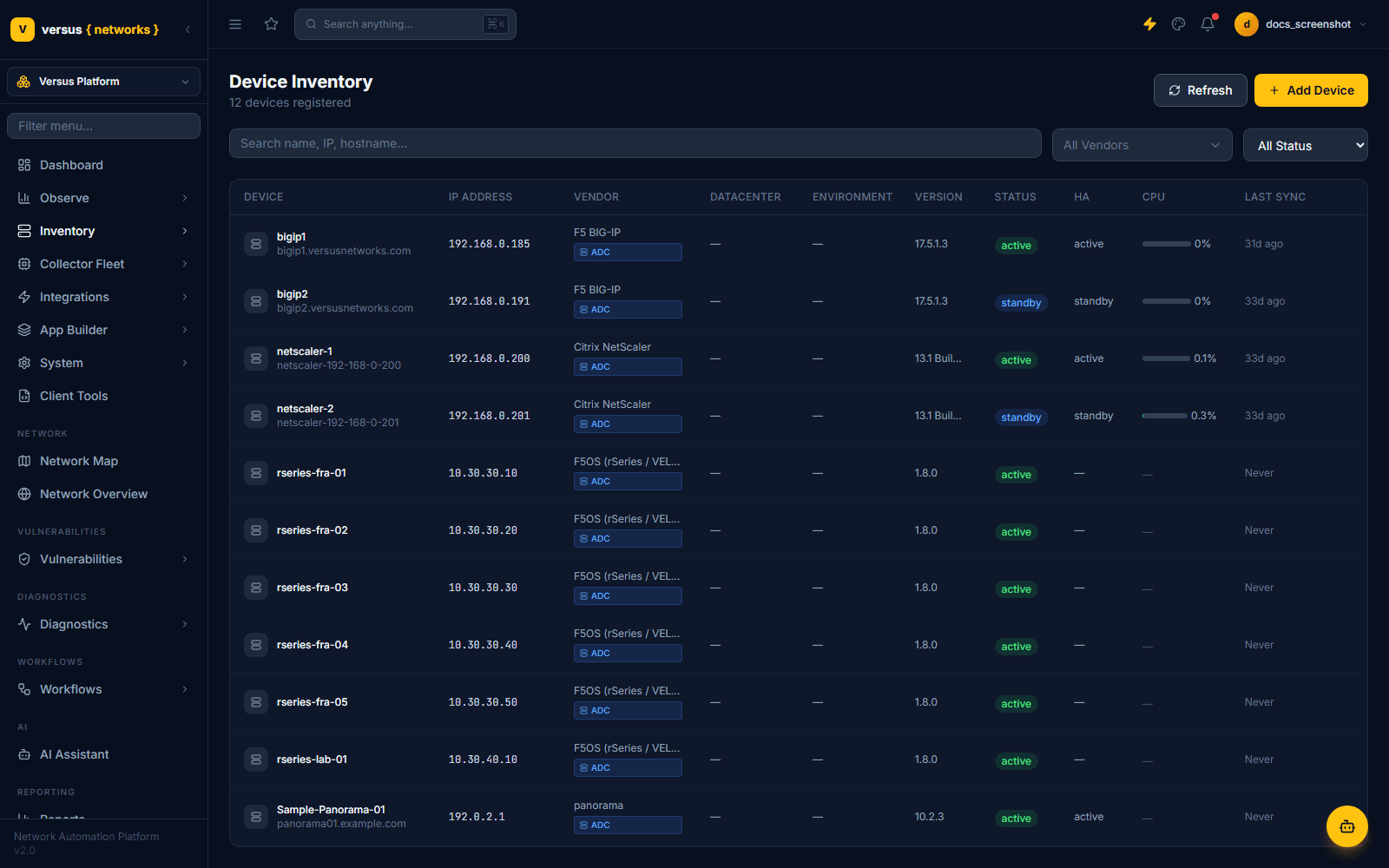
From Device Inventory → Add Device, enter the LoadMaster's management IP and pick Kemp LoadMaster from the Vendor dropdown (shown below defaulted to F5 BIG-IP — Kemp is one of the other options in the same list). Required fields:
- Management IP: the LoadMaster's management address.
- Username / Password: LoadMaster API user credentials (requires
balpermission level or higher).
Versus connects immediately to discover the device — there's no way to pre-register a device record without a reachable unit, since Discover Device is what creates the inventory entry.

Once added, the Kemp device's detail page lists all discovered virtual services with their VIP, port, protocol, real server count, and health status. Use this view to verify the VS list before creating a migration plan — click Sync Now to trigger a fresh discovery if anything looks stale.
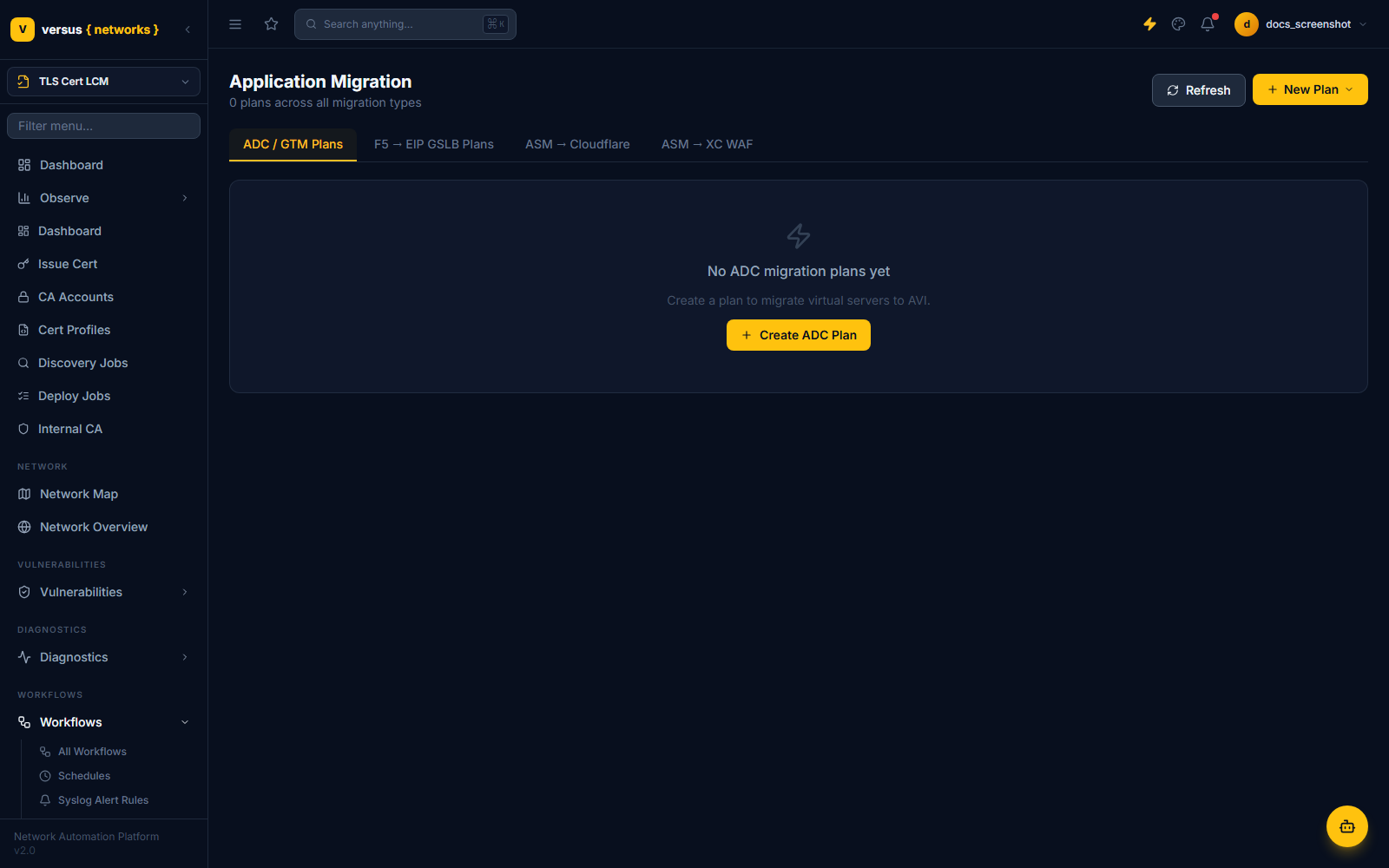
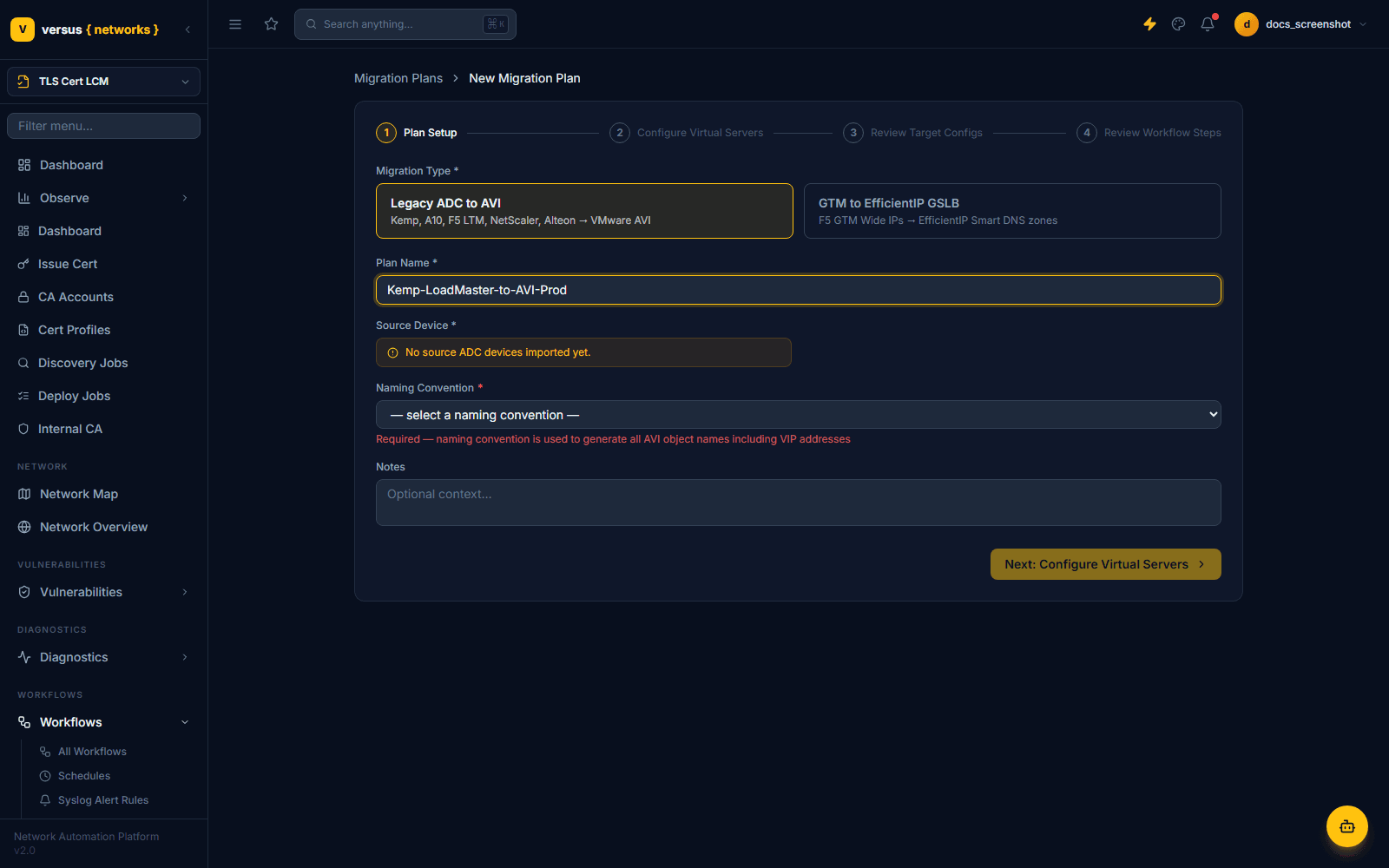
Navigate to Workflows → Migrations → Application Migration and click Create ADC Plan. Select Legacy ADC to AVI as the migration type, name the plan, and select the Kemp device as the source:
Assign a VIP for each migrated virtual service in AVI. Two allocation modes are available:
- Manual: enter an IPv4 address for each VS. Versus validates the address is within the AVI cloud's VIP subnet and not already in use.
- IPAM: if an Infoblox or EfficientIP IPAM device is linked, use Allocate all VIPs to reserve addresses automatically from the configured network.
The target VS name in AVI is auto-generated from the Kemp VS name. Edit any name inline before proceeding.
Versus reads each Kemp VS's real servers and translates them to AVI pool members. For each member:
- IP and port are carried over directly.
- Weight (ratio) is mapped to AVI pool member ratio.
- Kemp health check type (HTTP, HTTPS, TCP, ICMP) is mapped to an AVI health monitor. Custom check strings are preserved where AVI supports them.
Review the mapping and uncheck any members to exclude from migration.
SSL certificates bound to Kemp VSes can be migrated to AVI in two ways:
- From Versus cert store: if the certificate was previously synced or uploaded to Versus, select it and Versus deploys it to the AVI Controller via REST API.
- Upload now: upload the PEM-encoded cert and key directly in this step — Versus stores it and deploys it to AVI.
Each migrated cert is created as an AVI SSL Key and Certificate object and bound to the AVI VS SSL profile.
After workflow execution completes, the migration plan detail page shows a Validation tab with an automated checklist:
- AVI VS exists and is in OPER_UP state.
- All pool members report UP in AVI health monitors.
- SSL certificate bound and not expired.
- VIP responds to a test HTTP(S) request (Versus performs an internal health probe).
Items that fail validation are flagged with a link to the relevant AVI or Versus object for quick remediation. Once all items pass, mark the plan as Complete.
Quick Reference
| Kemp Construct | AVI Equivalent | Translation |
|---|---|---|
| Virtual Service | Virtual Service (VS) | Automatic |
| Real Server | Pool Member | Automatic |
| Real Server Weight | Pool Member Ratio | Automatic |
| Health Check (HTTP/TCP/ICMP) | Health Monitor | Automatic |
| Content Rule | HTTP Policy / DataScript | Manual review required |
| SSL Certificate | SSL Key and Certificate | Automatic (upload) |
| SubVS | Child VS | Best-effort |