Demo Booking Calendar
How the Book a Demo page on versusnetworks.com books into the calendar the Versus platform operator manages under Versus Support → Demo Booking Calendar, and what both sides receive.
Book a Demo on versusnetworks.com lets a prospect describe their environment, pick a time from the slots the Versus team has published, and receive a calendar invite. The slots come from Versus Support → Demo Booking Calendar inside Versus, a page only the platform operator (the admin super user) can open.
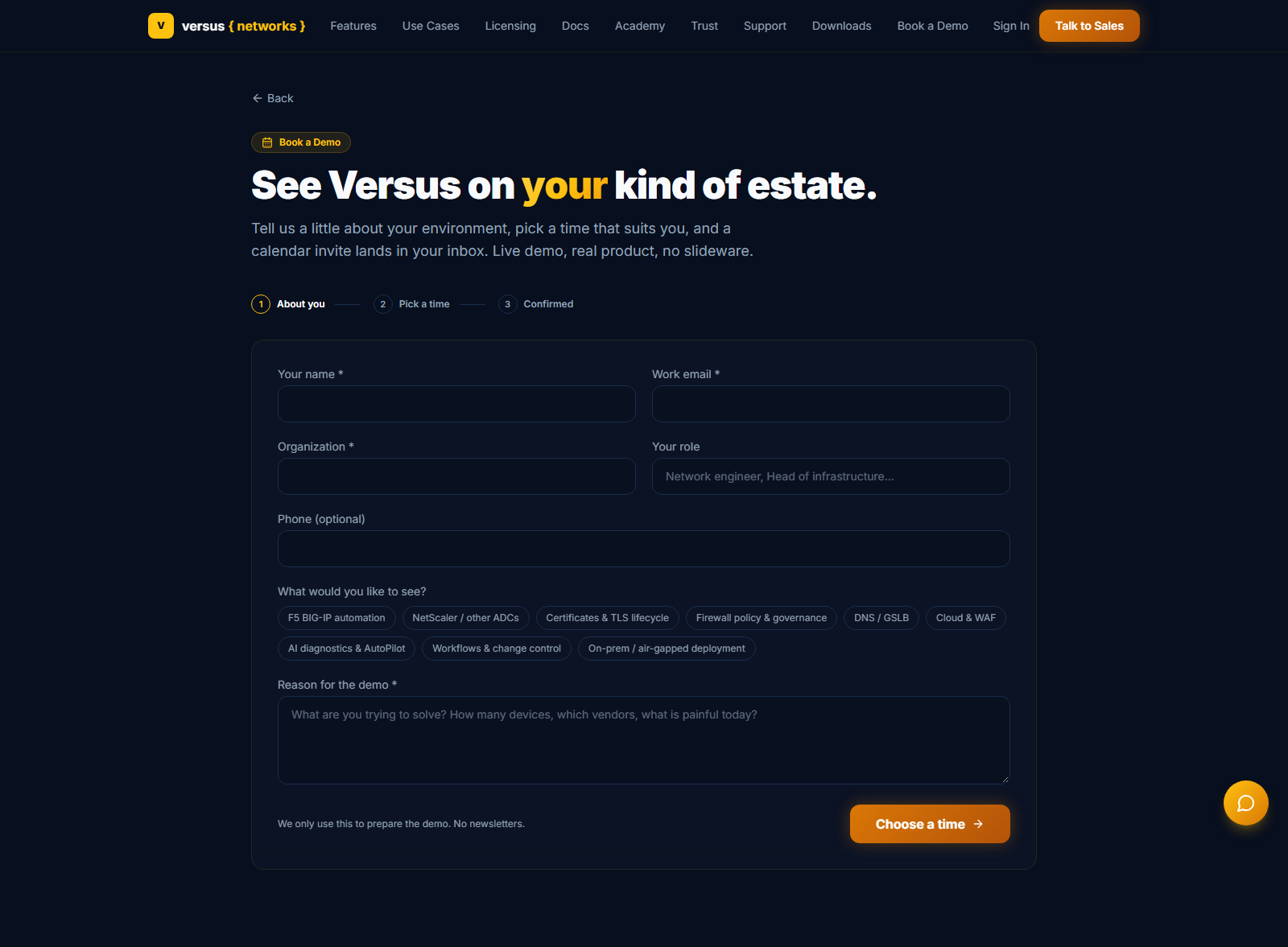
What the visitor sees
- About you — name, work email, organization, role, an optional phone number, the areas they want to see (F5 BIG-IP automation, certificates, firewall policy, DNS / GSLB, AI diagnostics, workflows, on-prem…) and the reason for the demo. Nothing is booked yet.
- Pick a time — a month calendar in the visitor's own timezone; days with open slots are highlighted, and each day lists its start times with the duration.
- Confirmed — the booked time, the meeting link when one is set, a downloadable
.icsand a Google Calendar link. The confirmation email carries a real calendar invite (Accept / Decline in Outlook, Gmail and Apple Mail) and a cancel link.
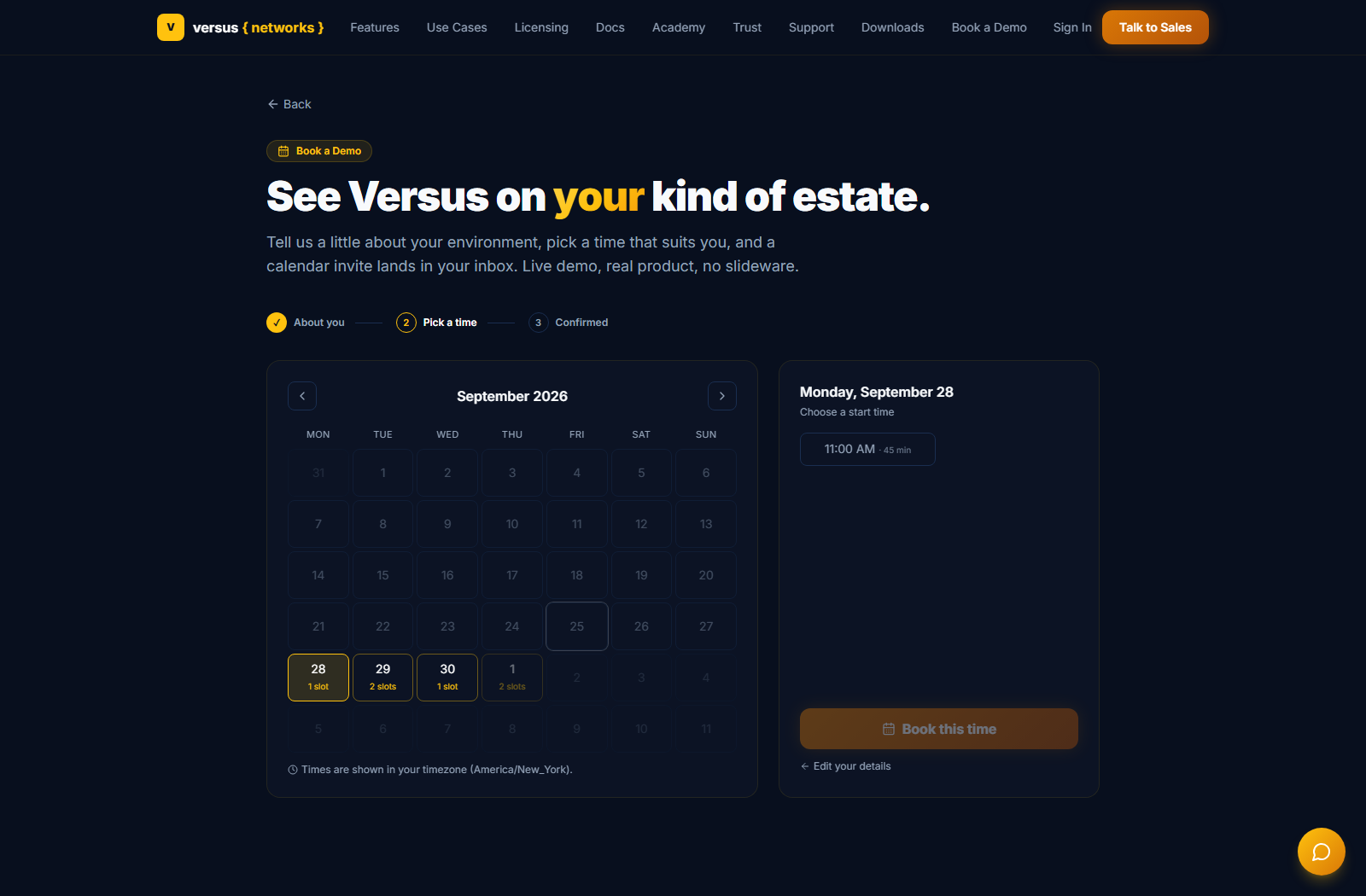
What the operator does
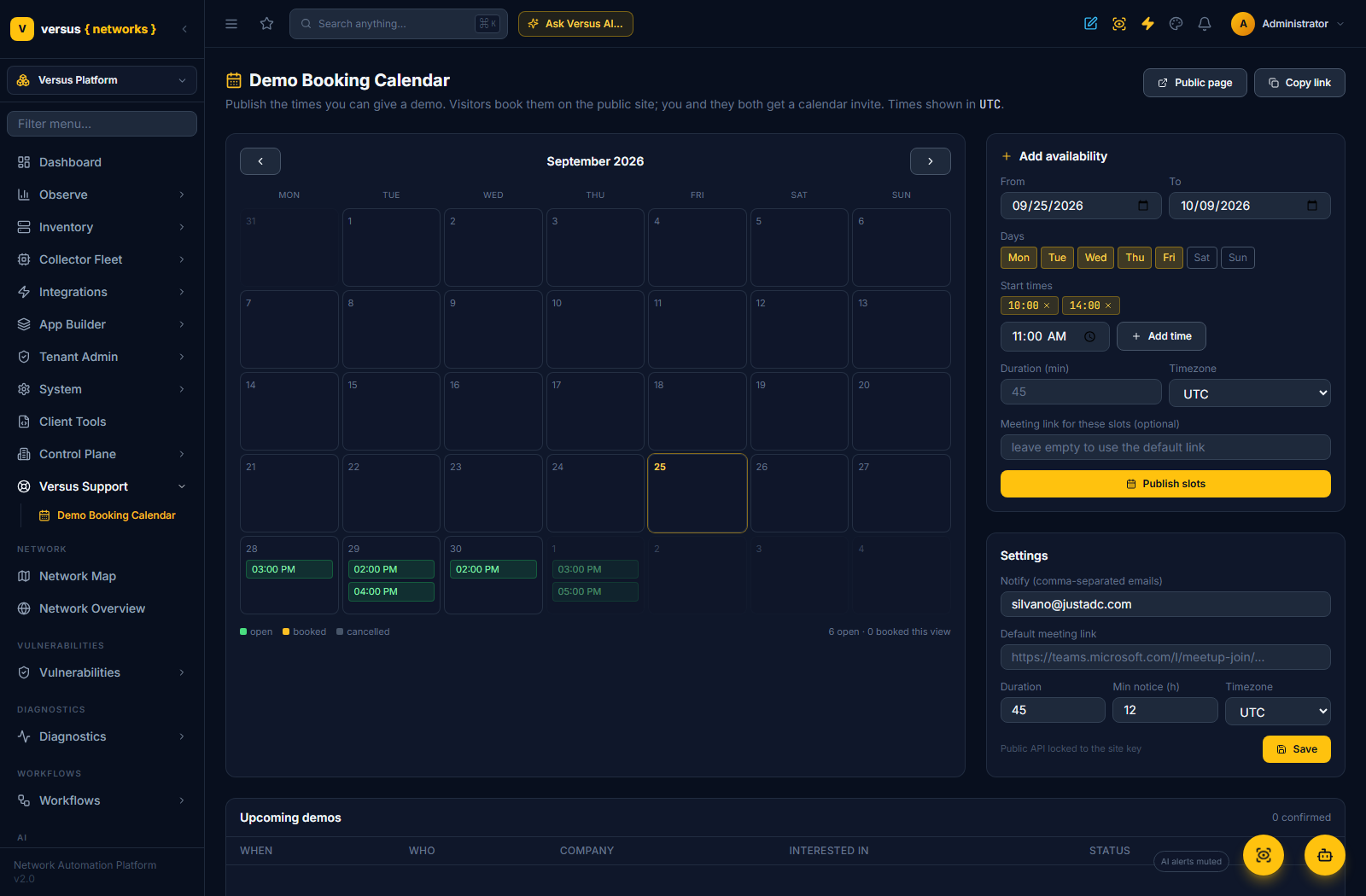
- Add availability publishes slots in bulk: a date range, the weekdays, one or more start times, the duration and the timezone they are typed in. Slots in the past or already present are skipped.
- The month calendar shows every slot — green open, blue booked (with the visitor's name), grey cancelled. Selecting a slot shows the booking: who, organization, role, interests, the reason they gave, their timezone — with Resend invite, Completed, No show and Cancel booking (the visitor is emailed, with a calendar cancellation).
- A meeting link can be set per slot or once in Settings as the default; it goes into the invite. Settings also hold the notification addresses (defaults to the super users' emails), the default duration and the minimum notice a booking needs.
- Upcoming demos lists every confirmed booking with the same actions.
Notifications and invites
Every booking emails the visitor a confirmation and the operator a notification, both with the invite attached as text/calendar (METHOD:REQUEST) and as invite.ics, so the demo lands on both calendars. A cancellation from either side sends METHOD:CANCEL, which removes it again. Mail goes through the SMTP settings under Settings → Email (SMTP); without SMTP configured nothing is sent, but bookings are still recorded.
Conferencing
The calendar carries whatever join link you give it. Microsoft Teams is the natural fit for a Versus team already integrated with Teams: a standing meeting link from Teams, or a per-booking meeting created through Microsoft Graph, works with the invite as is. Google Meet and Zoom links work the same way.
Security
The site talks to Versus server-to-server. The public endpoints only list open slots and accept a single booking or a token-based cancellation; they are throttled per IP, refuse bots through a hidden form field, and, when DEMO_BOOKING_KEY is set on both sides, accept calls only from the site. Everything else on the calendar requires the platform operator.