Certificate Management
The TLS Cert LCM workspace end to end — dashboard, issuing certificates, CA accounts, cert profiles, discovery jobs, deploy jobs, and running Versus itself as an internal ACME CA.
Overview
TLS Cert LCM is its own workspace — switch to it from the workspace switcher at the top of the sidebar. It brings together certificate issuance, discovery, deployment, and (optionally) an internal ACME certificate authority in one place, rather than treating certificates as a side effect of ADC / Cloud WAF / Bot discovery. Its sidebar has seven items: Dashboard, Issue Cert, CA Accounts, Cert Profiles, Discovery Jobs, Deploy Jobs, and Internal CA.
Dashboard
TLS Cert LCM's dashboard opens on two tabs — CLM Inventory and Managed Certificates — with summary tiles for Pending Approval, Deployed, Expiring (30d), and Total, plus status filter chips (All, Pending Approval, Deployed, Expiring, Expired, Failed):
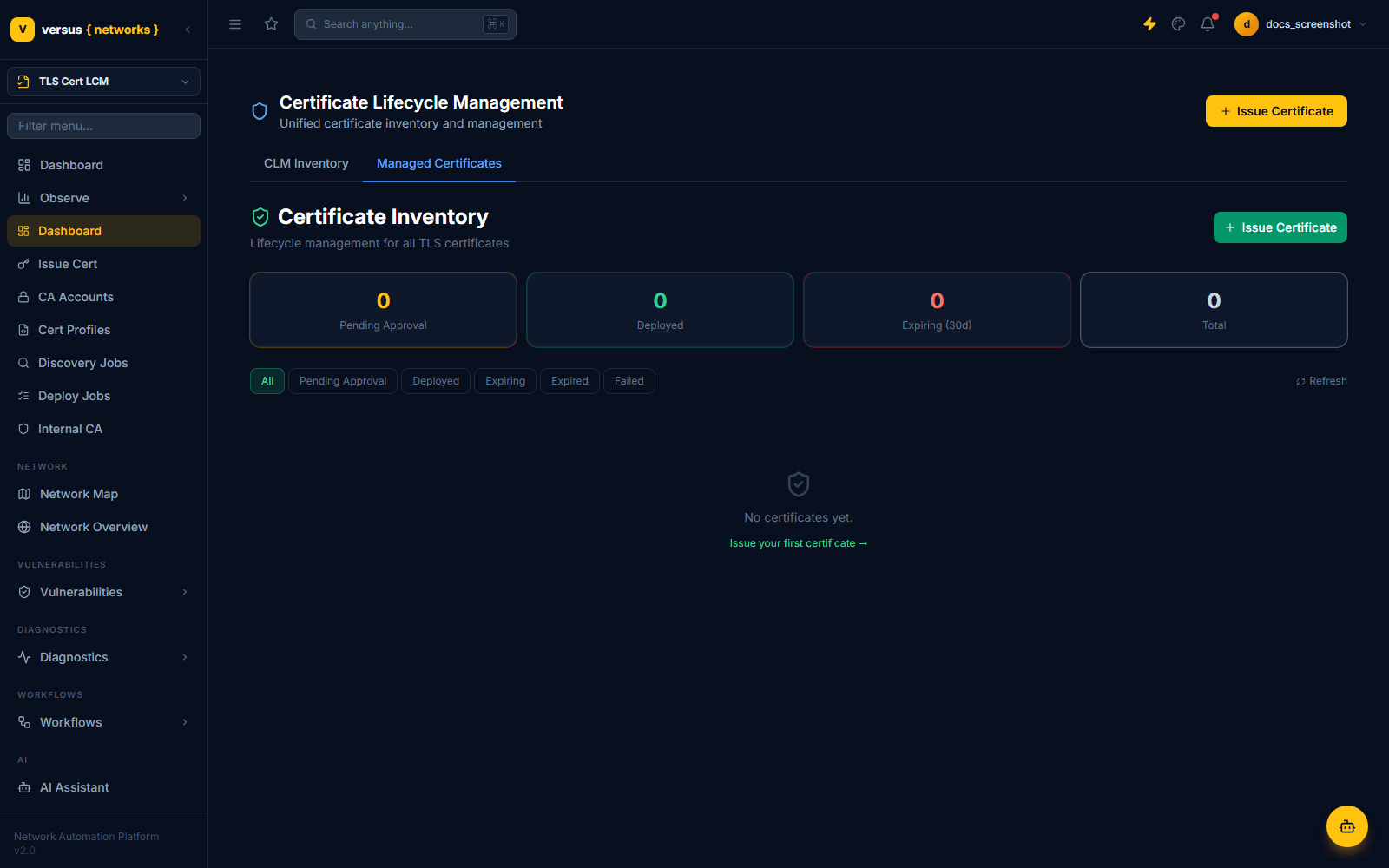
A freshly-provisioned instance shows No certificates yet with an Issue your first certificate → link straight into the Issue Cert wizard below — certificates only appear here once they've been issued through Versus or picked up by a discovery job.
Issuing a Certificate
Issue Cert opens a four-step wizard: Certificate → Notifications (optional) → Deployment (optional) → Review. The first step captures everything needed to build the signing request:
- Certificate Authority — which connected CA account (see CA Accounts below) issues this cert
- Common Name (CN) — e.g.
app.example.com - Subject Alternative Names — comma-separated additional DNS names
- Key Type — RSA 2048-bit, RSA 4096-bit, ECDSA P-256, or ECDSA P-384
- Subject Distinguished Name — Organization (O), Organizational Unit (OU), Country (C), State/Province (ST), Locality/City (L)
- Auto-renew (ARI-driven) — checked by default; renewal timing is driven by ACME Renewal Information (RFC 9773) rather than a fixed day count
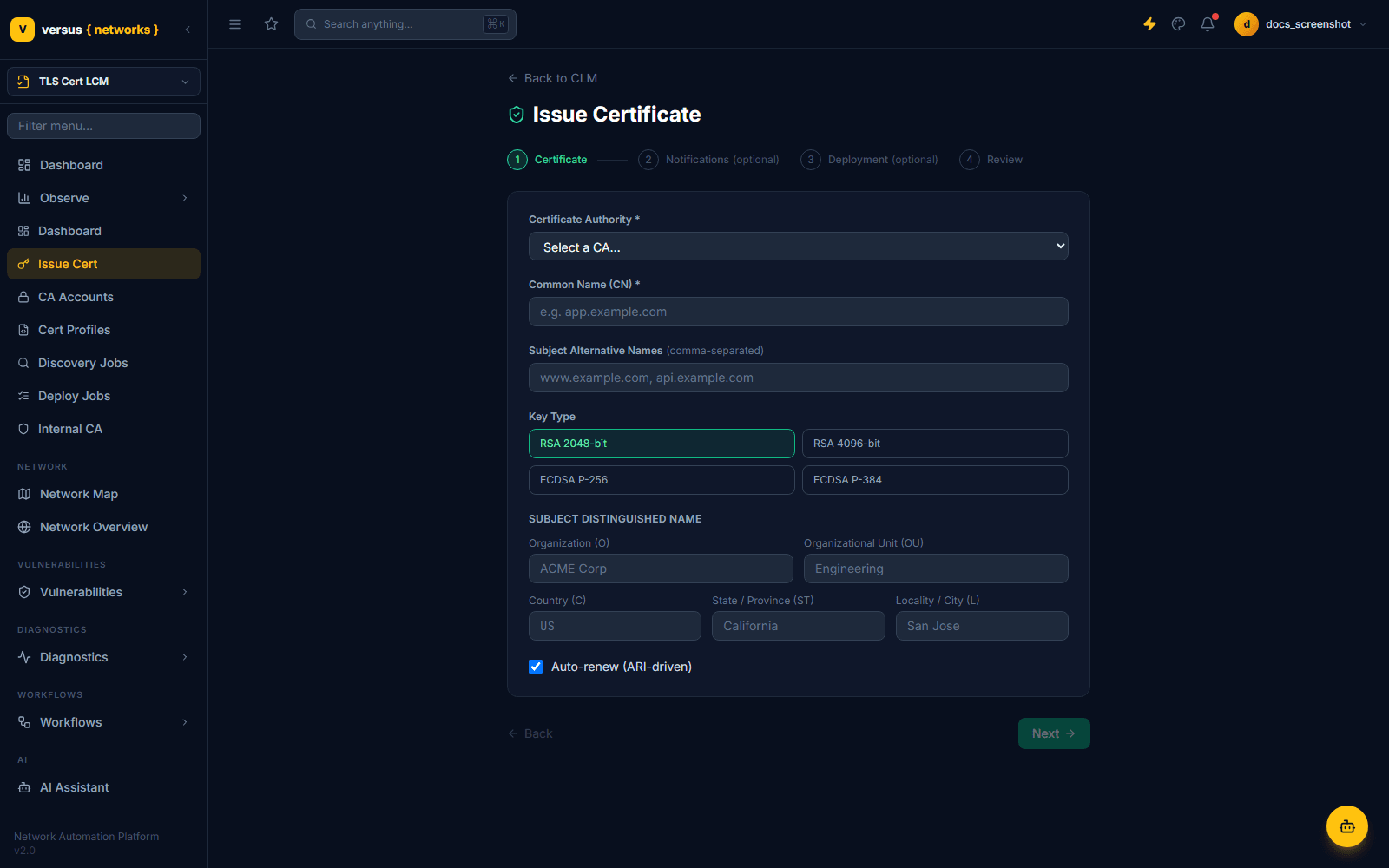
The remaining steps let you optionally configure who gets notified as the certificate approaches expiry or fails to renew, and optionally chain straight into a deployment target (an ADC or Cloud WAF / Bot device or partition) so the new certificate is pushed out as soon as it's issued. Skipping both is fine — you can deploy the certificate later from Deploy Jobs once it exists.
CA Accounts
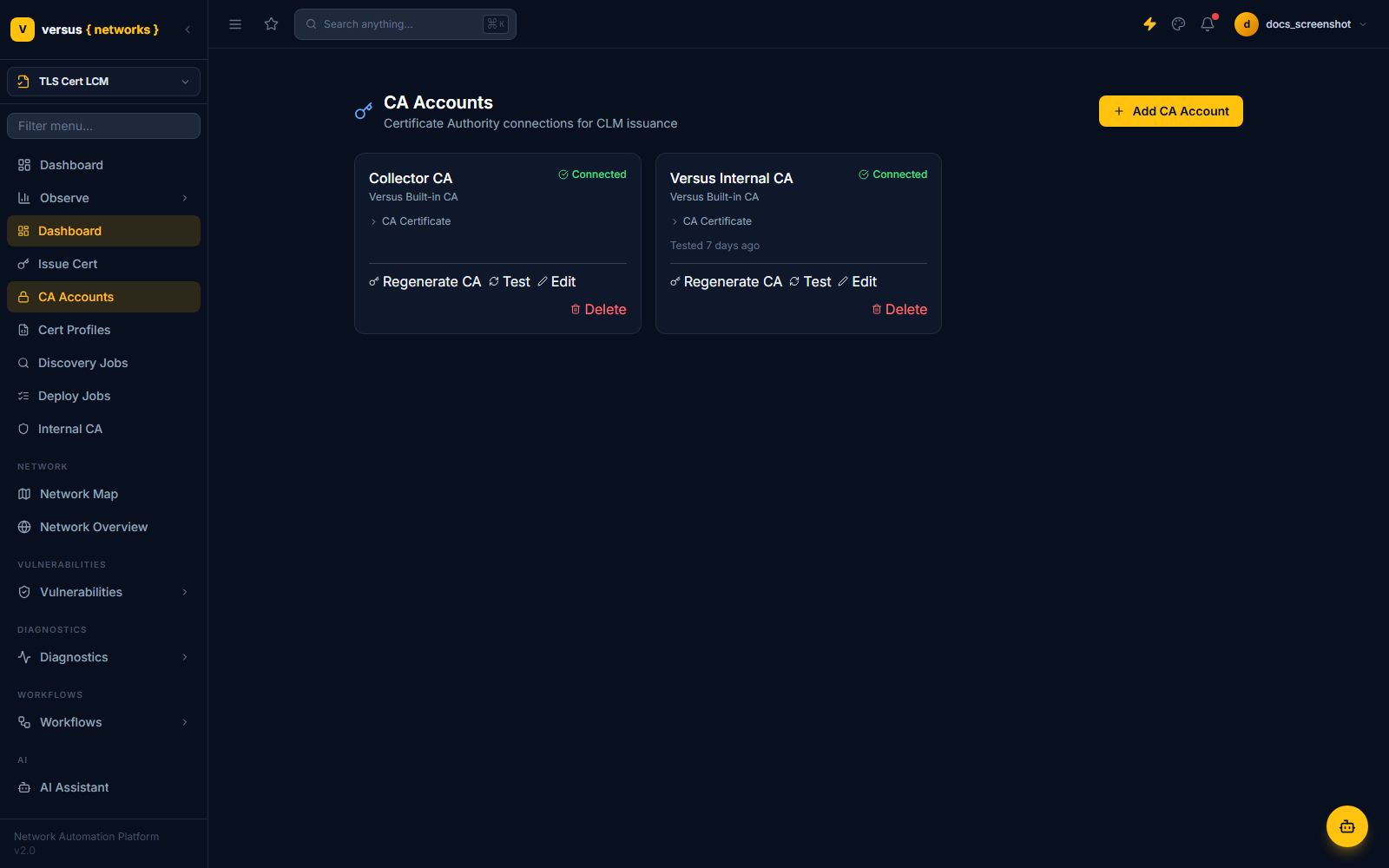
CA Accounts are the Certificate Authority connections available to the Issue Cert wizard and to auto-renewal. This demo instance ships two built-in accounts, both connected:
- Collector CA — Versus's built-in CA used by the collector fleet
- Versus Internal CA — the internal CA configured under Internal CA (below)
Each account card shows its connection status, a link to its CA certificate, and Regenerate CA, Test, Edit, and Delete actions. Click Add CA Account to connect an external CA (public ACME provider or enterprise PKI) for issuance.
Cert Profiles
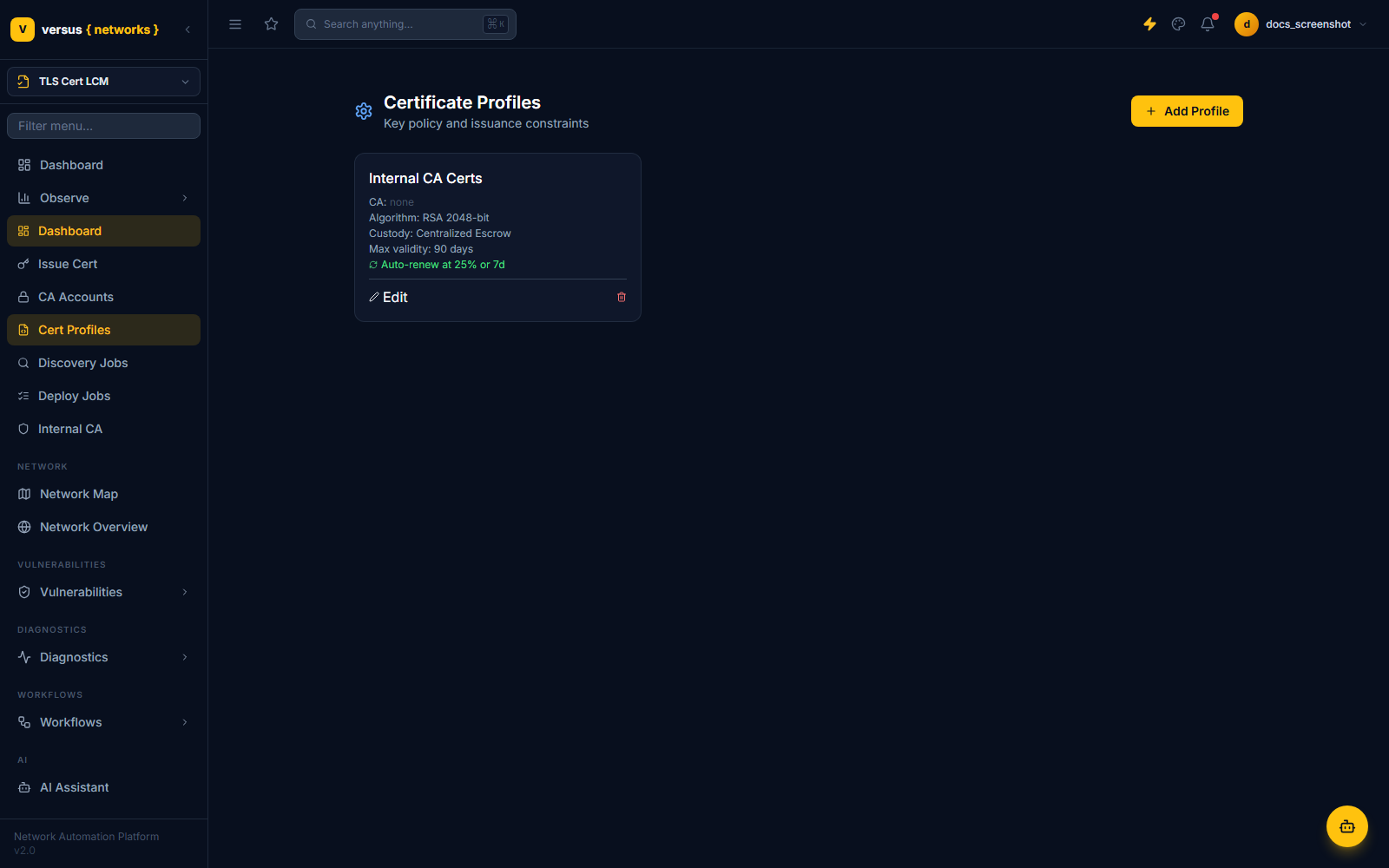
A Cert Profile is a named policy — key algorithm, custody model, maximum validity, and auto-renew threshold — applied when certificates are issued under it. The demo instance ships one profile, Internal CA Certs:
- Algorithm — RSA 2048-bit
- Custody — Centralized Escrow (Versus holds the private key)
- Max validity — 90 days
- Auto-renew — at 25% of lifetime remaining, or 7 days, whichever applies
Discovery Jobs
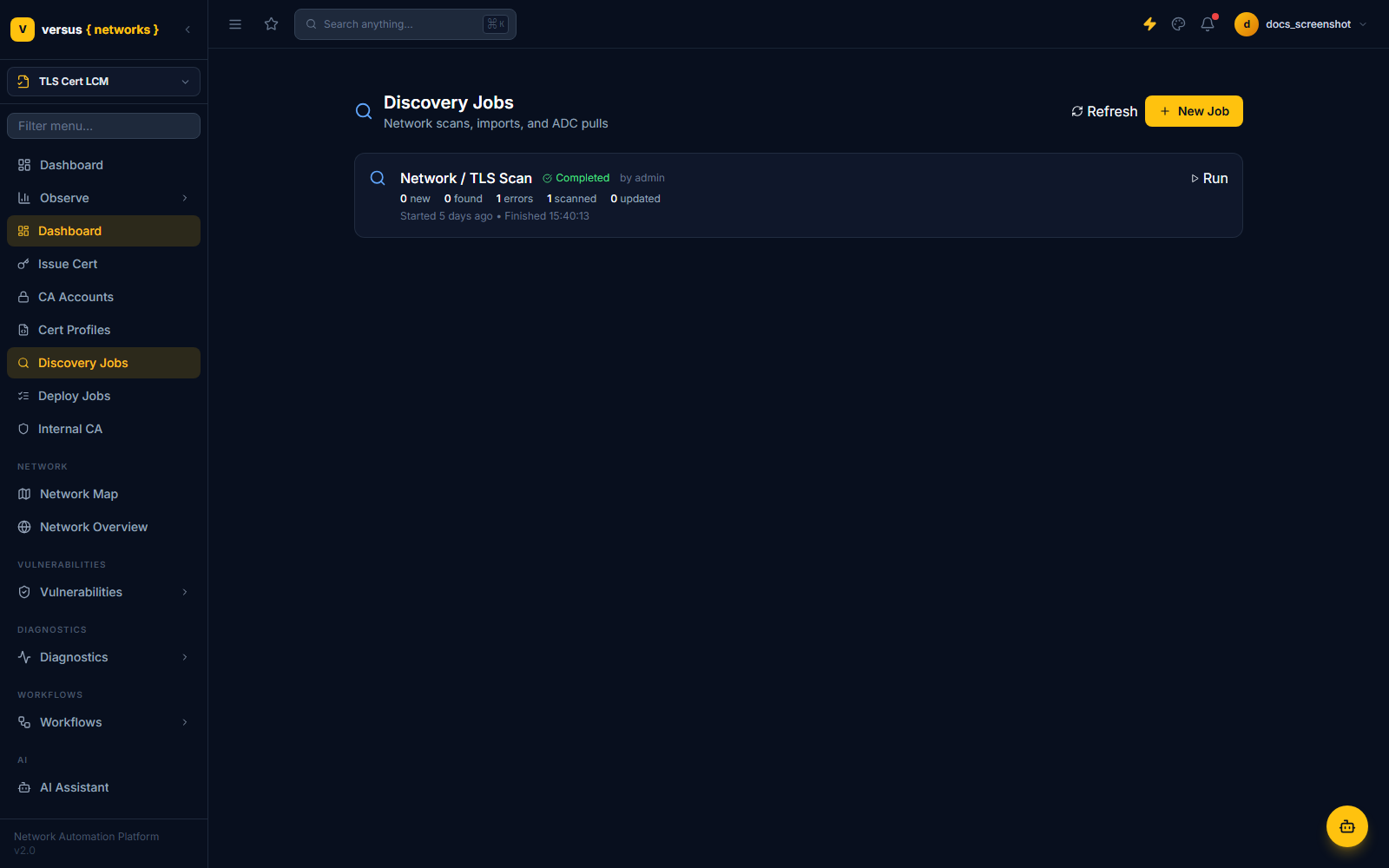
Discovery Jobs are network scans, imports, and ADC / Cloud WAF / Bot pulls that find certificates Versus didn't issue itself — the same mechanism that populates certificate data from your ADC and Cloud WAF / Bot estate. Each job card reports new, found, errors, scanned, and updated counts, plus when it started and finished:
Deploy Jobs
Deploy Jobs is the execution log for certificate issuance, renewal, and deployment — every workflow run that touches a certificate's lifecycle shows up here, filterable by status (All, Running, Pending, Awaiting approval, Completed, Failed, Cancelled):
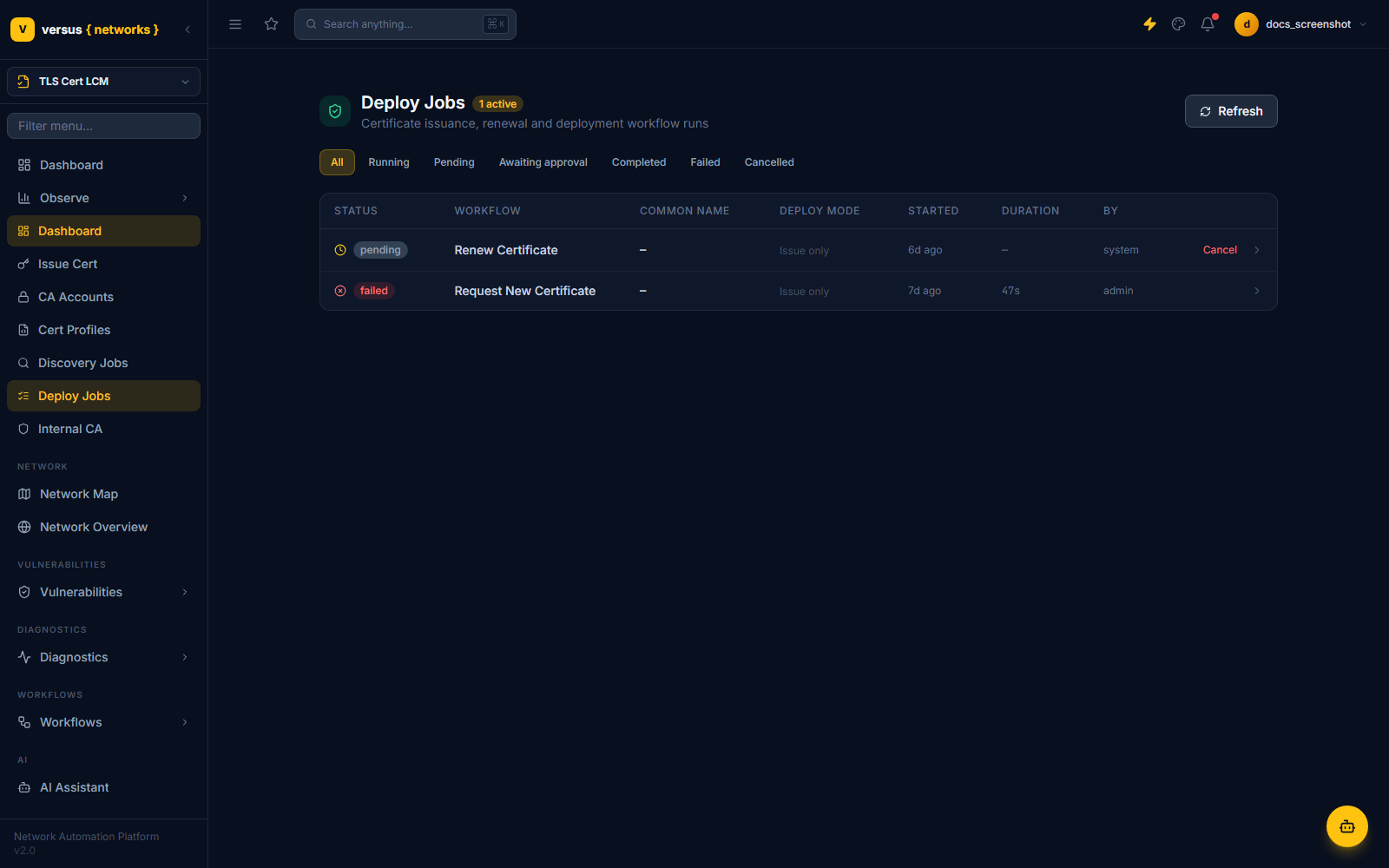
Each row shows the workflow name, target common name, deploy mode (e.g. Issue only versus a full deploy-to-device run), when it started, how long it took, and who or what triggered it — system for automatic renewals, or a username for manually triggered runs. Pending jobs can be cancelled directly from this list.
Running Versus as an Internal ACME CA
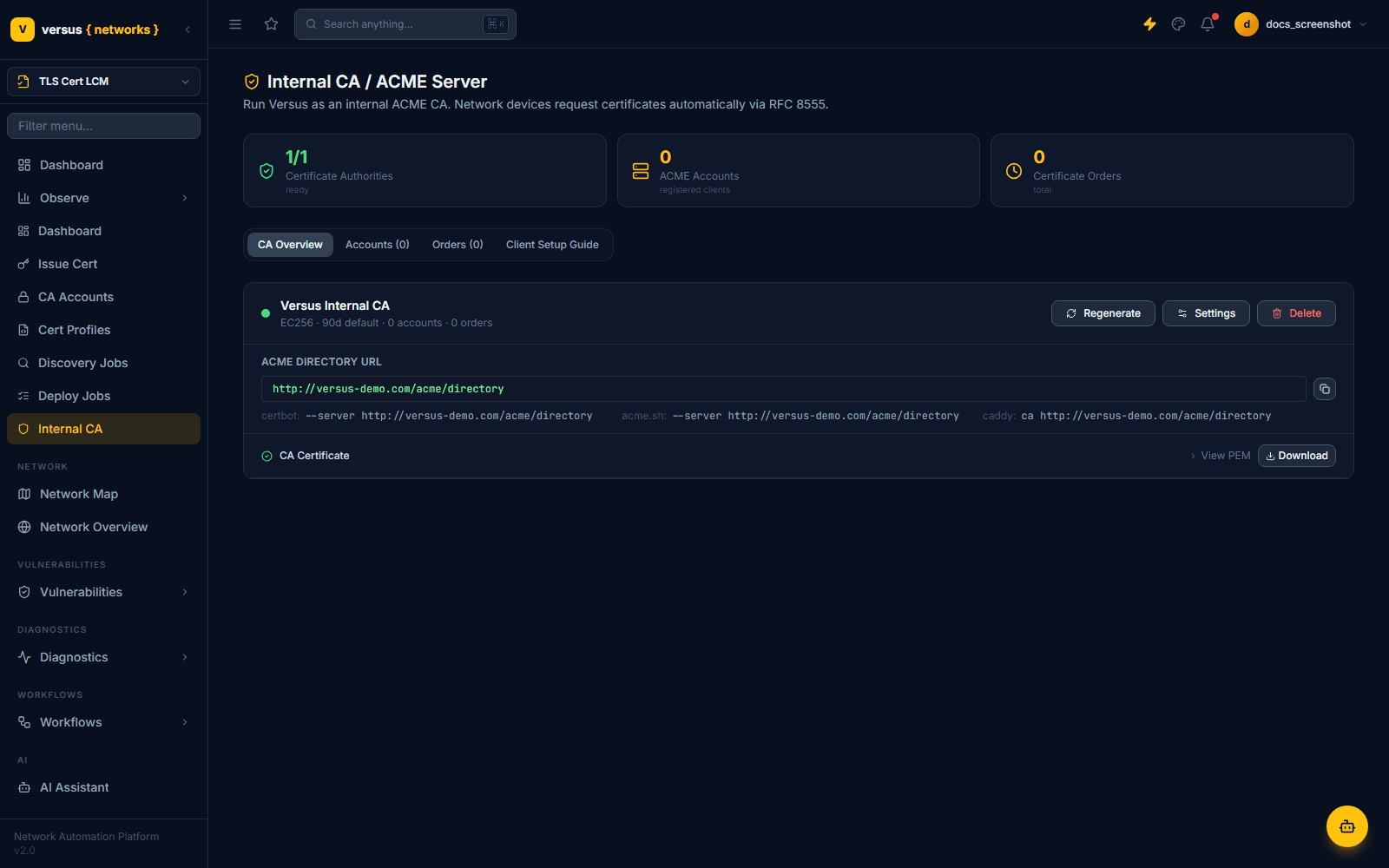
Internal CA lets Versus act as your own private Certificate Authority, served over ACME (RFC 8555) — internal services can request and renew certificates automatically the same way they would from a public ACME provider, without traffic ever leaving your network:
The page is organized into four tabs:
- CA Overview — the CA's key type and default validity, plus its ACME Directory URL and ready-to-paste client commands for
certbot,acme.sh, and Caddy'scadirective - Accounts — ACME clients that have registered against this CA
- Orders — certificate orders placed through the ACME protocol
- Client Setup Guide — step-by-step instructions for pointing a device or service at this CA
From the overview tab you can Regenerate the CA key, open Settings, Delete the CA, or view/download the CA certificate's PEM. On a fresh instance this starts at 0 registered accounts and 0 orders until a client actually enrolls against the directory URL.
Quick Reference
| Page | Nav Path | Purpose |
|---|---|---|
| Dashboard | TLS Cert LCM → Dashboard | CLM Inventory / Managed Certificates tiles and status filters |
| Issue Cert | TLS Cert LCM → Issue Cert | 4-step wizard: Certificate → Notifications → Deployment → Review |
| CA Accounts | TLS Cert LCM → CA Accounts | Connected Certificate Authorities available for issuance |
| Cert Profiles | TLS Cert LCM → Cert Profiles | Key policy, custody, validity, and auto-renew thresholds |
| Discovery Jobs | TLS Cert LCM → Discovery Jobs | Network scans, imports, and ADC / Cloud WAF / Bot pulls that find existing certs |
| Deploy Jobs | TLS Cert LCM → Deploy Jobs | Execution log for issuance, renewal, and deployment runs |
| Internal CA | TLS Cert LCM → Internal CA | Run Versus as a private ACME (RFC 8555) certificate authority |