App Builder Overview
Create custom internal apps with the Versus App Builder — manage versions, design navigation, set entitlements, and publish apps to a runtime URL.
App Builder is a low-code environment for network operations teams to create custom internal web apps — without writing front-end code. You assemble pages, configure navigation, set a theme, scope which devices and integrations the app can use, and publish. The result is a standalone web app accessible at a dedicated runtime URL, separate from the main Versus administration interface.
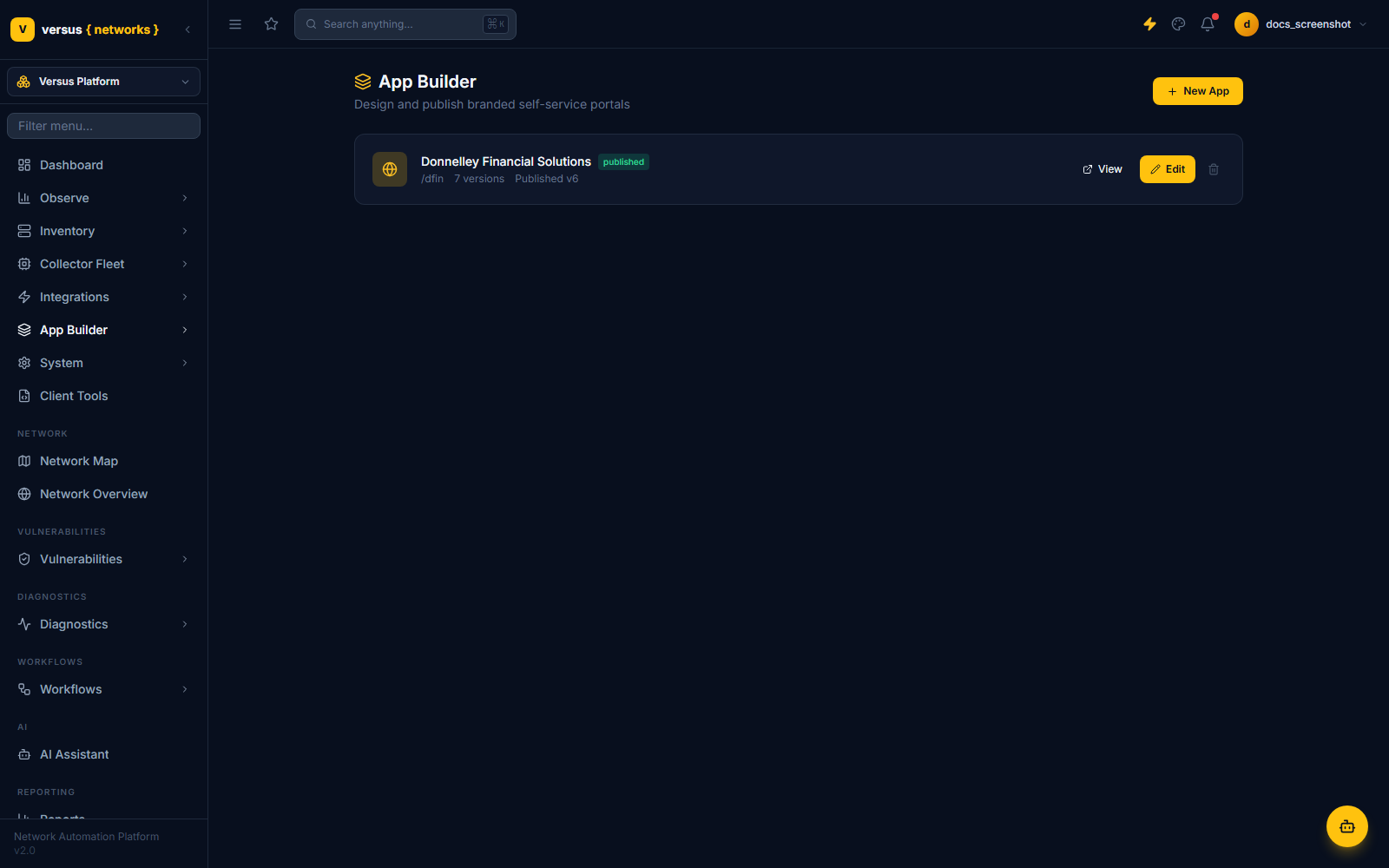
App Builder lives inside the Versus Platform workspace — use the workspace switcher in the top-left of the sidebar to select Versus Platform, then click App Builder in the left nav. It is no longer a standalone top-level section; it sits alongside Dashboard, Observe, Inventory, Collector Fleet, Integrations, System, and Client Tools within that workspace.
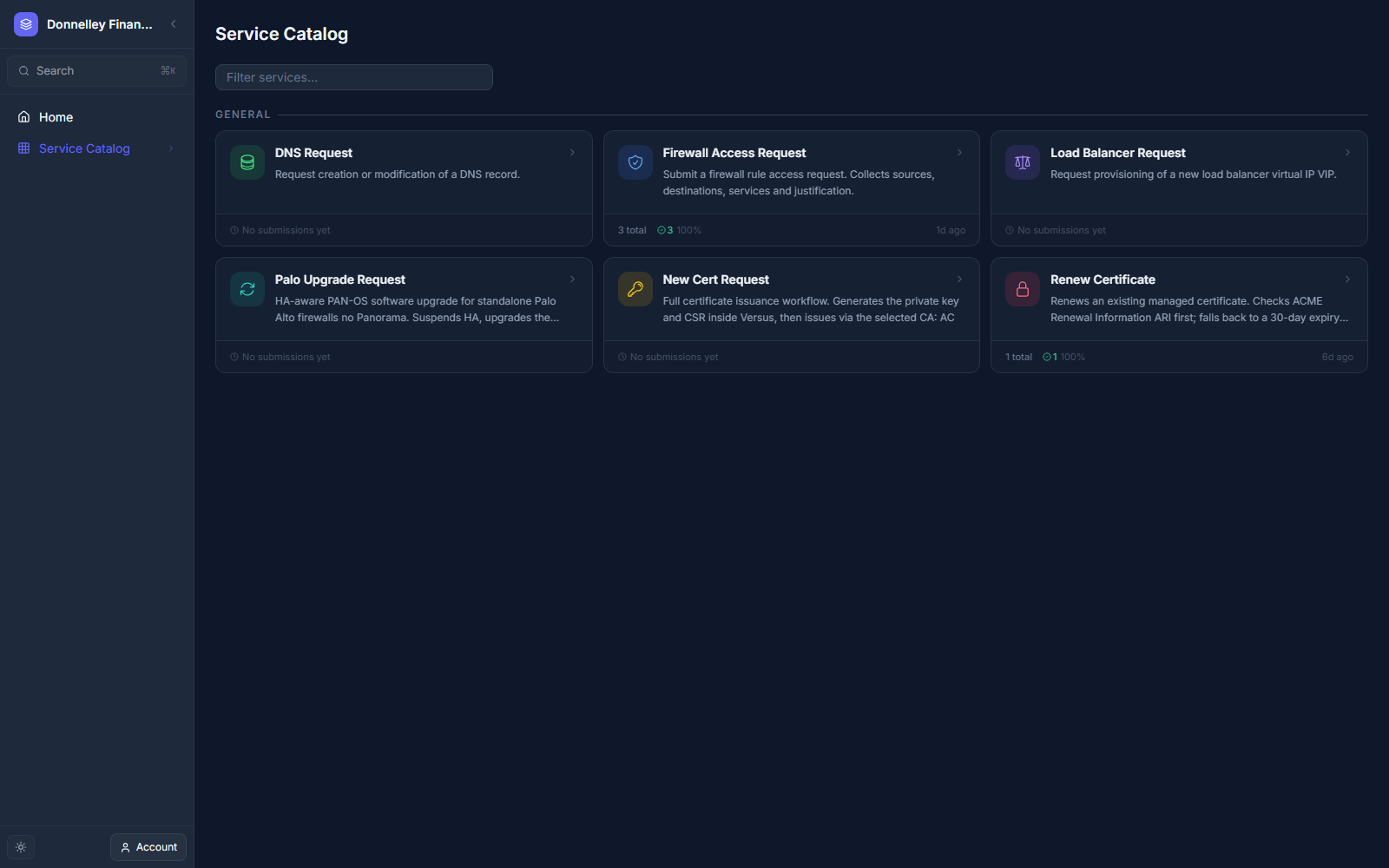
Typical use cases include: a branded self-service catalog of pre-built request forms (certificate issuance, firewall access, DNS changes) for application owners, per-site device dashboards for field engineers, and operations portals that combine status widgets with request forms.
Creating a New App
From the Versus Platform workspace, click App Builder in the sidebar, then New App. Enter a name and an optional description. The name becomes part of the runtime URL slug (e.g., my-operations-portal).
The designer opens on a new draft version. From the left-hand tab list you configure Theme, Entitlements, Catalog Items, Pages, Navigation, and SSO for the app. Changes are saved to the current draft version — nothing goes live until you publish.
Click Publish to promote the current draft to the live, published version. Users accessing the runtime URL immediately see the newly published version.
App Versions
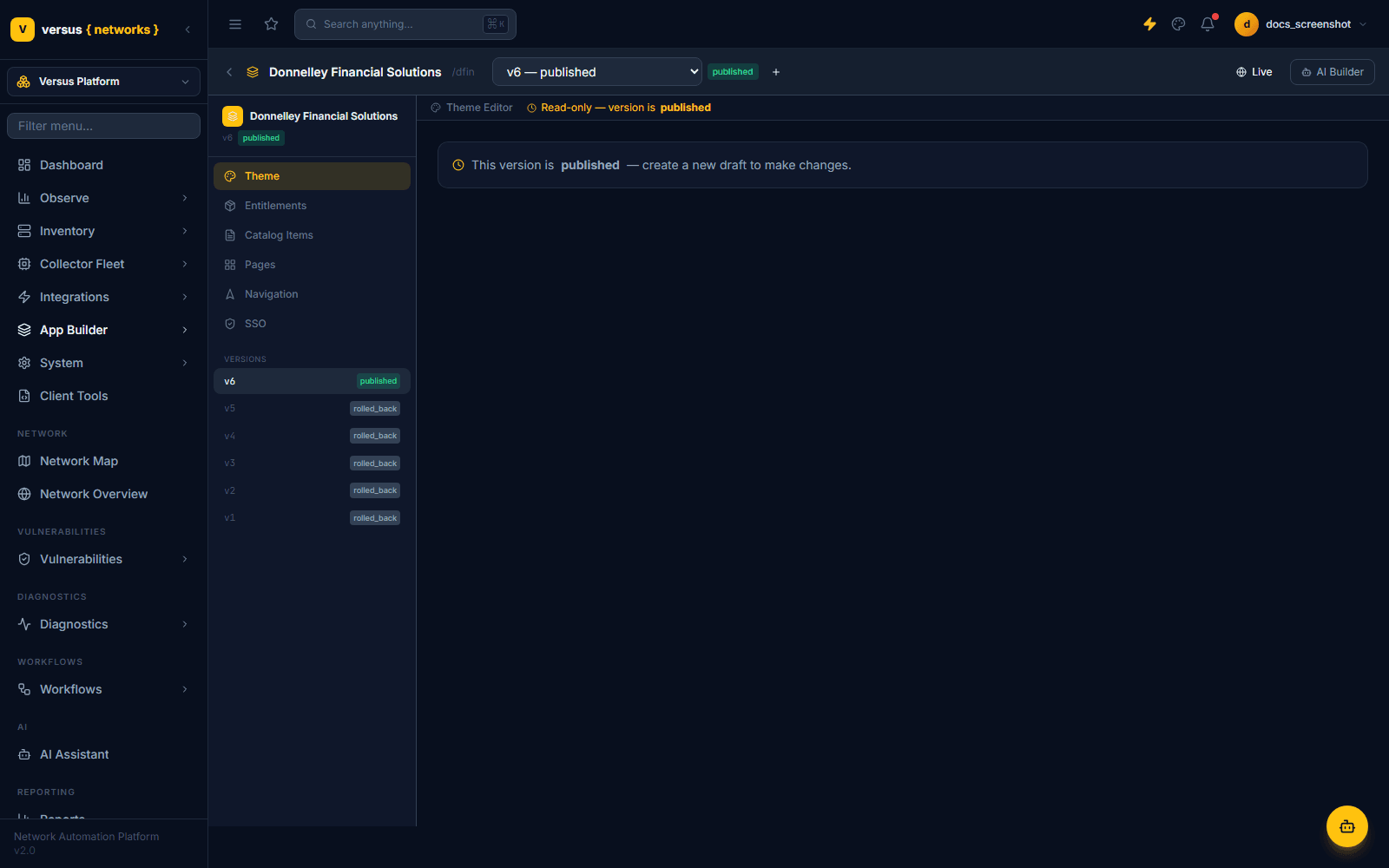
Each app keeps a full version history, not just two slots. Every version is numbered sequentially (v1, v2, v3, …) and carries one of three states:
- draft — the working copy currently being edited. Only one draft can be active at a time; use Preview to test it without affecting the live app.
- published — the live version served at the runtime URL. Exactly one version holds this state at a time.
- rolled_back — a version that used to be published (or an earlier draft) but has since been superseded. Every rolled_back version stays in the list and can be opened read-only at any time — a genuine audit trail of what was live and when.
To make a change, click the + next to the version selector to cut a new draft, edit it, then publish — the version that was live becomes rolled_back automatically. A version that is published or rolled_back is read-only in the designer; you can inspect it (and see who created it and when) but not edit it directly.
Navigation Designer
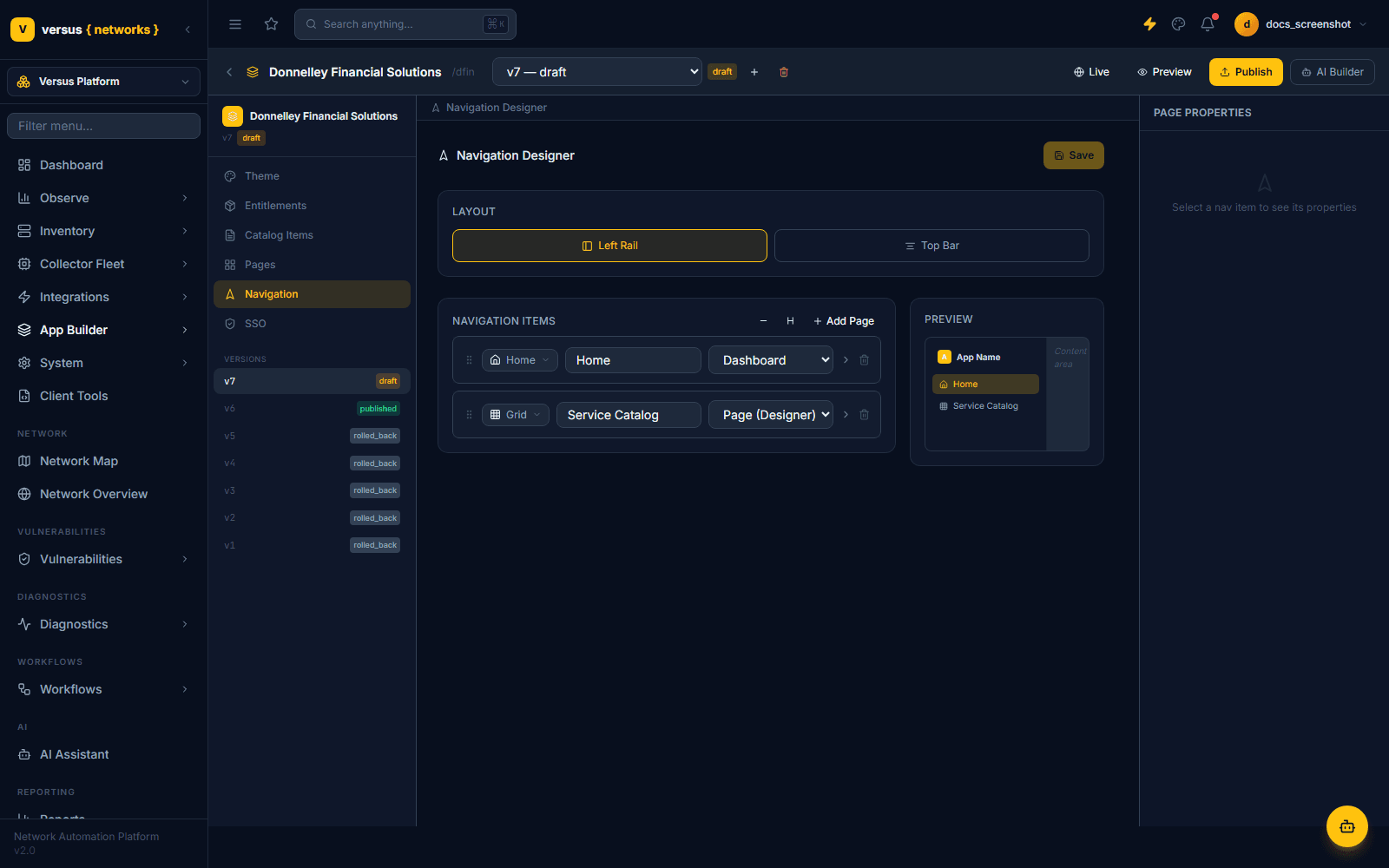
Apps support two navigation patterns, configurable independently:
- Left Rail — a vertical sidebar with icon + label navigation items. Best for apps with five or more top-level sections.
- Top Bar — a horizontal navigation bar. Best for apps with two to five sections.
Each navigation item is added with Add Page and can be one of several types: Page (Designer), Dashboard, Observe Dashboard, Catalog Item Form, External Link, Document, or Custom Page — plus non-linking entries for a Divider or a # Section Header to group items. Items are reordered by dragging the grip handle, and a live preview panel on the right shows the resulting nav as you edit.
Entitlements
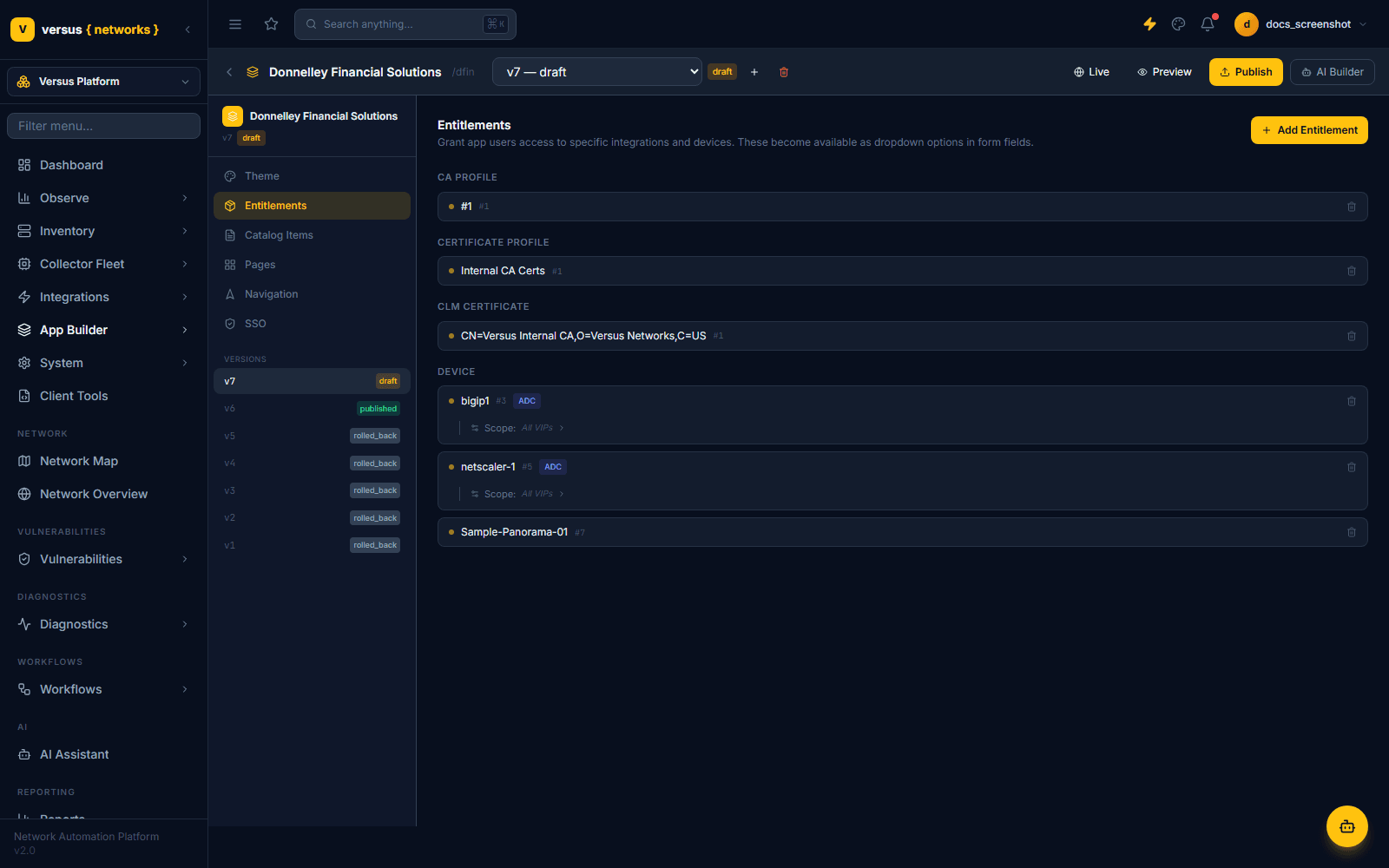
The Entitlements tab grants an app's users access to specific integrations and devices — CA profiles, certificate profiles, CLM certificates, and individual devices (with an optional scope, such as "All VIPs" for an ADC). Whatever you entitle here becomes available as selectable options in that app's Catalog Item form fields, so end users only ever see the subset of infrastructure you've explicitly scoped them to — not your full device inventory.
Runtime URL
Every published app is accessible at a runtime URL with the format:
https://<your-versus-host>/apps/<app-slug>
The slug is derived from the app name. Users accessing the runtime URL see only the published app — not the designer or any other Versus interface.
Theming
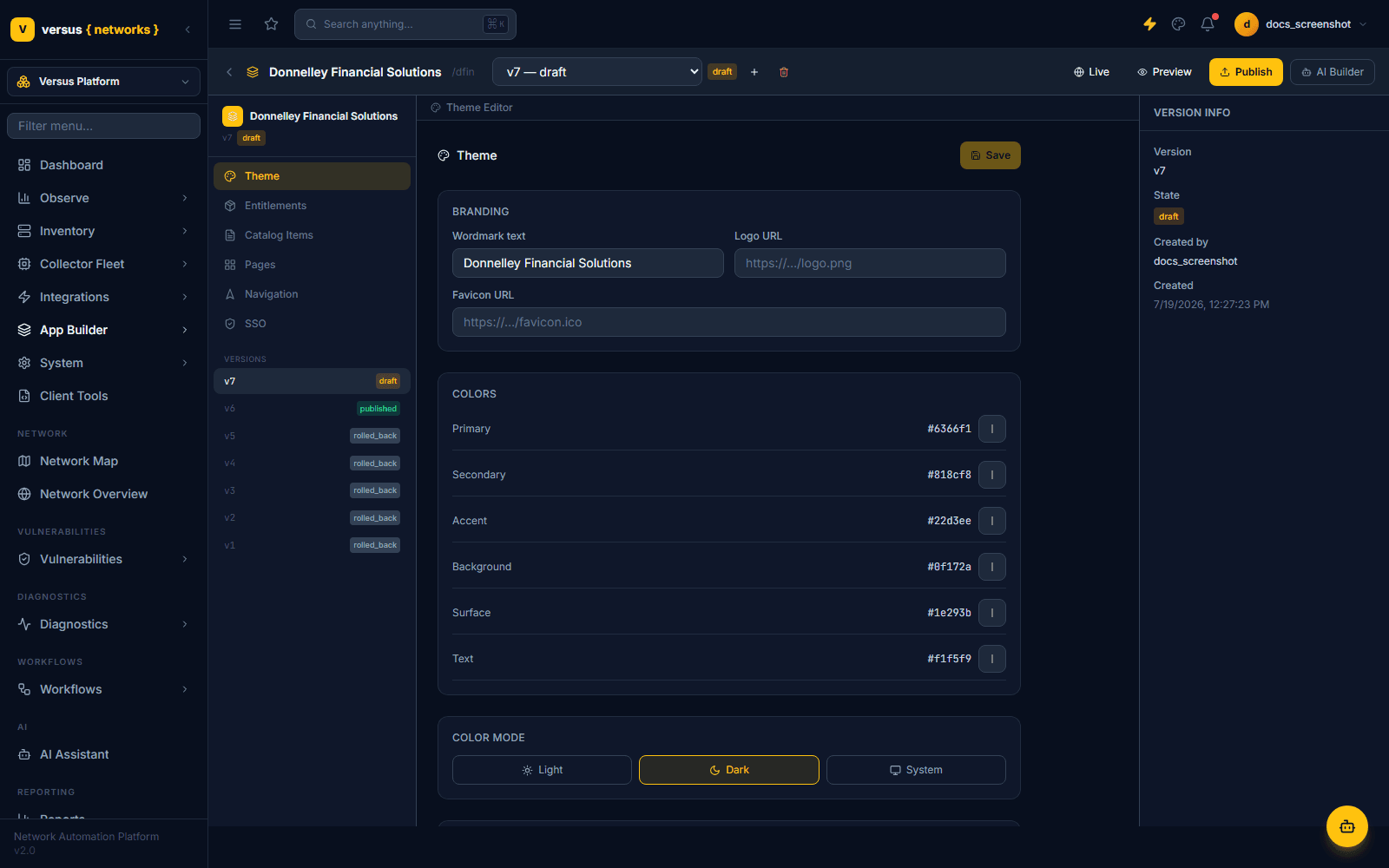
Each app has its own Theme tab, separate from the Versus admin theme:
- Branding — wordmark text, logo URL, and favicon URL.
- Colors — Primary, Secondary, Accent, Background, Surface, and Text, each as a hex value.
- Color Mode — Light, Dark, or System.
- Typography — font family.
- Custom CSS — an advanced field for overrides beyond the color and typography tokens.
A live preview of the content area updates as you edit, and the panel is read-only unless you're on a draft version — click Save to persist changes to the current draft.
AI Agent widget
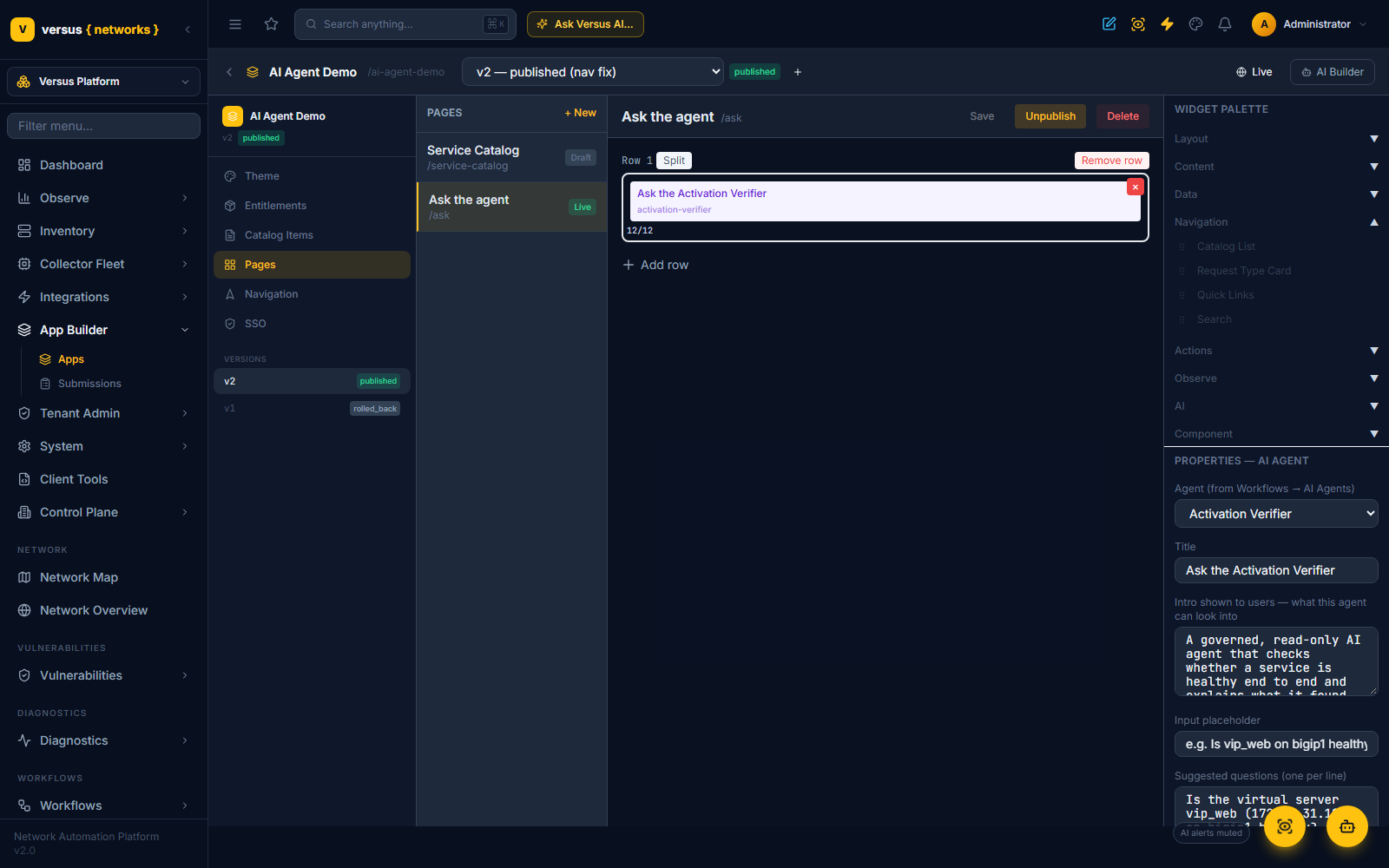
Pages built in the Page Designer can expose a registered AI agent to the app's users. In the widget palette, open the AI group and drag AI Agent onto a row, then set its properties:
- Agent — any enabled agent from Workflows → AI Agents (native, external, or the built-in AutoPilot).
- Title, intro, placeholder, button label — what users see.
- Suggested questions — one per line; shown as one-click chips.
- Devices the agent may probe — none, a fixed list you set (ids or names), or entitled: the user picks from the app version's device entitlements.
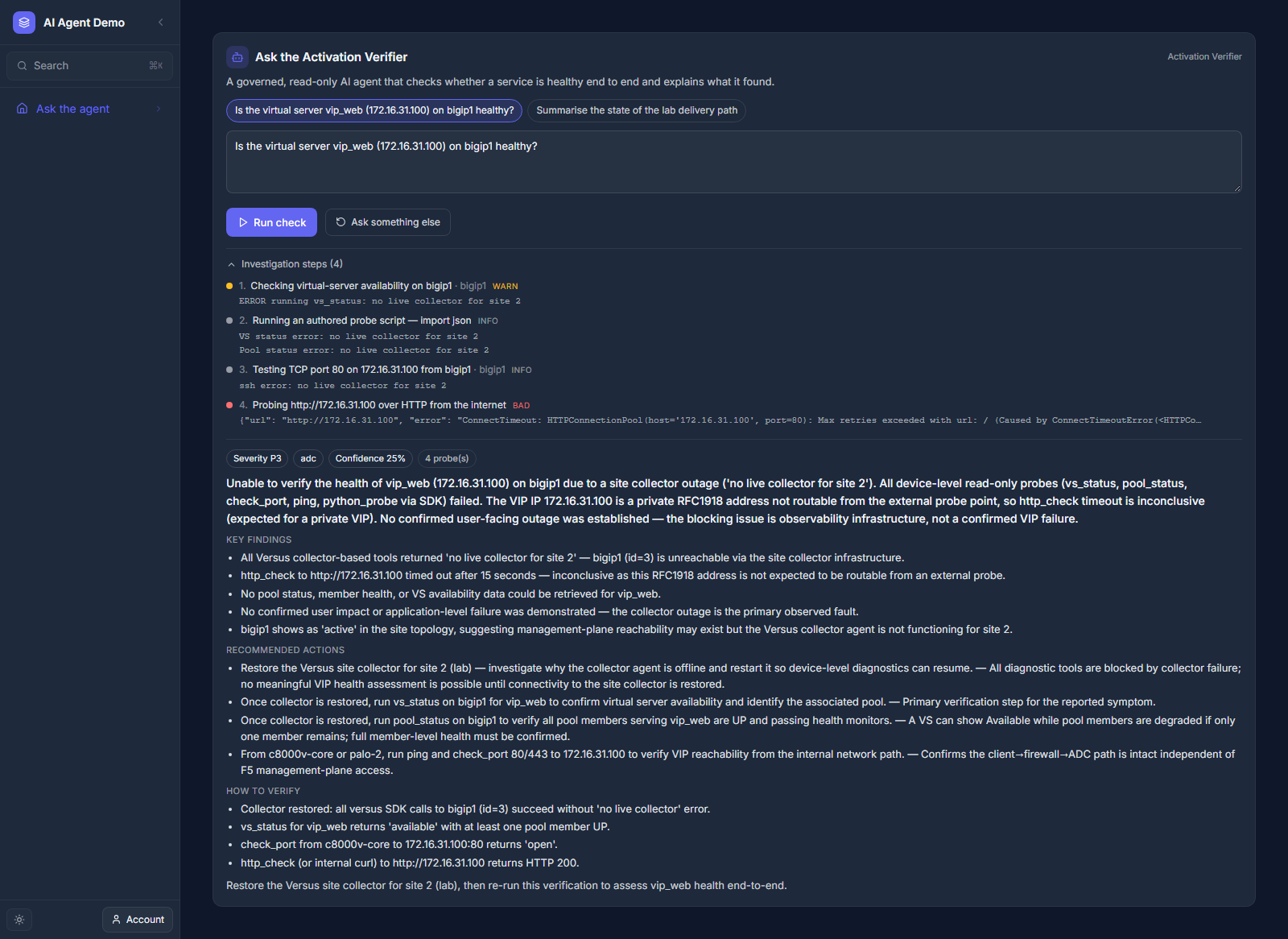
- Show the live investigation steps — the numbered probes and verdicts stream in as the agent works.
- Also post findings to Microsoft Teams — a channel name from Integrations → Microsoft Teams (optional).
In the published app the widget is an "ask the agent" panel. The agent is fixed by the page — users choose what to ask, never which agent or tools — runs are rate-limited per user and per app, and each run is an AnalysisSession (origin app_builder) under Diagnostics → Sessions. Publishing a version whose AI Agent widget points at a missing or disabled agent is refused with the reason.
Quick Reference
| Item | Detail |
|---|---|
| Where it lives | Versus Platform workspace → App Builder (not a top-level nav section) |
| Version states | draft, published, rolled_back — full history, not just two slots |
| Designer tabs | Theme, Entitlements, Catalog Items, Pages, Navigation, SSO |
| Navigation types | Left Rail (vertical) and/or Top Bar (horizontal) |
| Addable page types | Page (Designer), Dashboard, Observe Dashboard, Catalog Item Form, External Link, Document, Custom Page |
| Runtime URL format | https://<host>/apps/<app-slug> |
| Entitlements | Scope CA profiles, certificate profiles, CLM certificates, and devices per app |
| Theming | Branding, 6 color tokens, color mode, typography, custom CSS |
| Publish action | Promotes current draft to live; previous published version becomes rolled_back |