A10 Thunder → VMware AVI
Migration Guide
Four-step wizard for migrating virtual services from an A10 Networks Thunder ADC to VMware NSX ALB (AVI), using the Legacy ADC to AVI migration plan type.
Plan Setup
Configure VSes
Review Configs
Workflow Steps
Prerequisites
- A10 Thunder device added to Versus Device Inventory with ACOS API credentials — a live A10 unit is required for the wizard to discover virtual services.
- VMware AVI Controller configured in the device's AVI Migration Settings.
- (Optional) NSX-T Manager for Tier-1 VIP subnet validation.
- (Optional) Infoblox / EfficientIP for automated VIP allocation.
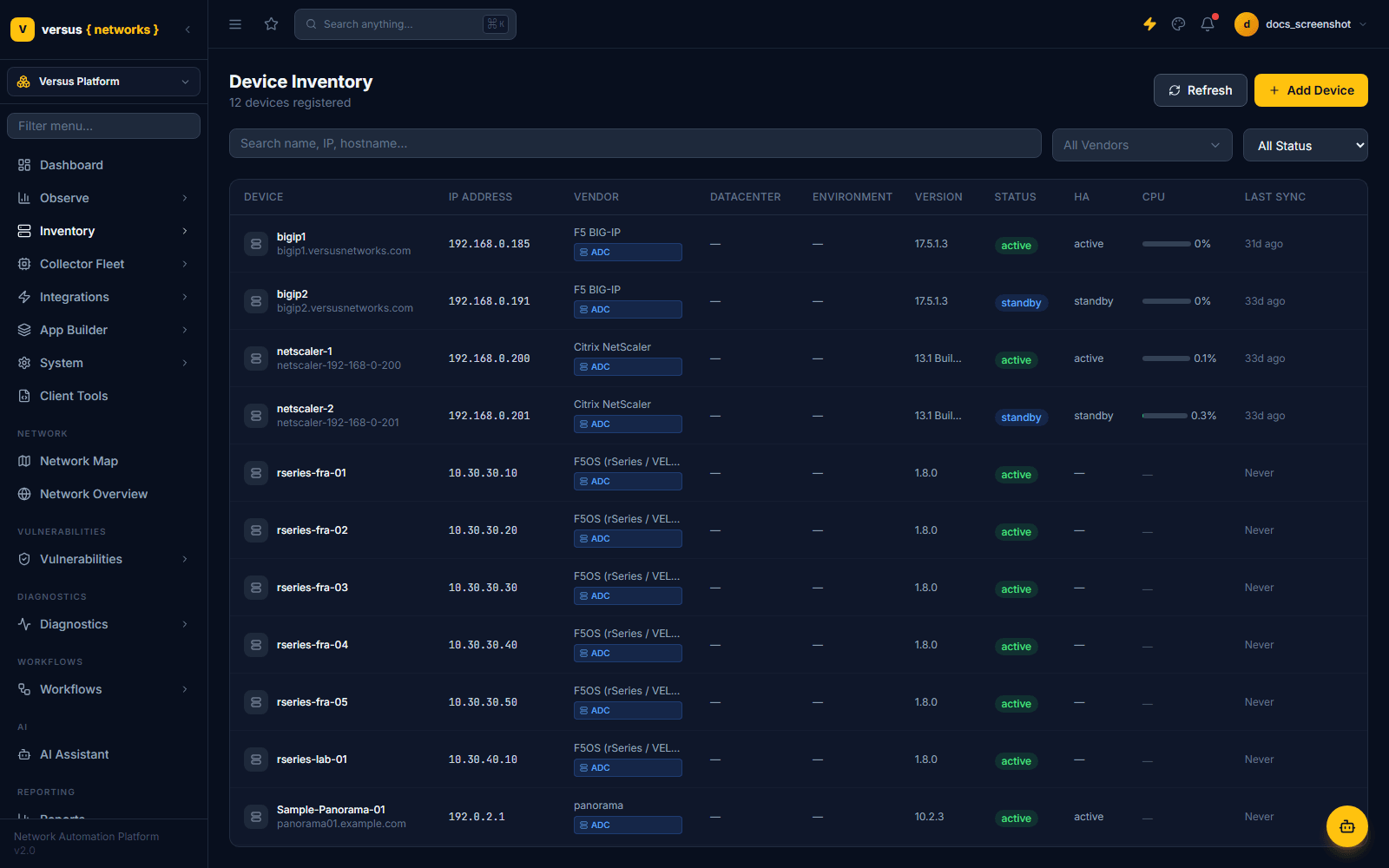
1. Device Inventory
Navigate to Inventory → Device Inventory to confirm your A10 and AVI devices are present.
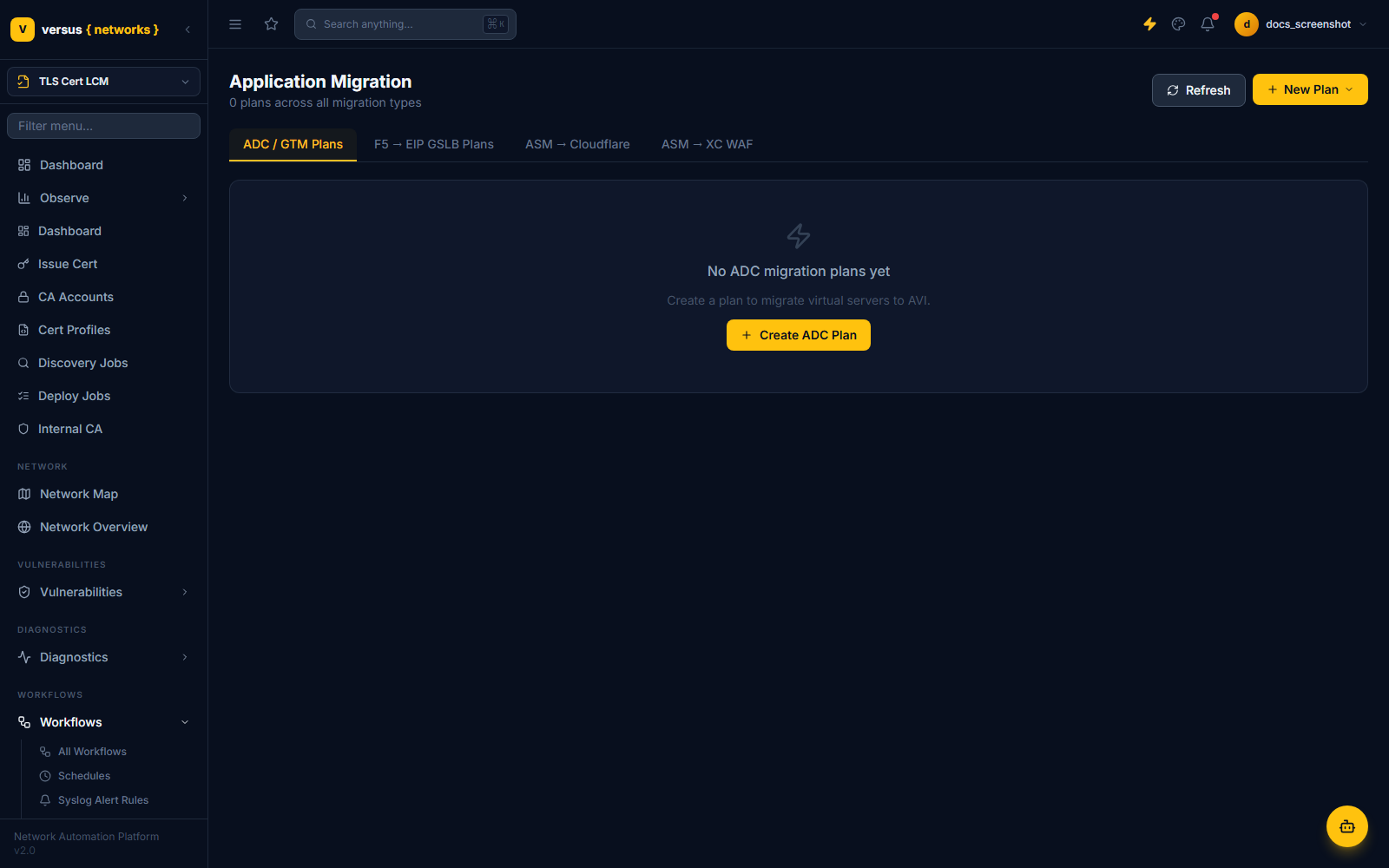
2. Migration Plans List
Navigate to Workflows → Migrations → Application Migration to see all plans, grouped by migration type in tabs (ADC / GTM Plans, F5 → EIP GSLB Plans, ASM → Cloudflare, ASM → XC WAF). A10-to-AVI plans live under ADC / GTM Plans. Click Create ADC Plan to start the wizard.
Choose Legacy ADC to AVI as the migration type, name the plan, select the source A10 device, and choose an optional naming convention. Select the virtual servers to include.
a10 or kemp — despite the migration type's subtitle also mentioning F5 LTM, NetScaler, and Alteon, those vendors are not yet wired up as selectable sources.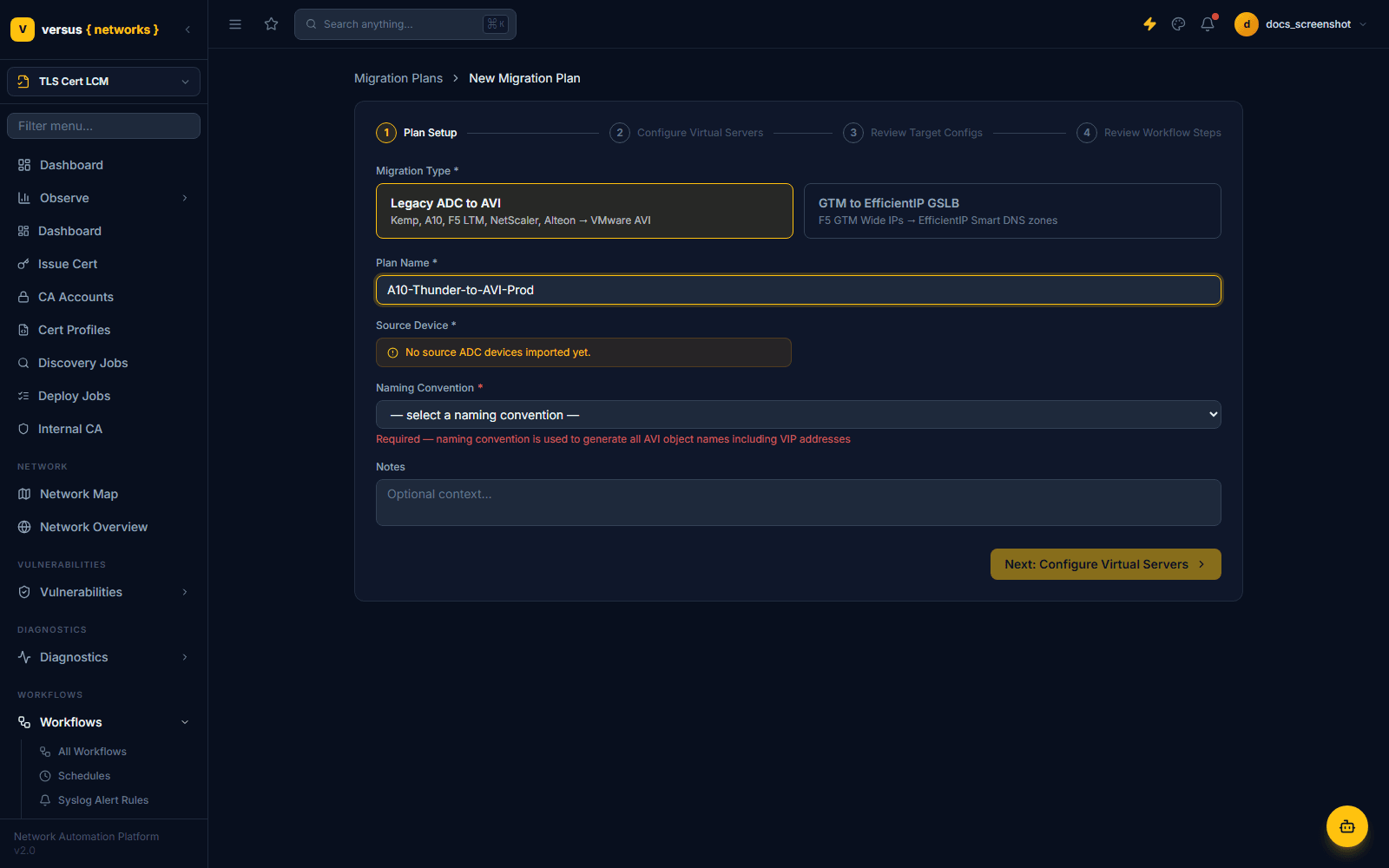
Set the Target Name (AVI VS object name) and Target VIP for each virtual server. Names are auto-generated if a naming convention was selected. The counter shows how many items are fully configured.
- If an IPAM device is linked, use the per-row allocate button or Allocate all VIPs to reserve IPs from Infoblox / EfficientIP.
- Invalid IPv4 addresses are flagged in red and block progression.
The wizard fetches A10 configuration live and generates the projected AVI object set for each VS. Summary tiles show total VS count, configured count, missing config, and cert/key status.
Expand any row to review the full A10 → AVI mapping: pool members, health monitor translation, SSL profile cipher mapping, and migration notes. Target names are editable inline.
A per-VS migration checklist is generated from the plan. Each card lists the AVI objects to create and post-migration validation tasks. Click Done — Return to Plans to save the plan as ready.
Quick Reference
| Step | Action | Auto | Status after |
|---|---|---|---|
| 1 — Plan Setup | Select source device, VSes, naming convention | AVI / NSX-T settings read from device; VS list fetched from A10 API | draft |
| 2 — Configure VS | Set target name and VIP per VS | Names generated from convention; IPAM VIP allocation if linked | draft |
| 3 — Review Configs | Review A10→AVI mapping, adjust names | A10 config fetched live; AVI object existence checked | draft |
| 4 — Workflow Steps | Review per-VS checklist; click Done | Plan saved as Ready | ready |